
Vidstead is a video hosting platform built for businesses. It gives you fast, ad-free video with lead capture, calls to action and viewer analytics. With EmbedPress, you can embed Vidstead videos on your WordPress website by simply pasting the video link. No coding, no manual iframe setup. Your visitors watch the video right on your page, while you keep collecting leads and insights from Vidstead.
Note: Make sure you have EmbedPress installed and activated on your WordPress website. You also need a Vidstead account to host your videos.
Step 1: Create Your Vidstead Account #
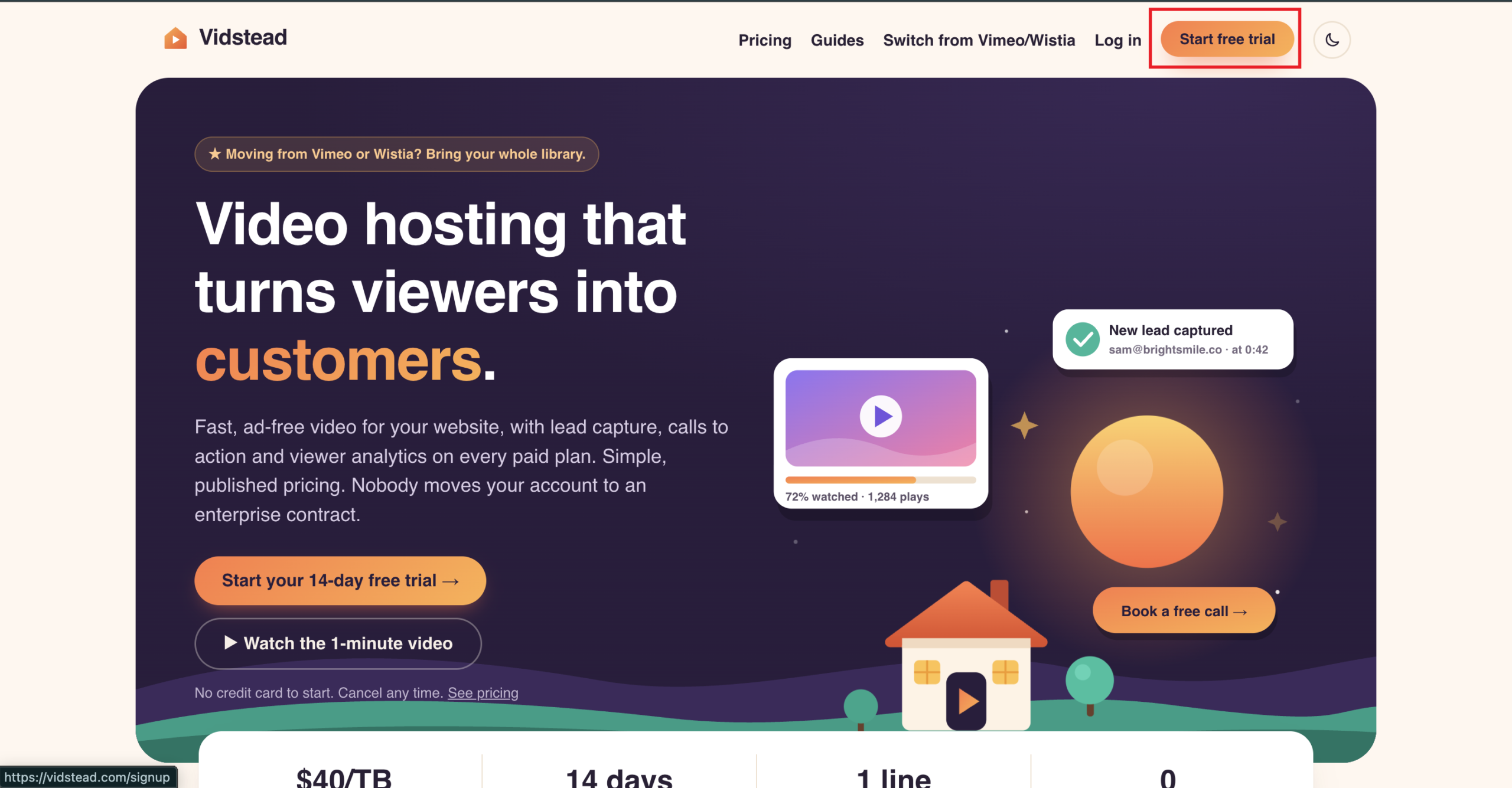
Go to the Vidstead website and click the ‘Start free trial’ button to sign up. Vidstead offers a 14-day free trial, but to keep your videos playing without interruption, you can upgrade to a PRO plan right away from the ‘Pricing’ page.
Step 2: Upload Your Video to Vidstead #
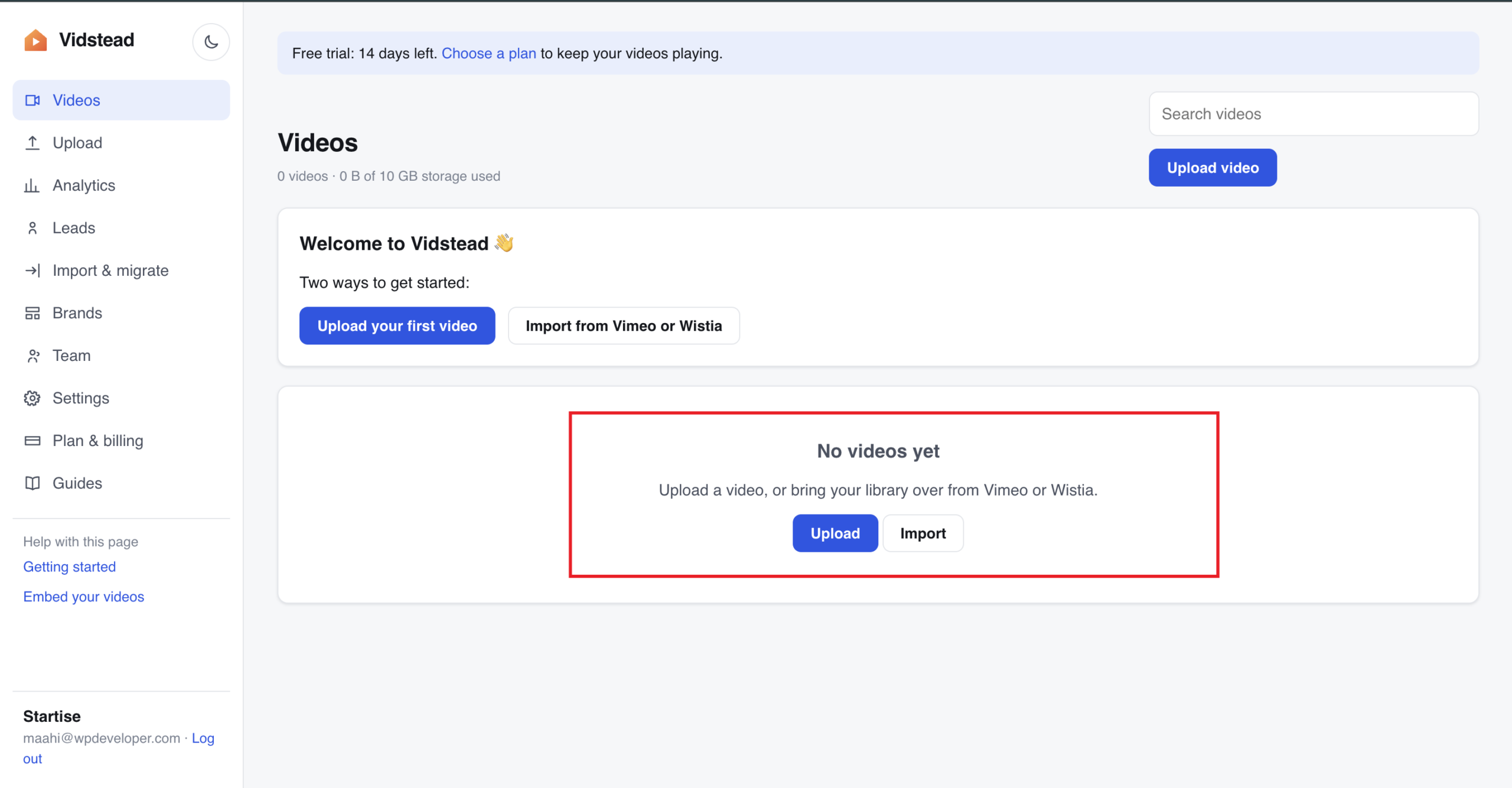
Once you log in, you land on the ‘Videos’ page of your Vidstead dashboard. Click the ‘Upload’ button to add a new video from your computer. If your videos are already hosted on Vimeo or Wistia, click ‘Import’ to bring your whole library over instead.
Step 3: Publish the Video Page Address #
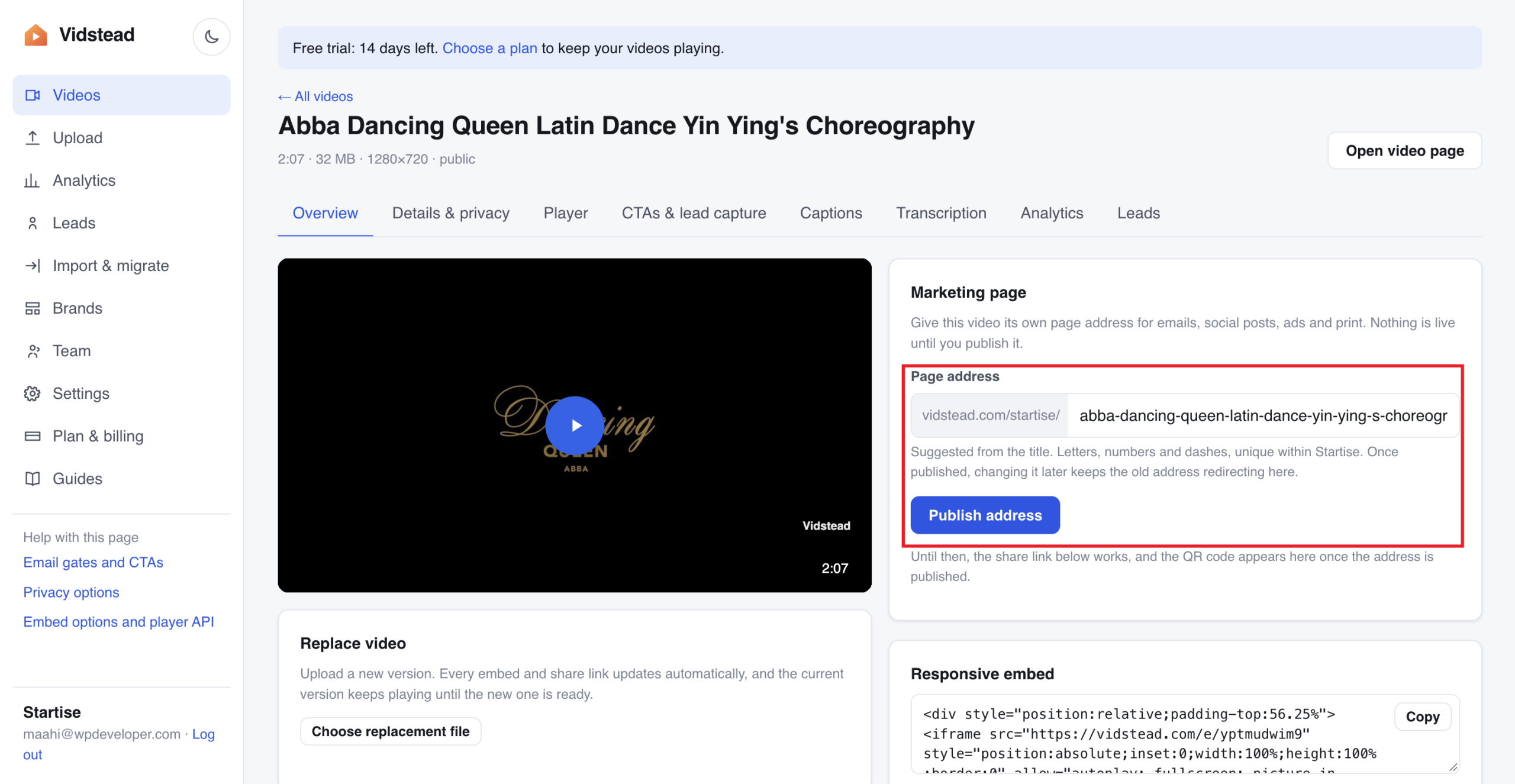
After the upload is complete, open the video to see its ‘Overview’ tab. In the ‘Marketing page’ section, Vidstead suggests a ‘Page address’ based on your video title. You can keep it or edit it using letters, numbers and dashes.
Then, click the ‘Publish address’ button. This gives your video its own public page URL, which you will use to embed the video with EmbedPress. If you change the address later, the old one keeps redirecting to the new page, so your embeds will not break.
Step 4: Copy the Vidstead Video URL #
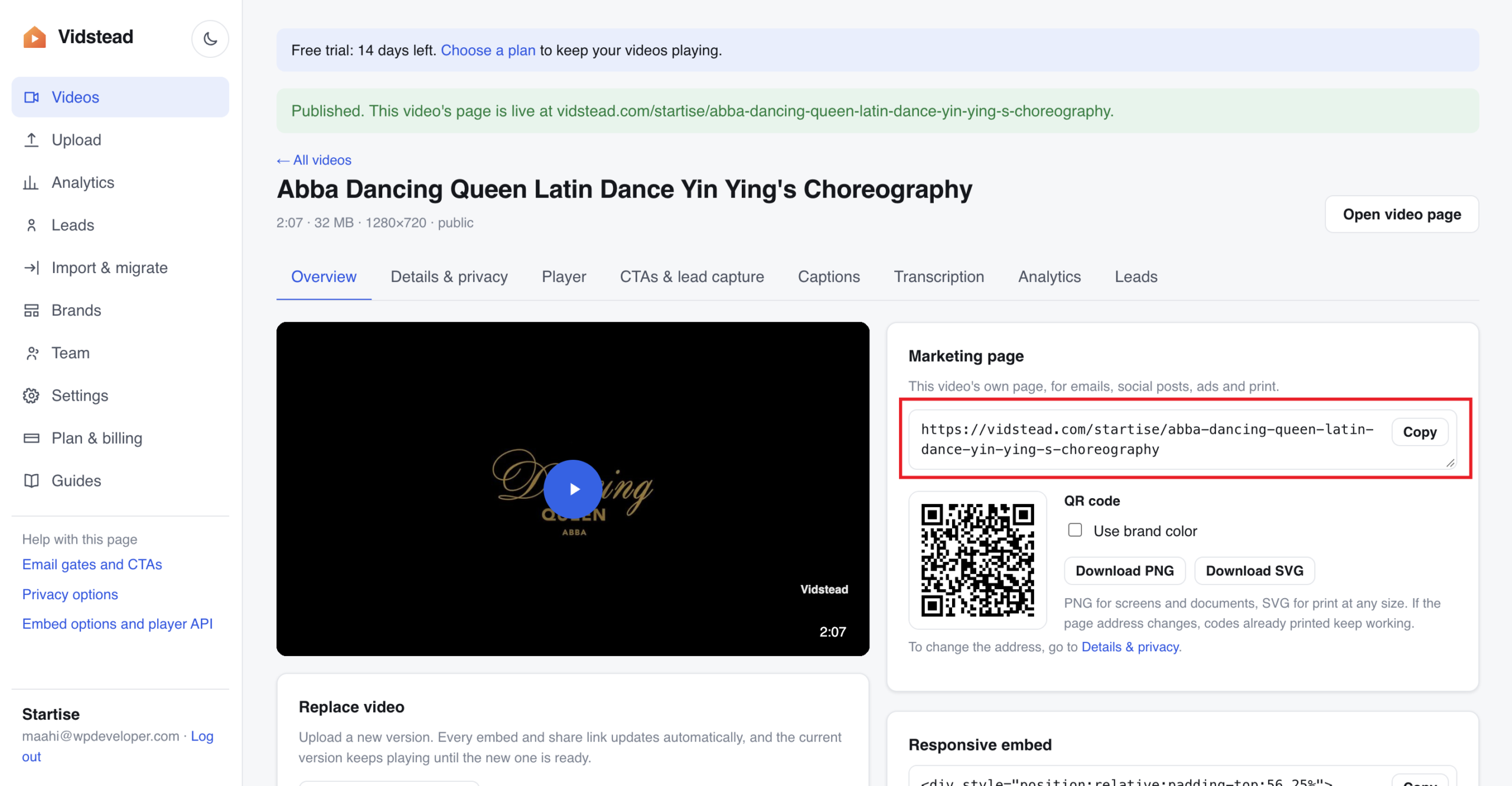
Once published, you will see a confirmation message, and the full video page URL appears in the ‘Marketing page’ section. Click the ‘Copy’ button to copy the URL to your clipboard.
Step 5: Embed Vidstead Video with EmbedPress #
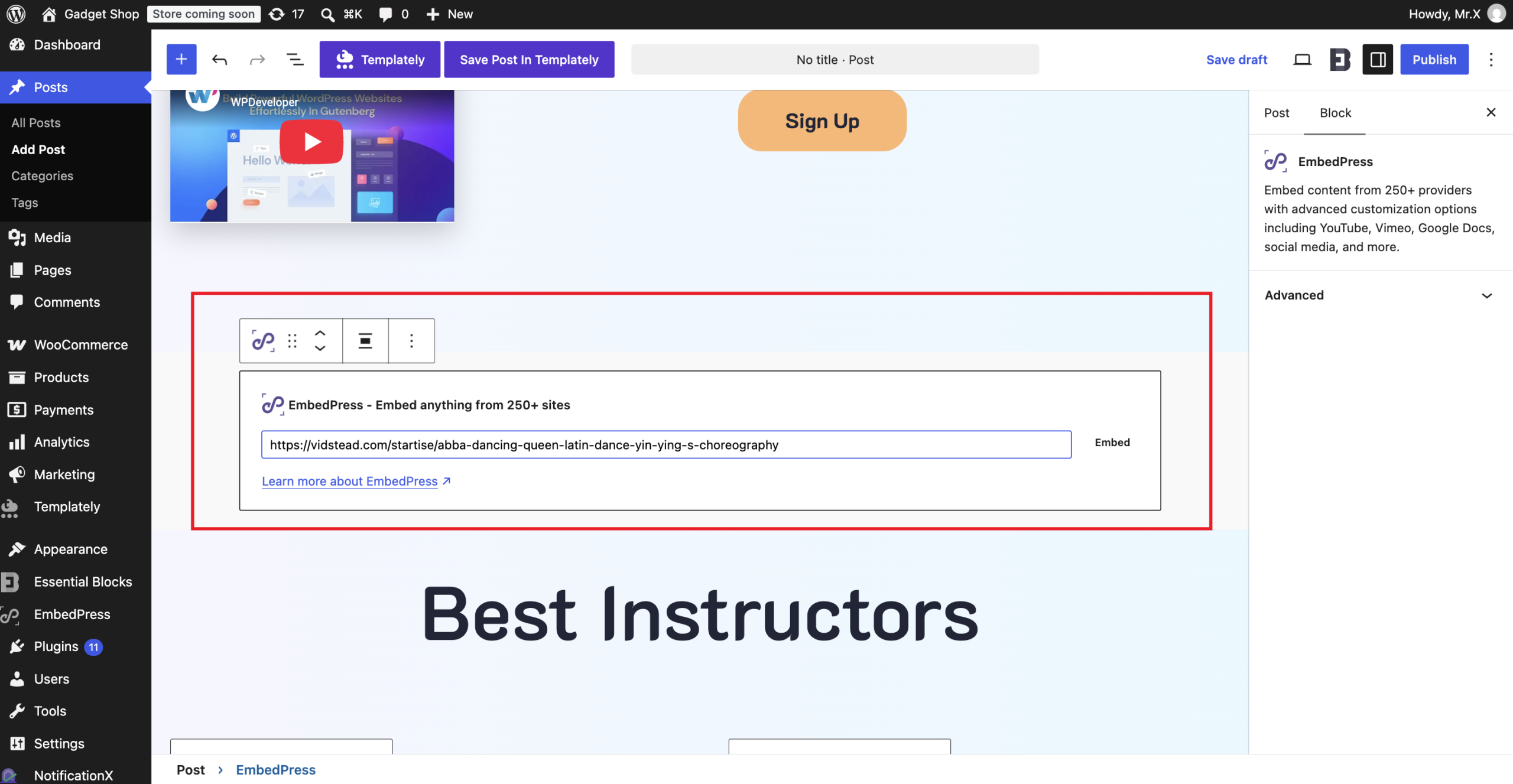
Now, open the page or post where you want to display the video in the Gutenberg editor. Click the ‘+’ icon, search for the ‘EmbedPress’ block and add it to your page. Paste the copied Vidstead video URL into the field and click the ‘Embed’ button.
Step 6: Customize the Embedded Video #
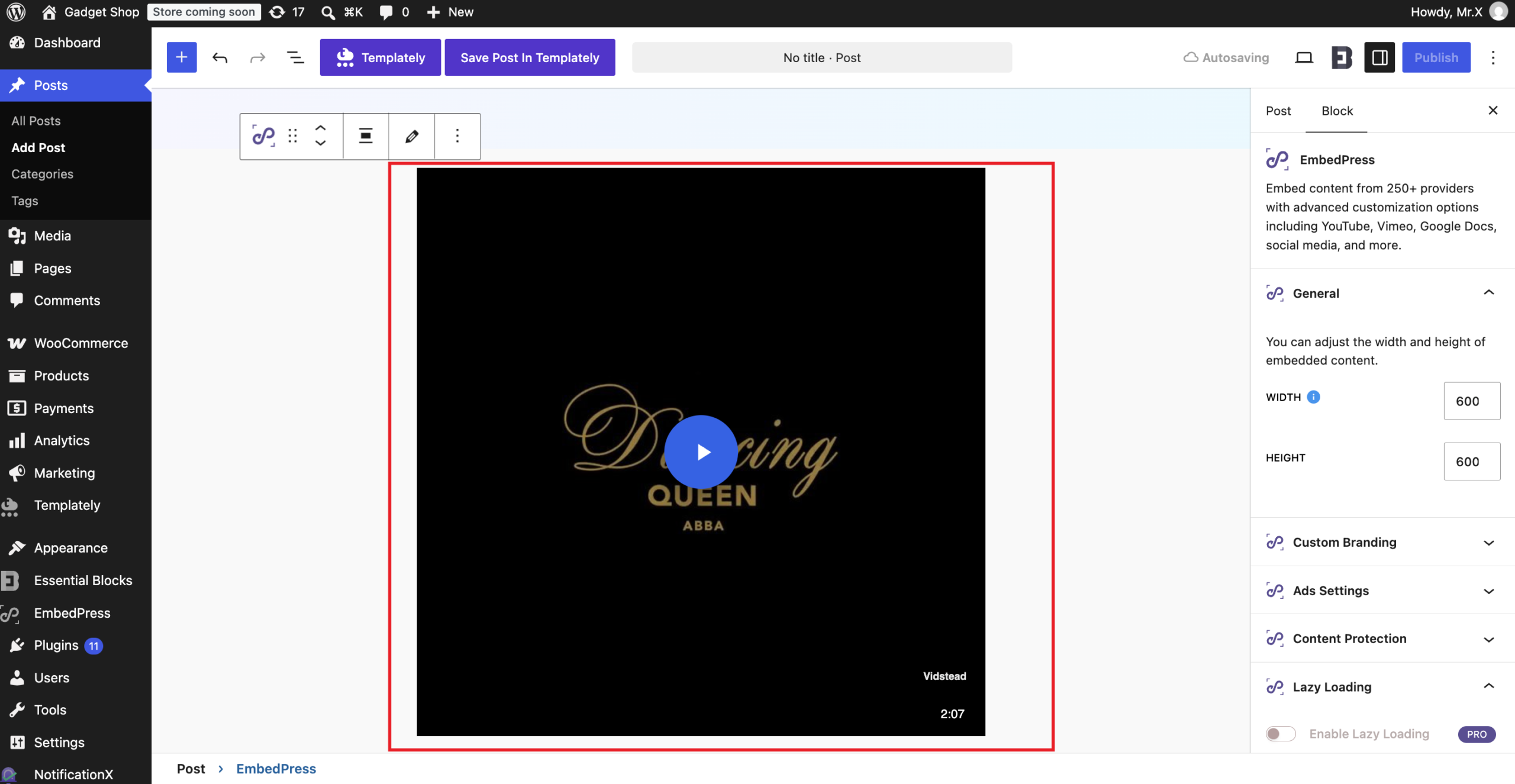
Your Vidstead video now appears inside the editor. From the ‘Block’ settings panel on the right, you can fine-tune how it looks and behaves:
- General: Adjust the ‘Width’ and ‘Height’ of the embedded video.
- Custom Branding: Add your own logo or branding to the video.
- Ads Settings: Display custom ads with the embedded content.
- Content Protection: Restrict who can view the video.
- Lazy Loading: Load the video only when visitors scroll to it, so your page loads faster. This is a PRO feature.
Once you are happy with the settings, click ‘Publish’ or ‘Update’ to save your page.
Final Outcome #
By following these steps, you can embed your Vidstead videos on your WordPress website and let visitors watch them without leaving your page.

This is how, with the help of EmbedPress, you can easily embed Vidstead videos in WordPress.
Getting Stuck? Feel free to contact our Dedicated Support Team.