
Embedding your Spotlightr Videos into WordPress is quite simple. Whether you are using the Gutenberg editor or the Elementor page builder, EmbedPress makes it easy to display your Spotlightr videos directly on your WordPress website.
Learn how to embed Spotlightr Videos on Elementor, Gutenberg or other editors in just a few clicks and enhance your WordPress content with engaging videos.
How To Collect Spotlightr Video Embed Links? #
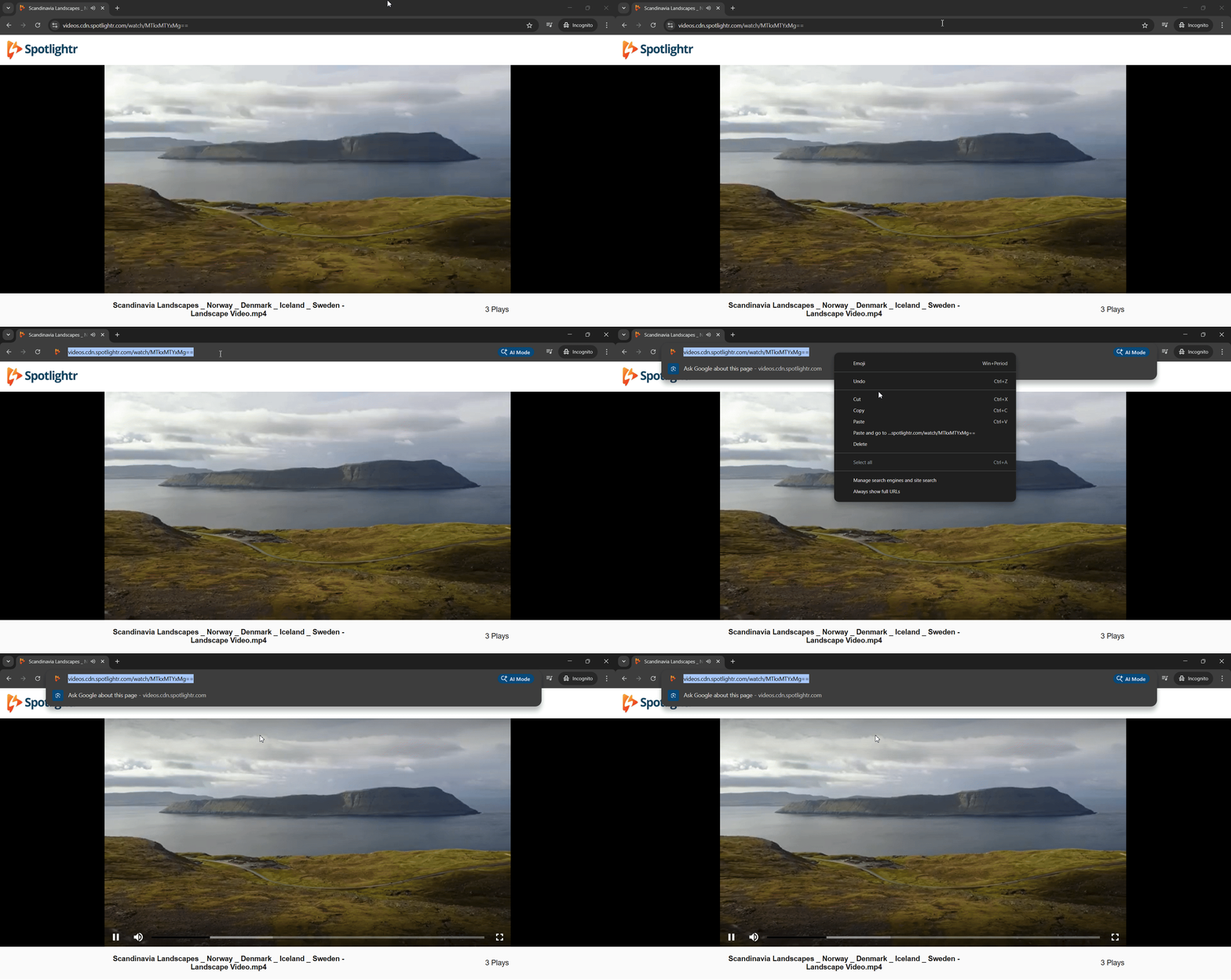
Before you start embedding Spotlightr videos in WordPress, you need to collect your video links. Simply navigate to the video you want to embed and copy the link from the URL bar, as shown below.
How To Embed Spotlightr Videos Using Gutenberg? #
With EmbedPress, you can embed Spotlightr videos using the Gutenberg editor in just a few clicks. To embed Spotlightr Videos in Gutenberg, follow these steps:
Step 1: Insert The EmbedPress Block In Gutenberg #
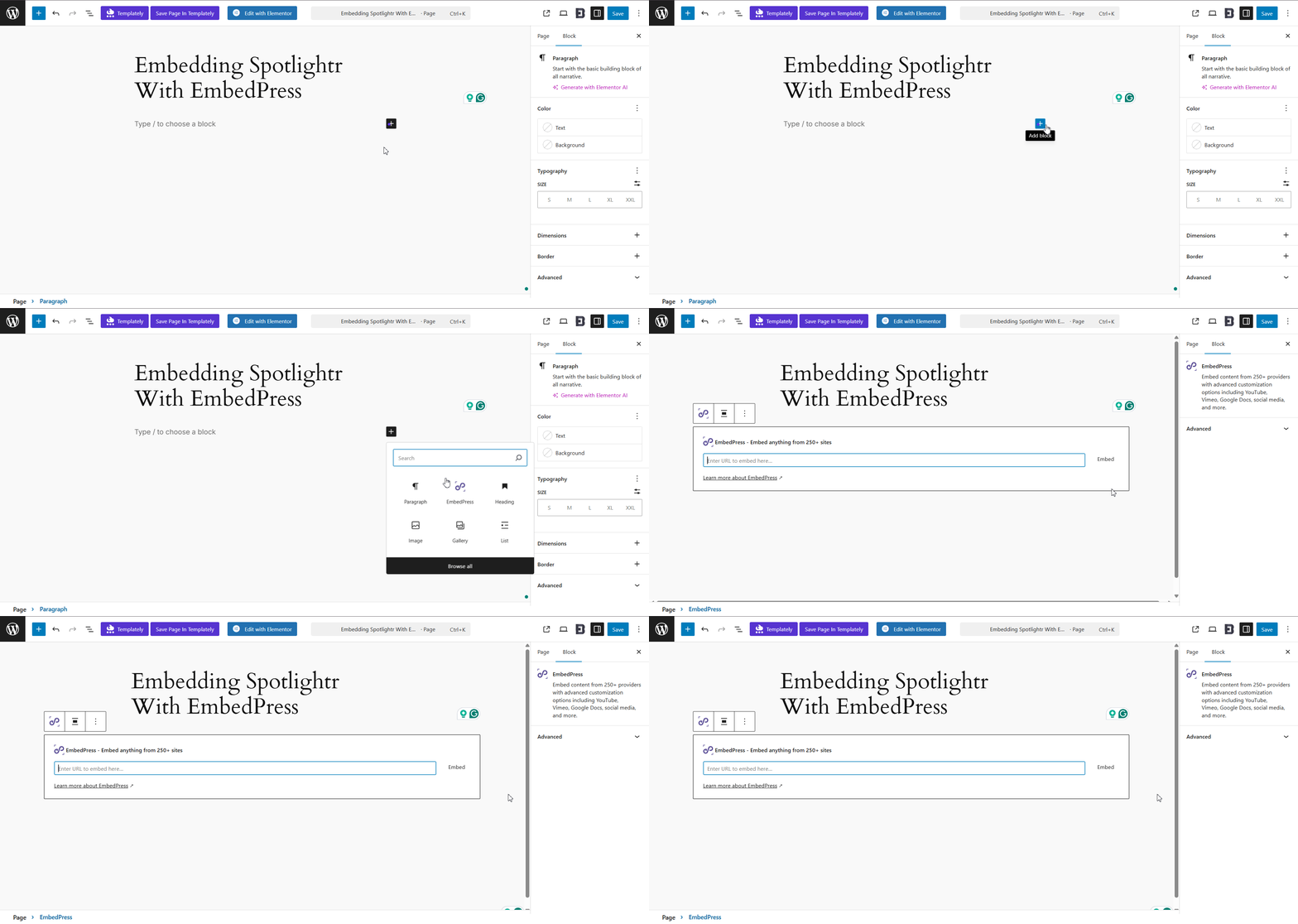
Open your WordPress post or page where you want to embed your Videfit videos. Either drag and drop the EmbedPress block or open it via the ‘+’ icon and search to insert.
Step 2: Embed The Spotlightr Video Link In The Block Editor #
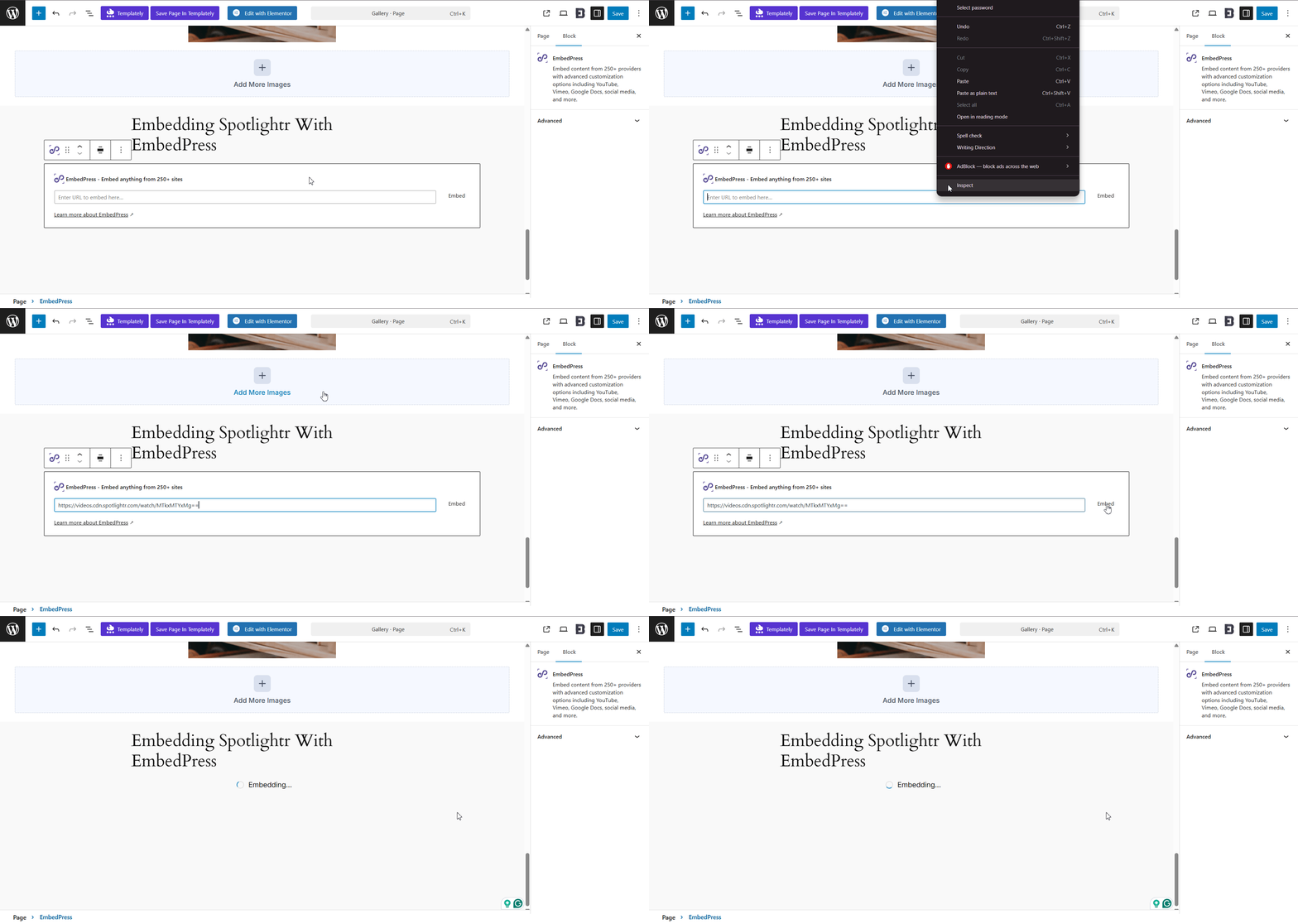
In this step, you will need the video link you collected from Spotlightr at the very beginning. Paste it in the EmbedPress block and click ‘Embed.’
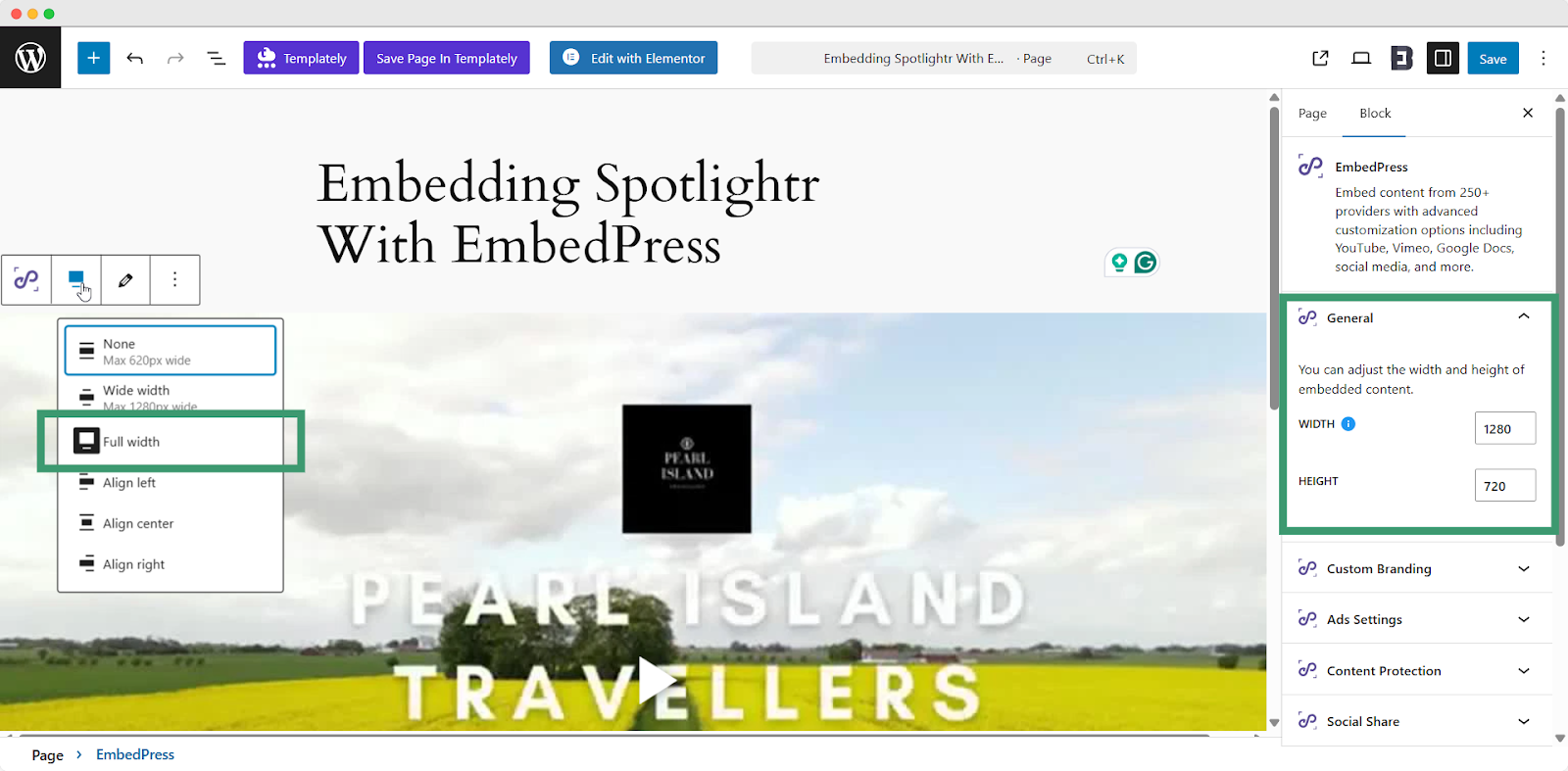
If you need to, adjust your video’s ratio and display, aligning it to your preferences. We recommend using 1280*720 (Width x Height) and Full Width. Refer to the image below.
Final Outcome #
Finally, click the Publish/Save button and view the page to see the content you embedded on your site.
How To Embed Spotlightr Videos Using Elementor? #
Just like with Gutenberg, with EmbedPress, you can also embed Spotlightr videos using the Elementor editor in just a few clicks. To embed Spotlightr Videos in Elementor, follow these steps:
Step 1: Insert The EmbedPress Block In Elementor #
So, you have already collected your Spotlightr video link. Open your WordPress post or page where you want to embed your Spotlightr videos. Either drag and drop the EmbedPress block or open it via the ‘+’ icon and search to insert.
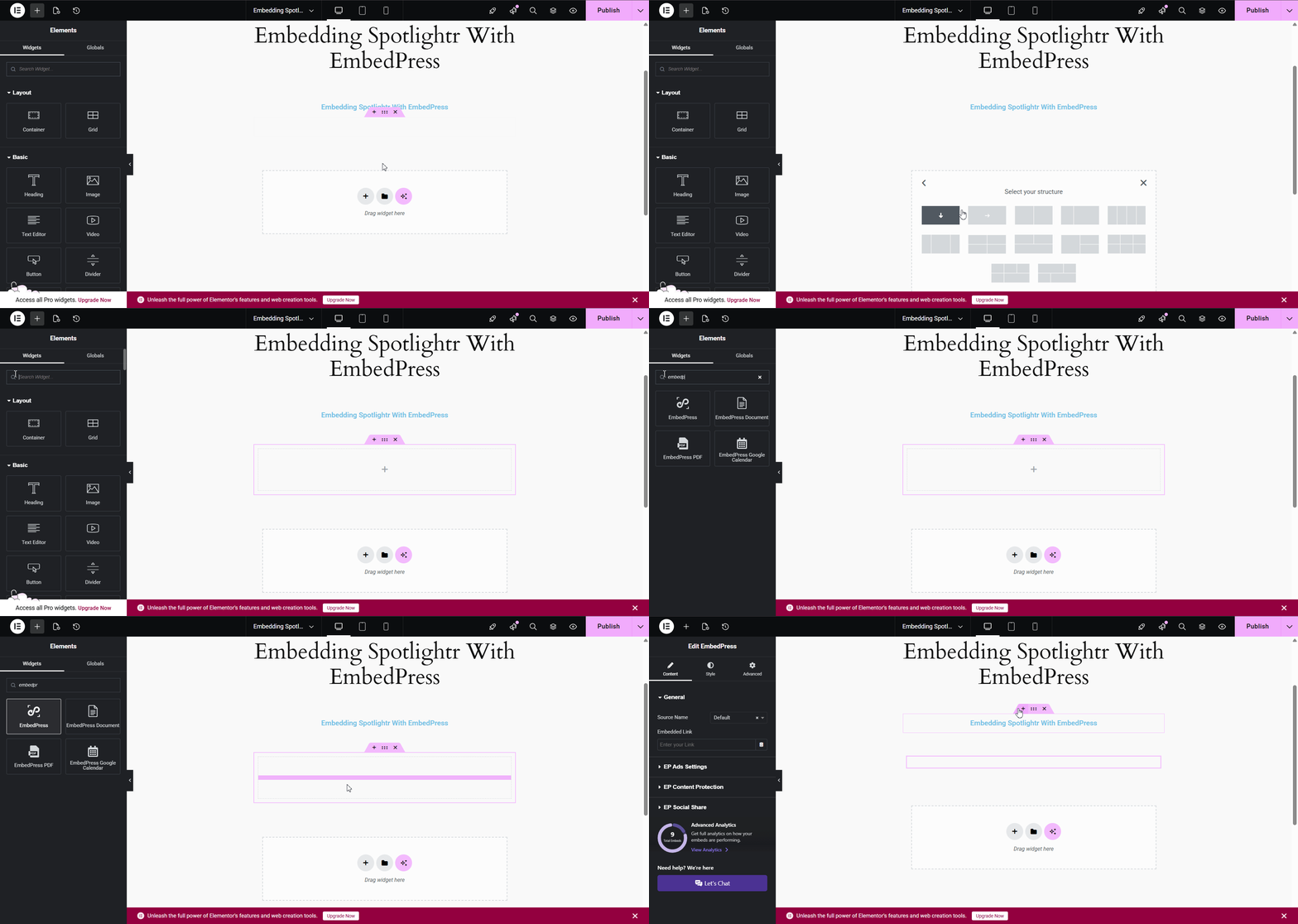
Step 2: Embed The Spotlightr Link In The EmbedPress Block #
In this step, you will need the video link you collected from Spotlightr at the very beginning. Paste it in the EmbedPress block and click “Embed.”
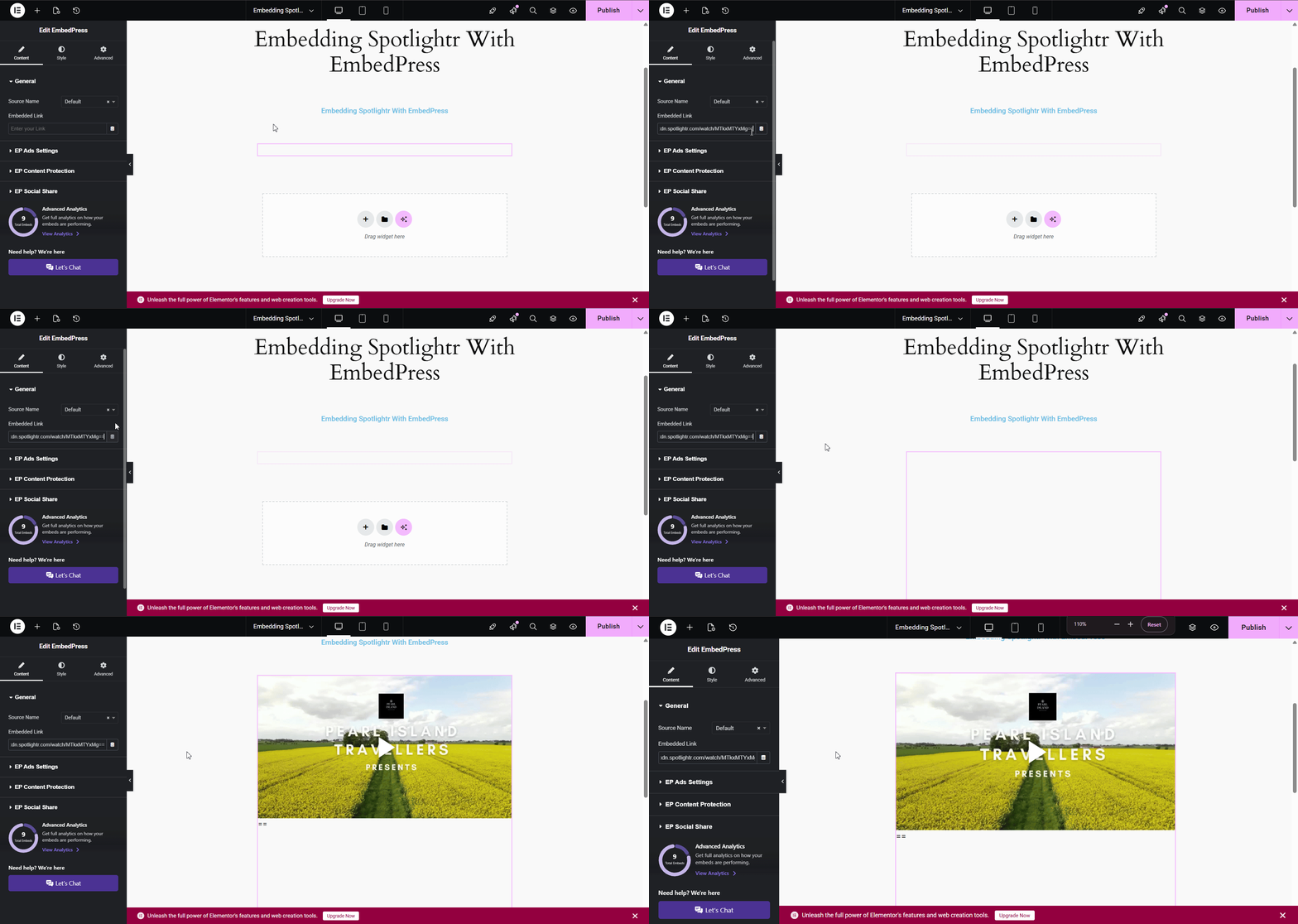
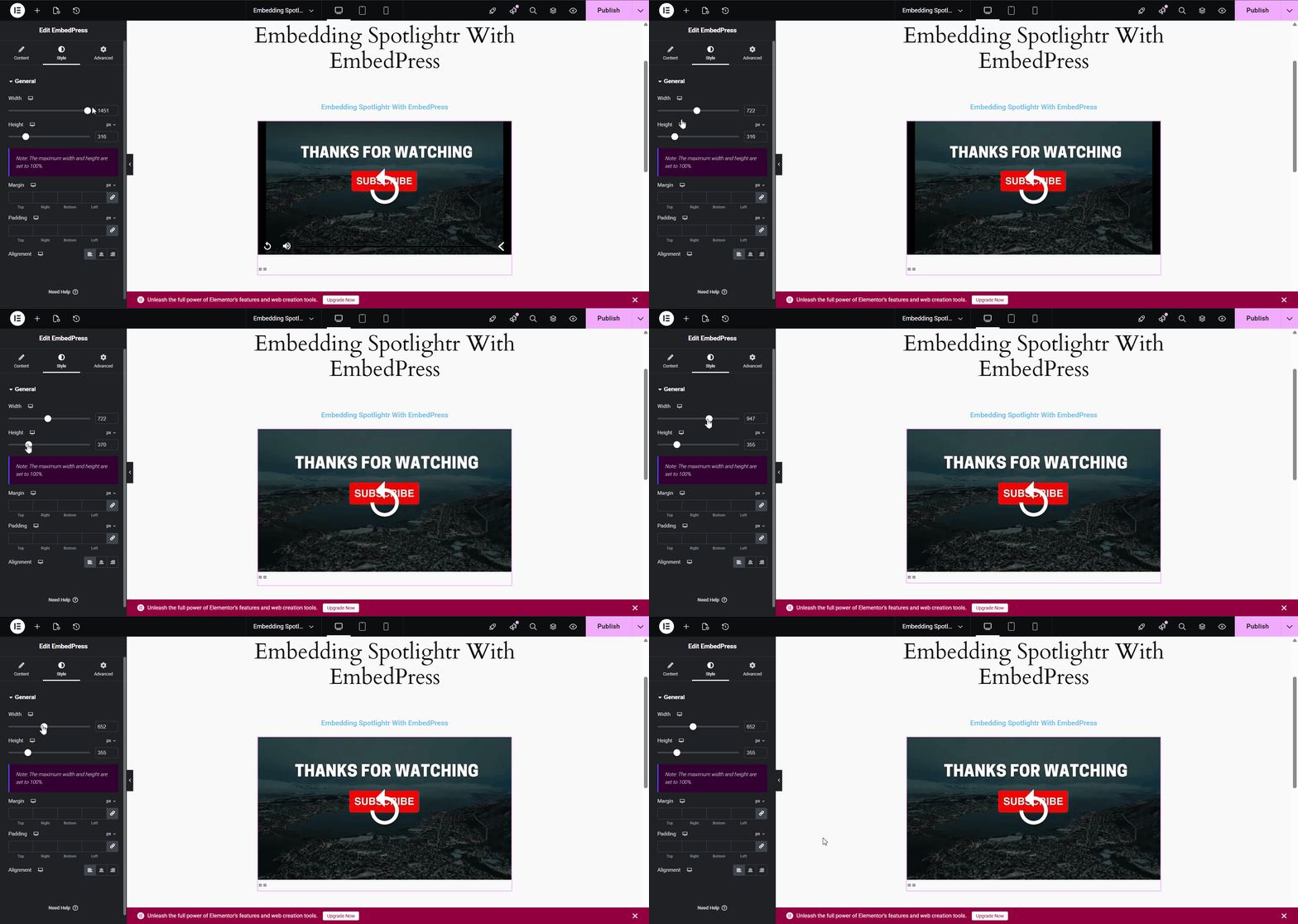
Step 3: Customize The Aspect Of Your Embedded Spotlightr Video #
This step is optional, but recommended if you want to customize the aspect of your video display. Upon selecting the embedded video, go to the “Style” tab. Then, simply adjust your video’s size using the slider.
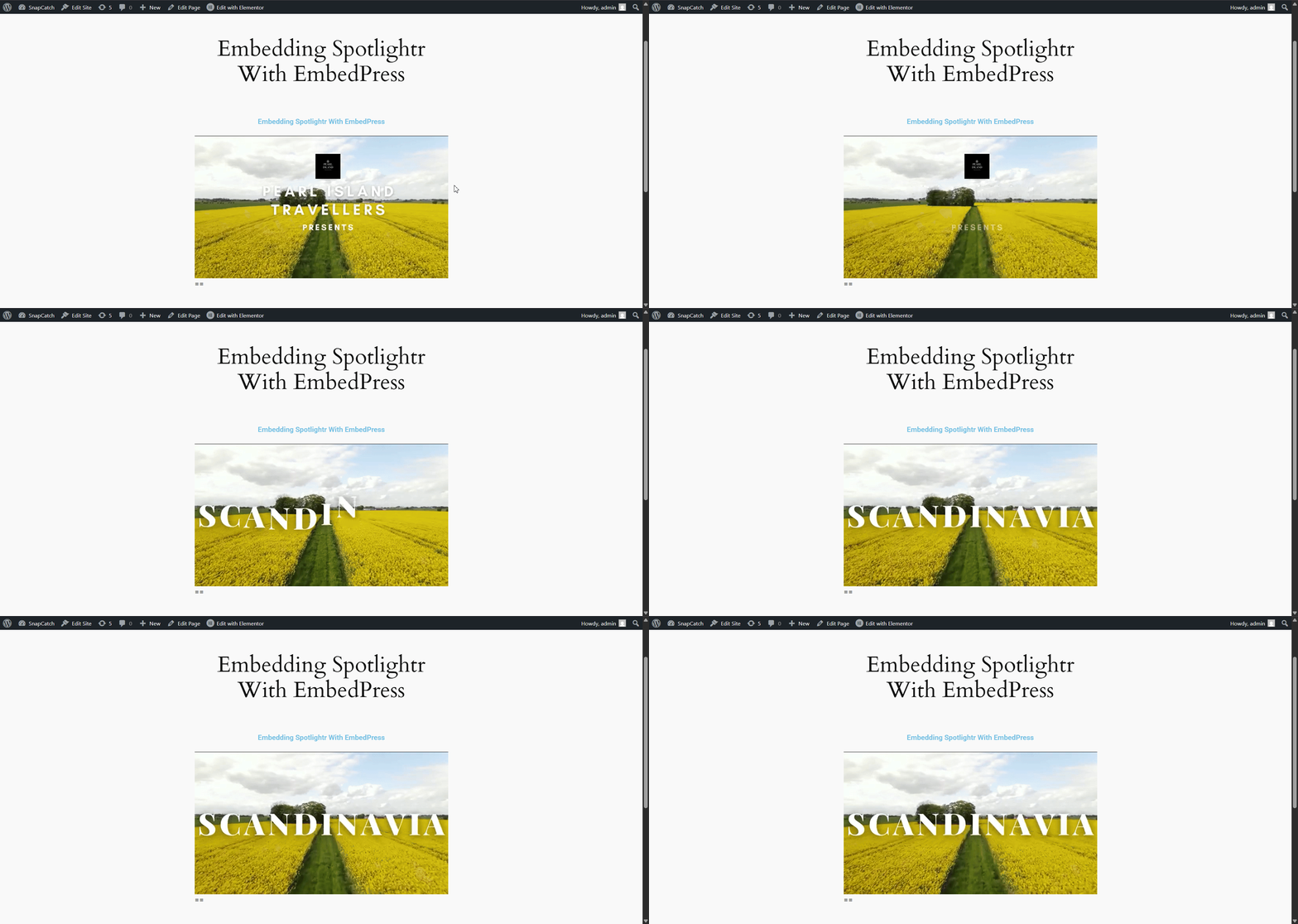
Final Outcome #
Finally, click the Publish/Save button and view the page to see the content you embedded on your site.
How to Embed Spotlightr Videos Using the Classic Editor Or Other Editors? #
By using EmbedPress’s Shortcode generator, you can embed content in the Classic Editor and all other editors (e.g., Beaver Builder, Divi, etc.) as well. To embed Spotlightr Videos in the Classic Editor or other page builders, follow these steps:
Step 1: Generate EmbedPress Shortcode #
In the Shortcode generator, paste the Spotlightr link you collected before. Click “Generate,” then copy the code generated.
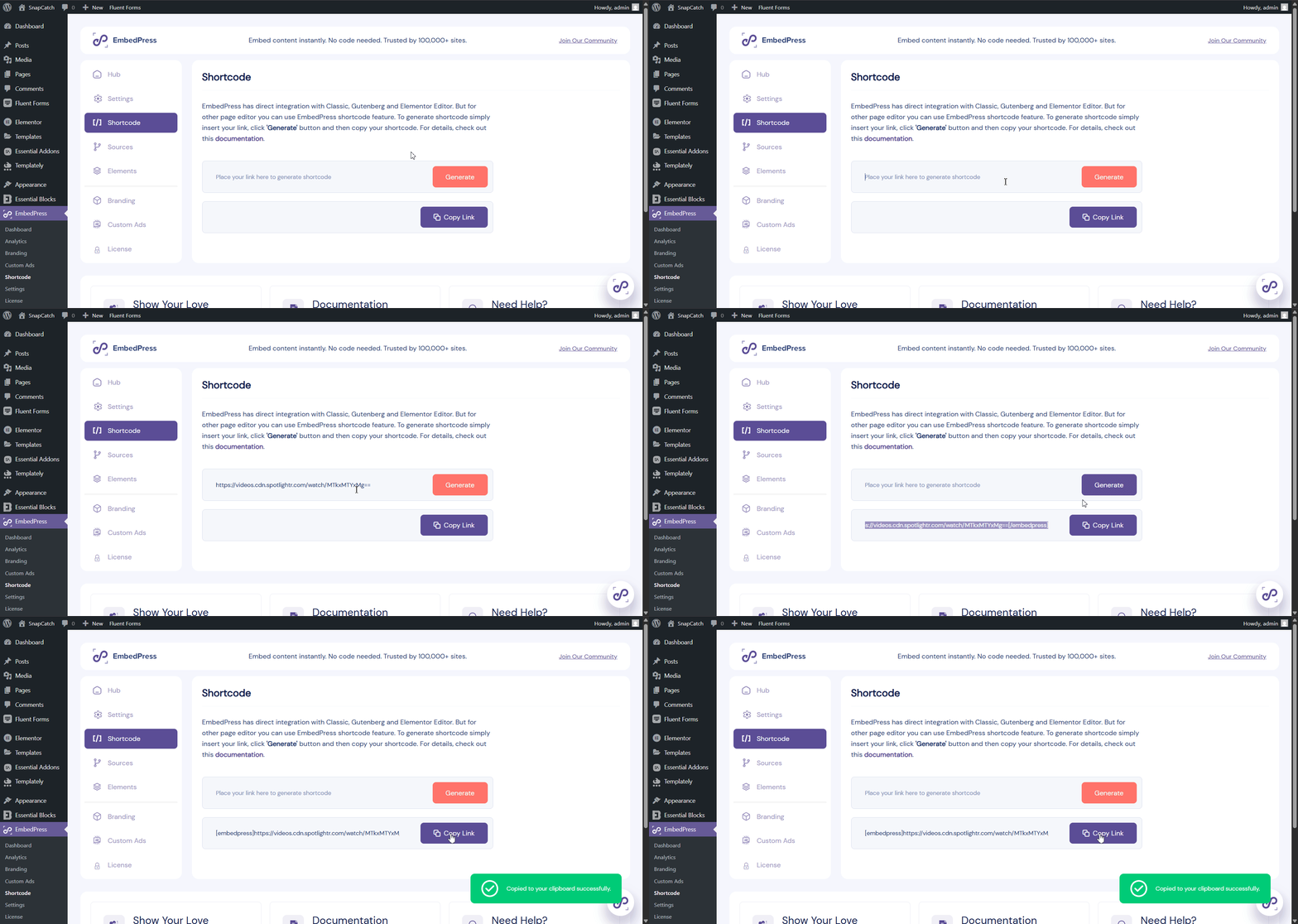
Step 2: Embed Content Using Shortcodes on WordPress Editors #
Open your preferred page/post builder or editor and paste the EmbedPress-created Shortcode there. We are choosing the Classic Editor, but the same process applies to all other WordPress editors.
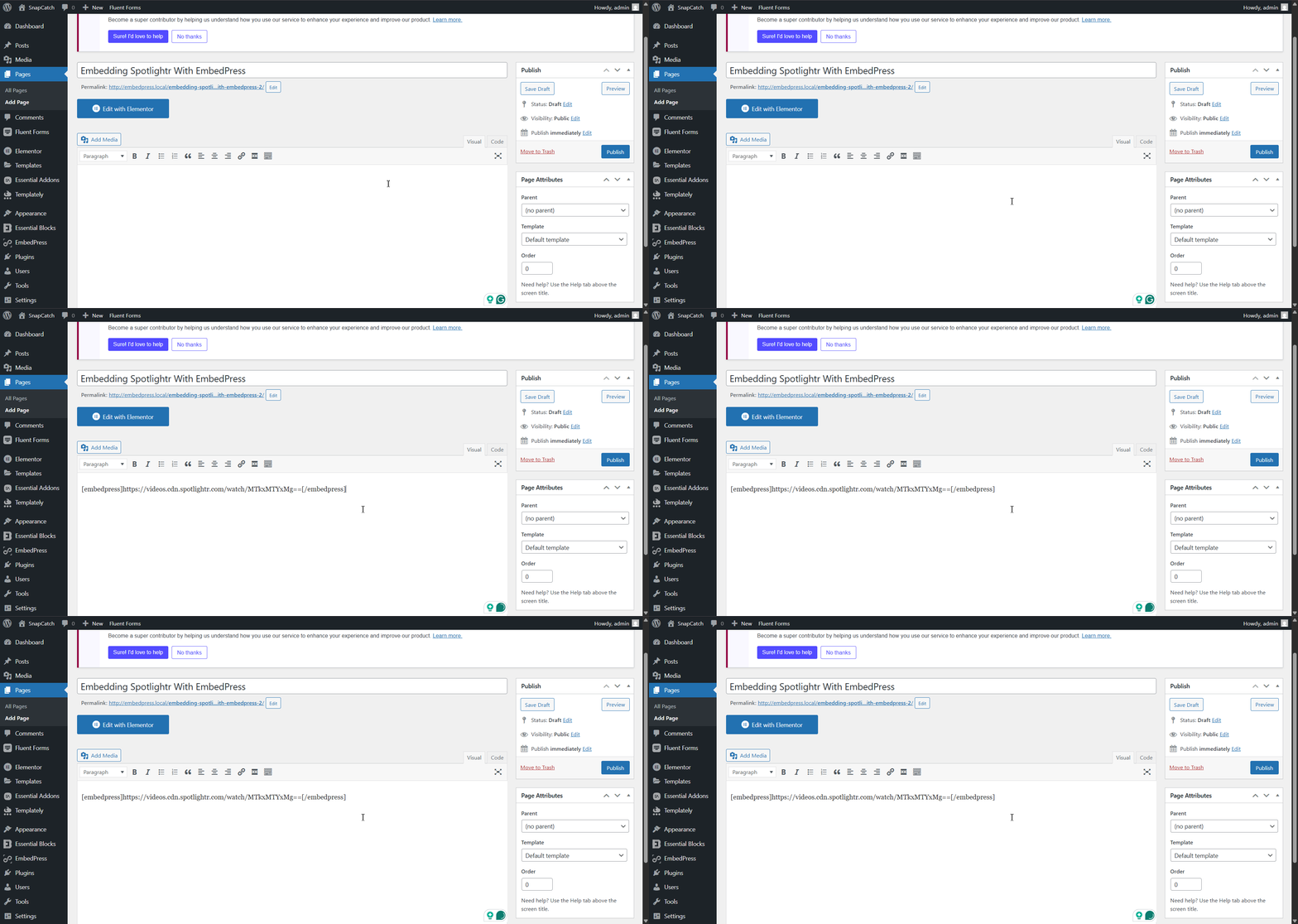
Unlike with Gutenberg and Elementor, you cannot visually style your embeds, but there are some workarounds. To learn more, visit this documentation.
Final Outcome #
Finally, click the Publish/Save button and view the page to see the content you embedded on your site.
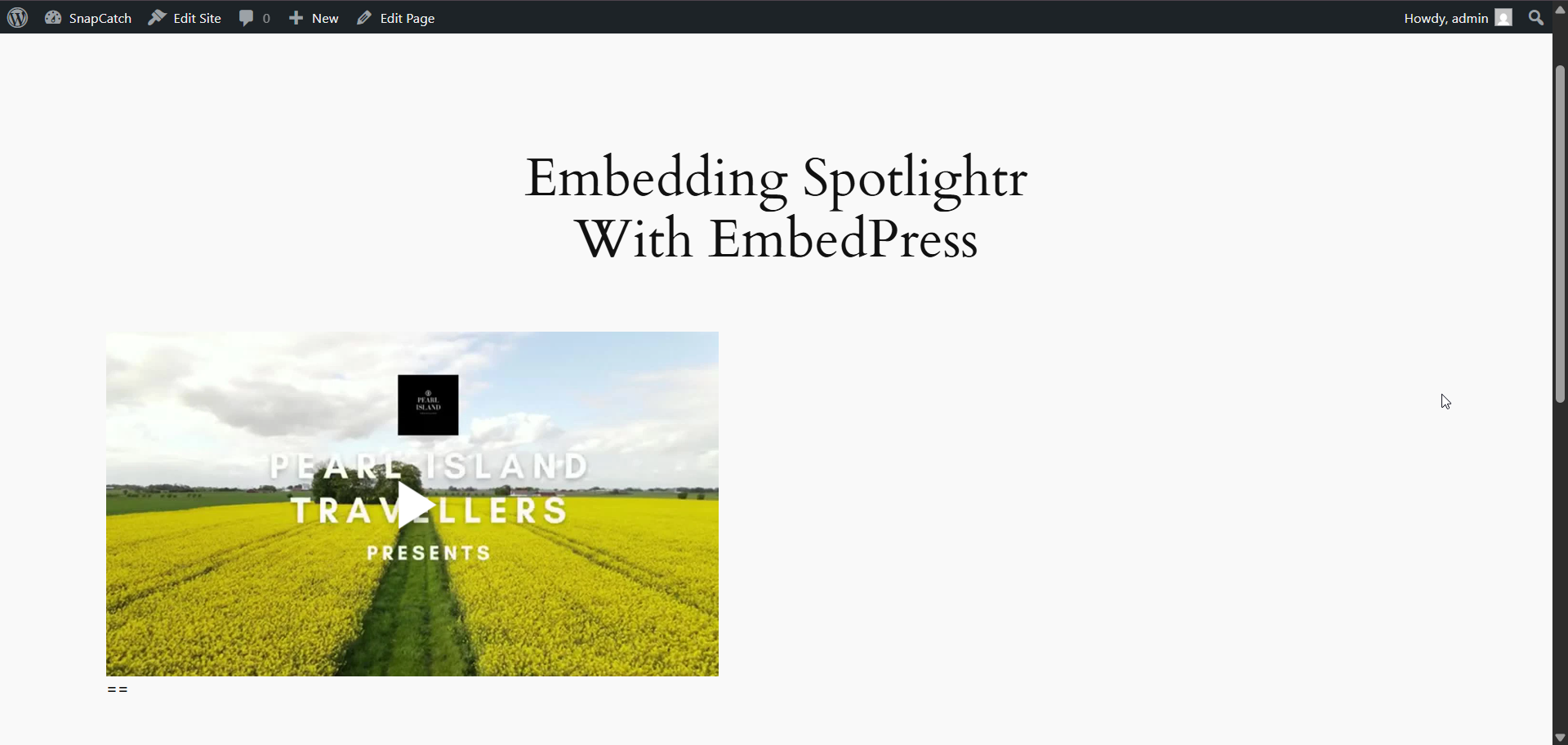
By following these steps, you can display your Spotlightr videos using Elementor, Gutenberg, or other WordPress editors.
Still facing issues? Contact our Support Team for further assistance. Be sure to join our thriving Facebook Community to connect with WordPress enthusiasts like yourself.