
EmbedPress custom video player has powerful controls designed to increase conversions, track viewer analytics, ensure privacy compliance and improve video delivery speed. These advanced settings give you complete control over how audiences interact with your embedded video content.
Follow these steps to learn how to configure advanced video custom player controls in WordPress with EmbedPress.
[Note: Some of the features included with the advanced video custom players are exclusive to the premium version of EmbedPress. To access those exclusive features, you will have to install and activate EmbedPress PRO.]
How to Configure Advanced Video Custom Player Controls from Gutenberg #
Follow the step-by-step instructions to configure the advanced custom player controls for your embedded video content using the Gutenberg editor.
Step 1: Add the EmbedPress Block & Embed Your Video #
First, click on the ‘+‘ icon in your post content area within the Gutenberg editor and search for the ‘EmbedPress‘ block. Click on the block to add it directly to the page.
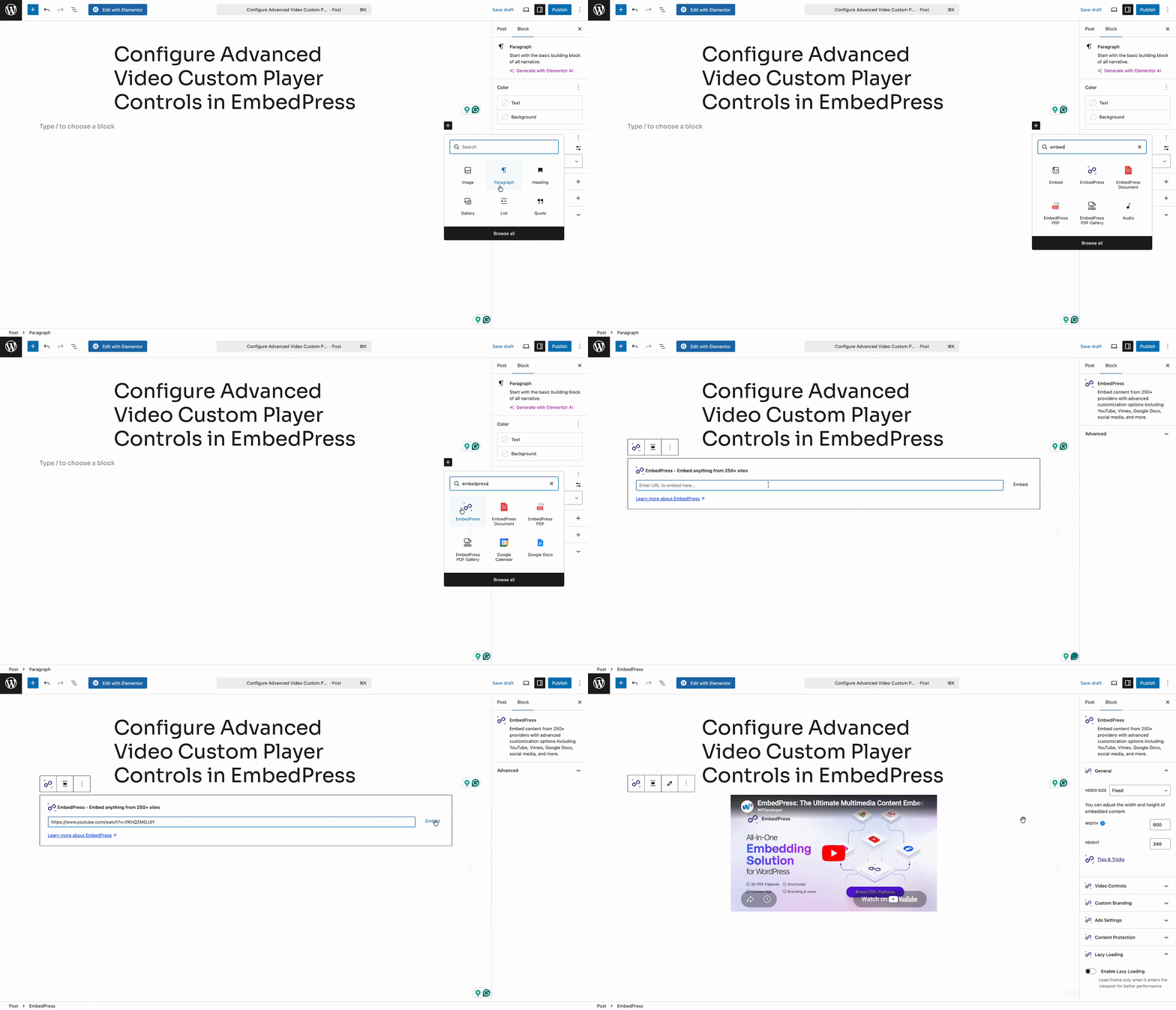
Paste your desired video URL (such as a self-hosted video, YouTube or Vimeo link) into the EmbedPress block input field and click on the ‘Embed‘ button.
Step 2: Configure Advanced Player Controls #
Once your video is embedded, make sure ‘Enable Custom Player‘ is toggled on under the ‘Video Controls‘ tab in the right side settings panel. Below the general settings, you will find several new expandable menus to configure your advanced features.
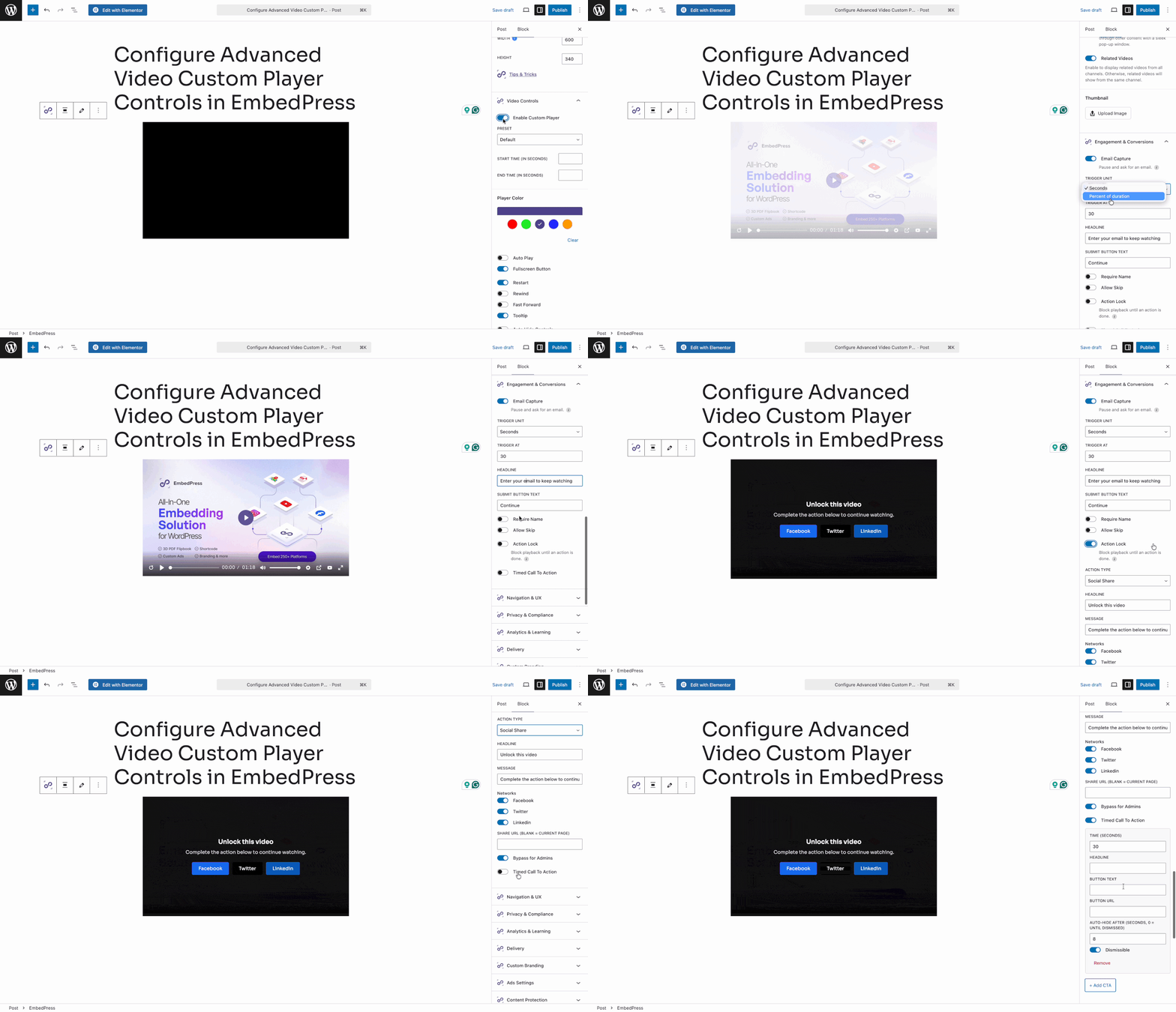
Engagement & Conversions
Turn your videos into interactive marketing assets using these options.
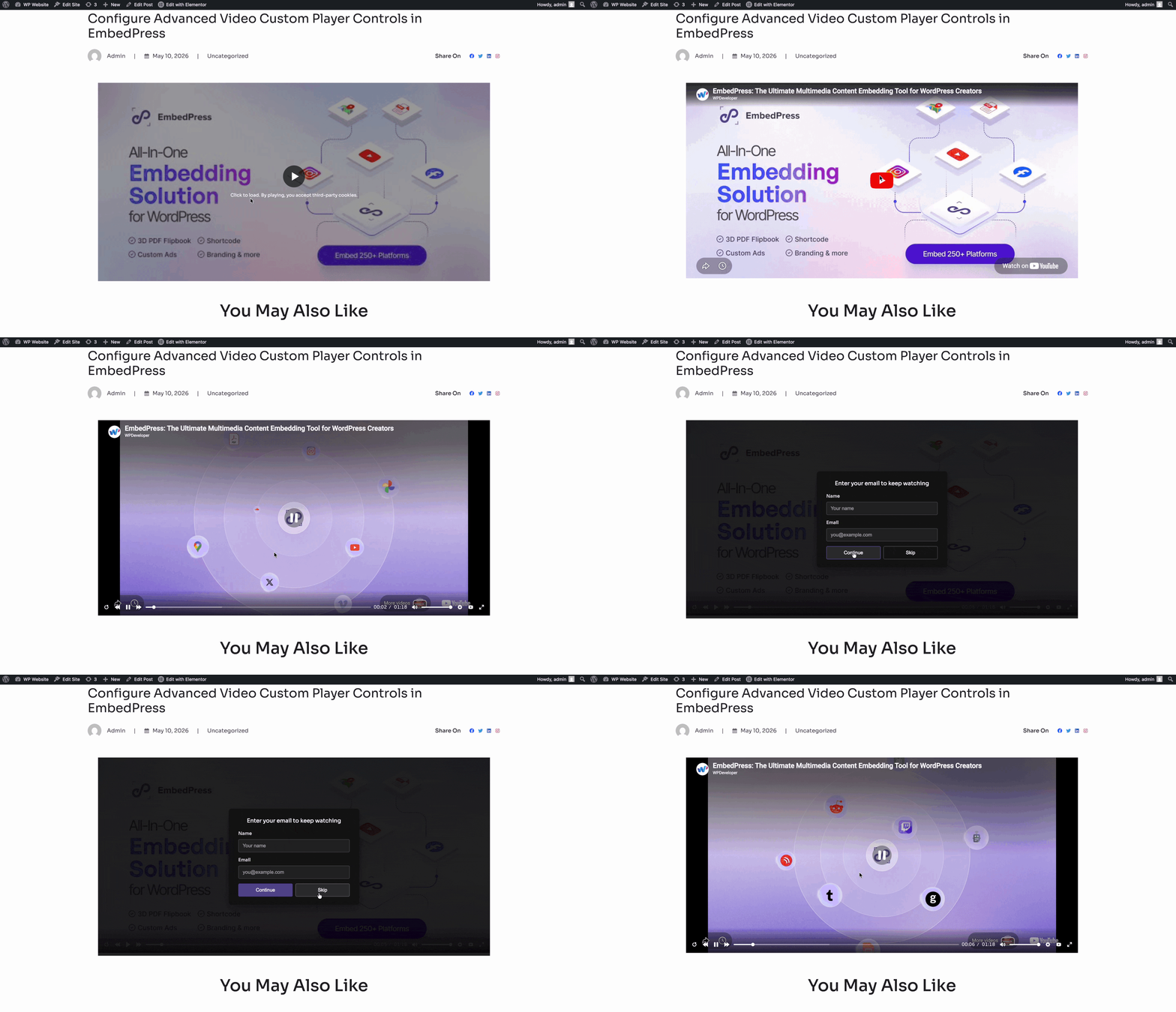
- Email Capture: Pause the video at a specific moment and require viewers to submit their email address and name to continue watching. This is an excellent way to gather leads directly from your content.
- Action Lock: Add custom URLs and buttons to the player. The video will remain locked until the visitor clicks the link or takes the required action, such as social sharing, signing up or logging in to a specific page.
- Timed Call To Action: Display a custom text message or a clickable button with a URL at a specific timestamp during the video playback to drive viewers to external resources or product pages.
Navigation & UX
Enhance the viewing experience and keep your audience focused on the content.
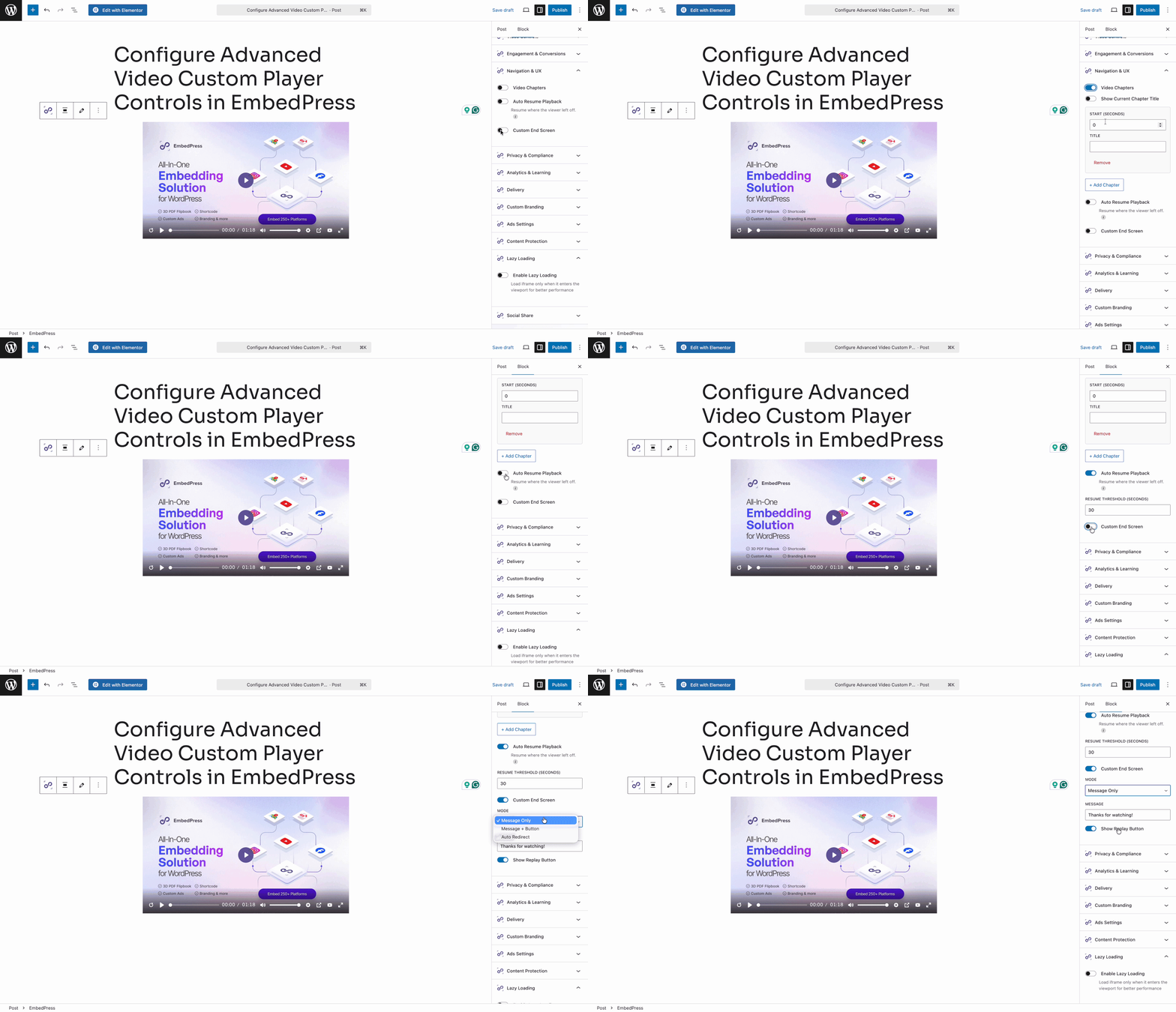
- Video Chapters: Break longer videos into clearly defined sections, allowing viewers to easily scan and jump to the exact topics they care about most.
- Auto Resume Playback: Create a frictionless experience by remembering where the viewer left off. If they navigate away and return, the video will automatically resume from their last watched timestamp.
- Custom End Screen: Keep viewers engaged even after the video finishes by displaying a personalized screen, perfect for additional calls to action or guiding them to your next piece of content.
Privacy & Compliance
Ensure your videos meet global privacy standards and target the right audience.
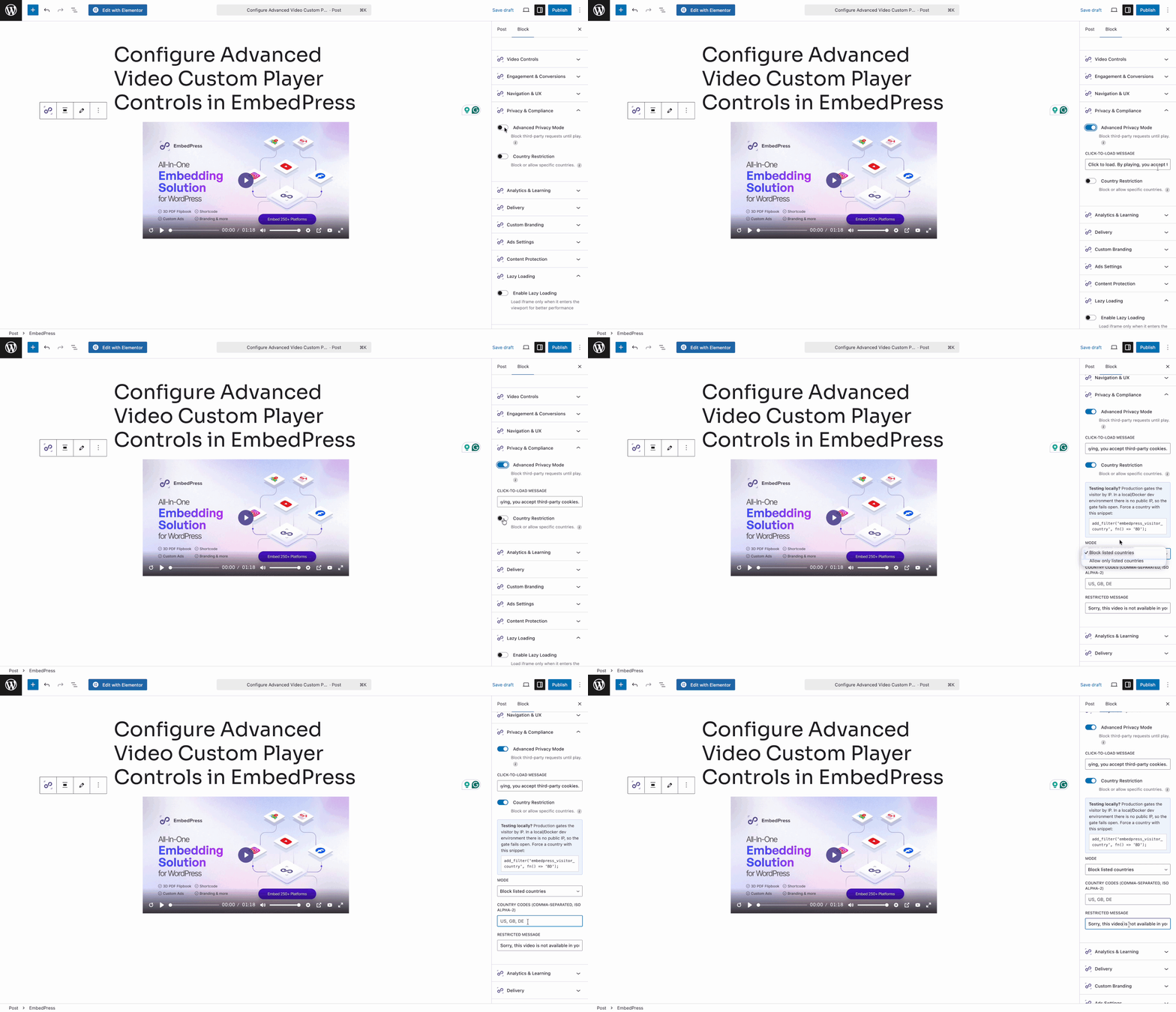
- Advanced Privacy Mode: Display customizable messages outlining what data is collected from users, ensuring your video embeds are GDPR compliant and transparent.
- Country Restriction: Lock out users from specific countries or exclusively enable users from targeted countries to watch your video content.
Analytics & Learning
Gain deeper insights into viewer behavior and course progress.
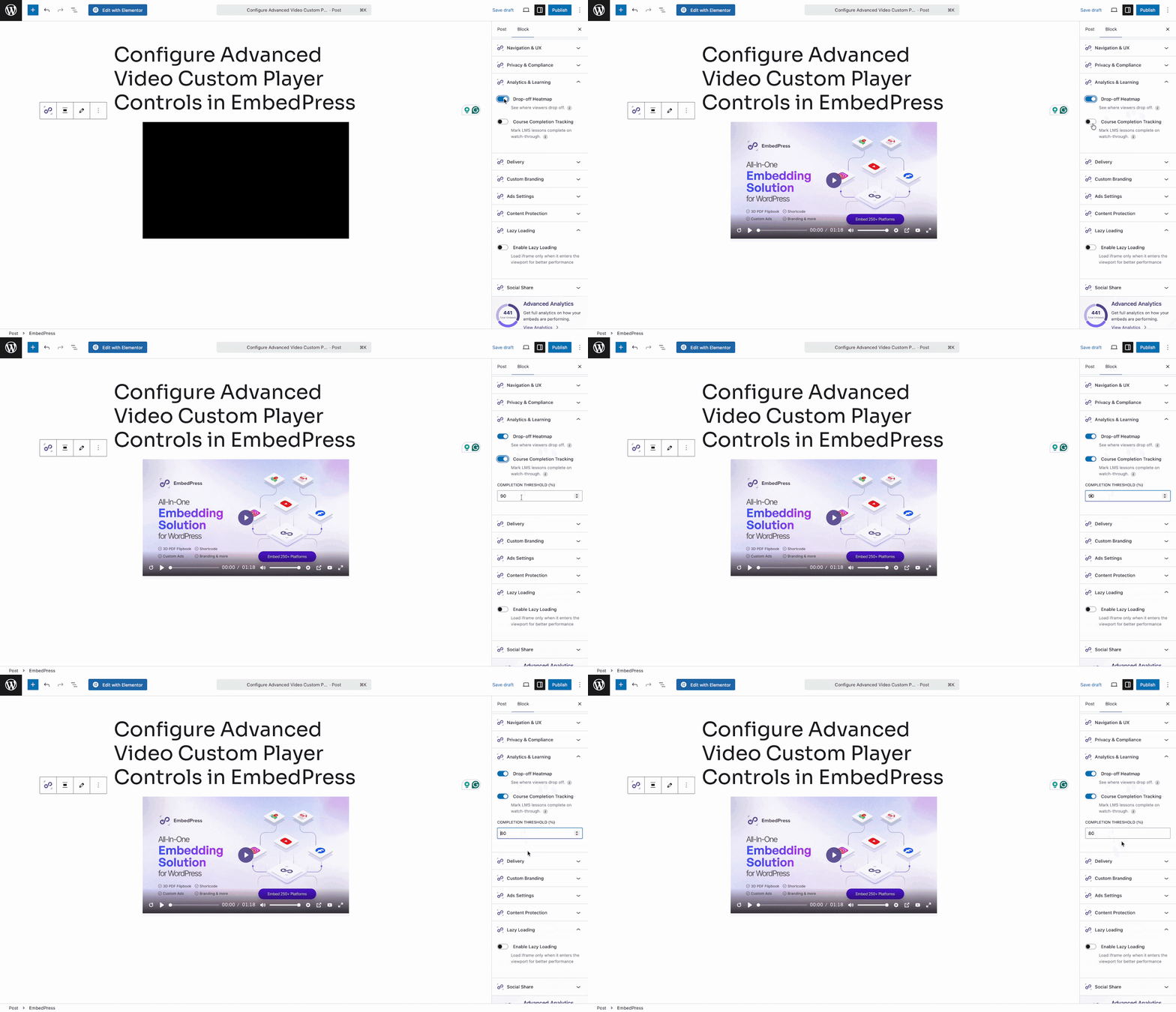
- Drop-off Heatmap: Enable this to track exactly when viewers stop watching your video, providing valuable data to improve future content retention.
- Course Completion Tracking: Perfect for LMS tutorials, this allows you to set a specific watch percentage that must be reached before the video is marked as completely watched for enrolled students.
Delivery
Optimize playback performance for all users.
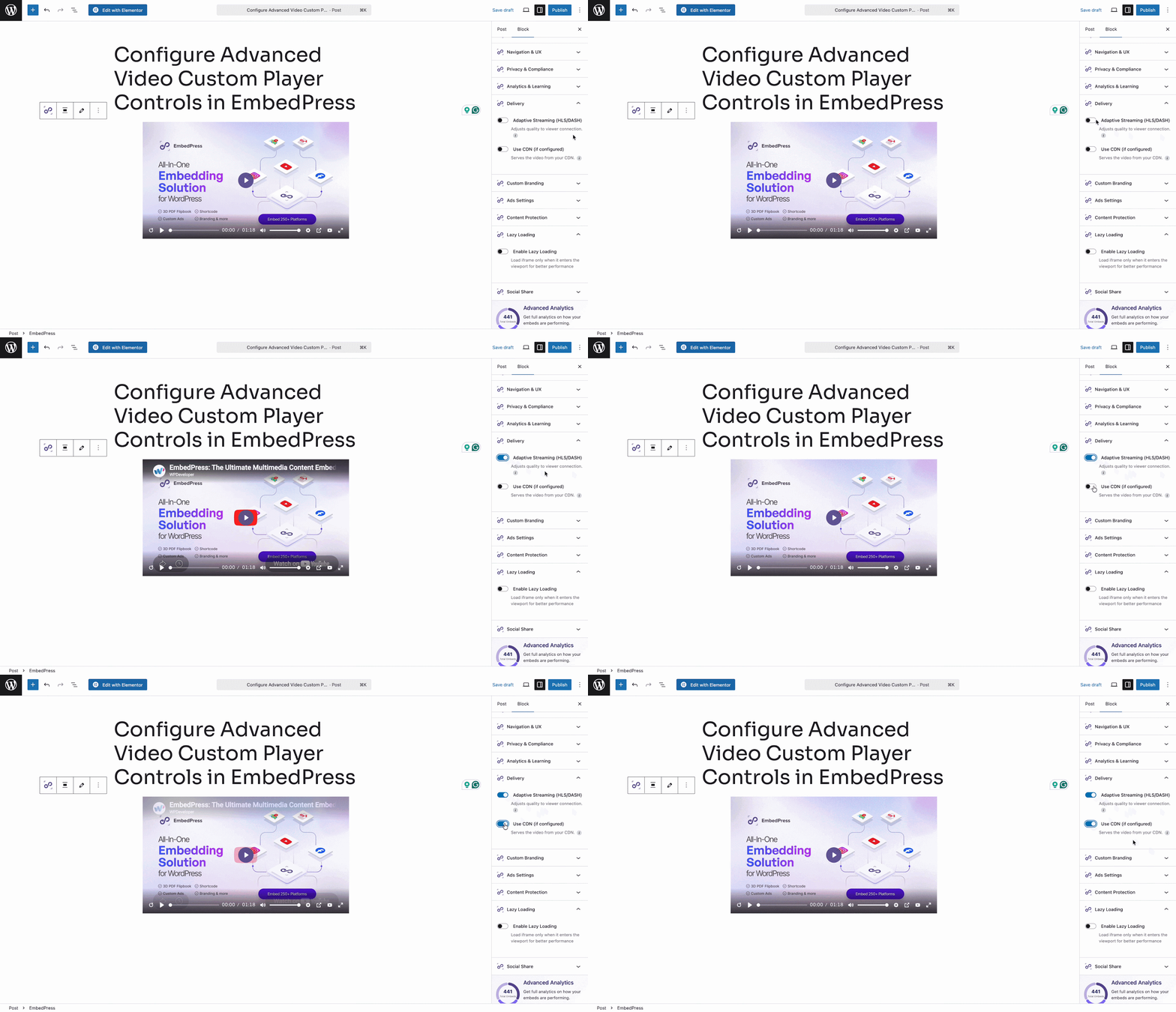
- Adaptive Streaming (HLS/DASH): Enable this to automatically adjust the player and video quality based on the viewer’s network connection, ensuring smooth playback.
- Use CDN: Once configured, toggle this option to deliver your video content from the nearest CDN network for lightning-fast loading speeds.
How to Configure Advanced Video Custom Player Controls in Elementor #
You can also access all of these powerful new features directly inside the Elementor page builder.
Step 1: Add the EmbedPress Widget & Your Video #
Search for the EmbedPress widget in the Elementor panel and drag it onto your page. In the ‘Content Settings‘ tab, choose your video source and paste your URL into the provided field.
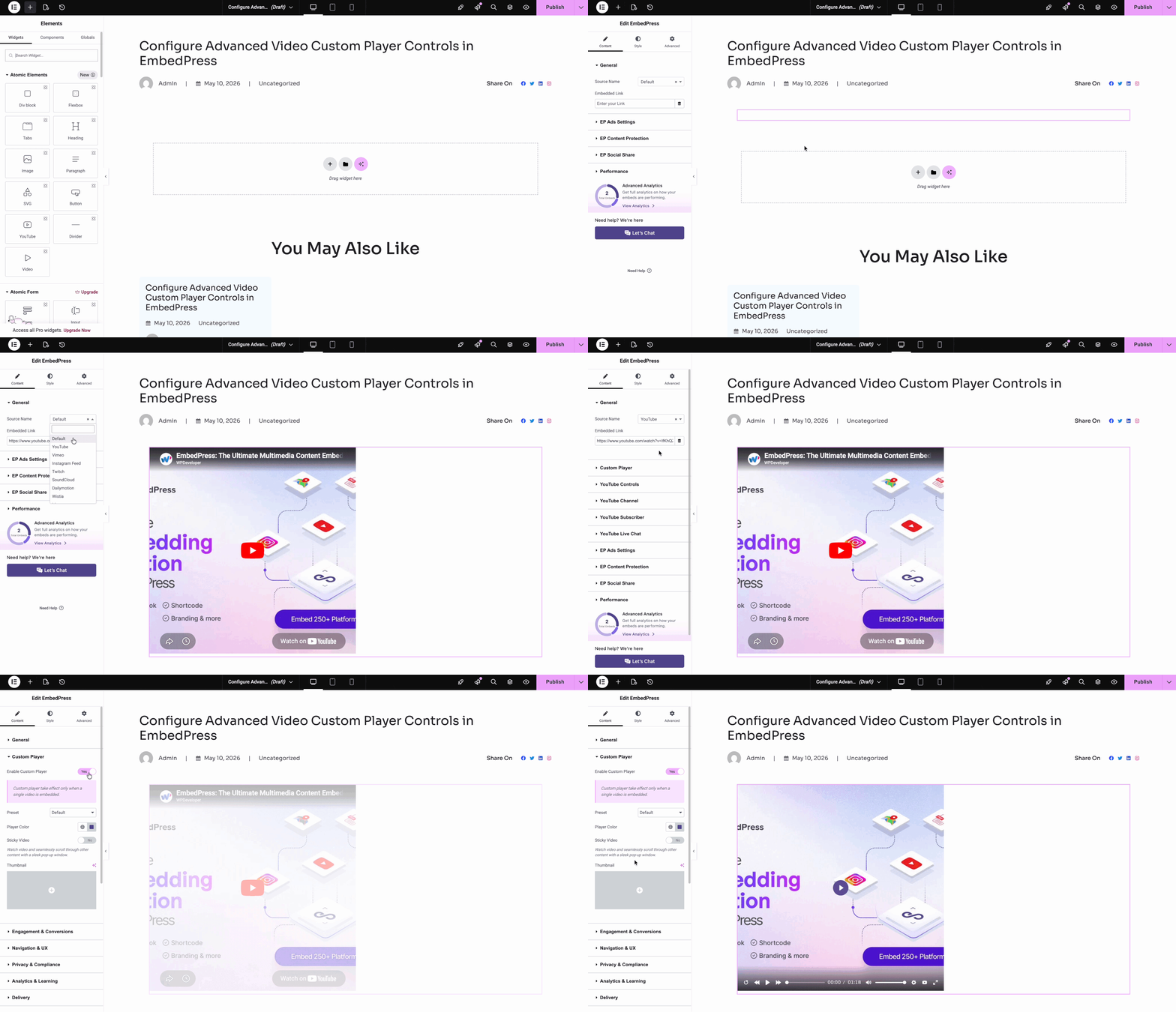
Step 2: Configure Advanced Player Controls #
Toggle on ‘Enable Custom Player‘ to reveal the advanced settings. You will find the exact same configuration menus as detailed in the Gutenberg section above.
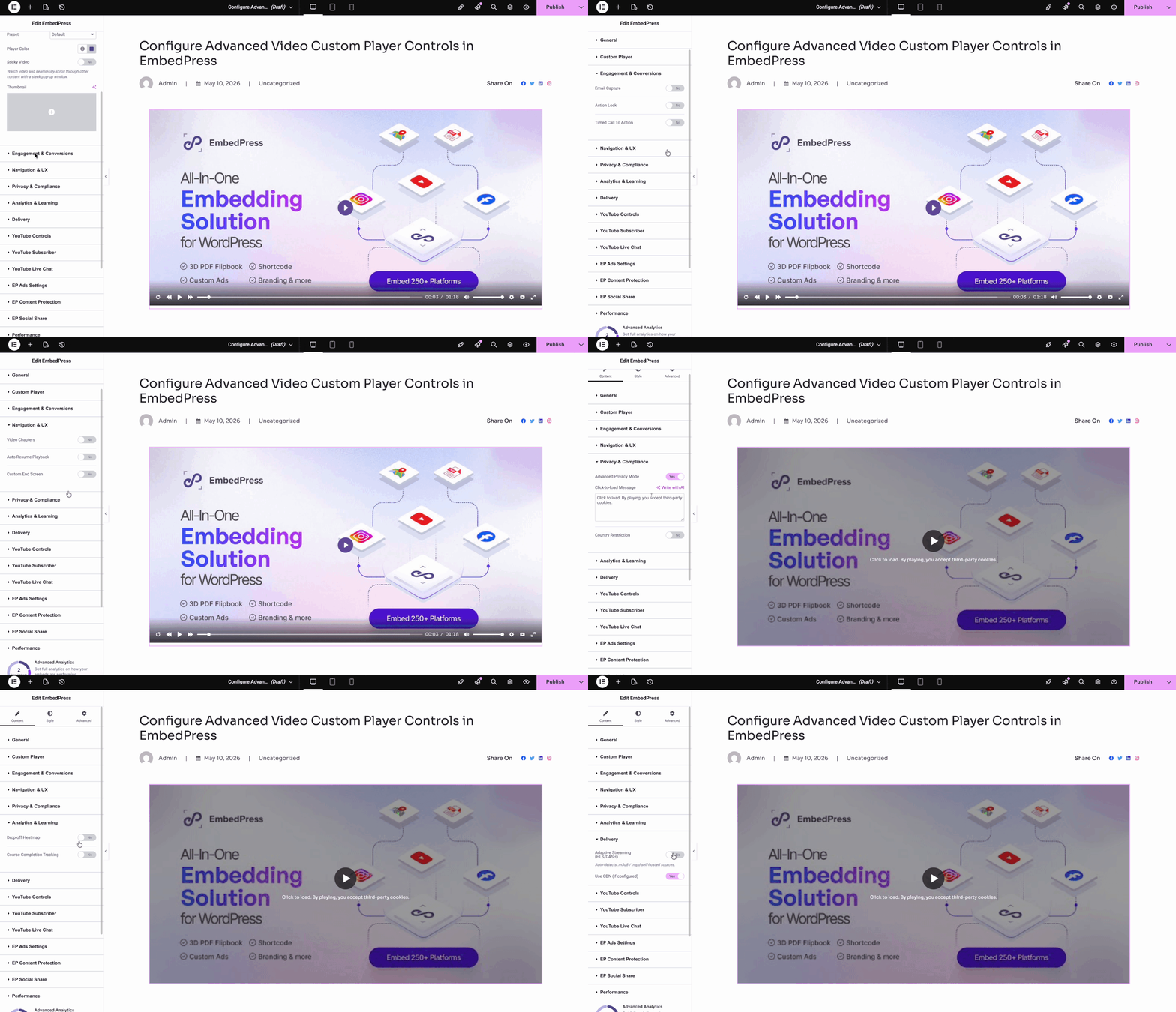
- Engagement & Conversions (Email Capture, Action Lock, Timed Call To Action)
- Navigation & UX (Video Chapters, Auto Resume Playback, Custom End Screen)
- Privacy & Compliance (Advanced Privacy Mode, Country Restriction)
- Analytics & Learning (Drop-off Heatmap, Course Completion Tracking)
- Delivery (Adaptive Streaming, Use CDN)
Simply adjust these settings to fit your goals and publish your page!
Tracking Metrics: The Player & Engagement Dashboard #
To truly make the most of these new features, EmbedPress now includes a dedicated analytics hub right inside your WordPress admin area. This central dashboard is where you will monitor all the data captured from your interactive videos.
You can access this at any time by navigating to EmbedPress → Player & Engagement from your WordPress dashboard.
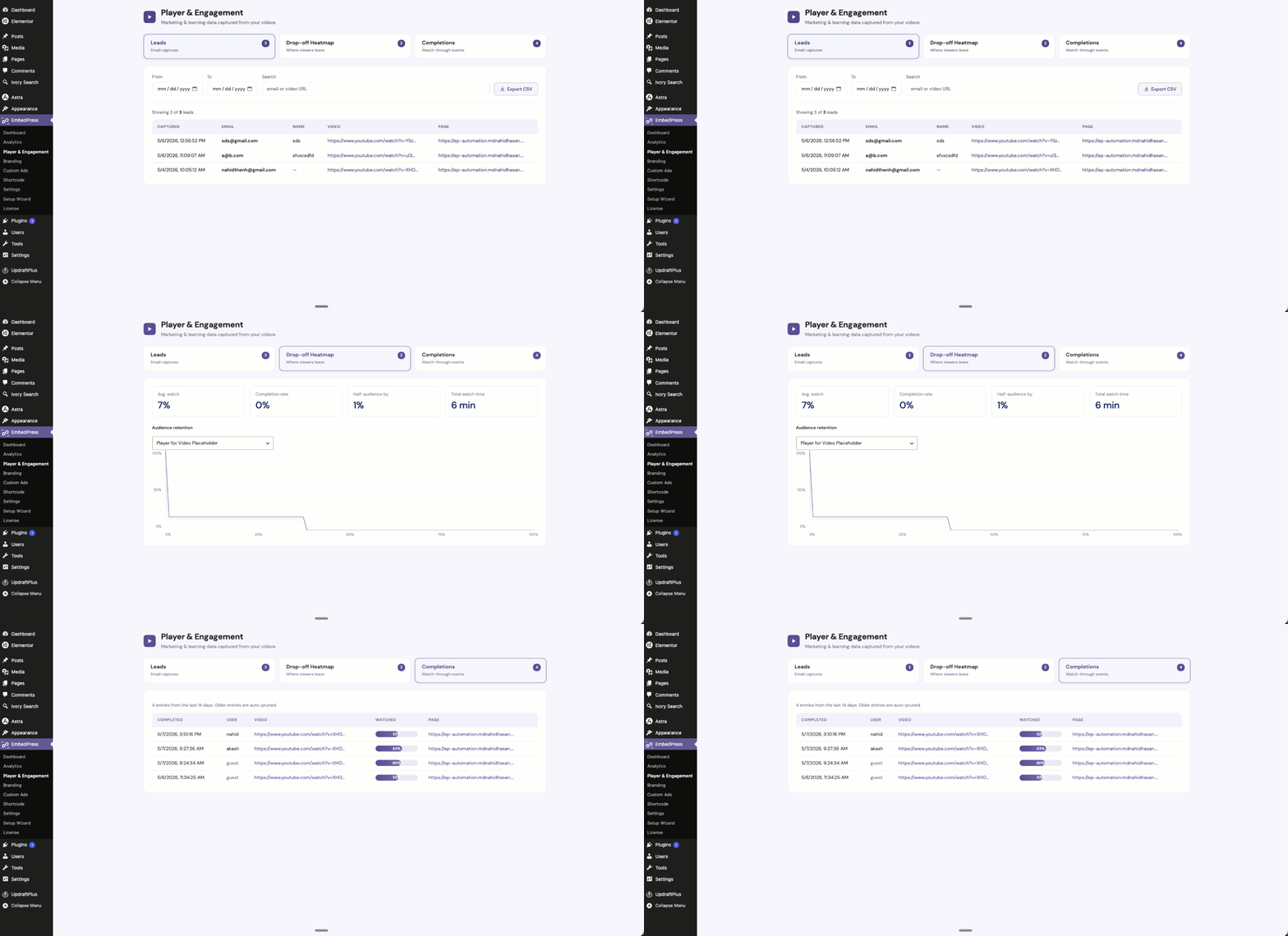
Here, you will find three distinct tabs to track your video performance:
- Leads: This tab automatically collects all the email addresses and names captured through your video’s Email Capture form. You can filter the results by date, search for specific video URLs, and use the ‘Export CSV’ button to instantly download your new leads for your marketing campaigns.
- Drop-off Heatmap: Select a specific video to view its heatmap data. This visual graph shows you exactly where viewers lose interest and leave the video, helping you pinpoint which parts of your content are the most (and least) engaging.
- Completions: Check the watch-through events for your educational content. This tab logs when viewers meet your configured Course Completion Tracking percentage, giving you a clear view of student progress and engagement.
Final Outcome #
By following these simple steps, you can easily configure advanced video custom player controls in WordPress with EmbedPress to ensure lightning-fast delivery and track comprehensive analytics for your embedded videos. This is how your custom video control would look:
If you are facing problems and require further assistance, feel free to contact our support or join our Facebook Community to get in touch with WordPress experts and content creators like yourself.