
EmbedPress offers you complete compatibility with the most popular WordPress Multilingual Translation Plugin, WPML. It allows you to translate the EmbedPress user interface content into any language you want and use it on your multi-language website.
Let’s follow the step-by-step guide below to translate EmbedPress user interface with WPML.
Step 1: Install And Activate WPML Plugins #
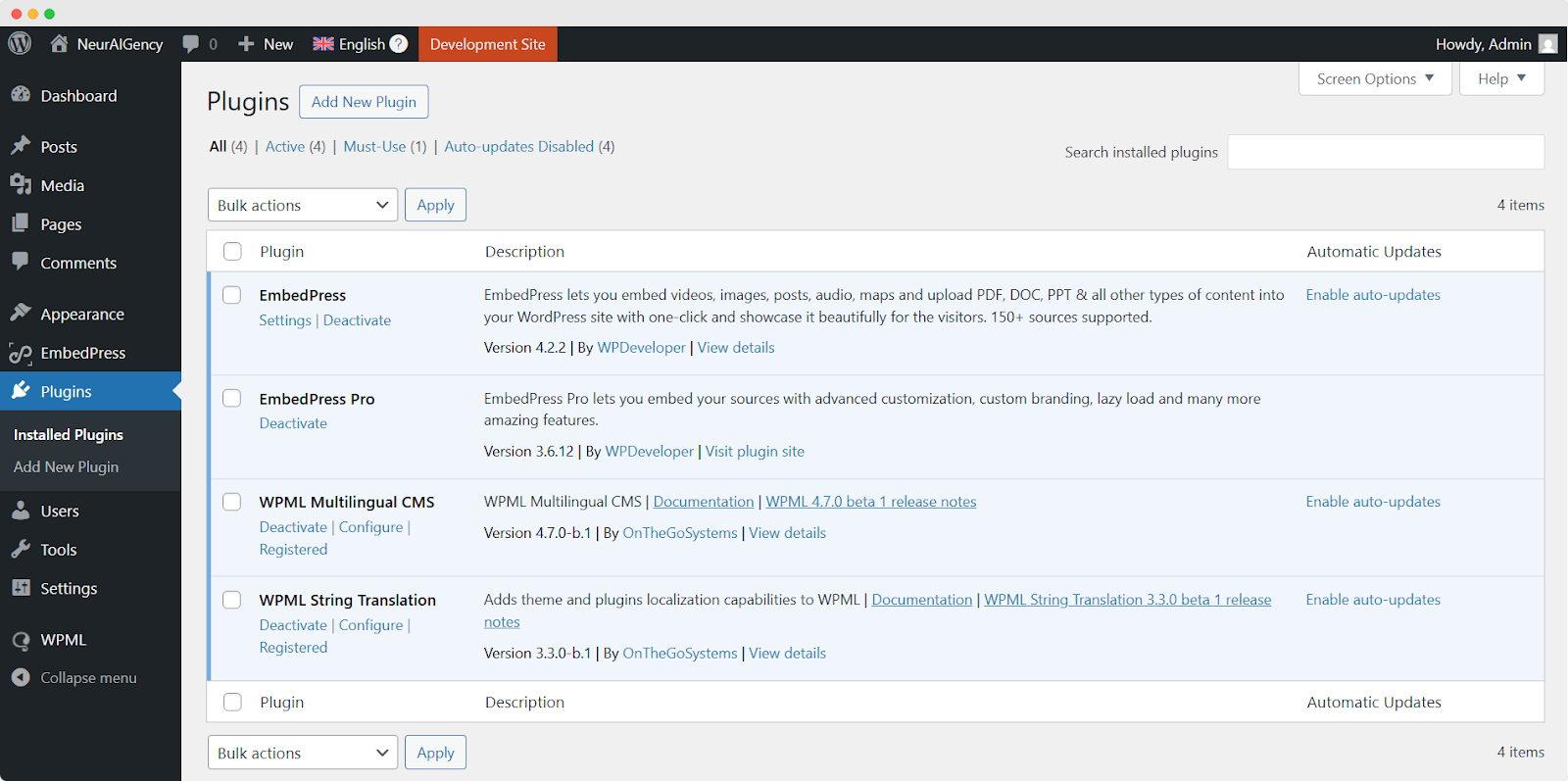
To translate the EmbedPress user interface with WPML, make sure that you have installed & activated the following plugins on your WordPress site: ‘WPML Multilingual CMS’ and ‘WPML String Translation’. For more information, you can check out this WPML doc to configure it on your WordPress site.
Step 2: Configure WPML Plugin Settings #
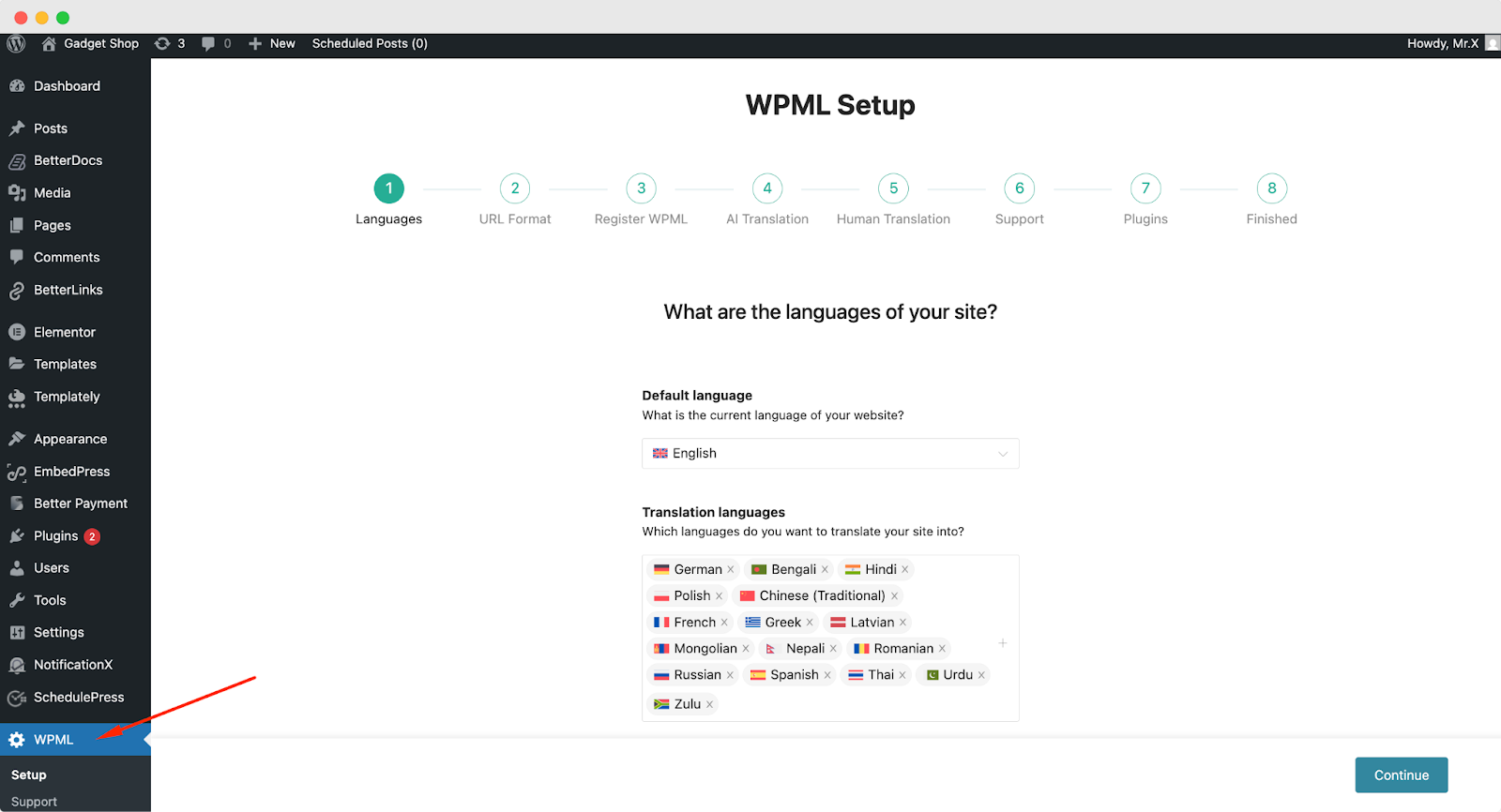
After installing these plugins, go to ‘WPML’ → ‘Setup’ from the dashboard and select the current language and the language you want to translate your single docs. You can change it later anytime.
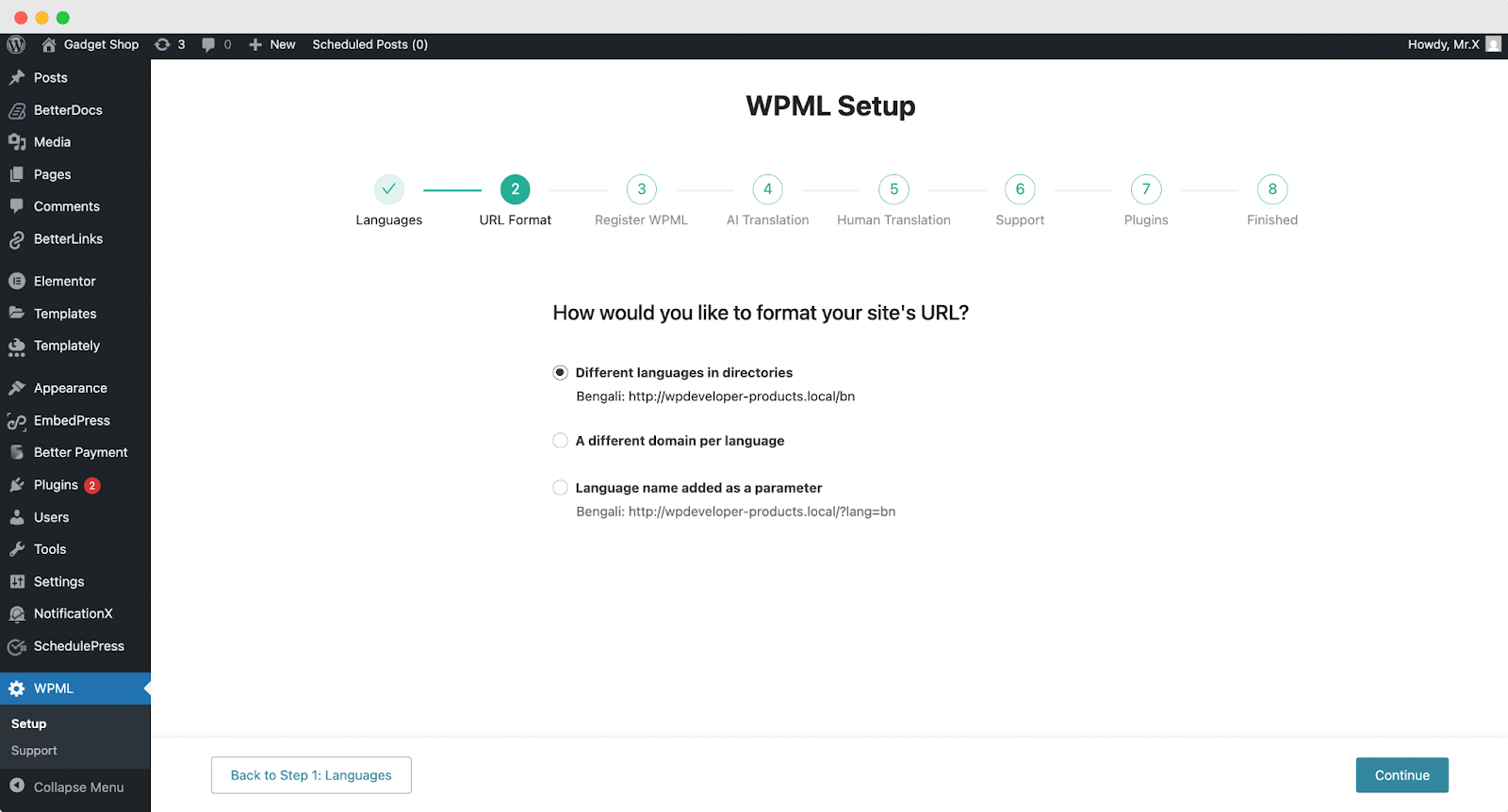
In the following ‘URL Format’ stage, select how you would like to format the URL. You can go for different languages in directories, a different domain per language or a language name added as a parameter.
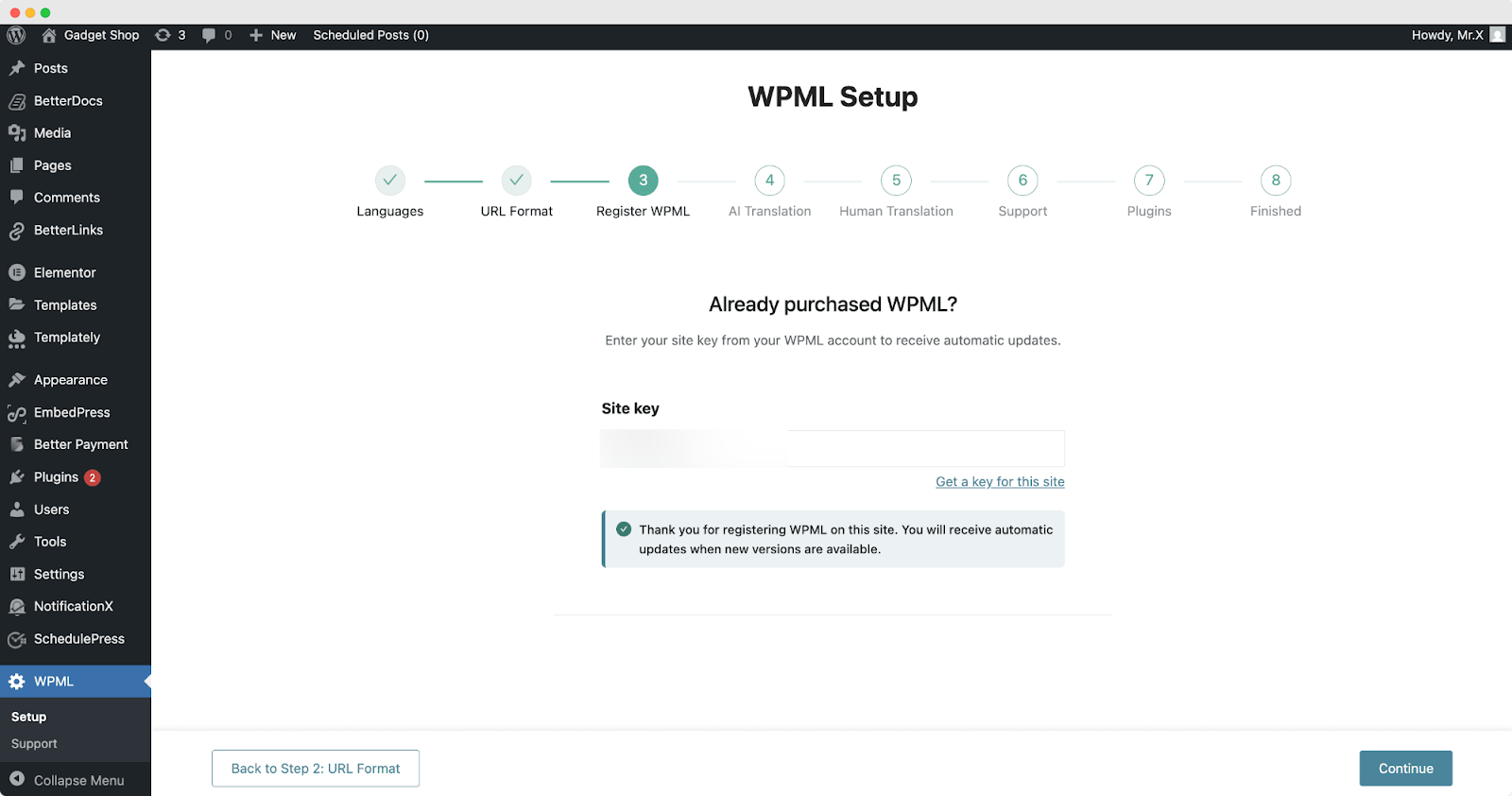
Next, add your site key in the designated field from the ‘Register WPML’ step of the WPML Setup wizard.
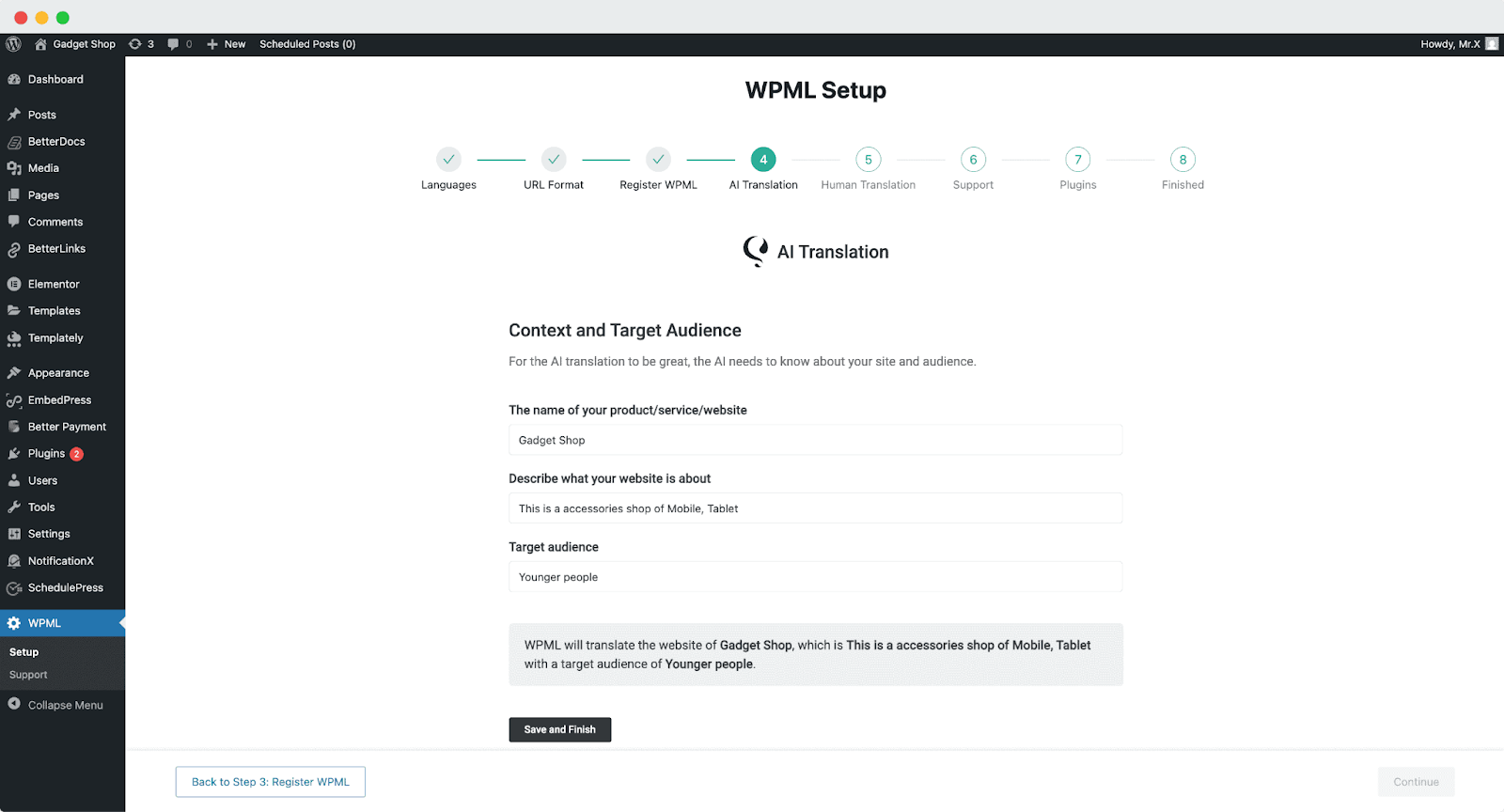
Next, navigate to the AI Translations section. In this panel, you can define the context and target audience for your translation settings. Begin by entering the name of your product, service, or website. Then provide a brief description of the website. Finally, choose the Target Audience you want the translations to be tailored for.
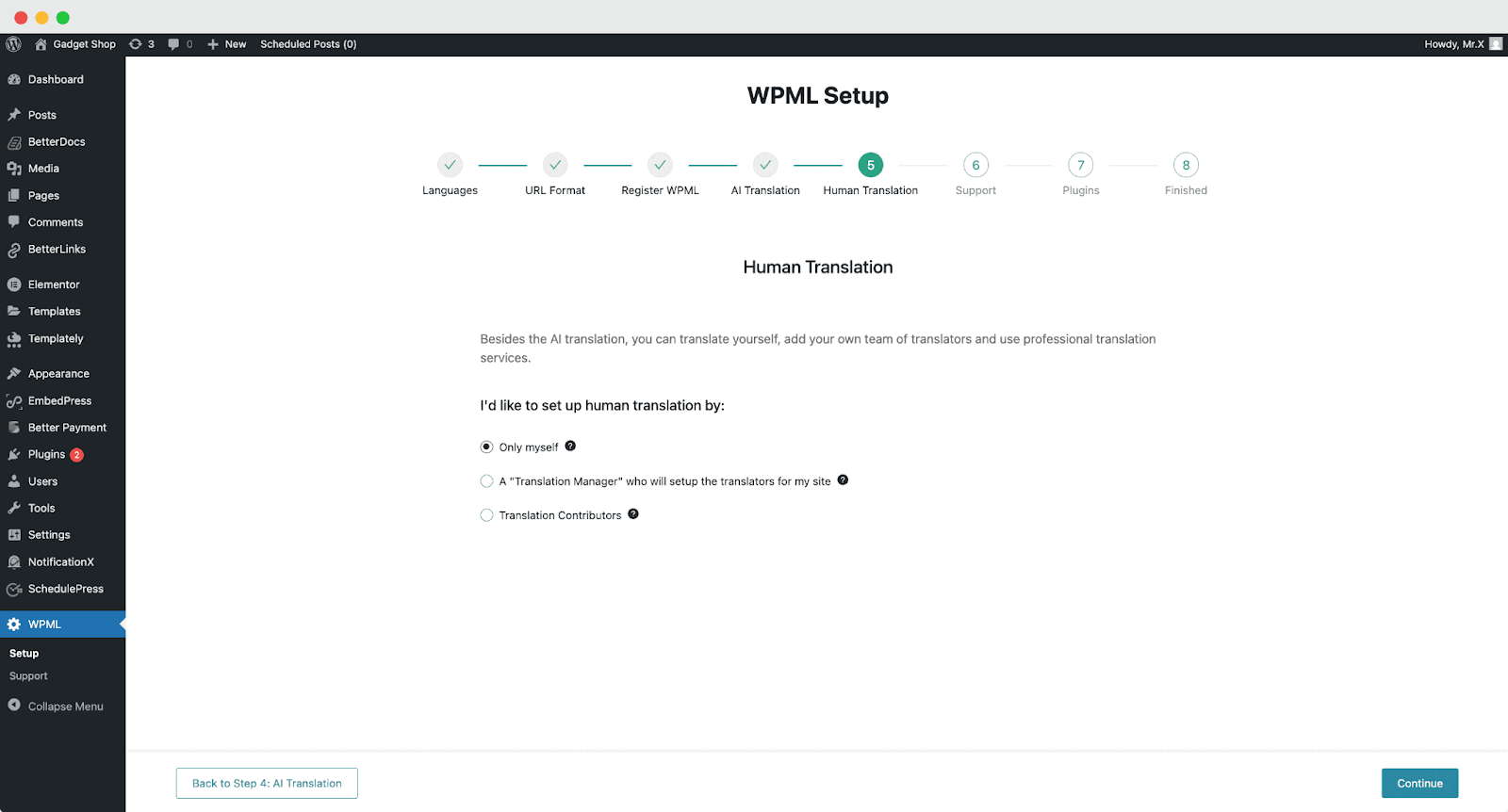
In addition to AI translation, you can also opt for Human Translation. From this section, simply choose how you want to configure your human translation settings and proceed with the setup.
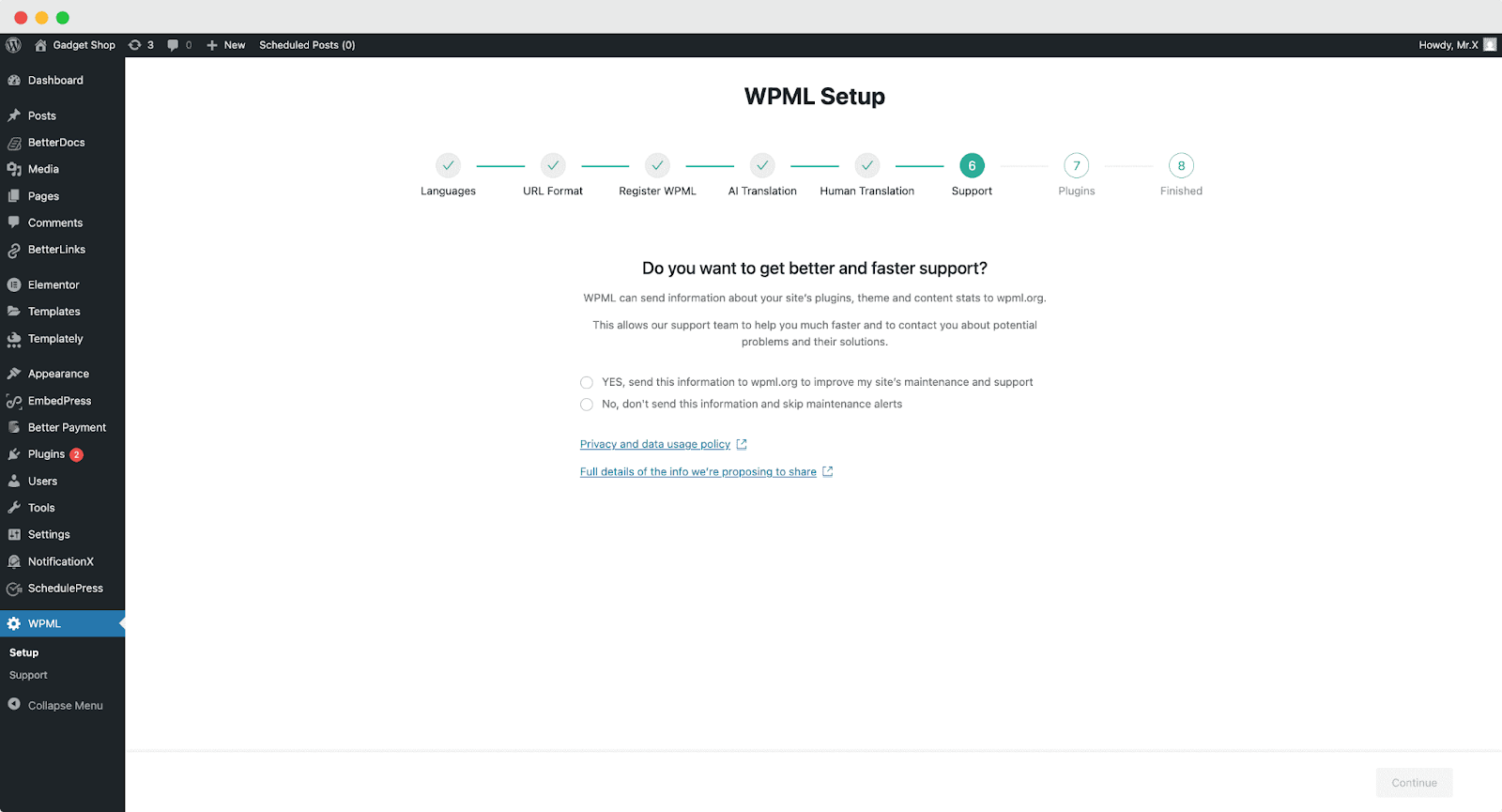
To receive faster support and compatibility notifications, you can enable the option to share theme and plugin information when needed.
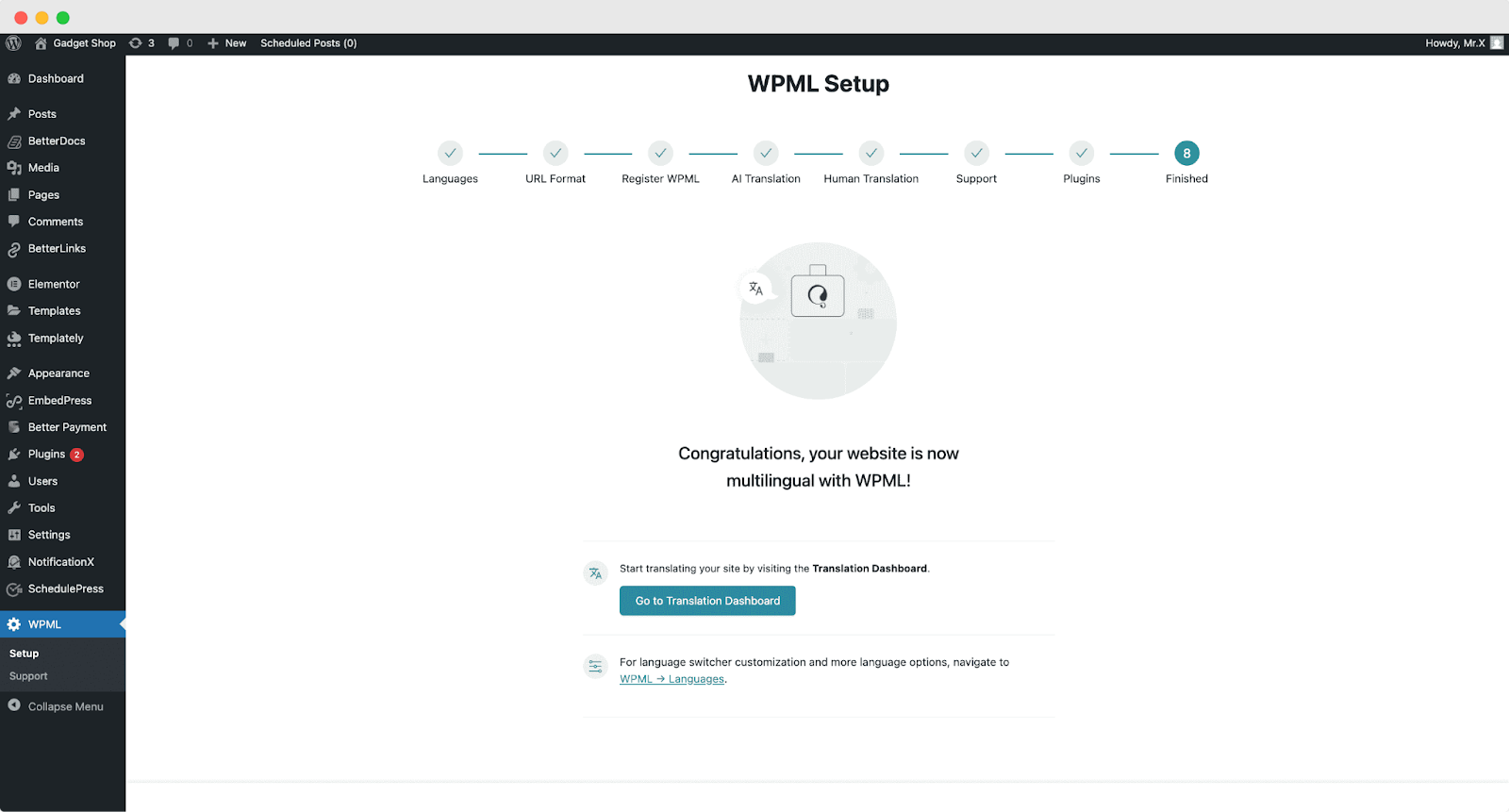
In the last two onboarding steps, the WPML plugin will be ready for use on your WordPress website.
Now, to enable translation for your Elementor site pages, go to ‘WPML’ → ‘Translation Dashboard’ and from there select the page you want to translate.
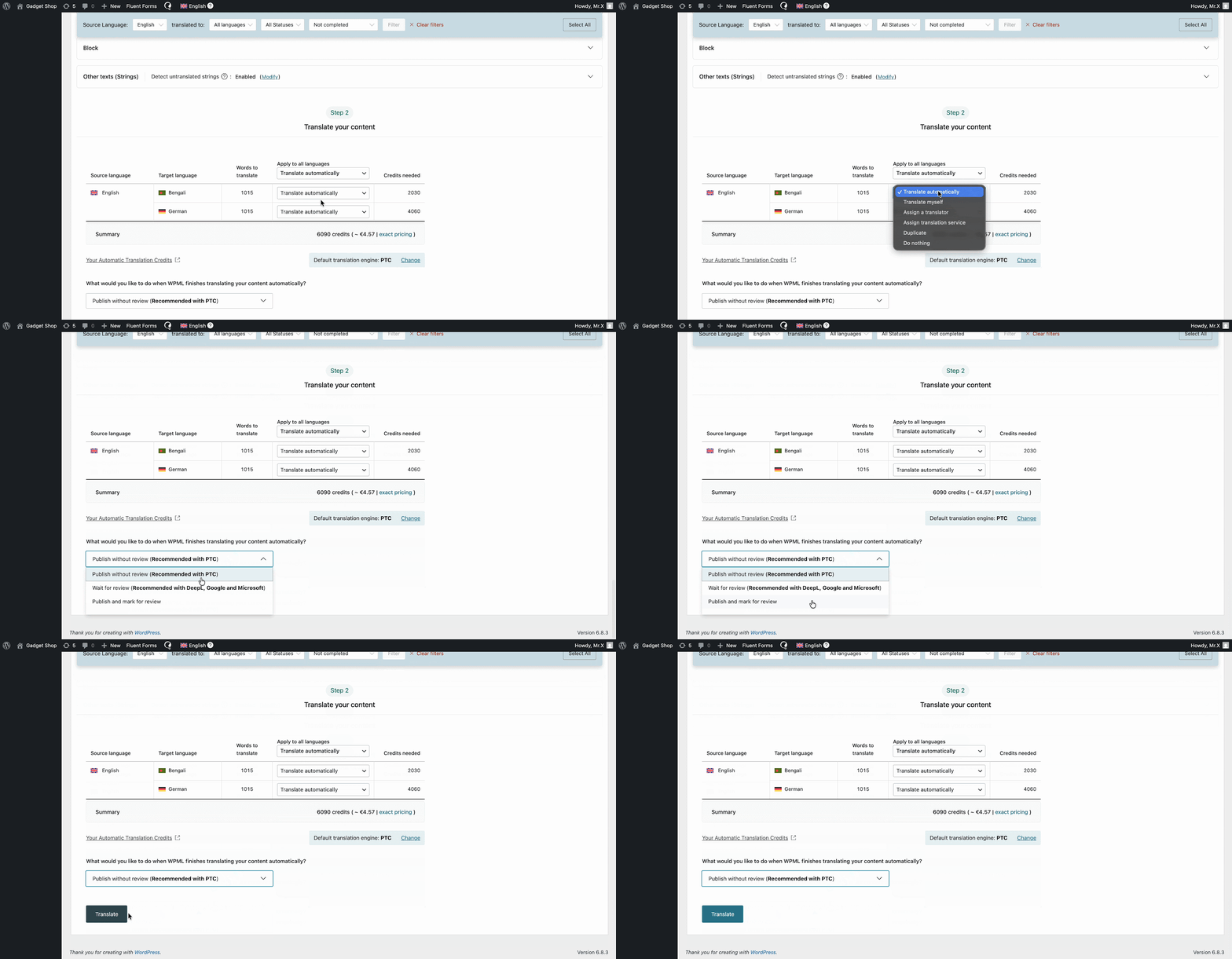
Now, click on ‘Translate Your Content’ and from there, ‘ Apply to All Languages’ dropdown select ‘Translate Automatically’. Afterward, from the ‘What would you like to do when WPML finishes translating your content automatically?’ select your preferred option and then click on the ‘Translate’ button and WPML will translate documents automatically.
Step 3: Translate Strings Using WPML #
If you want to translate your EmbedPress plugin strings, you need to navigate to ‘WPML’ → ‘Theme and plugins localization’ from your WordPress dashboard.
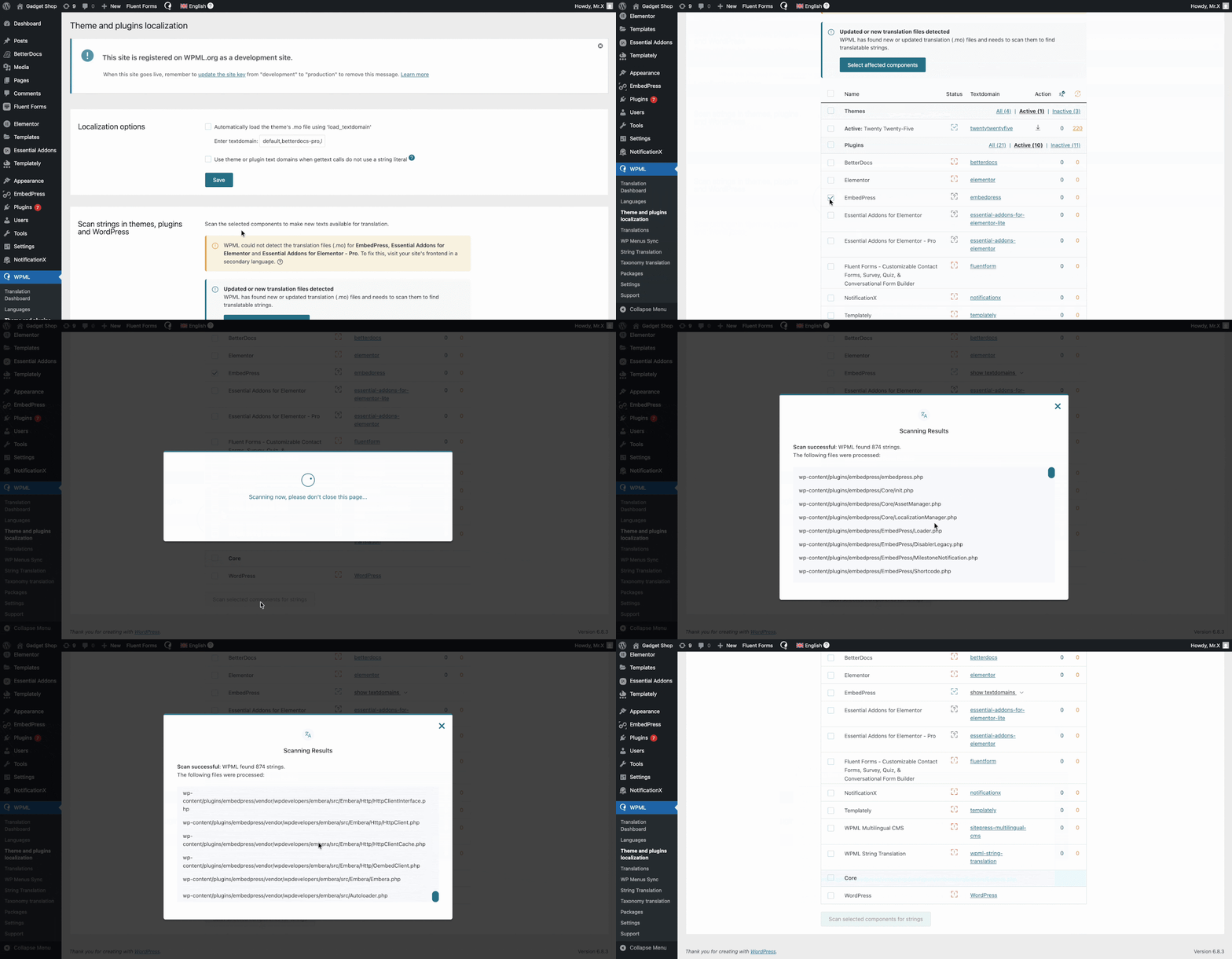
Then scroll down to the ‘Strings in plugin’ section and click on the checkboxes for ‘EmbedPress’. Please wait while plugin strings are being scanned.
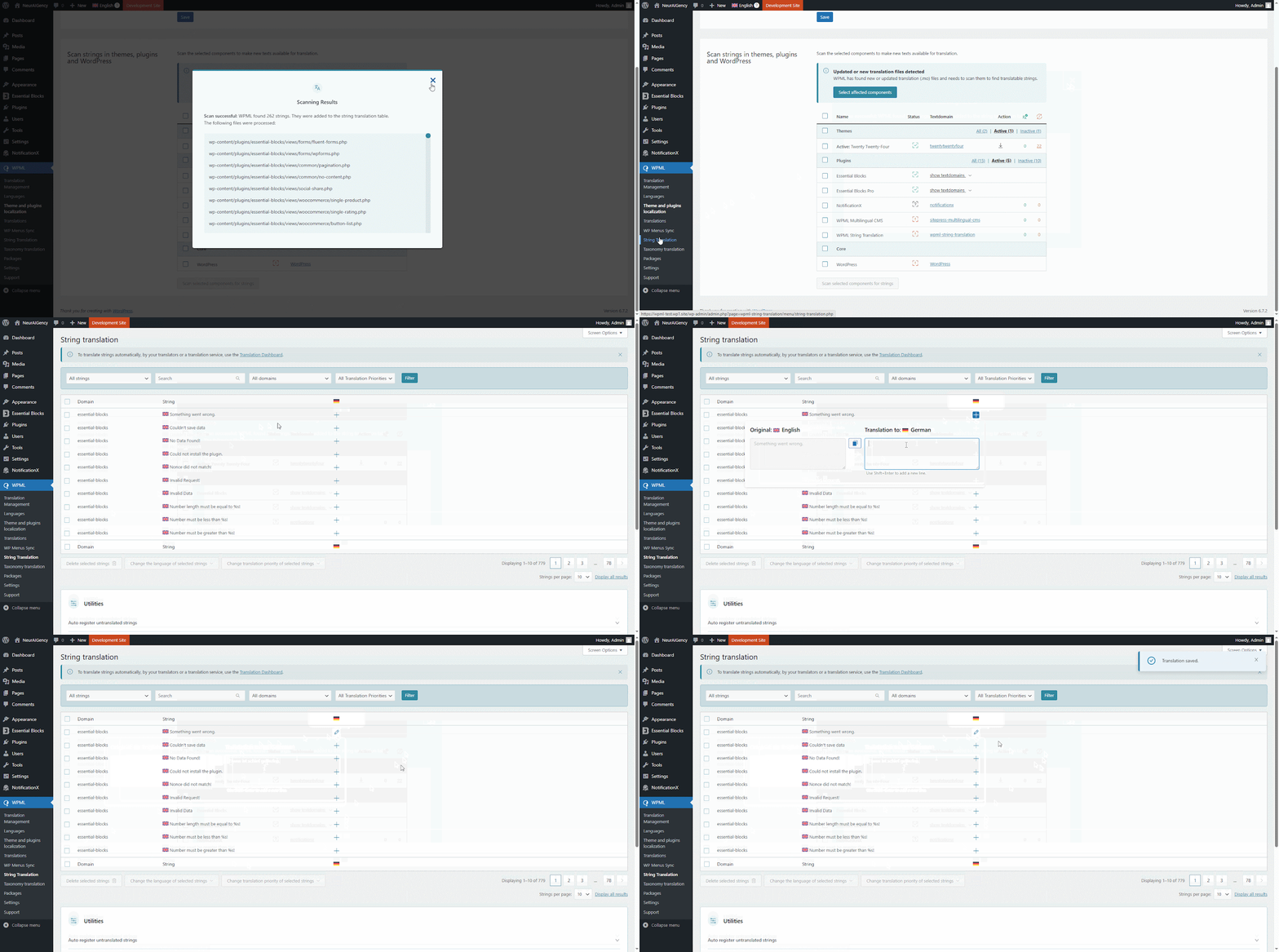
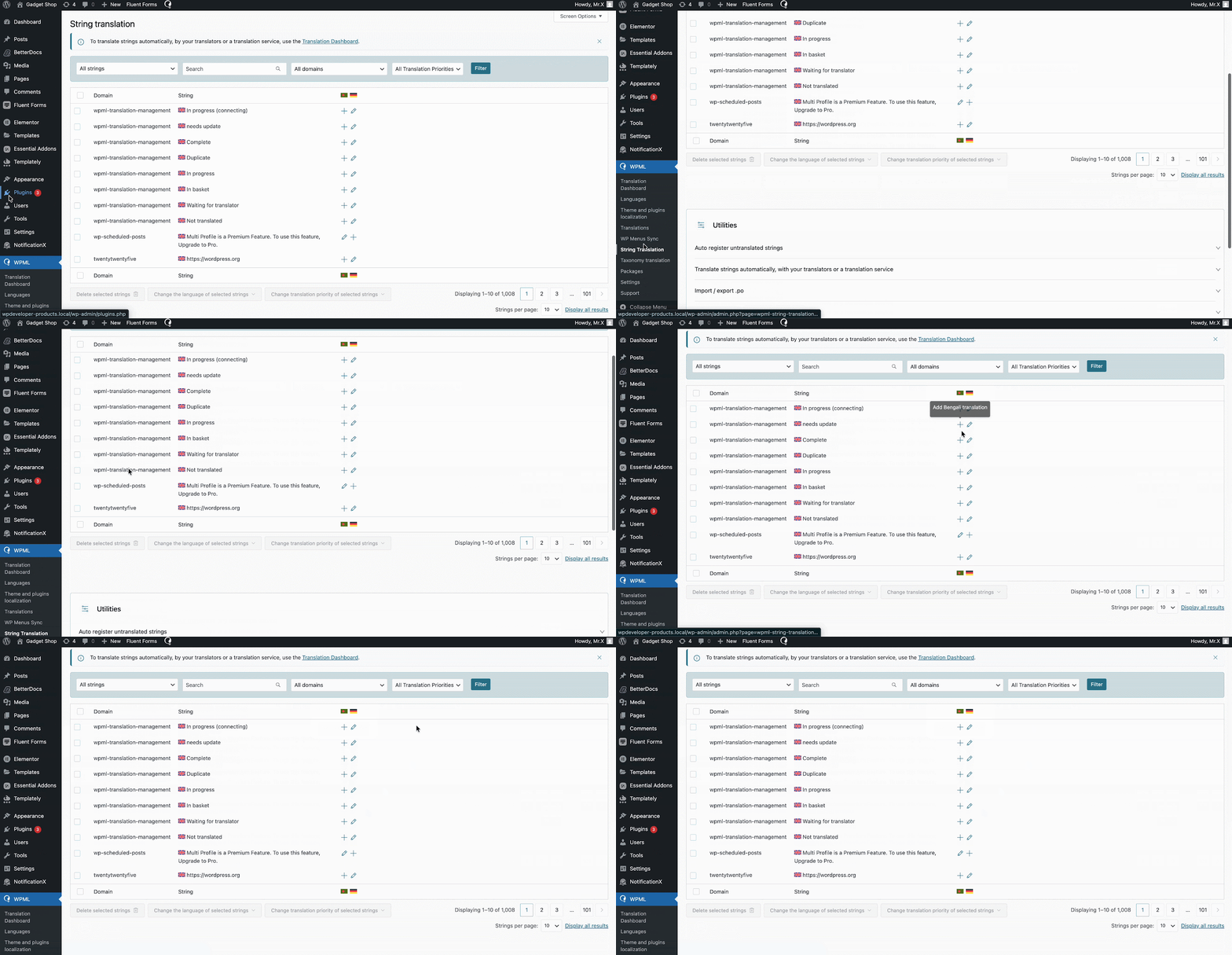
Afterwards, head over to WPML→ String Translation. From here, you can add translations for selected strings by clicking on the ‘+’ icon as shown below.
Step 4: Translate EmbedPress User Interface #
Finally, go over to your EmbedPress interface and navigate to the section with the translated string. You will notice a WPML language selector button on your WordPress website admin panel. Click on this button and select the language of your choice, as shown below for the ‘Embed iFrame Height’ string.
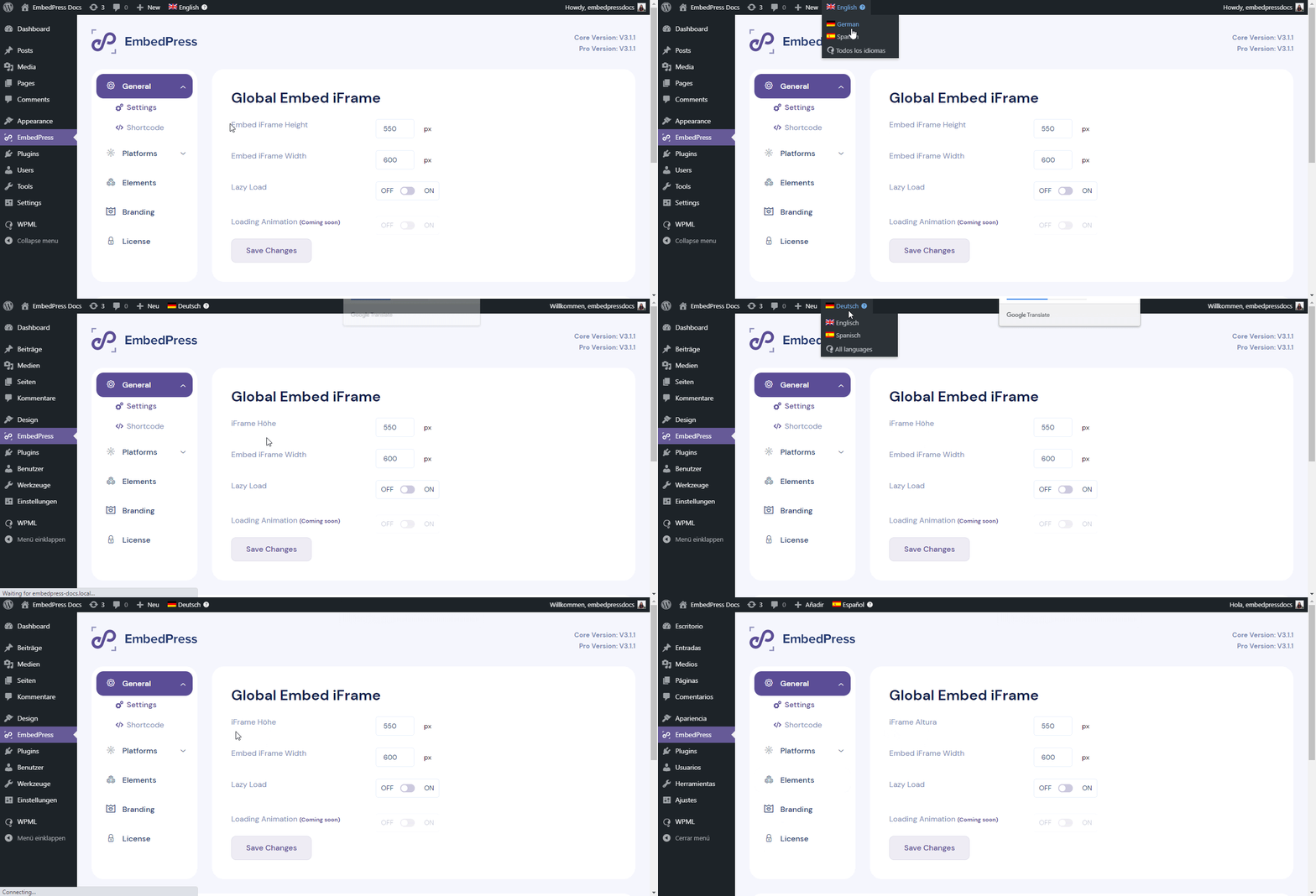
By following these simple steps, you can successfully translate EmbedPress user interface strings and make them suitable for your multilingual website. If you are facing problems and require further assistance, feel free to contact our dedicated support team.