
With EmbedPress, you can easily embed a PDF gallery in WordPress to showcase multiple PDFs at once and create an effective document gallery on your website. This brings you a fully responsive EmbedPress PDF Gallery block for the Gutenberg editor and an EmbedPress PDF Gallery widget to help you embed multiple PDFs using the Elementor website builder.
How to Embed a PDF Gallery in Gutenberg Editor Using the PDF Gallery Block #
Follow the steps below to learn how to embed a PDF gallery in Gutenberg sites without coding.
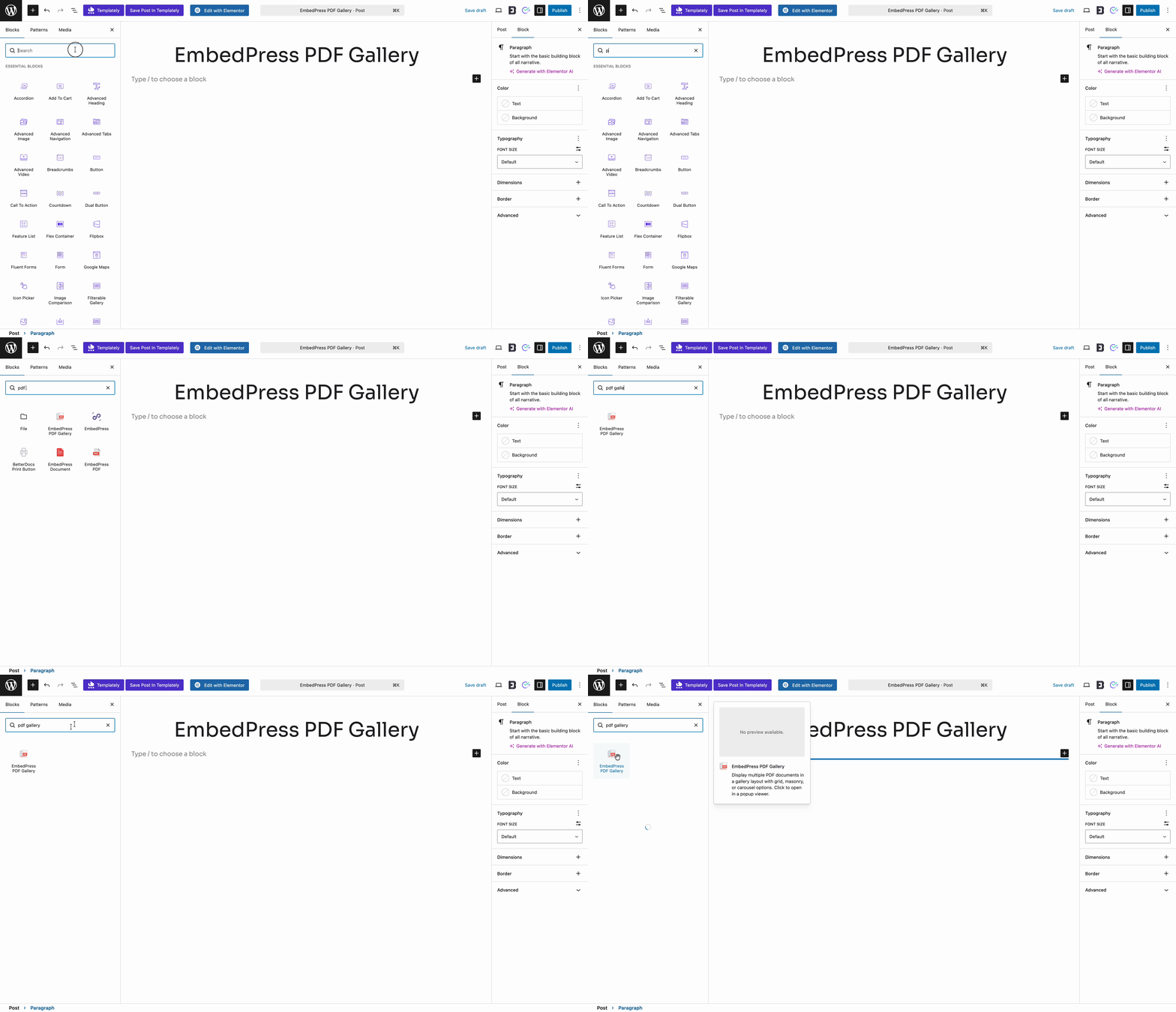
Step 1: Insert the EmbedPress PDF Gallery Block #
Create a new post or page from your WordPress dashboard, or open the one where you want to showcase the gallery. Next, click on the ‘+’ icon on top of the web page or anywhere in your content area of the Gutenberg editor. Search for ‘PDF Gallery’ or EmbedPress PDF Gallery block and add it.
Step 2: Upload Or Select Multiple PDFs #
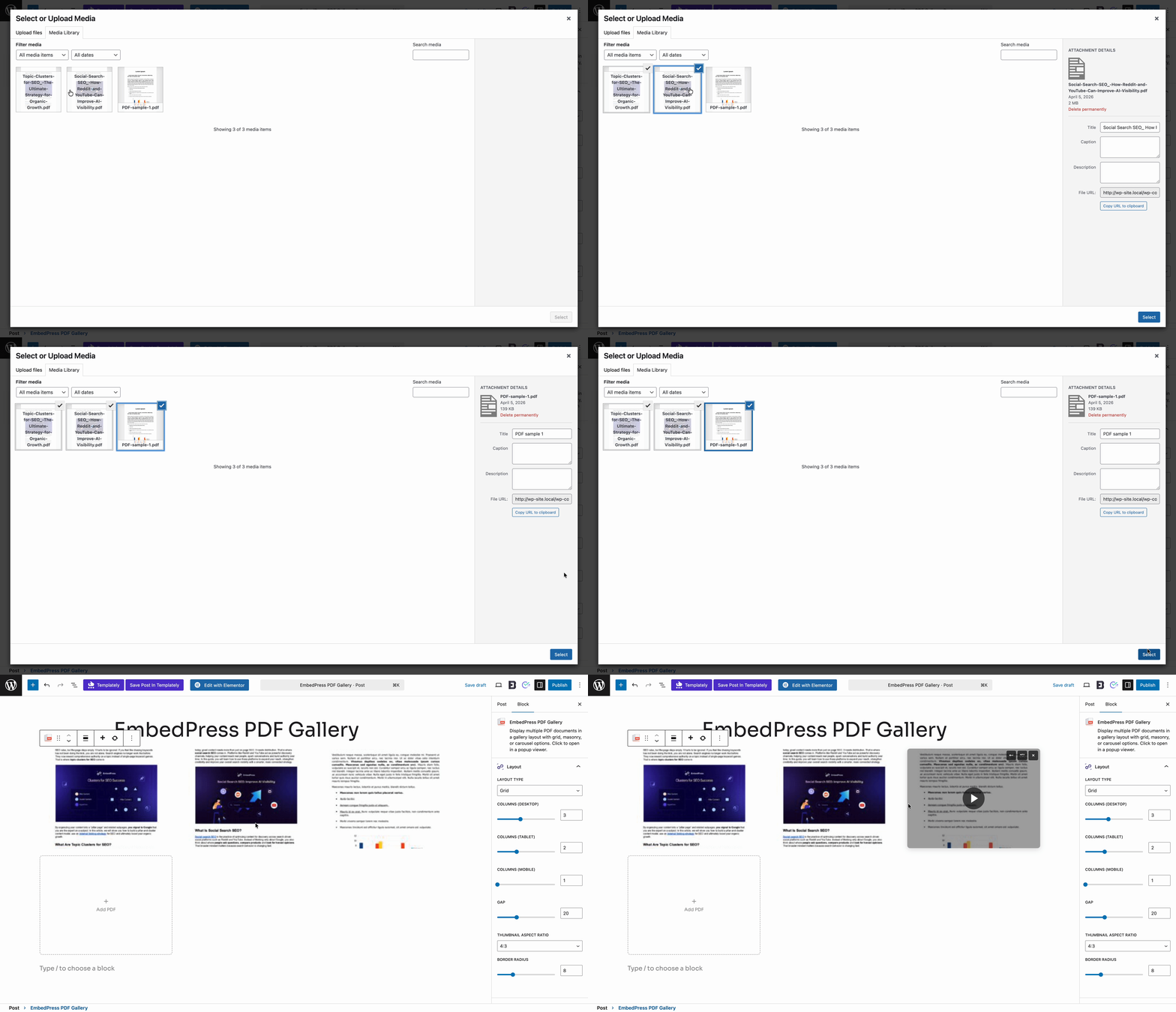
To create your gallery, simply click the ‘Add PDF’ button and select the ‘Media Library’ or ‘Upload’ button. Choose multiple PDFs that you want to showcase. EmbedPress will automatically fetch the selected files and arrange them into a gallery on your post or page.
Step 3: Edit & Publish Your PDF Gallery #
You can add extensive customization and choose exactly how you want to showcase your PDF gallery from the options under the Block tab on your right-hand side.
- Layout Types: Choose between 4 stunning layouts: Grid, Masonry, Carousel (PRO) and BookShelf (PRO).
- Columns & Gap: Easily adjust the number of columns and the gap between items for both Desktop and Mobile devices to ensure perfect responsiveness.
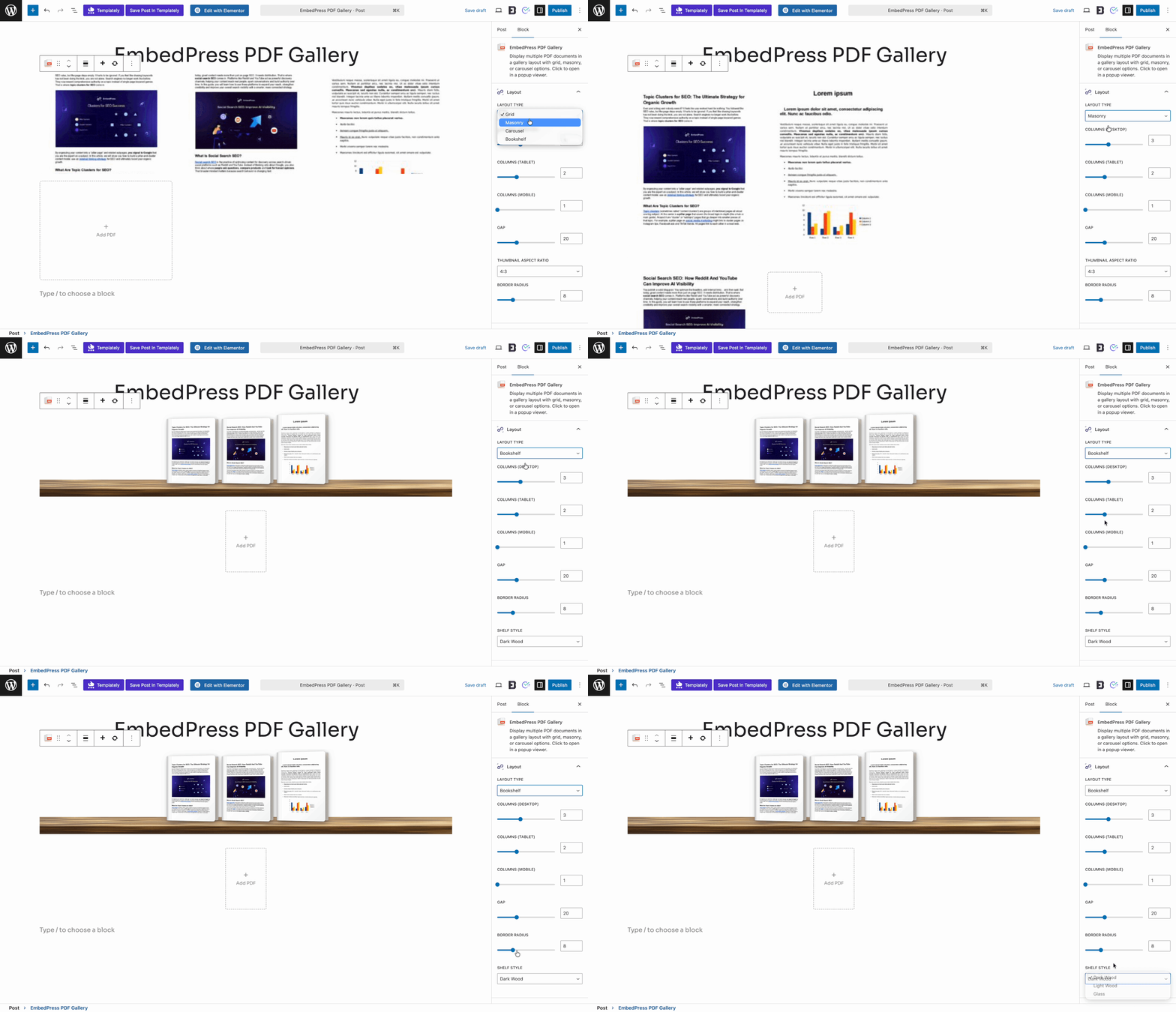
- BookShelf Styles: If you select the BookShelf layout, you can choose from three beautiful shelf styles: Dark Wood, Light Wood and Glass.
- Additional Controls: Customize the look and feel by configuring the Custom Thumbnail (PRO), toggling the Play Button (FREE), adding a Watermark (PRO) and setting your preferred Display Mode (FREE) (such as a Modern popup or Flip Book viewer).
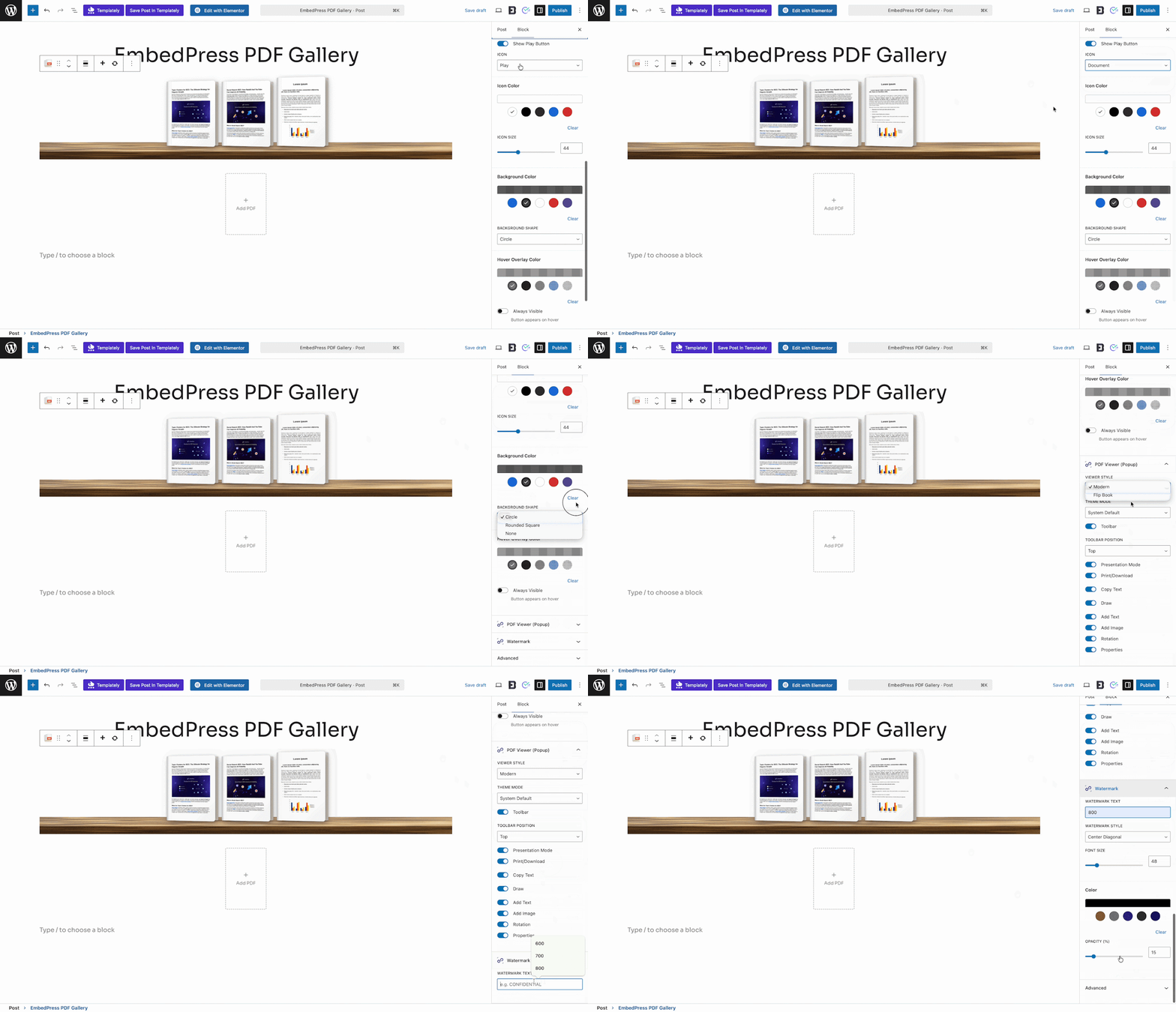
When you are done customizing, publish and preview your post or page. A fully responsive PDF gallery will now be available for your website visitors to view and interact with.
How to Embed a PDF Gallery in Elementor Using the PDF Gallery Widget #
You can use EmbedPress to embed a PDF gallery in Elementor websites by following these detailed steps.
Step 1: Insert the EmbedPress PDF Gallery Widget #
First, open the page or post in the Elementor editor where you want to add the PDF Gallery. Search for the ‘EmbedPress PDF Gallery’ widget under the ‘Elements’ tab in the editor’s side panel. Drag and drop this to the preferred location on your page.
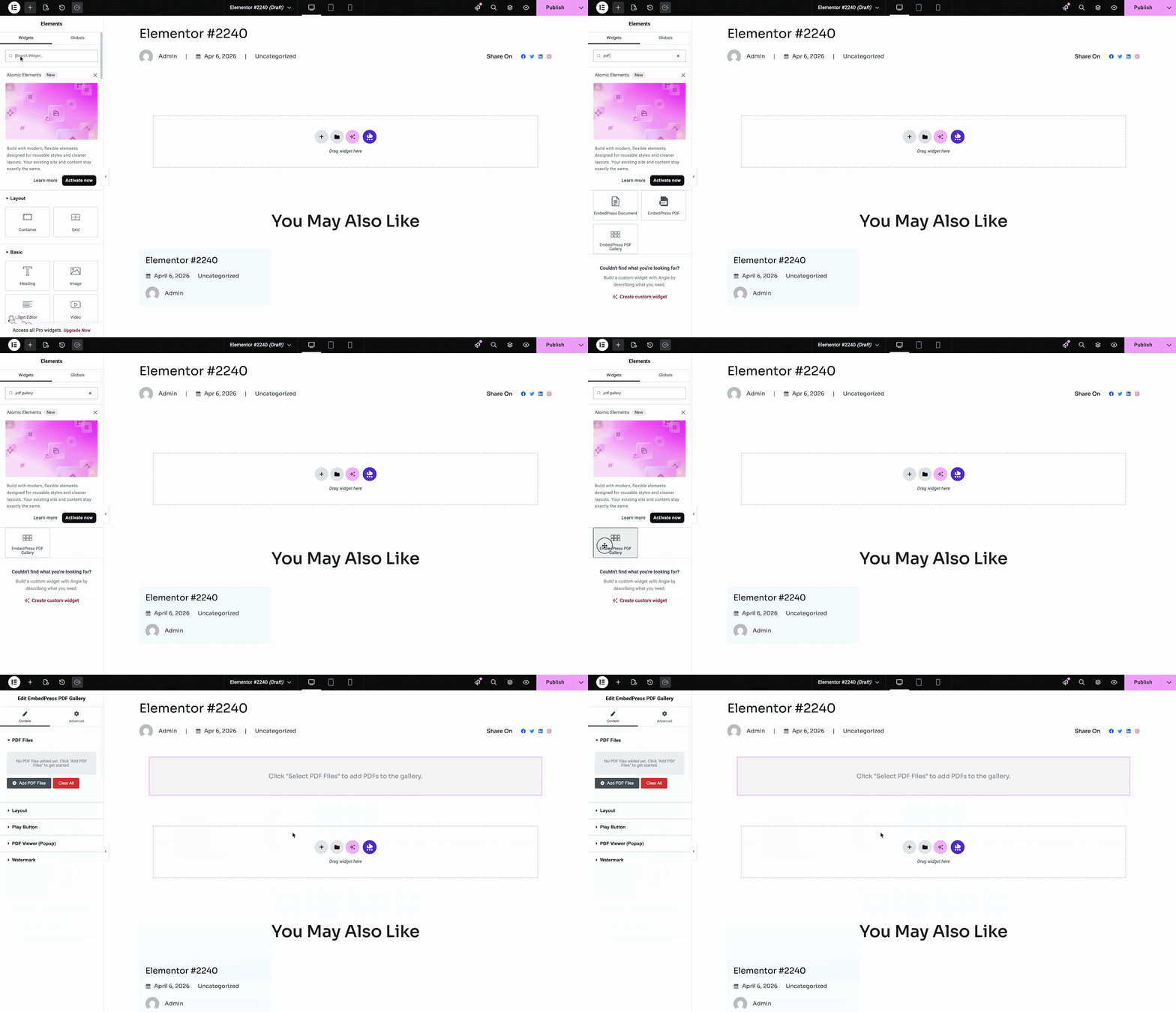
Step 2: Upload Multiple PDFs to the Elementor Editor #
From the ‘Content’ tab on the side panel, click on ‘Add PDF Files’ to select or upload multiple PDFs from your Media Library. EmbedPress will automatically generate the PDF gallery into your Elementor layout.
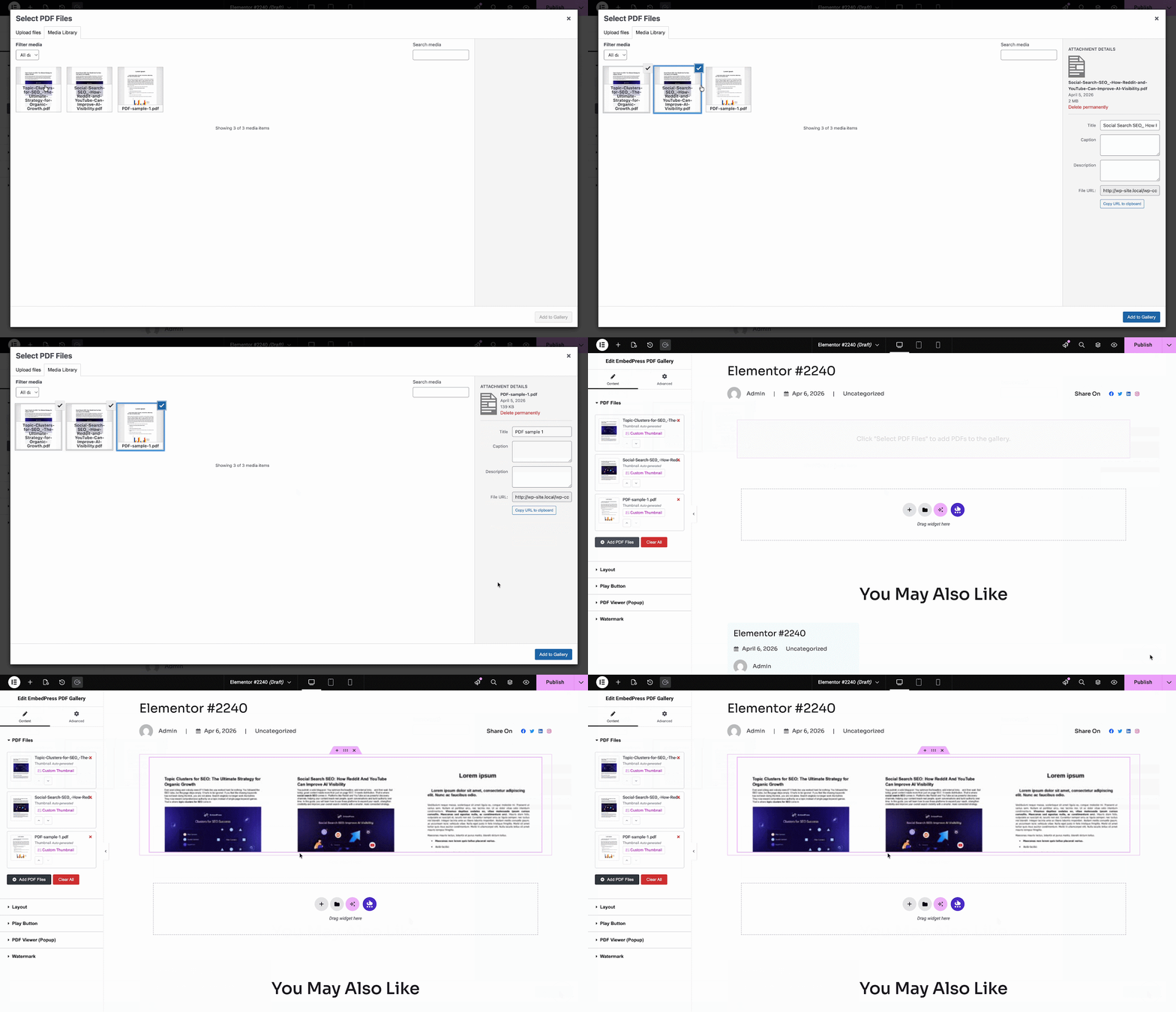
Step 3: Edit & Publish Your PDF Gallery #
Customize your Elementor PDF gallery using the side panel: Select your layout (Grid, Masonry, Carousel, or BookShelf) and adjust the columns, gaps and aspect ratios directly from the Elementor Editor. For the BookShelf layout, select your preferred shelf design (Dark Wood, Light Wood, or Glass).
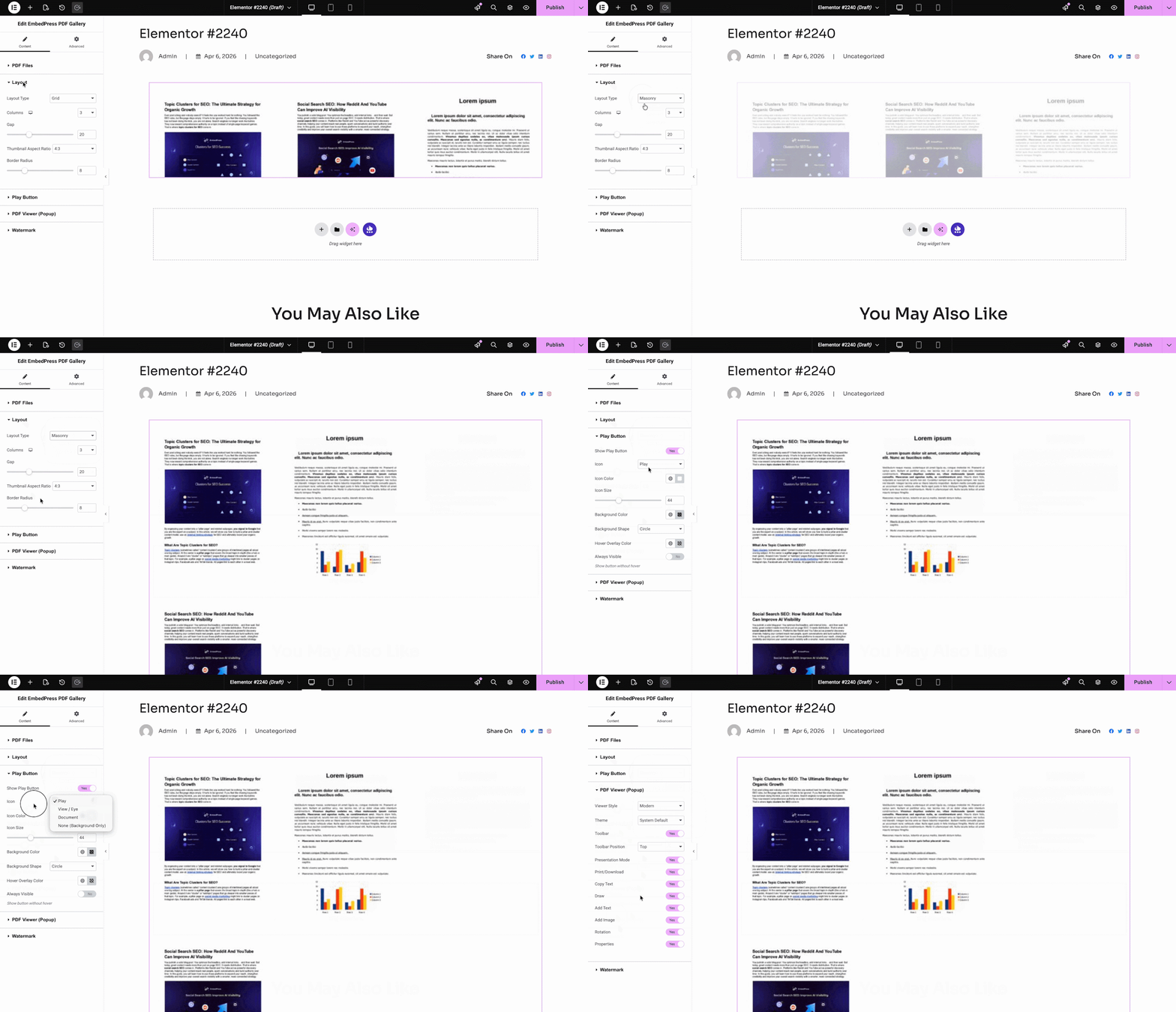
- Play Button: You can add a play button on each of the PDFs on hover. It has 3 different icon presets (play, document, eye) with the option to change colors, make it always visible, etc.
- PDF Viewer (Popup) & Watermark: Here, you can add some buttons and controls for your PDF gallery viewer, such as draw, copy text, download, zoom in/out, etc. You can also utilize Custom Thumbnails (PRO) and protect your documents with a Watermark (PRO).
When you are done, click on ‘Publish’ and preview your fully responsive and functional PDF gallery.
How to Embed a PDF Gallery in Classic Editor, Divi, Beaver Builder & Others #
Using the EmbedPress plugin’s exclusive Shortcode feature, you can easily embed your PDF galleries in the Classic Editor, Beaver Builder, Divi, Oxygen builder and all other popular page builders. Follow the steps below to learn how.
Step 1: Upload Your PDFs to the Website #
From your WordPress dashboard, go to Media → Add New. Upload the PDFs you want to include in your gallery or select existing ones and copy their URLs.
Step 2: Generate the PDF Gallery Shortcode #
Navigate to the EmbedPress tab in your dashboard. Go to General → Shortcode. Select your uploaded PDF URLs to generate a combined gallery shortcode, configure your desired layout (Grid, Masonry, Carousel or Bookshelf) and click on the ‘Generate’ button. Click the Copy icon to copy your newly created shortcode.
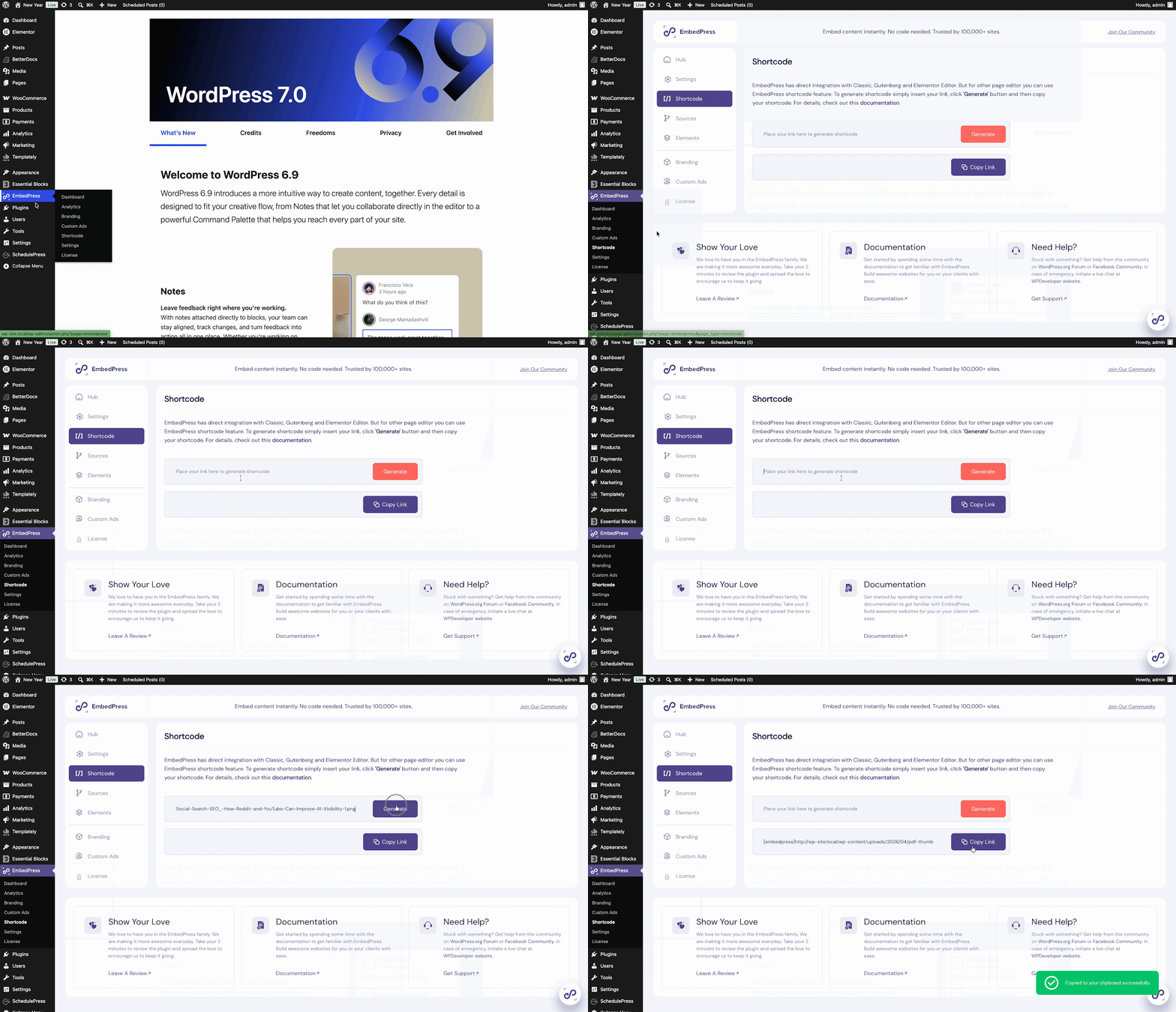
Step 3: Embed PDF Gallery Shortcode #
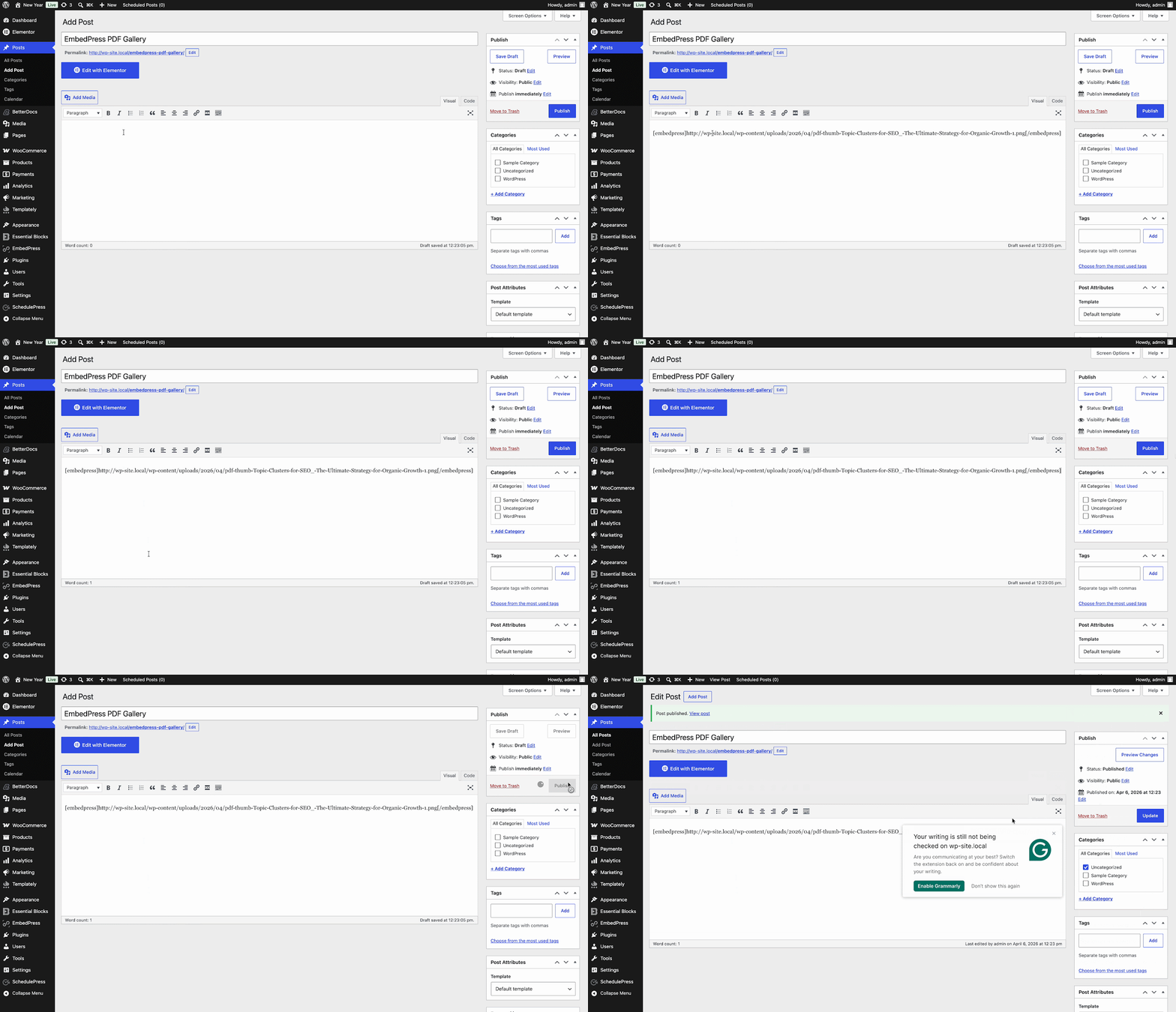
Open a new page or post in the Classic Editor (or your preferred page builder), paste the PDF gallery shortcode and publish the page. The gallery will be instantly embedded.
Final Outcome #
Once you publish a PDF gallery for your documents, here is what it will look like to your visitors.

How to Add Custom Branding to Document & PDF Embeds? #
EmbedPress also comes with the advanced feature to embed a custom logo and CTA for your embedded documents and PDFs and customize them further to match your brand. Check out this documentation to learn the procedure.
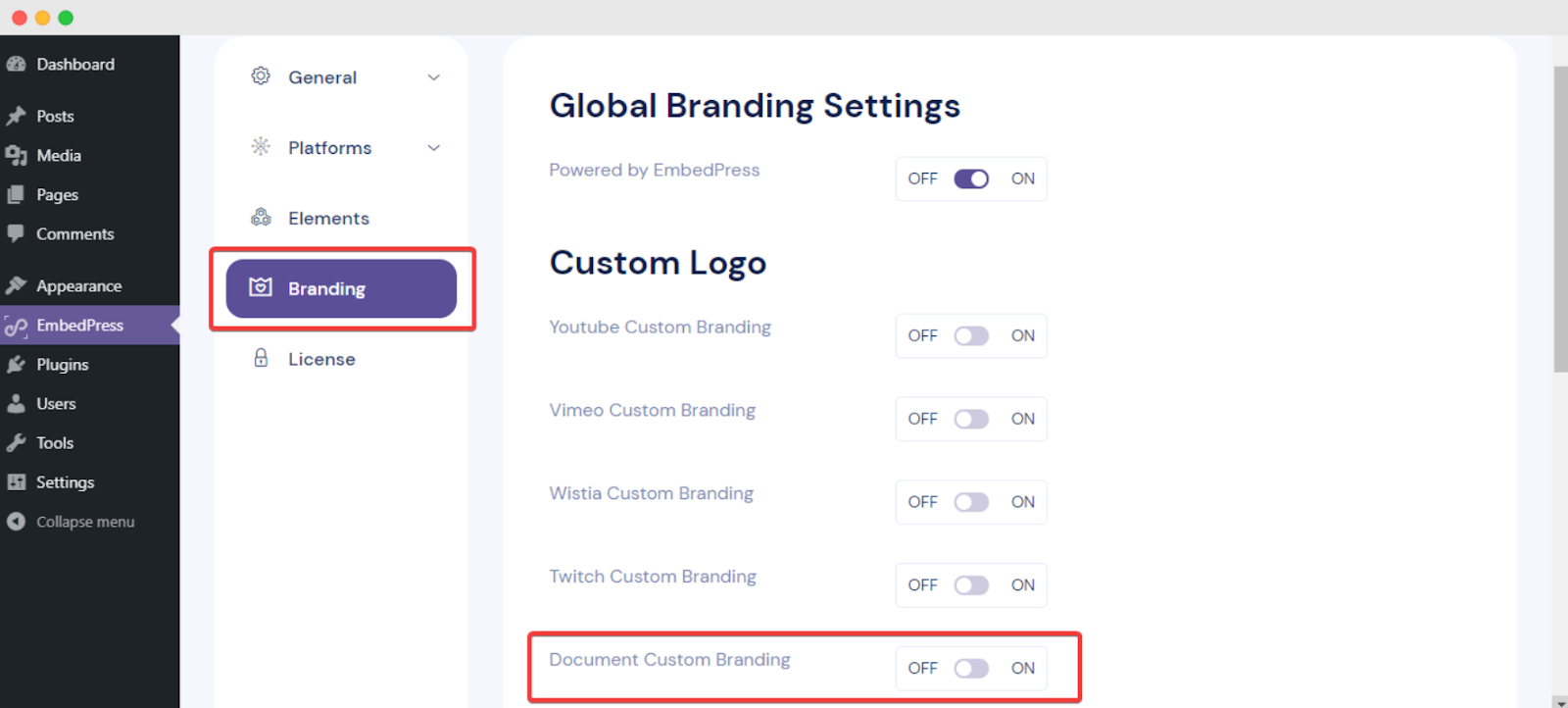
With these simple steps, you can embed documents or PDF galleries and add custom branding instantly to your WordPress website with EmbedPress using the Gutenberg editor, Elementor Editor or any other page builders.
If you are facing problems and require further assistance, feel free to contact our support or join our Facebook Community to get in touch with WordPress experts and content creators like yourself.


