
Embedding Behance designs in WordPress becomes effortless with EmbedPress. Whether you want to showcase UI designs, case studies, creative portfolios, or concept art, EmbedPress lets you showcase Behance content to Gutenberg, Classic Editor, Elementor or anywhere using a shortcode.
Follow the steps below to embed Behance designs on your WordPress website.
How to Collect Behance Design’s Embed URL? #
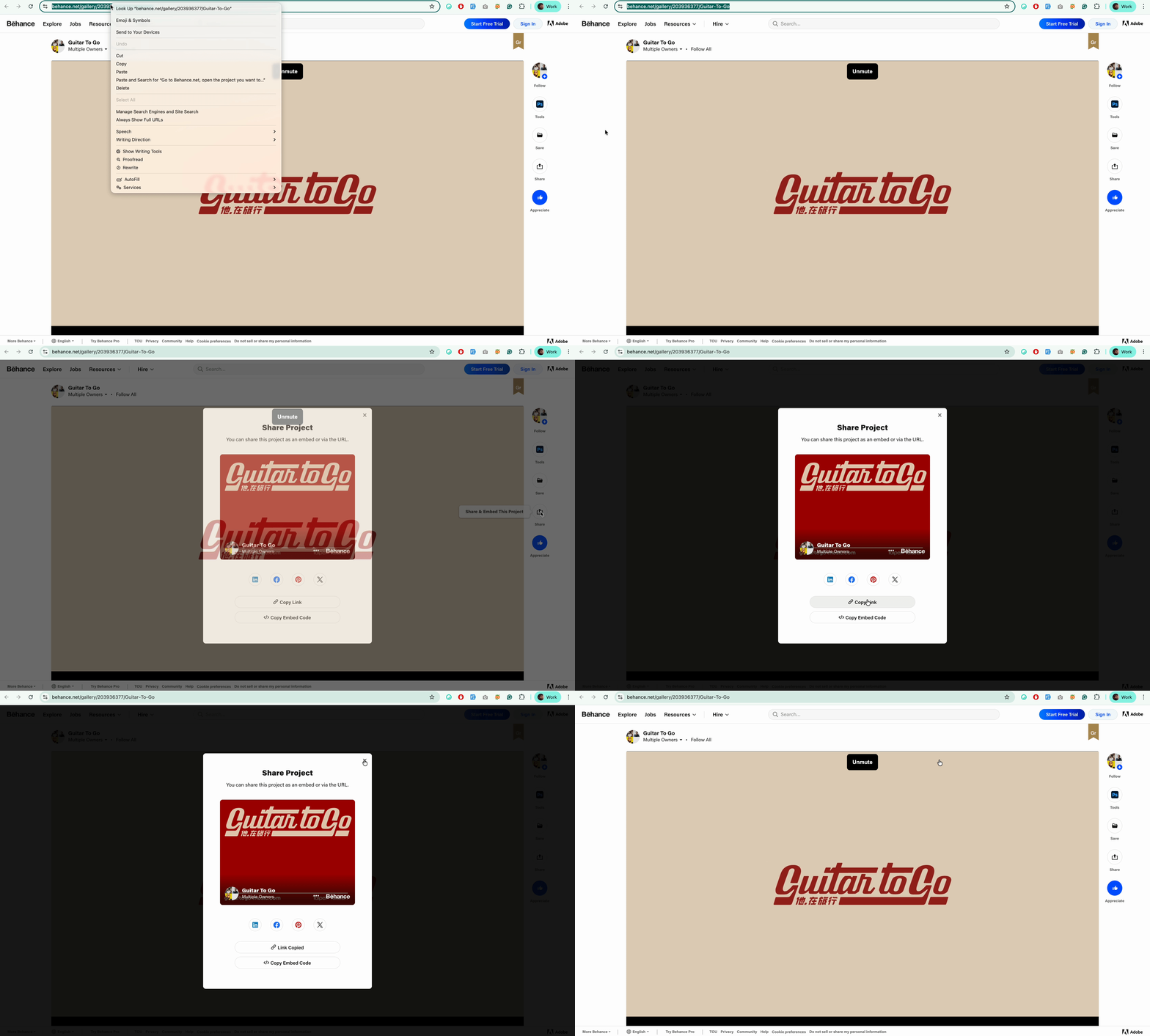
Go to the Behance website, open the project you want to embed and copy the page URL from your browser’s address bar.
You can also get the URL by tapping the ‘Share’ button available at the right on a source screen. It will then open a ‘Share Project’ pop-up from which you can copy the link.
Embed Behance Designs Using Gutenberg #
Embedding Behance content in Gutenberg is simple and takes only a few moments. Just follow these steps below.
Step 1: Insert the EmbedPress Block in Gutenberg #
Navigate to your WordPress dashboard and open the post or page where you want to embed the Behance project. Click the ‘+’ icon to add a new block, and search for EmbedPress.

Select the EmbedPress block to insert it. This is where you will input the Behance design share URL.
Step 2: Paste the Behance Link #
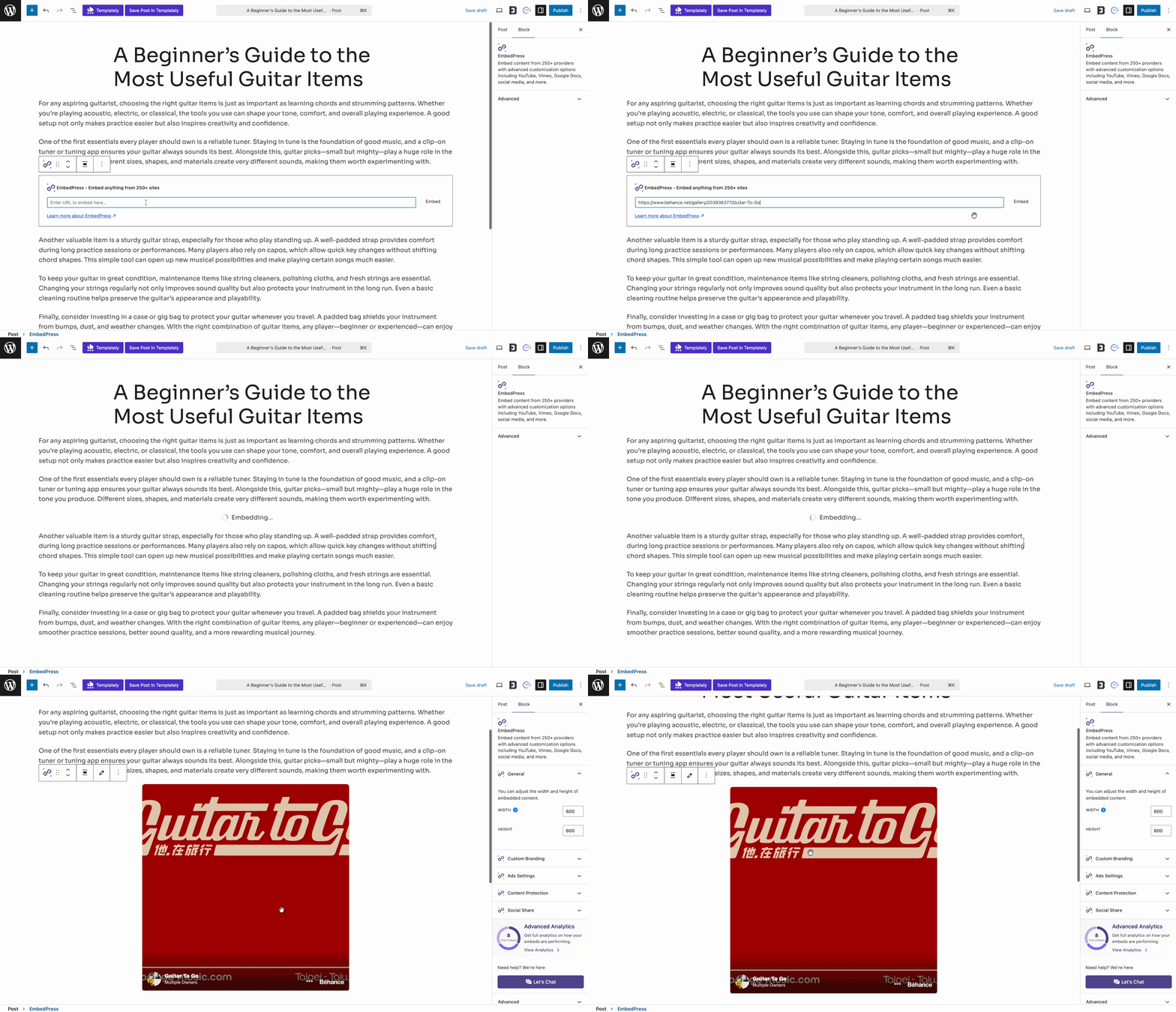
Once the EmbedPress block is added, you will see an input field. Paste your Behance project URL there. The design will automatically load and preview inside the Gutenberg editor.
Step 3: Customize Your Embedded Content #
Once the embedding is done, you can adjust its height and width to match your page size. This will ensure your embedded content gets a perfect fit to your web page.

Step 4: Publish or Update Your Page #
If the preview looks good, hit ‘Publish’ or ‘Update’ to make the embedded Behance design live on your website.
Embed Behance Designs Using Elementor #
You can also embed Behance in Elementor using the EmbedPress widget. Follow the step-by-step process to know how.
Step 1: Add the EmbedPress Widget
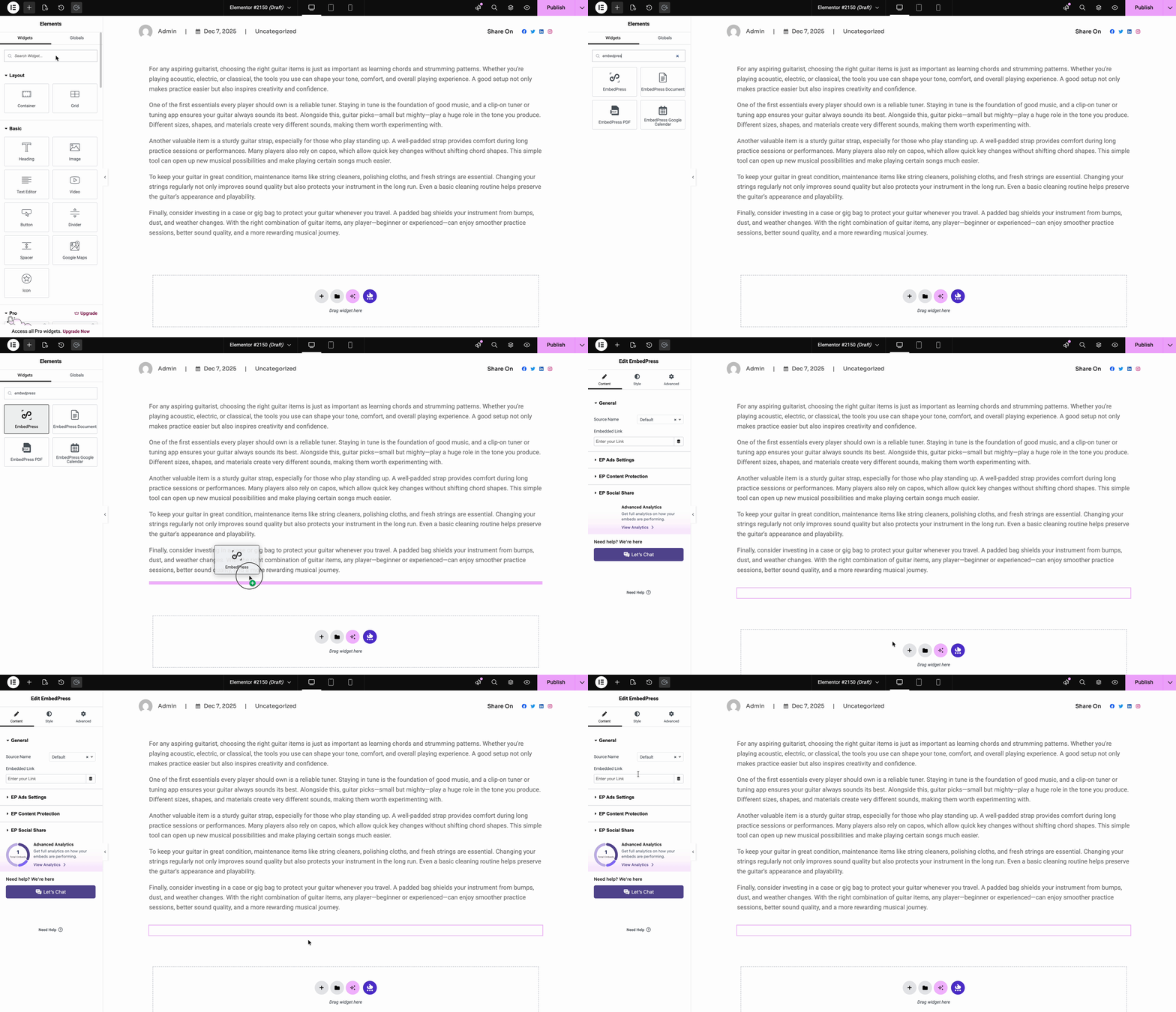
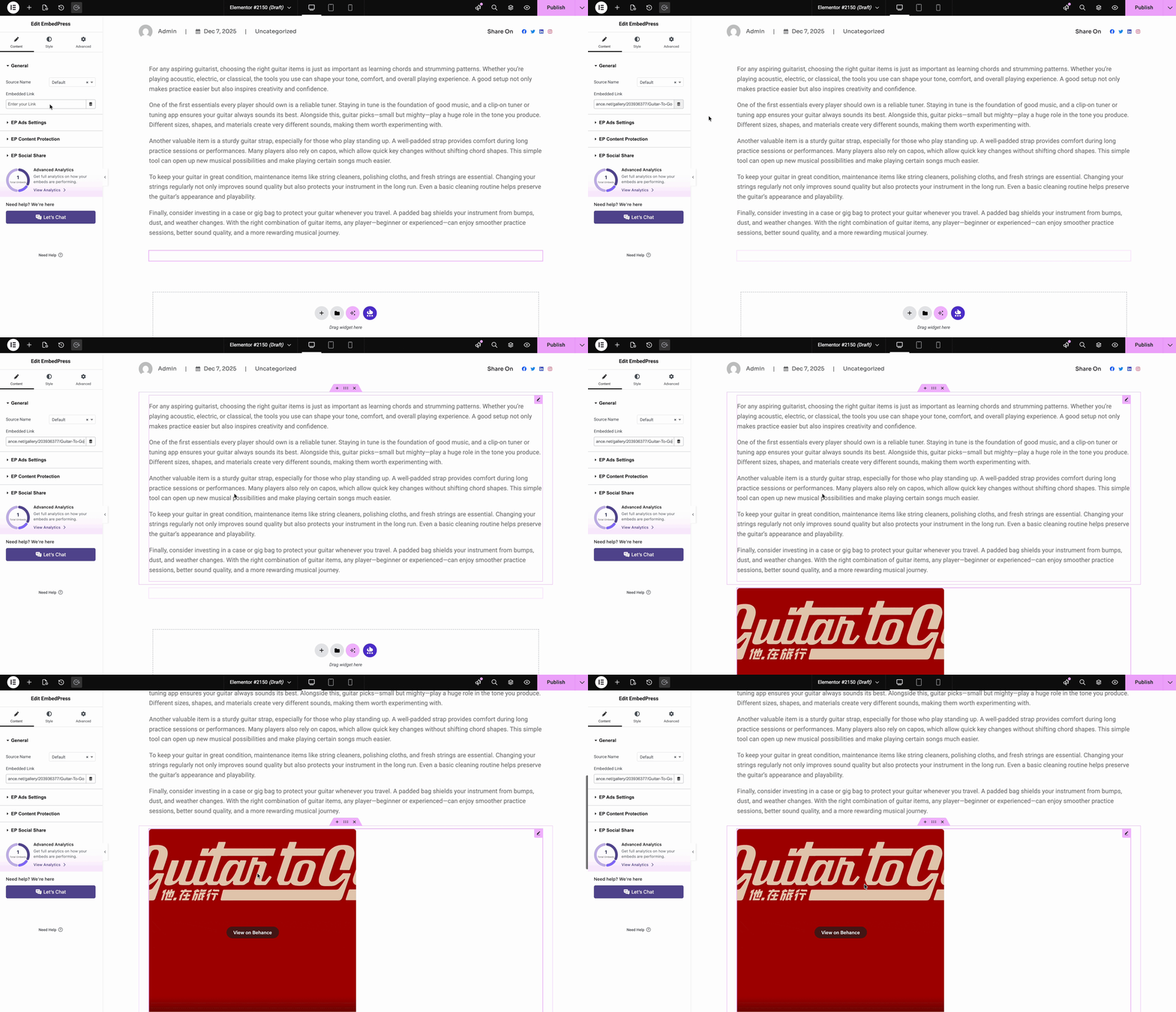
Edit your page with Elementor. From the left widget panel, search for EmbedPress and drag the widget onto your page.
Step 2: Paste the Behance URL #
Under the widget’s Content settings, paste your Behance project link into the URL field. The Behance design will instantly appear in the Elementor preview window.
Step 3: Customize Your Embedded Content #
Once the embedding is done, you can adjust its height and width to match your page size from the Style tab.

Step 4: Publish Your Elementor Page #
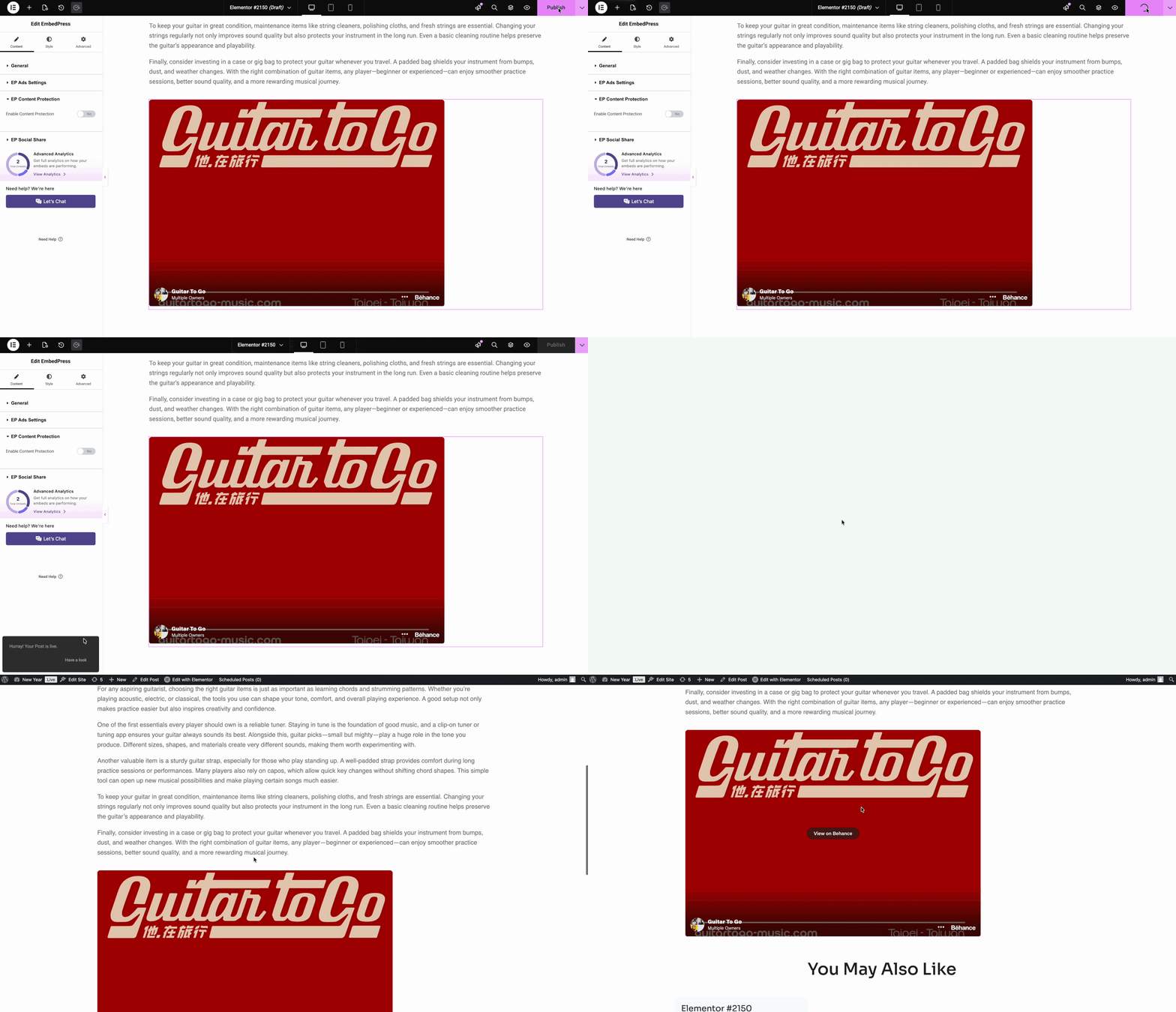
If everything looks perfect, click ‘Publish’ to make your embedded Behance content visible on the frontend.
Embed Behance Content Using Classic Editor #
EmbedPress allows you to embed Behance content with your classic editor as well, using the shortcode. Follow the steps to learn how you can embed Behance using a classic editor.
Step 1: Generate EmbedPress Shortcode #
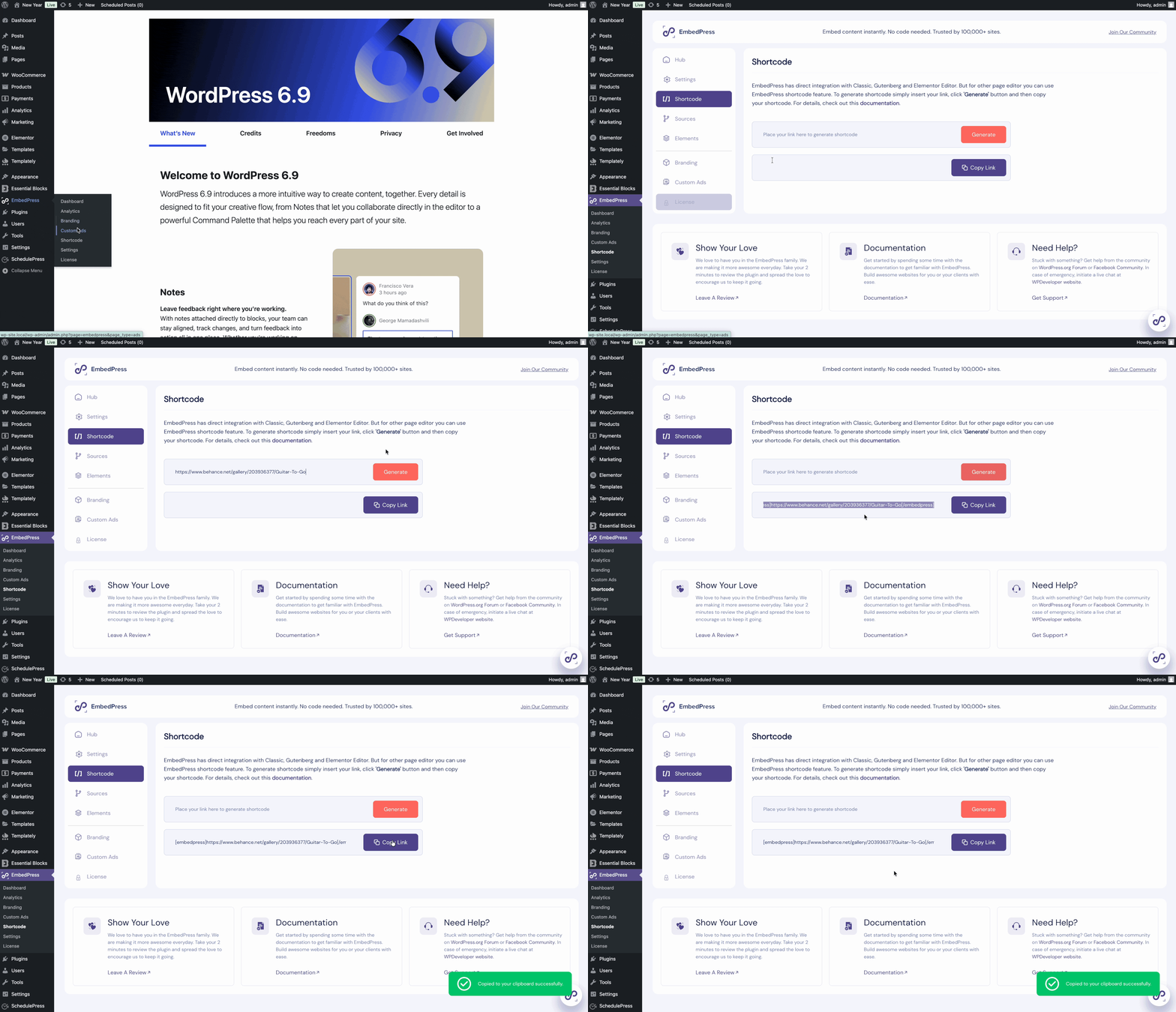
Go to your EmbedPress plugin dashboard and click on the ‘Shortcode’ option, as shown below. From there, you can access the tools for generating custom shortcodes and embed them in any WordPress editor.
Then paste the collected content URL in the input field and click on the ‘Generate’ button. EmbedPress will automatically generate a shortcode of the source content. Click on ‘Copy Link,’ and you will be ready to embed it in any WordPress page builder.
Step 2: Embed with Shortcodes on WordPress Editors #
Open up your preferred posts or pages on WordPress Classic Editor. Add your Behance design URL to the content area. And instantly, your URL will be transformed into an embed of your Behance design.

Final Outcome #
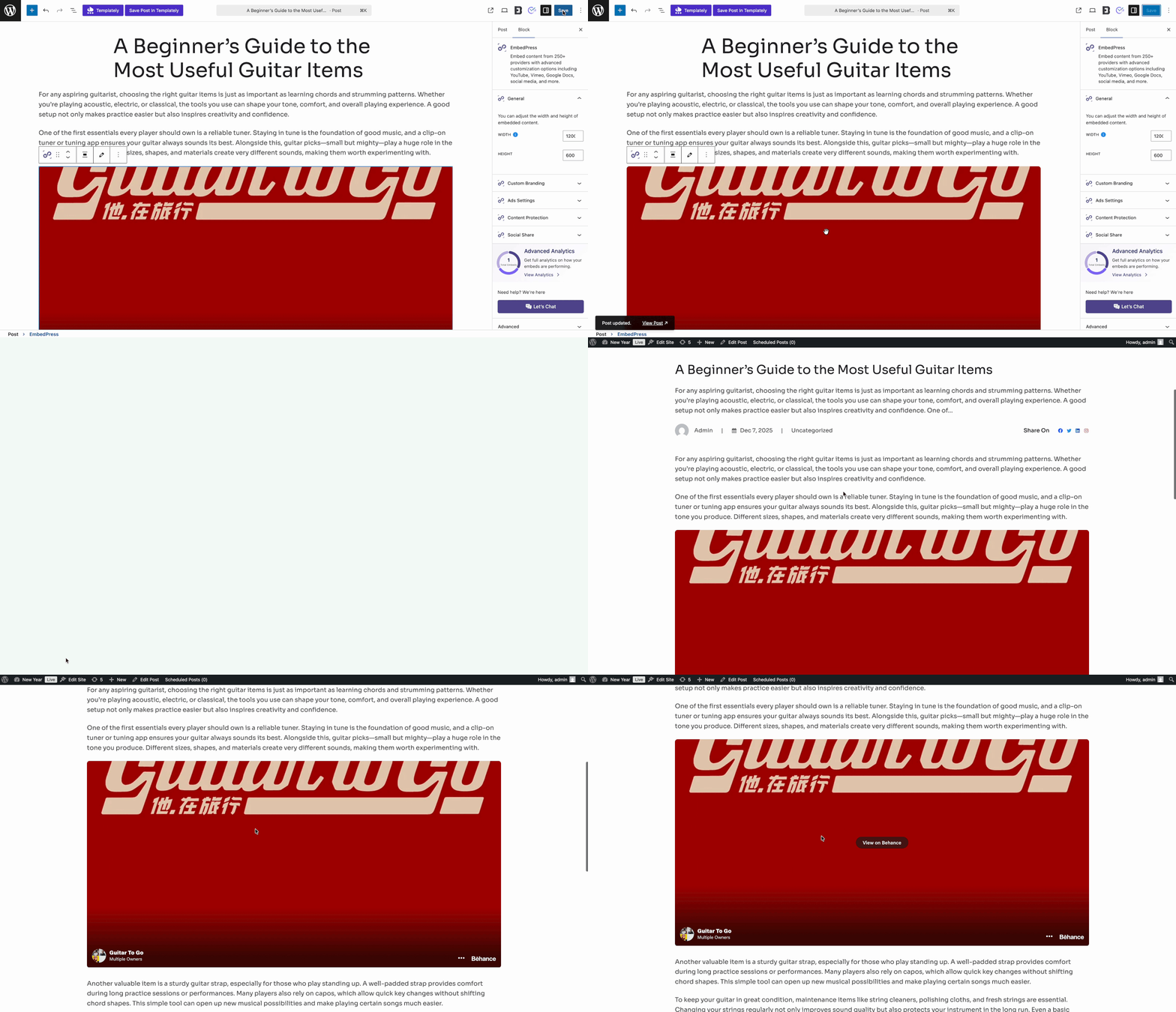
Finally, click on the ‘Publish’ or ‘Update’ button and view the page to see the content that you have embedded on your site.
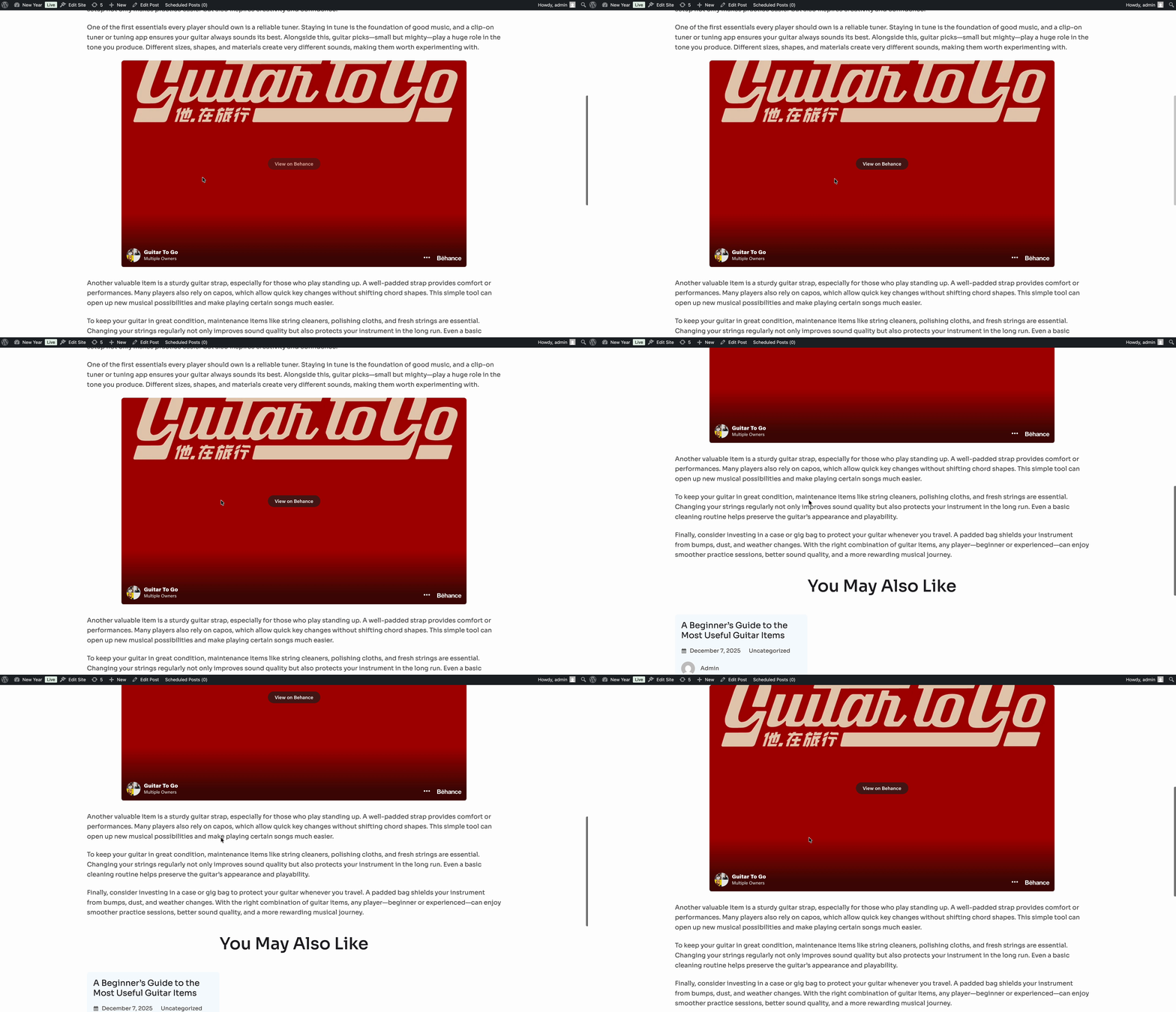
This is how easily you can display your Behance design using Elementor, Gutenberg or Classic editor.
Get a Live Experience Of Embedding Behance Design #
If you face any problems and need further assistance, contact our Support Team or join our Facebook Community to connect with content creators and WordPress experts like yourself.


