Video is one of the most powerful content formats on the web today. However, only embedding video is no longer just about playback; it is about control, engagement and compliance. Viewers expect smooth playback. Businesses need lead generation. Educators want completion tracking. And everyone needs to stay compliant with privacy laws. That is where the latest EmbedPress Custom Video Player controls change things.
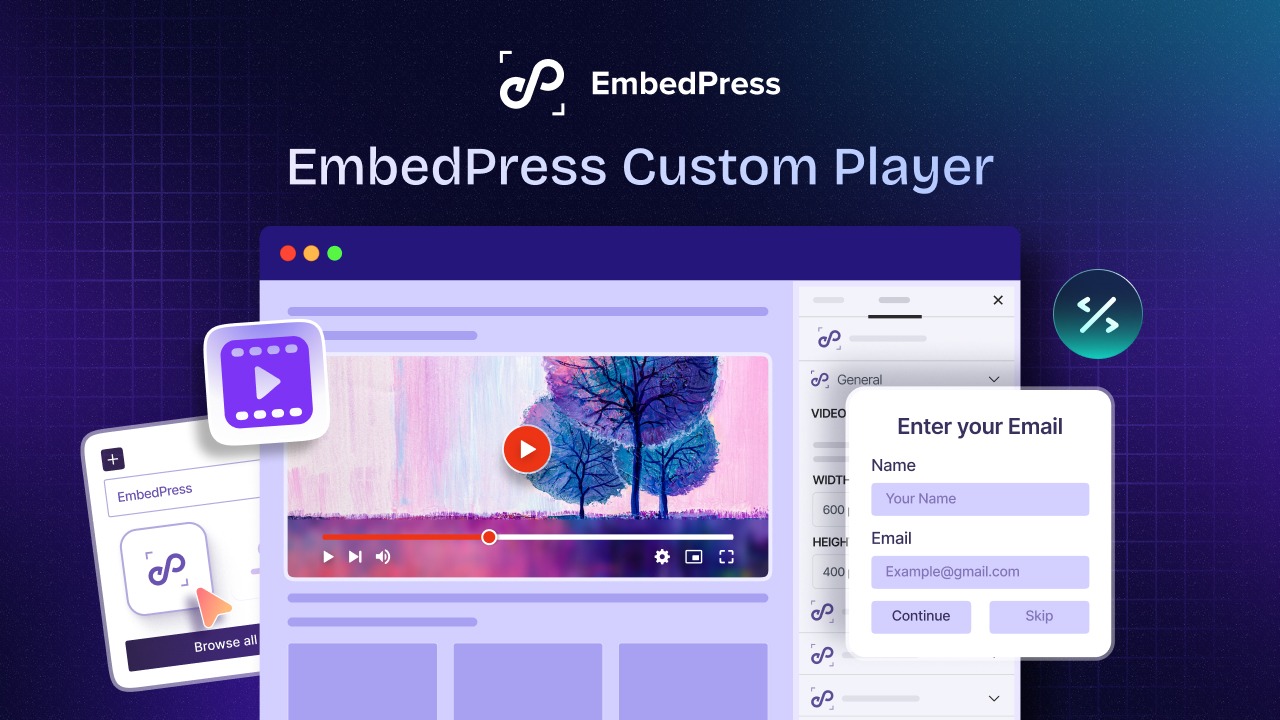
The new updates bring all of these capabilities together inside a single, easy-to-configure feature. This blog walks you through every advanced control available, how to set them up, and how they can directly contribute to your business growth.
TL;DR (Too Long, Didn’t Read?)
Short on time? Here is the complete picture of what this new feature enhancement is about. The table below covers every key point from this guide in one quick scan.
| Engagement & Conversions | Email Capture | Pauses the video to collect the viewer’s email and name |
| Action Lock | Locks the video until the viewer clicks a link or takes an action | |
| Timed Call To Action | Displays a button or message at a specific timestamp | |
| Navigation & UX | Video Chapters | Allows viewers to jump to specific sections |
| Auto Resume Playback | Resumes video from where the viewer last stopped | |
| Custom End Screen | Shows a personalized screen after the video ends | |
| Privacy & Compliance | Advanced Privacy Mode | Displays GDPR-compliant data collection notices |
| Country Restriction | Blocks or allows viewers from specific countries | |
| Analytics & Learning | Drop-off Heatmap | Shows exactly when viewers stop watching |
| Course Completion Tracking | Logs when students reach a set watch percentage | |
| Delivery | Adaptive Streaming (HLS/DASH) | Adjusts video quality based on network speed |
| Use CDN | Delivers video from the nearest CDN node | |
| Dashboard | Player & Engagement Hub | Central analytics dashboard inside WordPress admin |
Note: Some of these features require EmbedPress PRO. You need to install and activate it to unlock all advanced controls.
Why Standard Video Embeds Are Holding Your WordPress Site Back
Most WordPress site owners embed videos the same way: paste a YouTube or Vimeo link, done. That method works, but it gives you no control. You cannot capture leads. You cannot restrict who watches. You cannot see where viewers drop off. You lose visibility into how viewers engage, where they drop off, and what actions they take next.
The EmbedPress Custom Player completely changes that. It wraps your embedded video in a powerful control layer. You keep the video source you already use, but you gain full control over how it is delivered, who can watch it, and what viewers do after watching.
This matters for businesses, course creators, marketers, and content teams alike. A properly configured website video player is not just a media tool. It is a conversion asset.
Turn Viewers Into Leads with EmbedPress Custom Video Player
The new enhancements to the EmbedPress Custom Player controls can transform passive video viewers into active leads and participants. These features directly support marketing and sales goals.
Email Capture: Generate Leads from Your Video Content
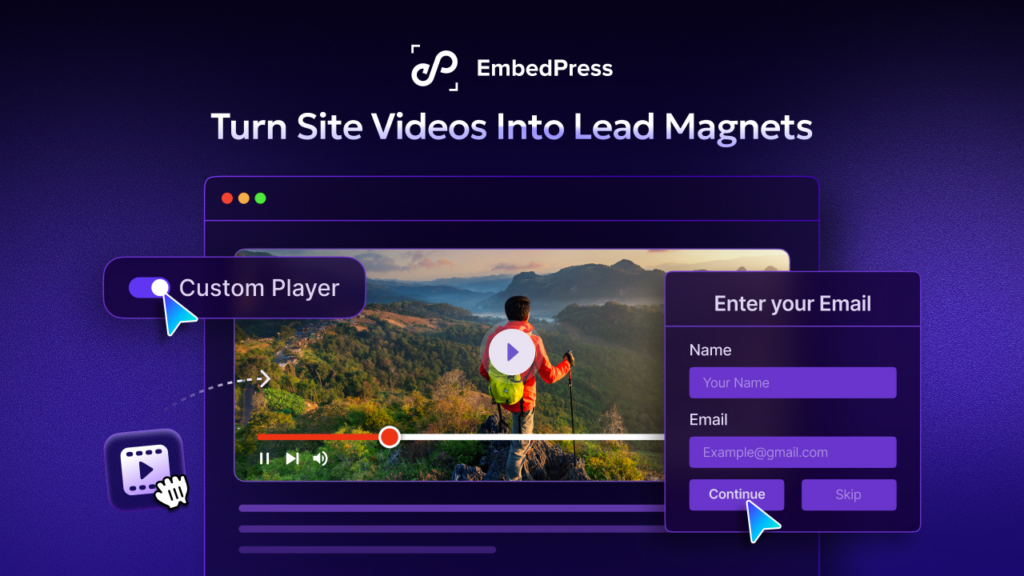
The Email Capture feature pauses your video at a specific timestamp and requires the viewer to submit their name and email address before they can continue watching. This is one of the most direct ways to build your email list using video content.
- Think about the use case: you publish a product demo or a high-value tutorial. Viewers are already engaged. At the point of maximum interest, the player pauses and prompts them to register. You capture the lead while they are already motivated to keep watching.
All captured emails are automatically saved to your WordPress dashboard under EmbedPress. You can filter by date, search by video URL, and export everything as a CSV file for use in your email marketing platform.
Action Lock: Drive Specific Viewer Behaviors
Action Lock takes lead generation a step further. Instead of asking for an email, you can lock the video behind a specific action: clicking a link, signing up for an account, sharing on social media, or logging in to a page.
You set a custom URL and a button label. The video stays locked until the viewer completes the action. This is useful for gated content, community-driven growth campaigns, or any scenario where you want the viewer to do something specific before getting access.
Timed Call to Action: Surface Your Offers at the Right Moment
The Timed Call To Action (CTA) feature lets you display a custom text message or a clickable button at any specific timestamp during video playback. Unlike a static banner, this appears exactly when your message is most relevant to what the viewer just watched.
For example, if your video explains a problem in the first two minutes and then presents your product as the solution, you can trigger a CTA button at the exact moment the solution appears. That kind of contextual timing dramatically improves click-through rates compared to generic sidebar banners.
Navigation And UX Features: Keep Viewers Watching Longer
This section is about reducing friction and improving the overall viewing experience of the website video player so that your audience stays engaged from start to finish.
Video Chapters: Help Viewers Find What They Need
Video Chapters let you divide your video into clearly labeled sections. Viewers can see the chapter list and jump directly to the part that is most relevant to them.
This is especially valuable for long-form content: product tutorials, webinars, training sessions, or keynote recordings. When viewers can navigate a 45-minute video like a table of contents, they are far less likely to abandon it. They find value faster, and they are more likely to return.
Auto Resume Playback: Remove the Frustration of Starting Over
Auto Resume Playback remembers exactly where each viewer stopped watching. If they close the browser or navigate away, the video picks up from that same point the next time they return.
This directly improves video completion rates by removing interruption friction. Viewers no longer feel discouraged when leaving midway through. The experience becomes frictionless, and completion rates improve as a result.
Custom End Screen: What Happens After the Video Ends Matters
When a video ends on YouTube, YouTube immediately recommends other videos, often from your competitors. The EmbedPress Custom End Screen prevents that. You control exactly what the viewer sees after the final frame.
Use the end screen to display a lead generation message, a link to your next piece of content, a newsletter signup prompt, or a product offer. This is one of the most underused post-video marketing opportunities available to WordPress site owners.
Privacy And Compliance Controls for Global Audiences
Regulatory compliance is not optional. This section covers the features that help you meet legal obligations and control who can access your video content by geography.
Advanced Privacy Mode: GDPR-Compliant Video Embeds
When you embed a third-party video, that website video player can load tracking scripts, cookies, and external resources. This can create GDPR compliance issues, especially for audiences in the European Union.
EmbedPress Advanced Privacy Mode displays a customizable consent notice before the video loads. Viewers can see what data is collected and choose to accept. This approach helps stay aligned with GDPR standards and protects your site from compliance risk without requiring complex legal configurations.
Country Restriction: Control Who Watches Your Content
Country Restriction lets you either block viewers from specific countries or limit access exclusively to viewers from specific countries. The video simply will not load for restricted users.
This feature is useful for licensing compliance, regional product launches, geographically targeted campaigns, or educational programs with enrollment restrictions. Configuring it takes just a few seconds inside the Custom Player settings.
Analytics And Learning Features for Data-Driven Content Strategy
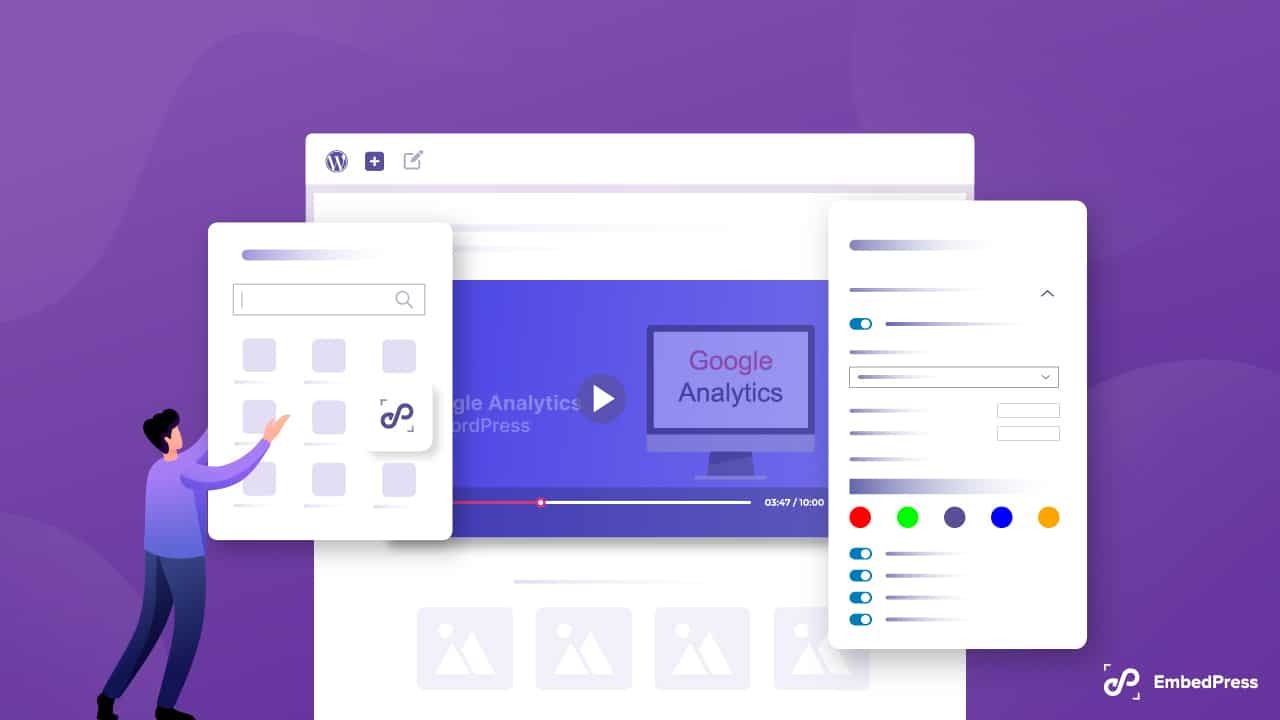
Understanding how your audience actually watches your videos is the foundation of a better content strategy. This section covers the tools that give you that visibility.
Drop-off Heatmap: Find out Exactly Where You Lose Viewers
The Drop-off Heatmap is one of the most powerful analytical features in the EmbedPress Custom Player. It generates a visual graph showing precisely when viewers stop watching. You can see which parts of your video hold attention and which parts cause people to leave.
This data is genuinely actionable. If viewers consistently drop off at the 2-minute mark, something in that section is not working. You can revise the script, change the pacing, or restructure the content. Without this data, you are guessing.
Access the heatmap from EmbedPress > Player and Engagement > Drop-off Heatmap in your WordPress dashboard. Select any video to view its engagement graph.
Course Completion Tracking: Essential for LMS And Online Educators
For educators using WordPress as a learning management platform, Course Completion Tracking is a critical feature. You set a specific watch percentage that a student must reach for the video to be marked as “completed.” The system logs each completion event automatically.
This data appears in the Completions tab of your Player and Engagement dashboard. It gives you a clear, objective record of student progress without requiring manual tracking or third-party LMS integrations for this specific function.
Video Delivery Optimization: Speed And Quality for Every Viewer
Slow video loading is one of the most common reasons viewers abandon content. This section covers the two delivery features that keep your video performance fast and consistent.
Adaptive Streaming (HLS/DASH): Automatic Quality Adjustment
Adaptive Streaming using HLS (HTTP Live Streaming) or DASH (Dynamic Adaptive Streaming over HTTP) automatically adjusts the video quality based on the viewer’s current network speed. If a viewer has a slow connection, the player reduces quality to maintain smooth playback. If the connection is fast, it delivers the highest available quality.
This eliminates the buffering problem. Viewers on mobile data, shared Wi-Fi, or slower internet connections get a watchable experience instead of a frustrating one. For a global audience with varied connectivity, this feature is essential.
Use CDN: Deliver Video from the Nearest Server
A Content Delivery Network (CDN) stores your video content on servers distributed across the world. When a viewer loads your video, it is served from the CDN node geographically closest to them. This reduces latency and speeds up load times significantly.
Once you have configured your CDN settings in EmbedPress, toggling the “Use CDN” option inside the Custom Player activates delivery optimization for that video. The result is faster loading, lower server load, and a better experience for international audiences.
The Player And Engagement Dashboard: Your Central Analytics Hub
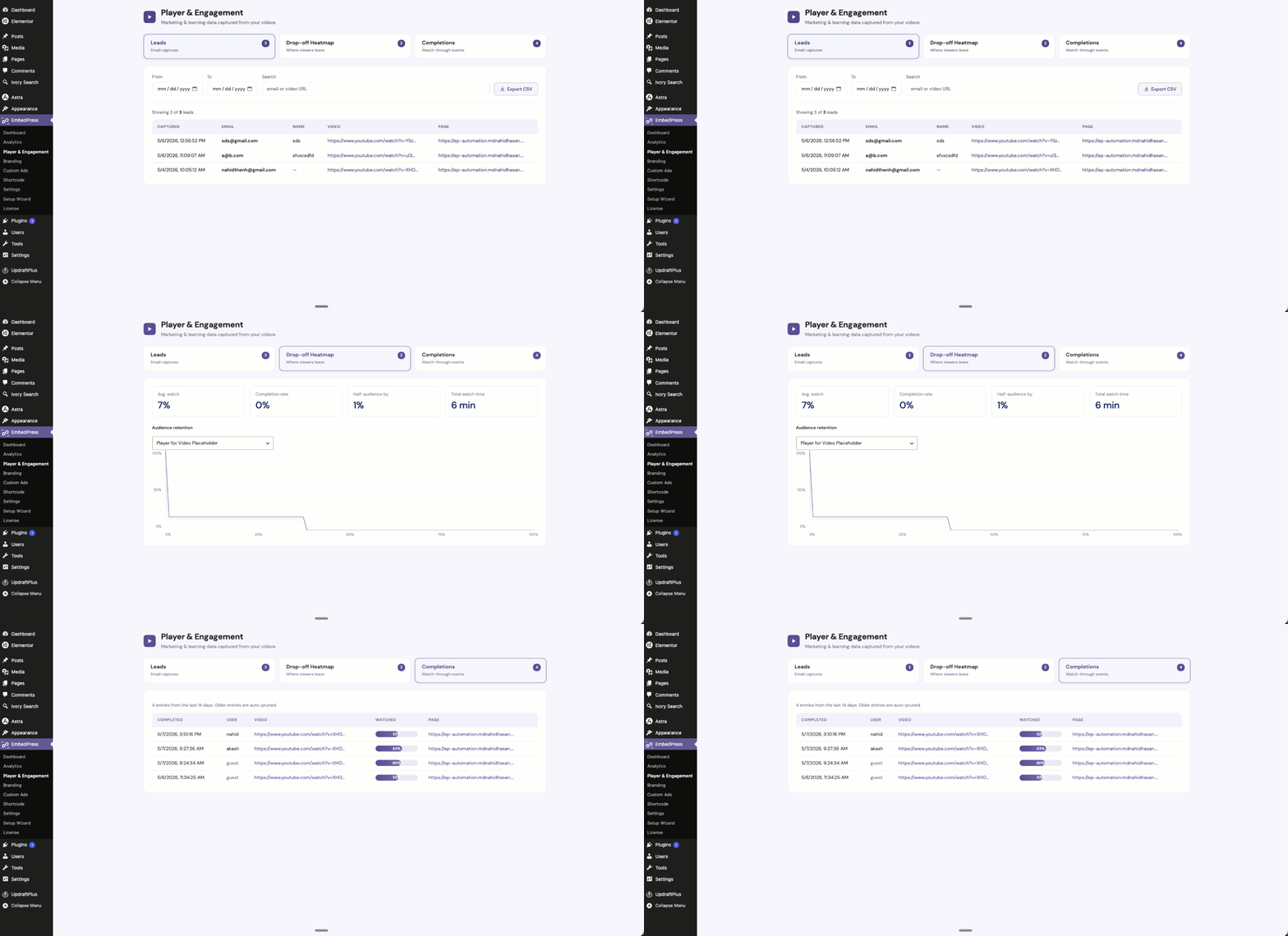
EmbedPress includes a dedicated analytics dashboard that brings all your video performance data into one place inside your WordPress admin area. You can access it by navigating to EmbedPress > Player and Engagement.
The dashboard has three tabs:
- Leads shows every email and name captured through the Email Capture feature. You can filter results by date range, search by video URL, and export the full list as a CSV file for import into Mailchimp, ActiveCampaign, HubSpot, or any other email marketing tool.
- Drop-off Heatmap allows you to select any video and view its engagement graph. The visualization shows viewer retention across the full duration of the video, with visible drop-off points.
- Completions logs all course completion events, showing which students reached the watch percentage you configured and when they did it.
This centralized dashboard removes the need to jump between Google Analytics, your video host, and separate spreadsheets. All the data you need to make content decisions is in one place, inside WordPress, without any third-party logins.
Who Benefits Most From the EmbedPress Custom Video Player?
The EmbedPress custom video player is built for a wide range of WordPress users, but certain use cases benefit from it the most.
- Digital marketers benefit from Email Capture, Action Lock, and Timed CTAs. These features turn every video into a lead generation and conversion tool.
- Online educators and course creators benefit from Course Completion Tracking, Video Chapters, and Auto Resume Playback. These features make video-based learning more structured and measurable.
- Content teams and media publishers benefit from Drop-off Heatmap data, Custom End Screens, and Adaptive Streaming. These features help improve content quality and keep audiences engaged.
- Businesses with international audiences benefit from Country Restriction and Advanced Privacy Mode. These features address geographic targeting and legal compliance requirements.
- Agencies and developers building client sites on WordPress benefit from having all of these features inside one plugin rather than managing multiple tools.
How to Enable the EmbedPress Custom Video Player in WordPress
Before using any advanced features, you need to activate the Custom Player. The setup process is quick and works in both the Gutenberg editor and Elementor.
Setting It Up in Gutenberg
Click the “+” icon inside your post or page editor and search for the EmbedPress block. Add it to the page. Paste your video URL (YouTube, Vimeo, or a self-hosted video link) into the input field and click “Embed.”
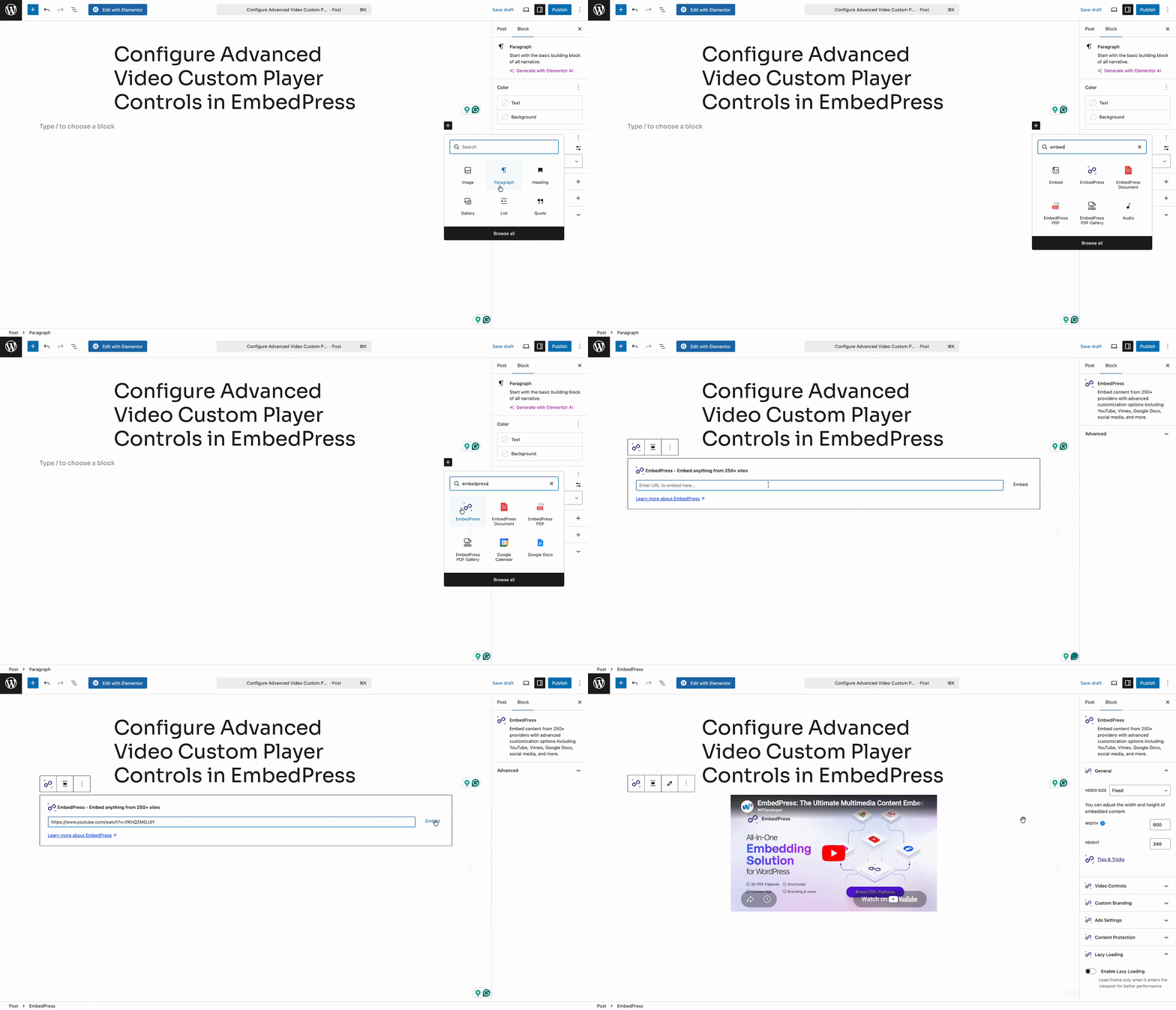
Once the video appears, go to the right-side settings panel, click the “Video Controls” tab, and toggle on “Enable Custom Player.” The advanced settings menus will appear below.
Once you are done adding the block, follow the step-by-step guide to configure the advanced Custom Player controls for your embedded video content using the Gutenberg editor.
Configure Advanced Player Controls
Once your video is embedded, make sure to ‘Enable Custom Player’. For that, toggle it on under the ‘Video Controls‘ tab in the right side settings panel. In the general settings, you will find several new expandable menus to configure your advanced features.
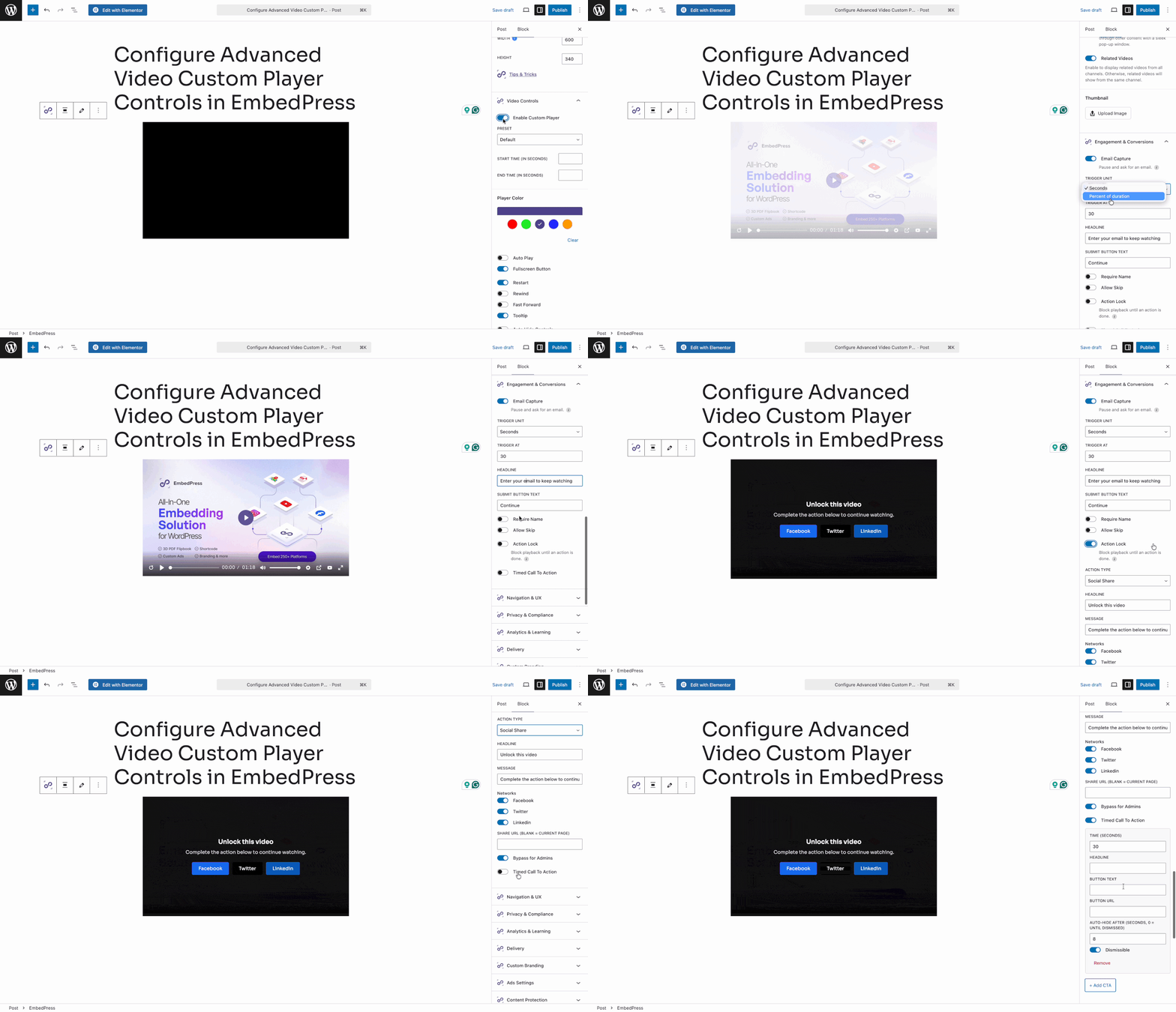
Here you will get some options that can turn your video embeds into a marketing asset that drives engagement & growth. Here you will find options for, Email Capture, Action Lock, Timed Call To Action, etc.
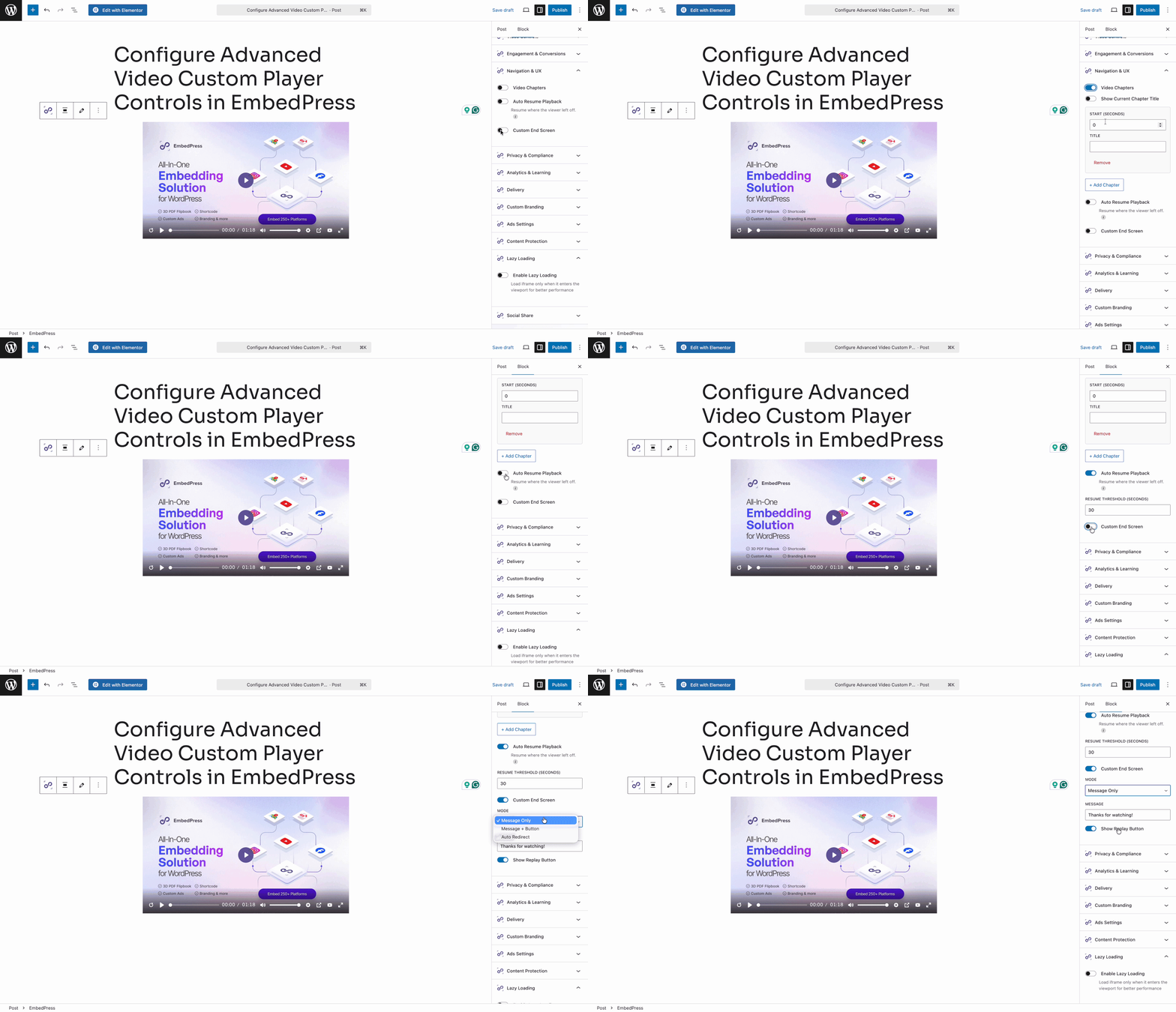
There are some options to enhance video navigation & UX as well. You can enhance the viewing experience and keep your audience focused on the content with options such as Video Chapters, Auto-Resume Playback, and Custom End Screen.
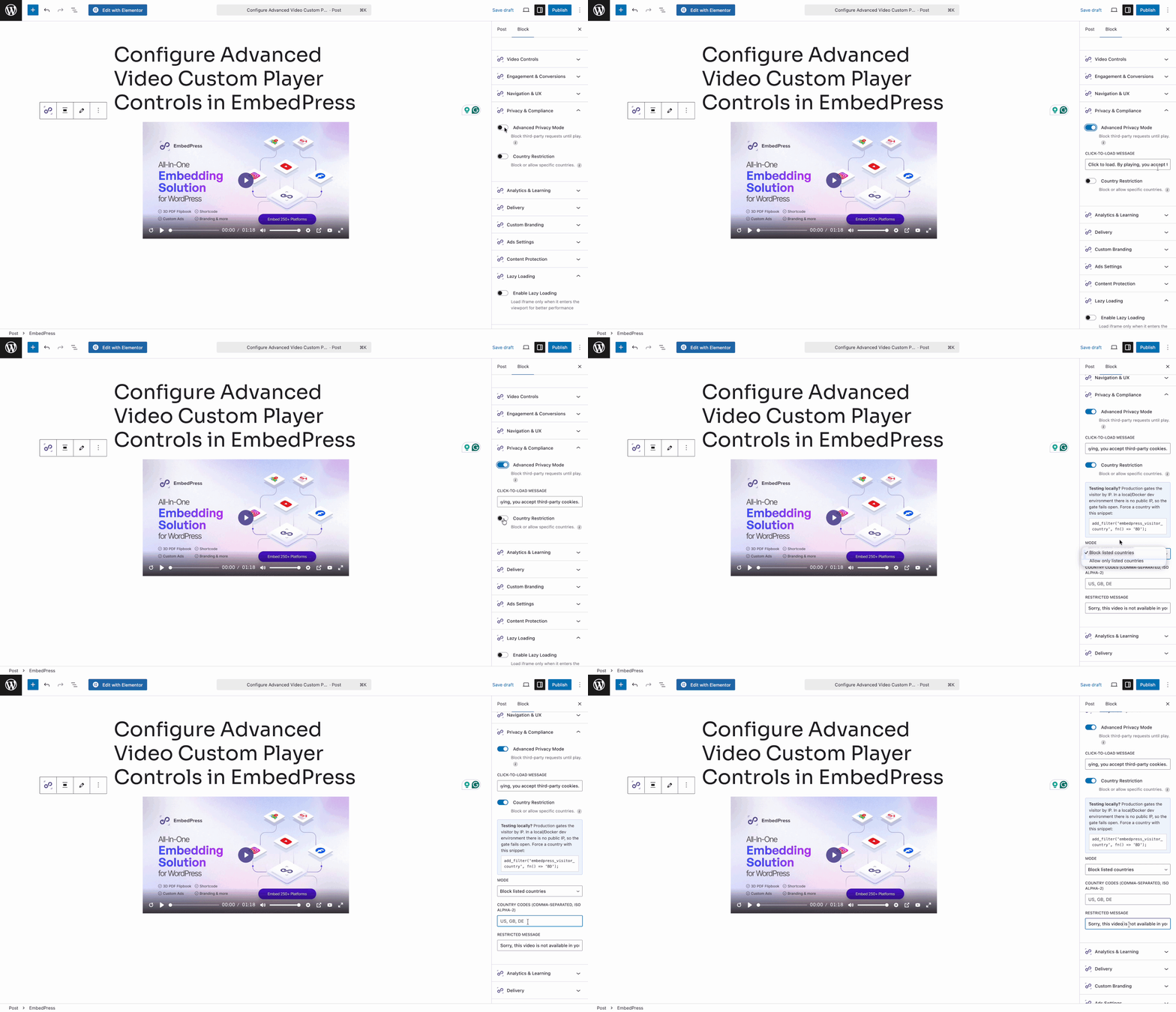
For privacy & compliance, there are multiple options that allow you to ensure your videos meet global privacy standards and target the right audience. You can enable Advanced Privacy Mode to display customizable messages outlining what data is collected from users and Country Restriction to lock out users from specific countries.
Also, you can have controls for analytics & learning to gain deeper insights into viewer behavior and course progress.
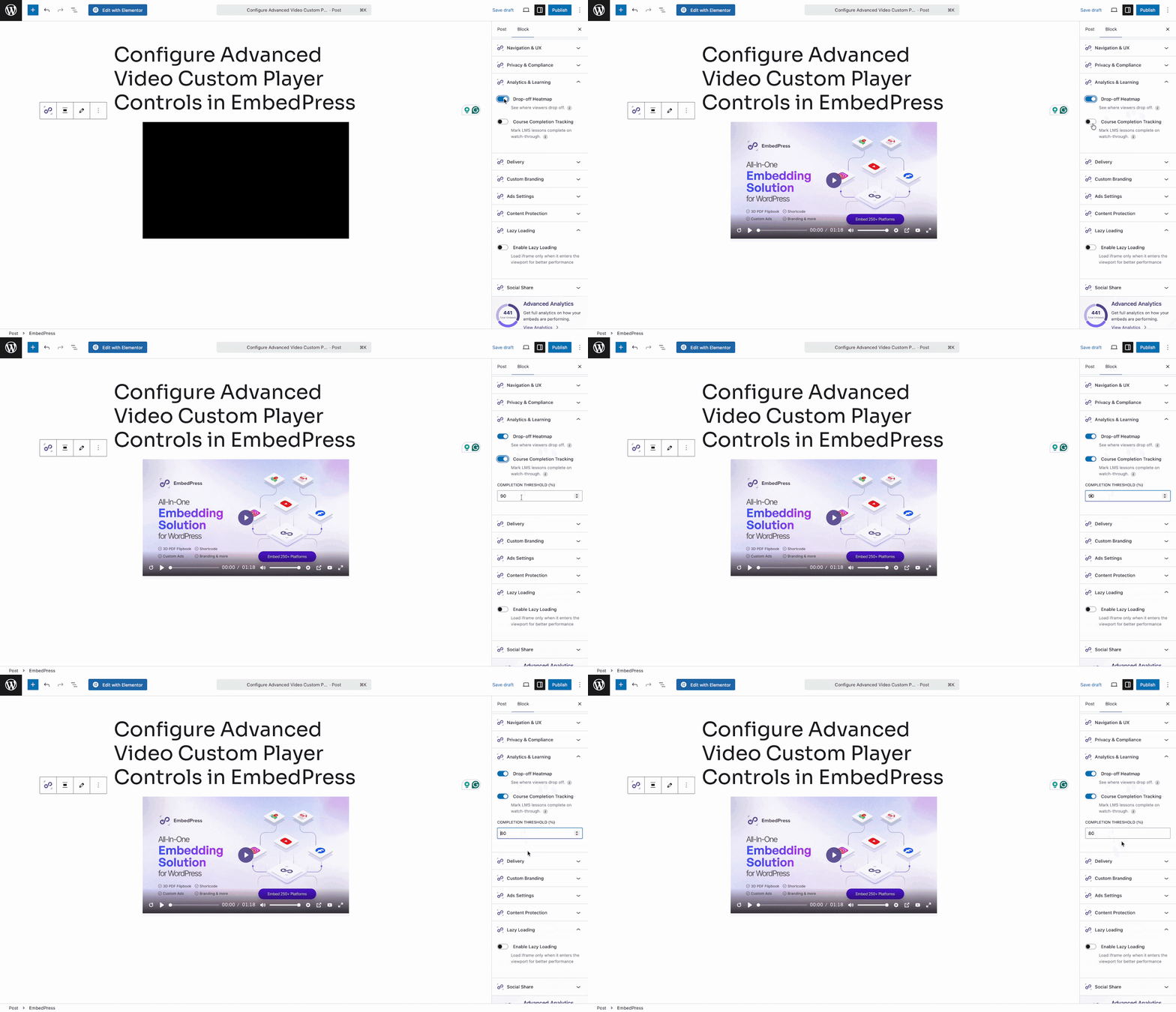
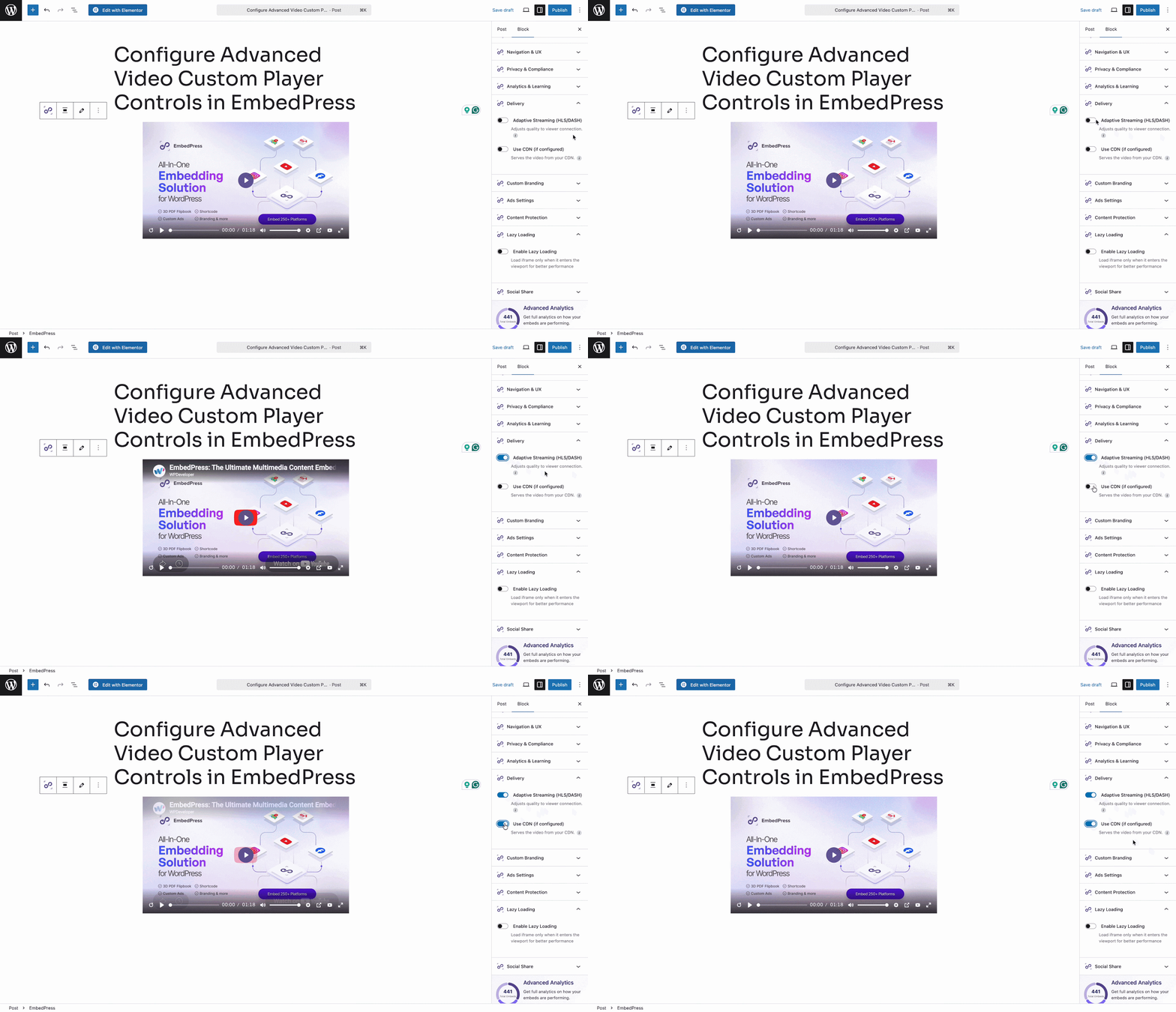
You can optimize playback performance for all users with options like adaptive streaming (HLS/DASH), CDN, etc.
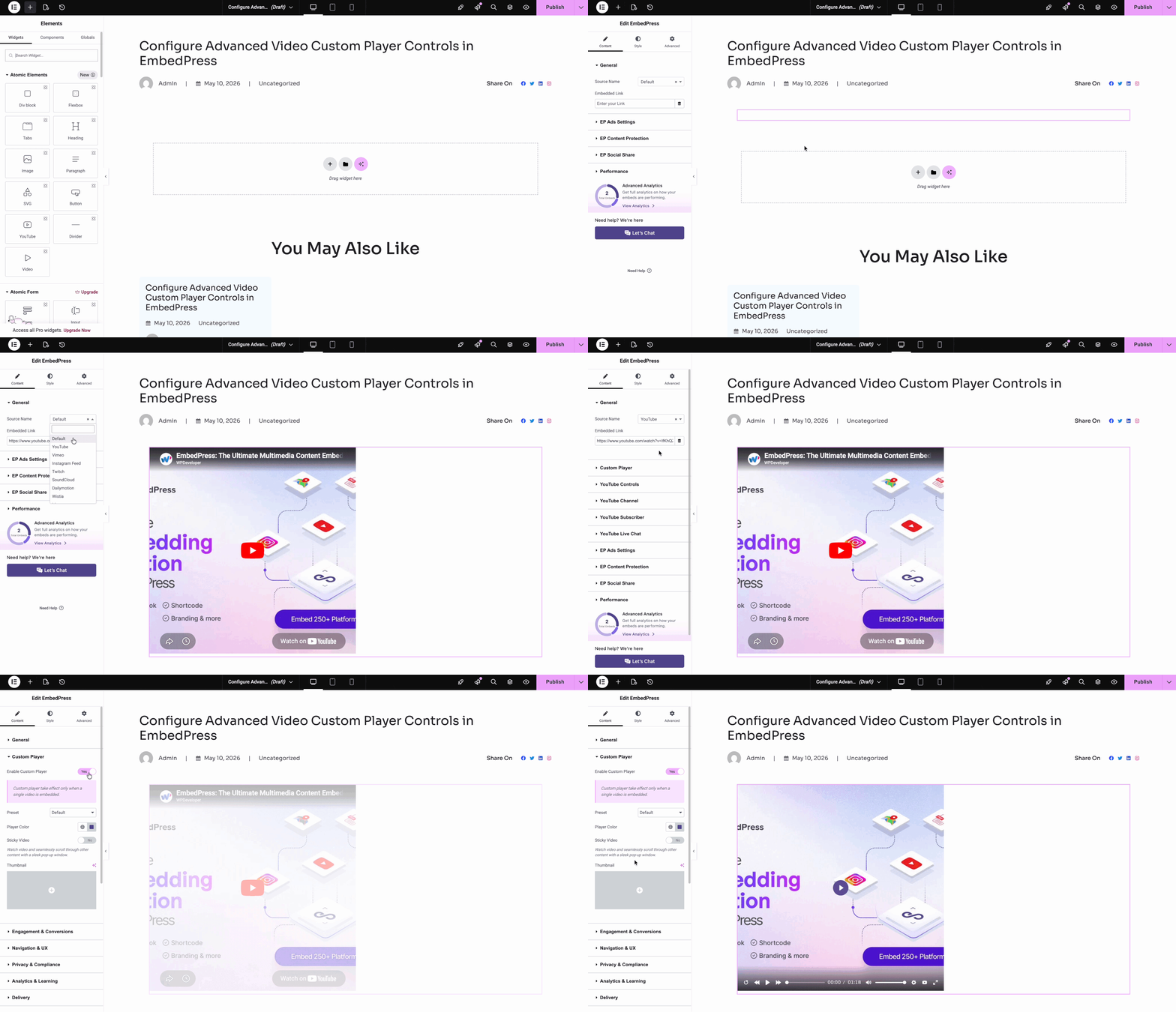
Setting It Up in Elementor
Find the EmbedPress widget in the Elementor panel and drag it onto your canvas. In the “Content Settings” tab, select your video source and paste in the URL. Toggle on “Enable Custom Player” and the same advanced menus become available right inside Elementor.
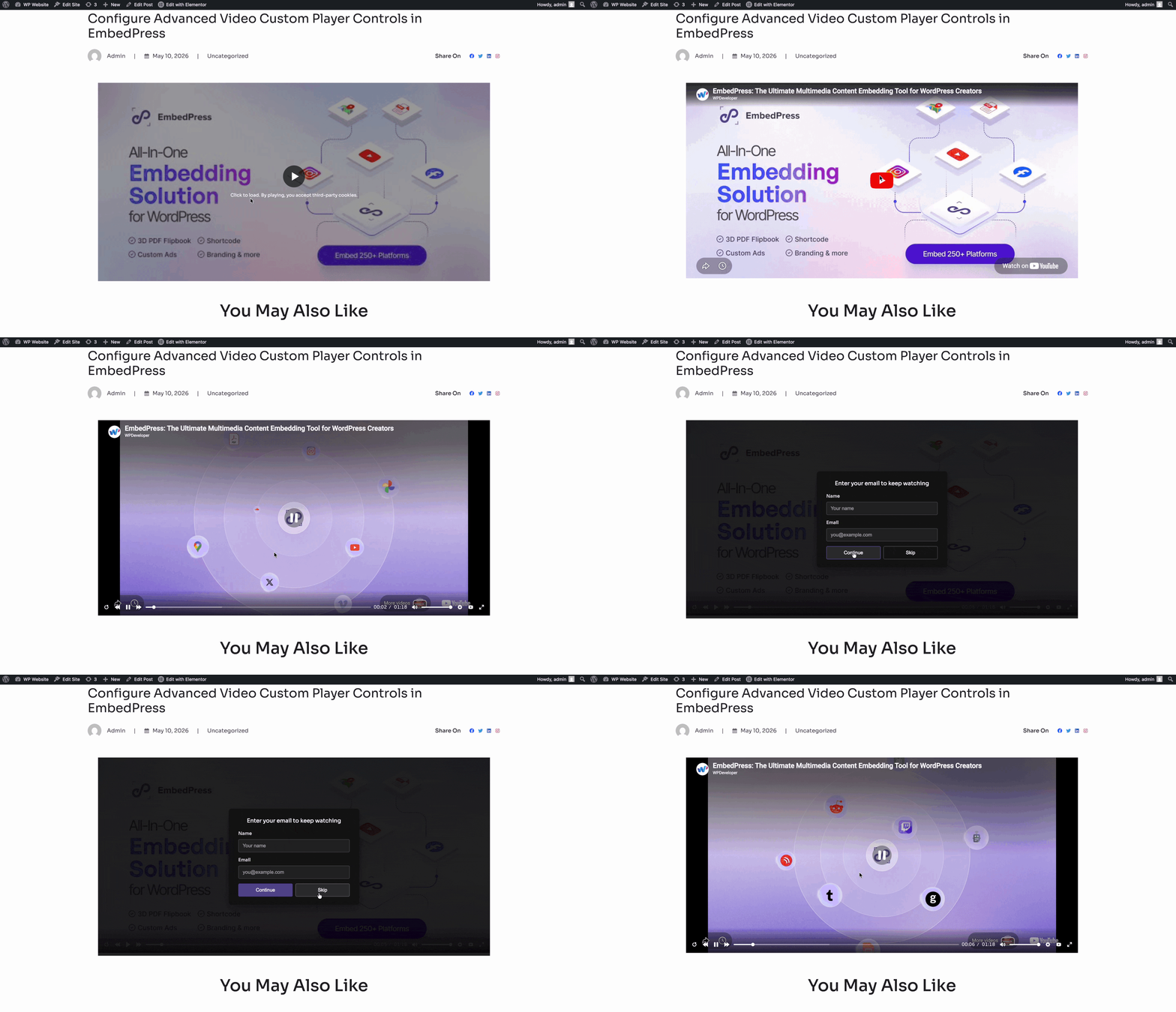
This is how the custom video is going to appear on your website after you configure the advanced settings control of the EmbedPress custom player.
Both editors give you access to the full suite of advanced controls. Choose whichever fits your existing workflow. To learn how to configure an advanced Custom Player in Elementor, follow the step-by-step guide.
Take Full Control of Your WordPress Video Experience with EmbedPress
The EmbedPress Custom Player brings enterprise-grade video functionality to any WordPress site. Whether your goal is lead generation, audience analytics, privacy compliance, or faster delivery, the advanced controls give you a direct path to achieving it. Enable the Custom Player on your next video and start turning views into measurable business outcomes.
For more updates, tutorials, tips, and tricks, subscribe to our blog or join our friendly Facebook Community to meet other creative web creators just like you.
Frequently Asked Questions About EmbedPress Custom Player
1. Do I need EmbedPress PRO to use the custom video player features?
No. You can use the free version, where some features in the EmbedPress Custom Player are available. But the most powerful advanced controls like Email Capture, Action Lock, Drop-off Heatmap, Course Completion Tracking, Adaptive Streaming, CDN delivery, and others require EmbedPress PRO. You will need to install and activate the PRO version to access those features.
2. Which video sources are compatible with the EmbedPress Custom Player?
The EmbedPress custom video player works with YouTube, Vimeo, and self-hosted video files. You can paste any supported URL into the EmbedPress block or widget and the Custom Player will wrap it with the advanced controls you configure.
3. How does the Email Capture feature store the collected leads?
All leads captured through the Email Capture feature are automatically saved to your WordPress database and are accessible through the EmbedPress > Player and Engagement > Leads dashboard. You can filter by date, search by video URL, and export the data as a CSV file for use in external email marketing platforms.
4. Is the Advanced Privacy Mode enough to make my video embeds GDPR compliant?
The Advanced Privacy Mode displays a customizable consent notice before the video loads, informing viewers about what data is collected. This is an important step toward GDPR compliance. However, full GDPR compliance also depends on your overall site setup, privacy policy, and how you handle the data you collect. It is advisable to consult a legal professional for complete compliance guidance specific to your situation.
5. Can I use the Drop-off Heatmap for any video, including YouTube and Vimeo embeds?
Yes. The Drop-off Heatmap works with any video embedded through the EmbedPress Custom Player, regardless of the source. Once you enable the feature in the Analytics and Learning settings and the video has received views, the heatmap data will appear in your Player and Engagement dashboard.
6. Does Adaptive Streaming work with self-hosted video files?
Adaptive Streaming via HLS or DASH is designed for video sources that support these streaming formats. Self-hosted video files will need to be encoded in HLS or DASH format for this feature to function correctly. For YouTube and Vimeo embeds, the platform itself handles adaptive streaming by default. Check your video hosting setup to confirm format compatibility before enabling this option.