A potential customer lands on your product page. They read the description, scan the features, check the price and see that your current offer is genuinely good. Everything looks right. Then they close the tab without buying.
Wondering why? Because nothing on that page told them your product could be trusted. Your copy said it was excellent. Nobody else did.
That missing ingredient is social proof. Buyers believe other buyers long before they believe a brand and Google Reviews are the strongest form of social proof most businesses already own.

So here is the question worth asking. What if those reviews were sitting right there on your product page, under the price and beside the buy button, at the exact second the doubt shows up?
That is what embedding does. With EmbedPress Google Reviews, you can pull live reviews straight from your Google Business Profile into any WordPress page, post or WooCommerce product page in a few minutes, with no code and no Google API key.
This guide starts with the two things you need to understand about review psychology, then walks you through embedding Google Reviews in WordPress step by step. After that it covers customization, layouts, placement and the mistakes that quietly cost businesses conversions.
TL;DR
- Reviews are now a permanent step in the buying journey. BrightLocal’s 2026 research found that 97% of consumers read reviews for local businesses and 41% read them every single time they look for a business.
- Sending visitors off-site to check reviews is risky. Embedding Google Reviews keeps the proof and the purchase decision on the same page.
- Google Reviews carry more trust than self-written testimonials because visitors know the business cannot edit or delete them.
- Recency matters enormously. 74% of consumers only care about reviews written in the last three months, so a static screenshot from 2022 does more harm than good.
- EmbedPress offers a dedicated Google Reviews block for Gutenberg and a widget for Elementor, with one-click API connection, rating filters, review schema output and layouts including List, Grid, Card, Carousel, Masonry, Spotlight and more.
- Place review blocks near pricing tables, checkout buttons, service page CTAs and contact forms where hesitation peaks.
- Keep reviews live and automatically refreshed. Manual screenshots go stale, break on mobile and slow your pages down.
Why Google Reviews Matter for Online Businesses
Google Reviews sit at an unusual intersection. They are public, they are tied to real Google accounts and the business being reviewed cannot rewrite them. That combination gives them a credibility that marketing copy simply cannot buy.
Social Proof Sells for You
Every business claims to be reliable, friendly and worth the money. Visitors have read those claims a thousand times and mentally discount them. A stranger saying the same thing carries far more weight because that stranger has nothing to gain.
BrightLocal’s Local Consumer Review Survey 2026 found that 49% of consumers trust online reviews as much as a personal recommendation from someone they know. Nearly half your audience treats a review from a total stranger the same way they would treat advice from a friend.
Independent Sources Build Trust
Testimonials you write and publish yourself sit in a grey zone. Visitors cannot verify them. They cannot click through to the reviewer. They have no idea whether the glowing quote came from a real customer or a copywriter having a productive afternoon.
Google Business Reviews solve that problem. Each one links back to a public profile on Google, which means anyone can verify it in seconds. When you display Google Reviews on your website, you borrow that verifiability.
Volume & Rating Drive Confidence
Consumers have become far more demanding about what a ‘good’ rating looks like. In 2026, 31% of consumers said they will only use a business rated 4.5 stars or higher, up from 17% just one year earlier. 68% will only consider businesses with 4★ or more.
Volume matters just as much. 48% of consumers refuse to use a business with fewer than 20 reviews and only 9% will take a chance on a business with five or fewer reviews. A strong review count reduces perceived risk before a visitor has read a single word.
Local SEO & Discovery Benefits
Reviews influence how your business performs in local search and in the map pack. A steady stream of fresh reviews signals to Google that your business is active and serving customers. Review content also introduces natural language that matches how people actually search, such as ‘same day repair’ or ‘great for large groups.’
There is a newer angle worth watching too. AI tools have become the third most popular source for local business recommendations, jumping from 6% usage in 2025 to 45% in 2026. These tools pull heavily from review signals and from what your website says about your business. Reviews displayed on your pages give both search engines and AI assistants more evidence to work with.
To keep that evidence consistent, an SEO plugin like ThinkRank outputs Local Business schema with your name, address, phone number and opening hours, so the business entity that search engines and AI assistants read matches your reviews and your Google Business Profile.
Brand Credibility Compounds Over Time
A business with 300 reviews and a 4.7 rating occupies a different mental category than a business with nine reviews and no visible feedback. That perception carries into pricing conversations, referral behavior and even hiring.
💡 Google Reviews work because your audience trusts them more than anything you write about yourself. Volume, star rating and freshness all shape whether a visitor feels safe enough to buy.
How to Embed Google Reviews in WordPress Using EmbedPress?
Displaying real customer reviews on your website is a simple way to build trust and credibility. With EmbedPress, you can easily embed Google Reviews in WordPress using a dedicated Google Reviews block for Gutenberg and a widget for Elementor.
You can fetch reviews, filter them by rating or keywords and display them in responsive layouts such as Grid, Carousel, Masonry and more. No complex Google API setup is required.
Step 1: Connect EmbedPress to Google Reviews
From your WordPress dashboard, go to EmbedPress → Google Reviews and connect your website to the EmbedPress API. The one-click connection requires no signup or manual Google API keys.
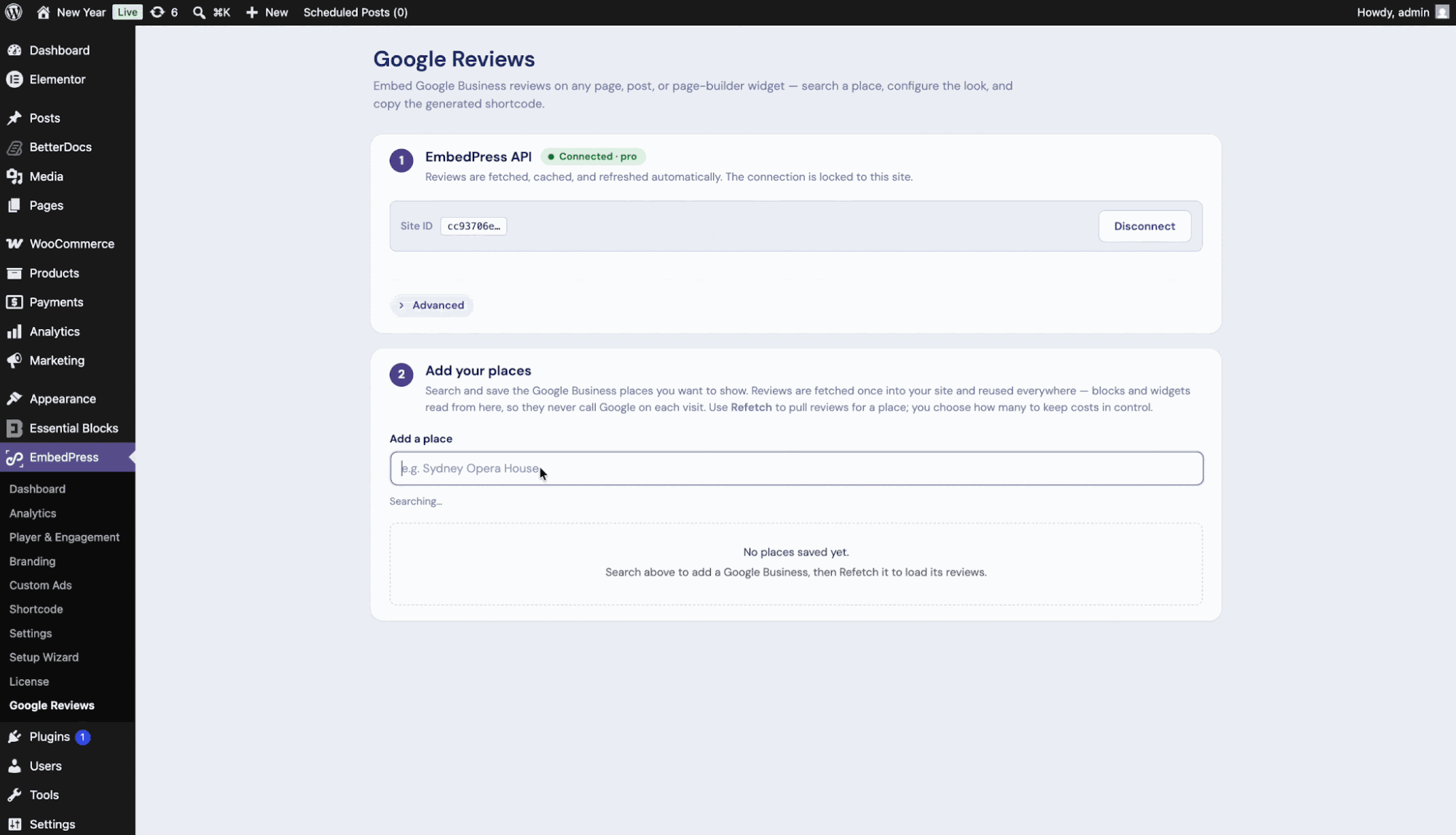
Next, search for and add the Google Business locations whose reviews you want to display.
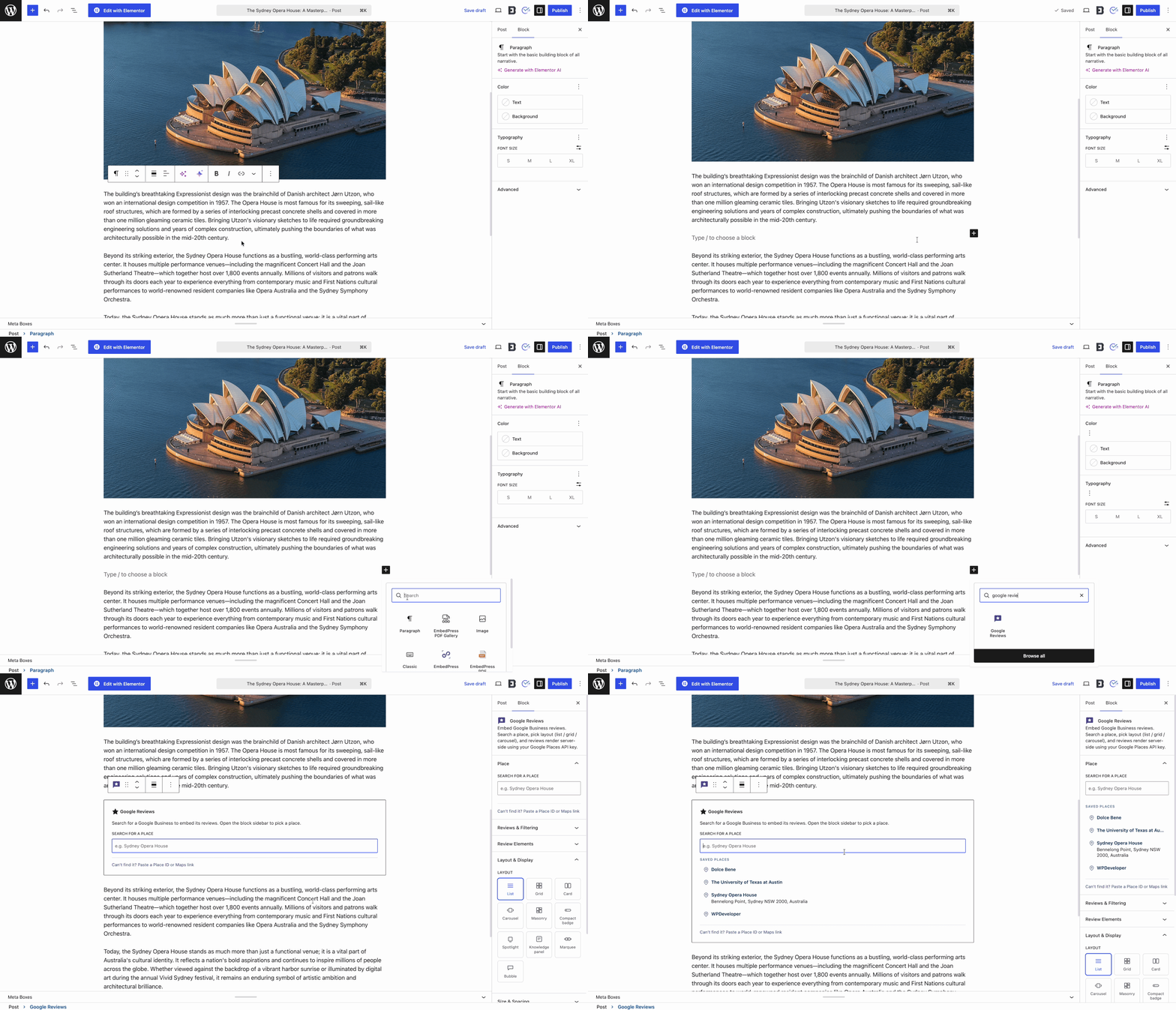
Step 2: Add Google Reviews in Gutenberg
Open your page or post in the Gutenberg editor and add the Google Reviews block. Select one of your saved locations from the Place settings and EmbedPress will automatically load the available reviews.
You can customize layouts, review filters, displayed elements, spacing, motion, headers, colors, themes, SEO schema and caching options.
Step 3: Add Google Reviews in Elementor
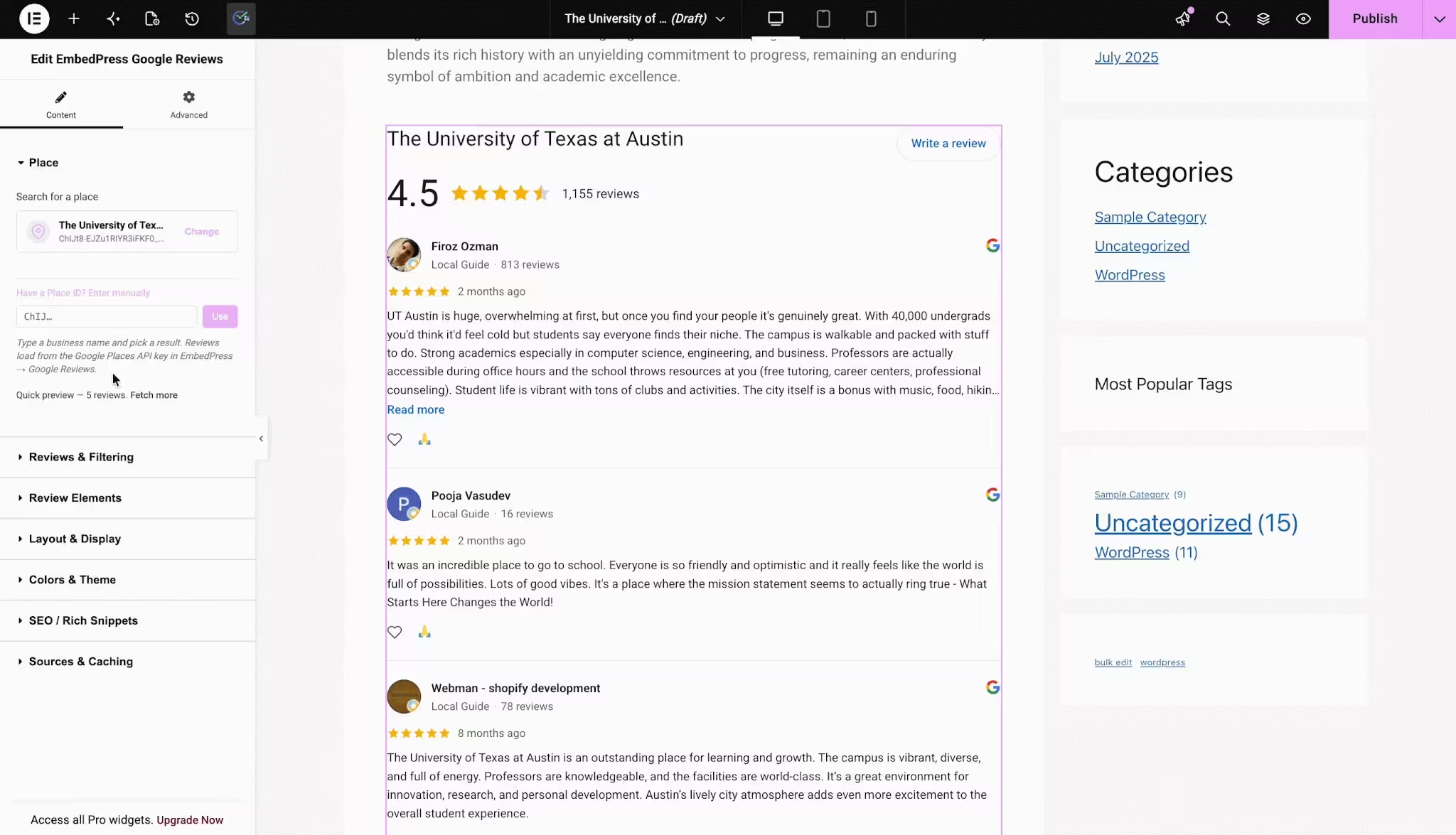
If you use Elementor, search for the EmbedPress Google Reviews widget and drag it onto your page.
Select your saved Google Business location or enter a Place ID manually. You can then customize the layouts, filters, review elements, colors, SEO settings and caching options directly from the Elementor panel.
Once everything looks right, click Publish or Update to make your Google Reviews live.
See the Full Setup Guide
These steps provide a quick overview of how to embed Google Reviews with EmbedPress. For detailed instructions, screenshots and all available customization options, check out the complete Google Reviews documentation.
With EmbedPress, you can easily add authentic Google Reviews to your WordPress website and give visitors the social proof they need to feel confident about your business.
How Embedded Google Reviews Influence Buying Decisions
Displaying reviews on your own site is a different exercise from simply collecting them. The placement changes the psychology of the moment.
The Psychology of Reduced Risk
Buying anything online involves a small leap of faith. Will the product match the photos? Will the agency actually deliver? Will the restaurant be as good on a Tuesday as it looked on Instagram?
Reviews shrink that leap. They give the visitor evidence that other people took the same leap and landed safely. BrightLocal found that 85% of consumers are more likely to use a business after reading positive reviews, while 77% are put off by negative ones. The sentiment swings behavior in both directions.
Authenticity Beats Polish
Interesting detail from the same research: consumers rank a long, detailed review as the least important factor. What they care about most is whether a review is backed up by other reviews with similar sentiment. 56% said consistency across reviews was the top signal.
That means five short, honest, recent reviews saying ‘fast service, friendly staff’ will outperform one beautifully crafted case study. Embedded Google Reviews deliver exactly that kind of repetitive, believable pattern.
Removing the Exit That Costs You the Sale
Here is the practical problem with sending people to Google. Once a visitor opens a new tab, they land on a page that also shows your competitors, a map with three nearby alternatives and a ‘People also search for’ panel. You handed them a comparison shopping tool at the exact moment they were ready to convert.
Embedding Google Reviews in WordPress removes that detour. The proof arrives without the visitor leaving your page.
Reviews Drive Site Visits
BrightLocal’s 2026 data shows that after reading positive reviews, 54% of consumers visit the business website. That figure jumped sharply from 32% in 2019. Your website is now the most common next step in the review journey.
If a visitor arrives on your site expecting to find confirmation of what they read and finds nothing, the momentum dies. Displaying Google Reviews on your website completes the loop they started.
Example
A small dental practice runs local ads for teeth whitening. The landing page has a clear offer, a price and a booking form. Conversion sits at 2.1%.
They add a Google Reviews carousel directly beneath the booking form, filtered to show 5-star reviews from the last three months. Visitors now see 6 recent patients describing painless appointments and friendly staff, right at the point of hesitation. The page still has the same offer and the same price. What changed is that the objection now gets answered before it is even spoken.
💡 Embedded reviews work by answering the visitor’s silent question at the exact moment they ask it, without handing them a comparison shopping tab.
Benefits of Embedding Google Reviews in WordPress
Displaying Google Reviews on your WordPress website does more than showcase customer feedback. It helps build trust, strengthens your brand and gives visitors the confidence to take action. Here are the key benefits of embedding Google Reviews in WordPress and how they can support your business growth.
Let us get concrete about what changes when reviews go from ‘somewhere on Google’ to ‘right here on the page.’
| Benefit | What it looks like in practice |
| Higher trust | Visitors see verified feedback tied to real, clickable Google profiles |
| Better engagement | People stop scrolling to read reviews, which increases time on page |
| More conversions | Objections get answered next to the buy button, inside your funnel |
| Stronger local presence | Review content adds relevant local language and keeps pages feeling active |
| Fresh user-generated content | New reviews update your page automatically without any editing work |
| Lower bounce rate | Visitors stay on your site to research your reputation |
| Less content workload | Your customers write the persuasive copy for you, continuously |
Embedded Reviews vs Screenshots vs Manual Copy-Paste
There are several ways to showcase Google Reviews on your website, but not every method offers the same value. Understanding the differences between embedded reviews, screenshots and manual copy-paste helps you choose the most effective option for building trust and improving the visitor experience.
Plenty of businesses still handle reviews the hard way. Here is how the three approaches compare:
| Factor | Screenshots | Manual copy-paste | Embedded Google Reviews |
| Stays current | No, frozen at capture date | No, needs manual updates | Yes, pulls live data |
| Looks credible | Low, easy to fake | Low, indistinguishable from testimonials | High, verifiable and linkable |
| Mobile friendly | Poor, images shrink and blur | Depends on manual styling | Yes, responsive by design |
| Page speed impact | Heavy image files | Light | Light, with caching controls |
| Accessibility | Poor, text locked in an image | Good | Good, real text |
| Ongoing effort | High | High | Almost none after setup |
| Filtering options | None | Manual selection only | Rating, keyword and recency filters |
Screenshots fail on almost every dimension that matters. They age badly, they blur on retina screens, screen readers cannot read them and they add weight to your pages.
Different Ways to Display Google Reviews
The way you display Google Reviews can make a big difference in how visitors interact with them. Choosing the right layout for each page helps highlight customer feedback in a way that feels natural and supports your conversion goals.

Some popular layouts and where they work best:
- Grid: Ideal for testimonial pages and About pages because it showcases a large number of reviews in a clean and organized layout.
- Carousel: Great for homepages, landing pages and footer sections where you want to display multiple reviews without taking up much space.
- List: Best for service pages and blog posts since visitors can read reviews naturally as they scroll through the content.
- Card: Perfect for product pages and pricing pages because it keeps reviews compact and easy to scan beside your offers.
- Masonry: A smart choice for pages with many reviews of different lengths as it creates a balanced layout without large empty spaces.
- Compact Badge: Works well in sidebars, headers and sticky sections by adding a trust signal while using very little space.
- Spotlight: Place it above your main call to action to highlight one powerful customer review that encourages visitors to take the next step.
- Knowledge Panel: Suitable for contact and location pages because it resembles the familiar Google Business Profile layout that many users already recognize.
- Marquee: A good fit between content sections to keep reviews moving gently across the page and create a sense of ongoing customer activity.
- Bubble: Ideal for creative brands and casual websites where a lighter and more conversational presentation matches the overall design.
Where to Place Reviews on Different Page Types
Where you place Google Reviews is just as important as how you display them. Adding reviews to the right pages helps build trust at key decision points and gives visitors the confidence to take the next step.
- Homepage: A carousel or marquee somewhere below the hero section. The goal here is atmosphere more than direct conversion. Visitors should sense that this business is well liked before they scroll further.
- Service pages: A list or card layout placed after you describe the service and before the CTA. Visitors have just learned what you do. Now they want to know if you do it well.
- Pricing pages: A compact badge near the plan comparison, plus one spotlight review under the most popular plan. Price is the moment of highest resistance, so proof belongs there.
- Product pages (WooCommerce): Card layout in the sidebar or directly beneath the add-to-cart button. Keep it short so it supports the purchase without distracting from it.
- Landing pages: Spotlight above the form, carousel below it. Bracket the conversion point with proof on both sides.
- Contact and location pages: Knowledge panel layout paired with an embedded Google Map. Visitors who reach this page are close to acting, so combining directions and reputation in one place removes the last friction.
- Blog sidebar: A compact badge. Readers who found you through search may not know your business at all, and a quiet trust signal introduces you without interrupting the article.
Example
A neighborhood Italian restaurant embeds a carousel of 5-star reviews on the homepage, a grid on the ‘Private Events’ page and a compact badge in the footer of every page. The homepage carousel sets the tone, the events grid closes bookings for large parties and the footer badge quietly reinforces credibility everywhere else.
Match the layout to the page’s job. Big grids for proof, compact badges for reassurance and spotlight or card layouts wherever a decision is being made.
Google Reviews, Schema & Local SEO: What Actually Works
Enabling review schema is a good idea. Structured data helps search engines and AI systems understand what is on your page in a reliable format and that clarity feeds into how your business gets described and cited.
What structured data will not do is produce star ratings in Google’s organic search results for your own business. In 2019, Google stopped displaying self-serving review snippets for the LocalBusiness and Organization schema types.
Google defines a review as self-serving when a review about a business is placed on that business’s own website, whether through direct markup or an embedded third-party widget. Google’s current review snippet documentation restates this rule.
So what is the honest picture?
- You should still embed Google Reviews: The conversion benefit on the page is real and significant and it does not depend on rich results at all.
- You should still enable schema output: It gives machines a clean, structured description of your review data, which matters more as AI-driven search grows.
- You should not expect stars beside your homepage listing in Google: That has not been how it works for years.
- You should keep your Google Business Profile healthy: Stars appear in the map pack and knowledge panel through your Business Profile, not through markup on your own site.
Being straight about this is worth more than an inflated promise. The reason to display Google Reviews on your website is that visitors convert better when they see them, not because of a search snippet.
💡Turn schema on for machine readability and long-term AI visibility, but treat on-page conversion as the real prize.
Best Practices for Displaying Reviews
Displaying Google Reviews on your website is not just about showing off good feedback. It is about placing proof where it drives decisions.
🟢 Lead with Recent Reviews
Recency is one of the strongest trust signals in the entire review ecosystem. 44% of consumers rank ‘posted within the last month’ among their most important factors, and 74% only care about reviews from the last three months.
Sort by newest by default. A wall of 5-star reviews from 2021 signals a business that peaked three years ago. In EmbedPress this is the sort order setting, so it is a one time choice rather than ongoing maintenance.
🟢 Place Ratings Near CTAs
The star rating should appear within a screen height of every meaningful action button. Booking forms, pricing tables, add-to-cart buttons and contact forms are all moments where doubt spikes. The compact badge and spotlight layouts exist for exactly this job.
🟢 Use Keyword Filters
If you run a wedding photography business, filter the reviews on your wedding page to show reviews mentioning ‘wedding.’ Visitors want proof that relates to their specific situation.
An agency example: filter reviews containing ‘communication’ for the process page and reviews containing ‘results’ for the case studies page. Same review pool, different persuasive job.
🟢 Never Publish Fake Reviews
This is a legal issue now, not just an ethical one. The FTC’s final rule on fake reviews and testimonials took effect in October 2024 and prohibits buying, selling or creating fake reviews, along with offering compensation in exchange for reviews expressing a particular sentiment.
Consumers agree with the enforcement. Ninety-seven percent think businesses should face consequences for fake reviews, and 57% think offenders should be banned from review platforms outright.
🟢 Show a Realistic Mix
A perfect 5.0 rating with zero critical feedback can read as suspicious. A 4.7 with a couple of thoughtful 4-star reviews often converts better because it reads as real. If you set a minimum rating filter in EmbedPress, consider 4 stars rather than 5.
🟢 Ask for Reviews Often
Seventy-eight percent of consumers were asked to leave a review in the past year and 83% of those who were asked went on to write one. Asking works. Build the request into your delivery process, your receipts and your follow-up emails.
🟢 Keep the Section Maintained
Check your embedded review blocks quarterly. Confirm the layout still renders well after theme updates, that filters still return enough reviews and that the star rating displayed matches your current profile.
🟢 Respond to Reviews on Google
80% of consumers say they are more likely to use a business that responds to all of its reviews, while 42% are unlikely to use one that never replies. Generic template replies put off half of consumers, so write real responses. Since your embedded block pulls live from Google, thoughtful responses there strengthen what visitors see on your site.
Common Mistakes & How EmbedPress Fixes Them
Adding Google reviews to your website is a powerful social proof strategy but improper display, slow page loads, and sync issues can turn potential customers away. Discover the most common embedding mistakes and how EmbedPress automatically fixes them to keep your reviews seamless and updating in real time.
❌ Showing Too Many Reviews
Forty reviews stacked on a page do not convince anyone forty times harder than five. They just push your CTA below the fold.
The EmbedPress fix: structure beats volume. Pick a layout that suits the space, a Grid or Masonry for a dedicated testimonials page, a Carousel or Card layout beside a product, a Compact Badge in a sidebar. Then set reviews per page to somewhere between four and eight and switch on the Load more button so curious visitors can keep reading without everyone else having to scroll past forty cards. The header keeps your full review count and average rating visible, so you still get credit for the volume without printing all of it.
❌ Burying Reviews in the Footer
A footer-only placement means only the visitors who already scrolled past your CTA will see your proof. Put reviews where the decisions happen.
The EmbedPress fix: the block is reusable, so add a Compact Badge in the footer if you like, then add a Spotlight or Card layout beside every CTA as well. Different layout, same saved place, no extra setup.
❌ Ignoring Mobile Layout
A three-column grid becomes an unreadable stack on a 390px screen, and mobile is where most of your review readers actually are.
The EmbedPress fix: every Google Reviews layout is responsive out of the box. Grids reflow, carousels resize and cards stack cleanly instead of overflowing or shrinking the text into nothing. On top of that you can set columns and slides per view separately for desktop, tablet and mobile, so a three-column grid can become one column on a phone without any CSS. In Elementor you can preview each breakpoint before publishing, and in Gutenberg the block respects your theme container width. Still preview the live page on a real phone, but you are adjusting rather than rescuing.
❌ Letting Reviews Go Stale
Manually pasted reviews rot. Six months later your page is quoting a customer from two seasons ago while your Google profile has forty newer reviews nobody sees.
The EmbedPress fix: the block pulls live from your saved place, so new reviews appear on their own. The cache duration setting lets you decide how quickly, trading a little freshness for a little speed or the other way around.
❌ Using Heavy Screenshots
Screenshots of review sections are usually large PNGs. They slow your page, blur on high-resolution displays and lock the text away from screen readers and search engines.
The EmbedPress fix: embedded reviews render as real text, which means they are light, selectable, readable by screen readers and crawlable. No image weight and no blur.
❌ Reviews without Context
A row of stars floating on a blank section leaves visitors unsure what is being rated.
The EmbedPress fix: enable the header so the business name, address, average rating and total review count give the stars a frame of reference. It is a toggle, not a design job.
❌ Mixing Up Locations
If you run several branches, do not show reviews from a different city on a location page.
The EmbedPress fix: save each branch separately under Add your places and choose the matching location in each block. Branch-specific reviews on branch-specific pages convert far better than one blended feed.
❌ Chasing Star Snippets
Do not spend a weekend debugging schema because homepage stars are not showing. As covered above, self-serving LocalBusiness review snippets are not eligible for that feature.
The EmbedPress fix: flip the JSON-LD schema toggle on for machine readability and AI visibility, then move on and spend the time on placement instead. That is where the return is.
❌ Juggling Too Many Plugins
Most sites end up with one plugin for reviews, another for maps, another for PDFs and another for video. Every extra plugin is another update, another conflict and another thing that breaks after a theme change.
The EmbedPress fix: the plugin that shows your Google Reviews also handles 250+ sources including Google Maps, Google Photos, Instagram feeds, PDFs and videos. One plugin, one settings screen and one thing to maintain across the whole site.
Frequently Asked Questions
How do I embed Google Reviews in WordPress without coding?
Do I need a Google API key to display Google Reviews on my website?
Is embedding Google Reviews free in WordPress?
Will embedded Google Reviews show star ratings in Google search results?
Can I filter which Google Reviews appear on my site?
Do embedded Google Reviews slow down my WordPress site?
Where should I place Google Reviews on my website?
How many Google Reviews should I display on a page?
Do embedded Google Reviews update automatically?
Can I display reviews for multiple business locations?
Transform Customer Reviews into Business Growth
The gap between ‘interested visitor’ and ‘paying customer’ is usually filled with one unspoken question: can I trust these people? Embedding Google Reviews answers it directly, on the page and at the moment it gets asked.
You do not need a developer, an API key or a weekend to fix this. Connect EmbedPress once, save your business location and drop the Google Reviews block wherever your visitors hesitate. Filter it, style it to match your brand and let your customers do the convincing from then on.
Ready to turn your reviews into revenue? Get EmbedPress and start embedding Google Reviews in WordPress today.
Do not forget to join our Facebook community to share your experience and connect with other modern creators! You can also subscribe to our blog for valuable tutorials, guides, knowledge, tips and the latest WordPress updates.