
You upload a PDF to WordPress. Then another. Then ten more.
Suddenly, your visitors are drowning in download links, bouncing between tabs, and losing track of what they actually came to read. It’s messy, it’s frustrating, and it quietly kills engagement.
There’s a better way.
A PDF in a gallery format keeps everything in one place, clean, organized, and browsable without ever leaving your page. No extra tabs, no scattered links, just a seamless reading experience that keeps visitors on your site longer.
In this guide, you will learn exactly how to display a PDF gallery in WordPress using EmbedPress, one of the popular WordPress embedding solutions.
TL;DR
Here’s a quick gist of the blog
| Why add a PDF Gallery? | To keep visitors on your site and avoid messy, scattered PDF downloads |
| Use cases | Works perfectly for portfolios, product catalogs, resource libraries, brochures, reports, and more |
| How does it help? | Increase website engagement, make web content look professional, versatile use cases, and help in SEO |
5 Reasons to Display a PDF Gallery in WordPress
So why would you need to display a gallery of PDFs on your WordPress website? Below are 5 reasons to showcase PDFs in a gallery.
1. Increases Your Website Engagement
When PDFs open in a new tab, visitors leave your site. A PDF gallery lets them view documents right on the page. They stay longer, engage more, and are less likely to bounce. This, in turn, helps reduce bounce rates and increase website engagement.
2. Create a Professional Document Showcase
A scattered list of download links looks messy. A visual gallery of PDFs looks polished and intentional. Whether it is a portfolio, product catalog, or report archive, it instantly feels more professional.
3. Works for Almost Any Use Case
If you have multiple PDFs to share, a gallery is almost always the better choice. PDF galleries are incredibly versatile. Here are just a few ways people use them:
- Digital product catalogs and brochures
- Research papers and whitepapers
- Annual reports and financial documents
- Course materials and eBooks
- Photography or design portfolios in PDF format
4. Fully Responsive Across All Devices
A well-built gallery of PDF files adjusts to any screen size. Visitors on mobile, tablet, or desktop all get a smooth viewing experience, no pinching or zooming required.
5. Boost Content Accessibility And SEO
Embedding PDFs directly on a page makes your content more accessible. Search engines can index the page better. Visitors do not need to download anything to read your content. It is a win for both usability and discoverability.
Who Can Use a PDF Gallery on Their Website?
Adding a gallery showcasing multiple PDFs is not just a nice-to-have feature of your website. For many businesses and creators, it can truly work like a game-changer. Here is who benefits the most and how:
📚 Bookstores & Publishers
Display book previews, sample chapters, or author catalogs in one sleek gallery. Instead of sending customers to Google Drive or Dropbox, keep them browsing right on your site and closer to the “Buy Now” button.
🎓 Online Course Creators & Educators
Showcase course syllabi, free learning resources, or student handbooks in an organized, professional layout. Give prospective students a taste of your content before they enroll. This will increase trust and the likelihood that students will enroll in your course.
🛍️ eCommerce & Product Catalogs
Got a seasonal lookbook or a product specification sheet? Using a gallery for showcasing multiple PDFs turns static files into an interactive shopping experience, which is perfect for furniture stores, fashion brands, and wholesalers.
🏢 Businesses & Corporate Sites
Host annual reports, company brochures, whitepapers, and case studies all in one place. It signals professionalism and makes your resources easy to find without cluttering your pages.
🏥 Healthcare & Legal Professionals
You can share patient forms, policy documents, or informational guides in a clean, accessible format using a gallery for PDFs. No confusing downloads, just clear, organized information patients and clients can read instantly.
🎨 Portfolios & Creative Agencies
Your portfolio needs to look professional and easy for potential clients. Display design lookbooks, project proposals, or press kits in a visually rich gallery that actually does justice to your work.
By now, you already know the benefits of displaying PDF in a gallery when you have multiple PDFs to add. So, how to create a gallery in WordPress for showcasing PDFs? Let’s dive deeper to learn how to showcase that without any code. ‘
Today, in this guide, we will add a PDF Gallery with EmbedPress. It is one of the most popular WordPress embedding plugins that allows you to embed diverse multimedia content from 250+ sources. EmbedPress already allows you to display PDFs in WordPress and now it is more enhanced with the functionality to display PDFs in a gallery.
EmbedPress PDF Gallery: Easiest Way to Showcase Multiple PDFs in WordPress
With EmbedPress, you can showcase multiple PDFs at once and create an effective document gallery. Without touching a single line of code, you can add a gallery with multiple PDFs impressively.
If you are using Gutenberg, EmbedPress includes a dedicated block for showcasing multiple PDFs. Just add the block to any page or post, upload your PDFs, and you are done.
And if you prefer using Elementor, EmbedPress comes with a PDF Gallery widget. Drag it onto your page, add your files, and configure the display to match your design.
Both options are fully responsive and designed to work out of the box. Whether you are running a simple blog or a full business site, EmbedPress fits right in. Now, let us dive into the step-by-step guide on how to add a PDF Gallery in WordPress.
How to Embed a PDF Gallery in Gutenberg?
Using EmbedPress, you can easily embed a gallery with PDFs. This enables you to showcase multiple PDFs at once, effectively like a document gallery on your website.
Follow the steps below to learn how to embed a gallery of PDFs in Gutenberg sites without coding.
Step 1: Add the EmbedPress PDF Gallery Block
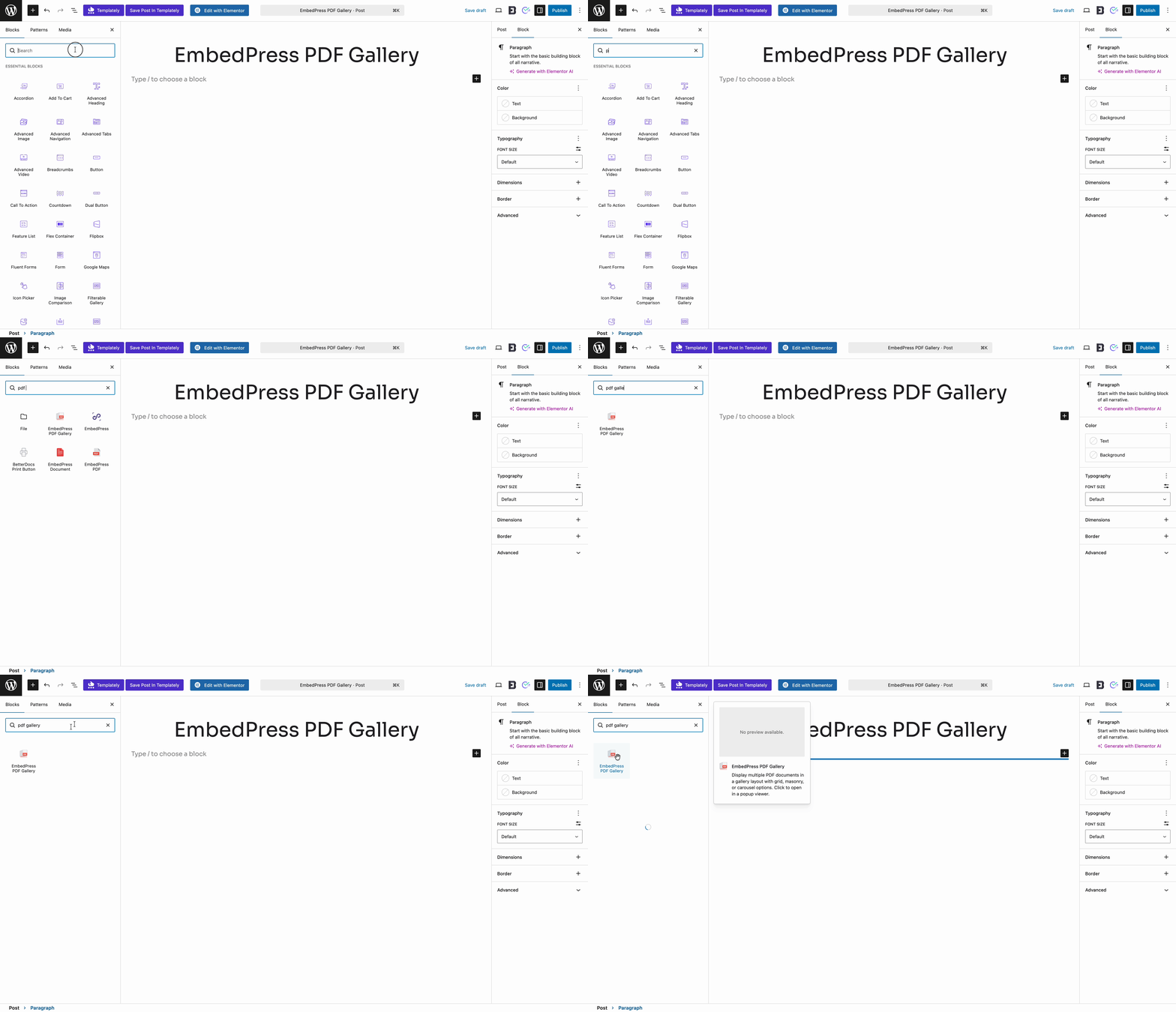
First, create a new post or page in your WordPress dashboard, or open the one you want to showcase the gallery in. Now, click on the‘+’ icon appearing in your content area of the Gutenberg editor. Search for the ‘PDF Gallery block and add it.
Step 2: Select The PDFs You Want to Upload
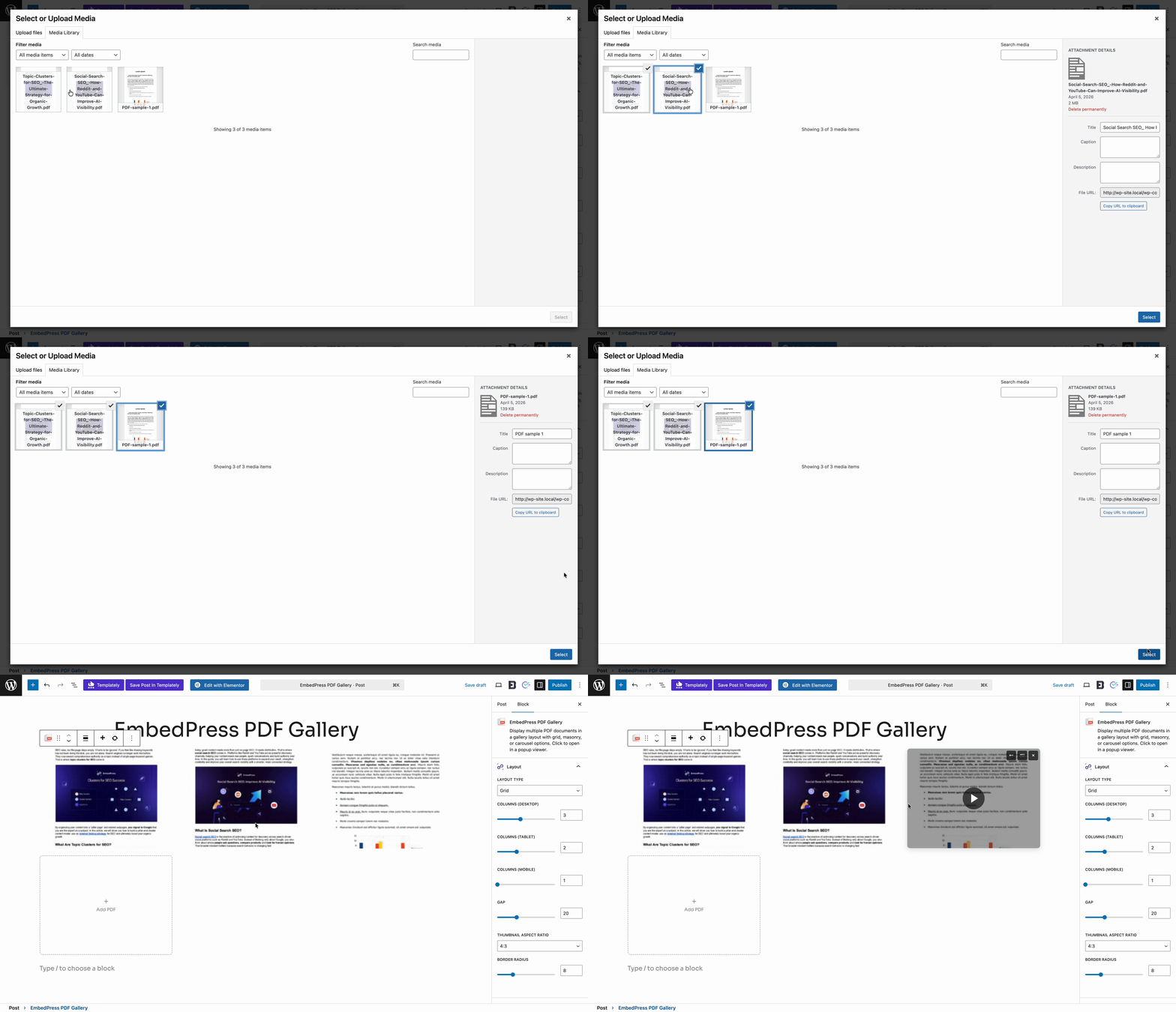
To create your gallery, simply click the ‘Add PDF’ button and select the ‘Media Library’ or ‘Upload’ button. Choose multiple PDFs that you want to showcase. EmbedPress will automatically fetch the selected files and arrange them into a gallery on your post or page.
Step 3: Publish the Gallery of Multiple PDFs
You can add extensive customization and choose exactly how you want to showcase the gallery from the options under the Block tab on your right side.
Choose between 4 stunning layout types such as, Grid, Masonry, Carousel (PRO) and BookShelf (PRO). Adjust the number of columns and the gap between items for both Desktop and Mobile devices to ensure perfect responsiveness.
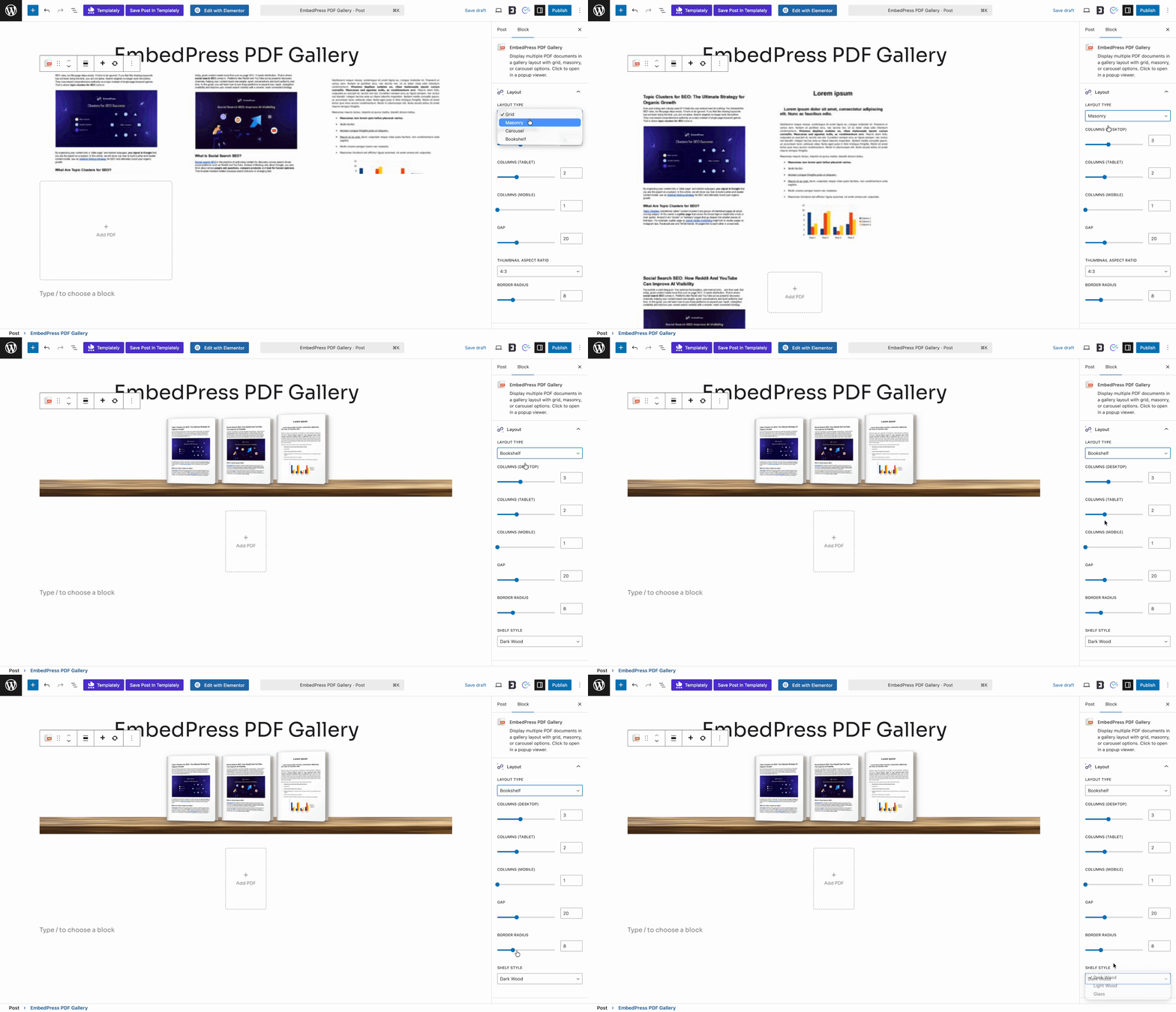
If you select the BookShelf layout, you can choose from three beautiful shelf styles: Dark Wood, Light Wood and Glass.
Customize the look and feel by configuring the Custom Thumbnail (PRO), toggling the Play Button (FREE), adding a Watermark (PRO) and setting your preferred Display Mode (FREE) (such as a Modern popup or Flip Book viewer).
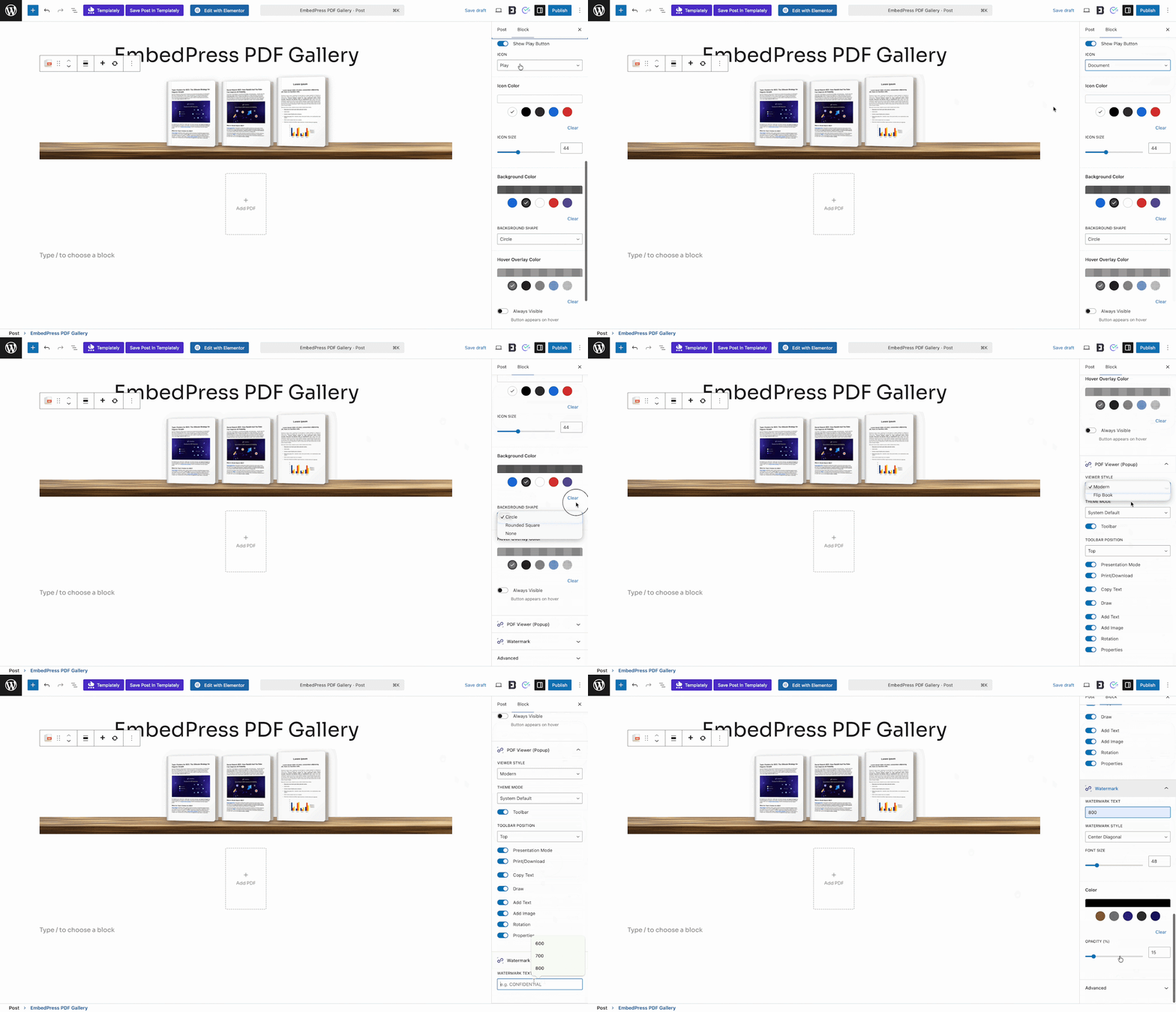
When you are done customizing, publish and preview your post or page. A fully responsive gallery showcasing multiple PDFs will now be available for your website visitors to view and interact with.
For more customization, you can check out the detailed documentation on how to embed PDF Gallery in WordPress.
How to Embed a PDF Gallery in Elementor
You can add a fully responsive gallery with PDFs in Elementor as well, using EmbedPress. The dedicated PDF Gallery widget helps you embed multiple PDFs using the Elementor website builder.
Step 1: Add the Widget for Displaying PDFs in Gallery
First, open the page or post in Elementor where you want to add the gallery. Now, in the editor’s side panel, look for the ‘EmbedPress PDF Gallery’ widget under the ‘Elements’ tab. Drag and drop this to the preferred location on your page.
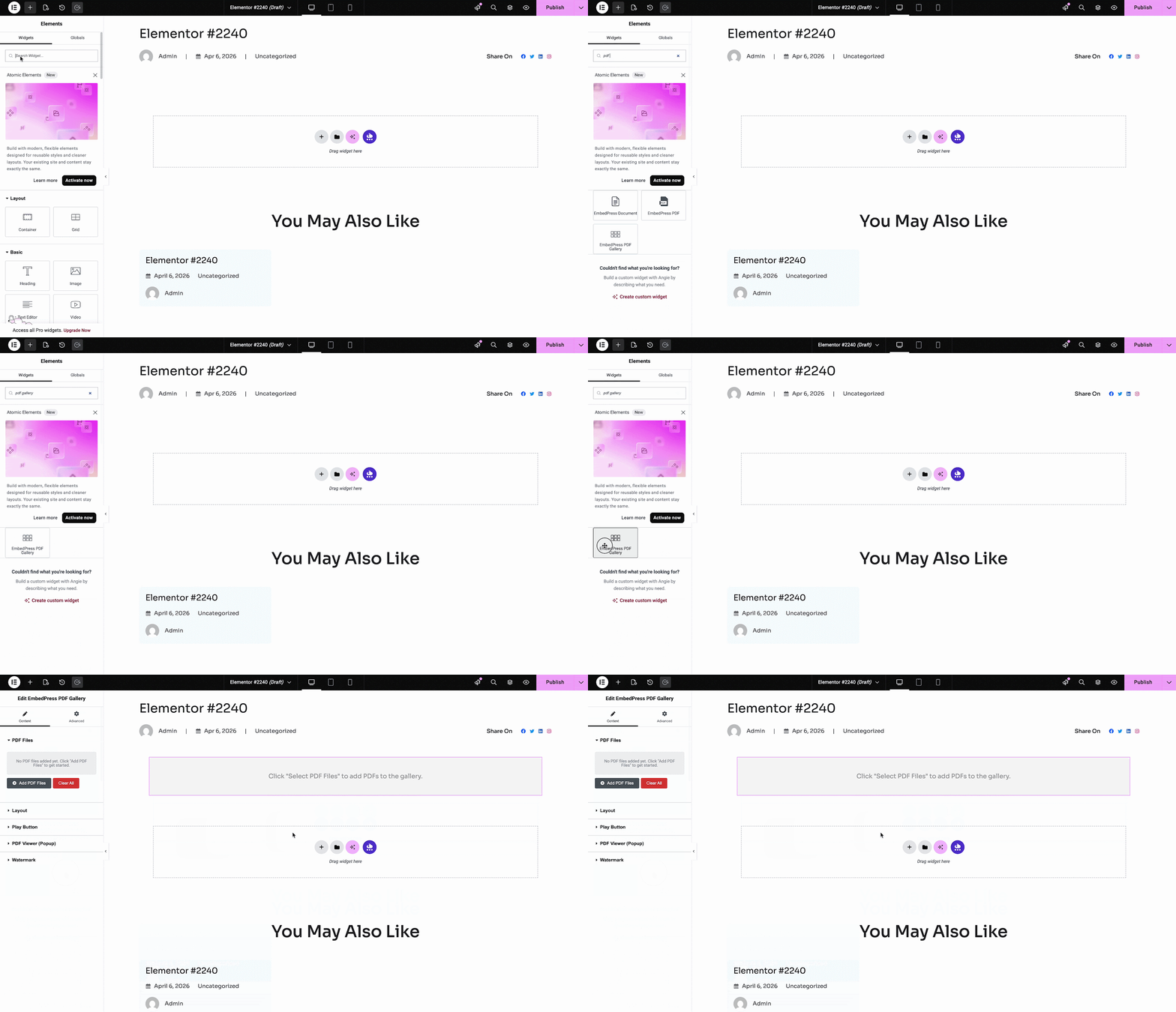
Step 2: Upload Multiple PDFs to the Elementor Editor
Go to the ‘Content’ tab from the side panel. Now, click on ‘Add PDF Files’ to select or upload multiple PDFs from your Media Library. EmbedPress will automatically generate the gallery in Elementor.
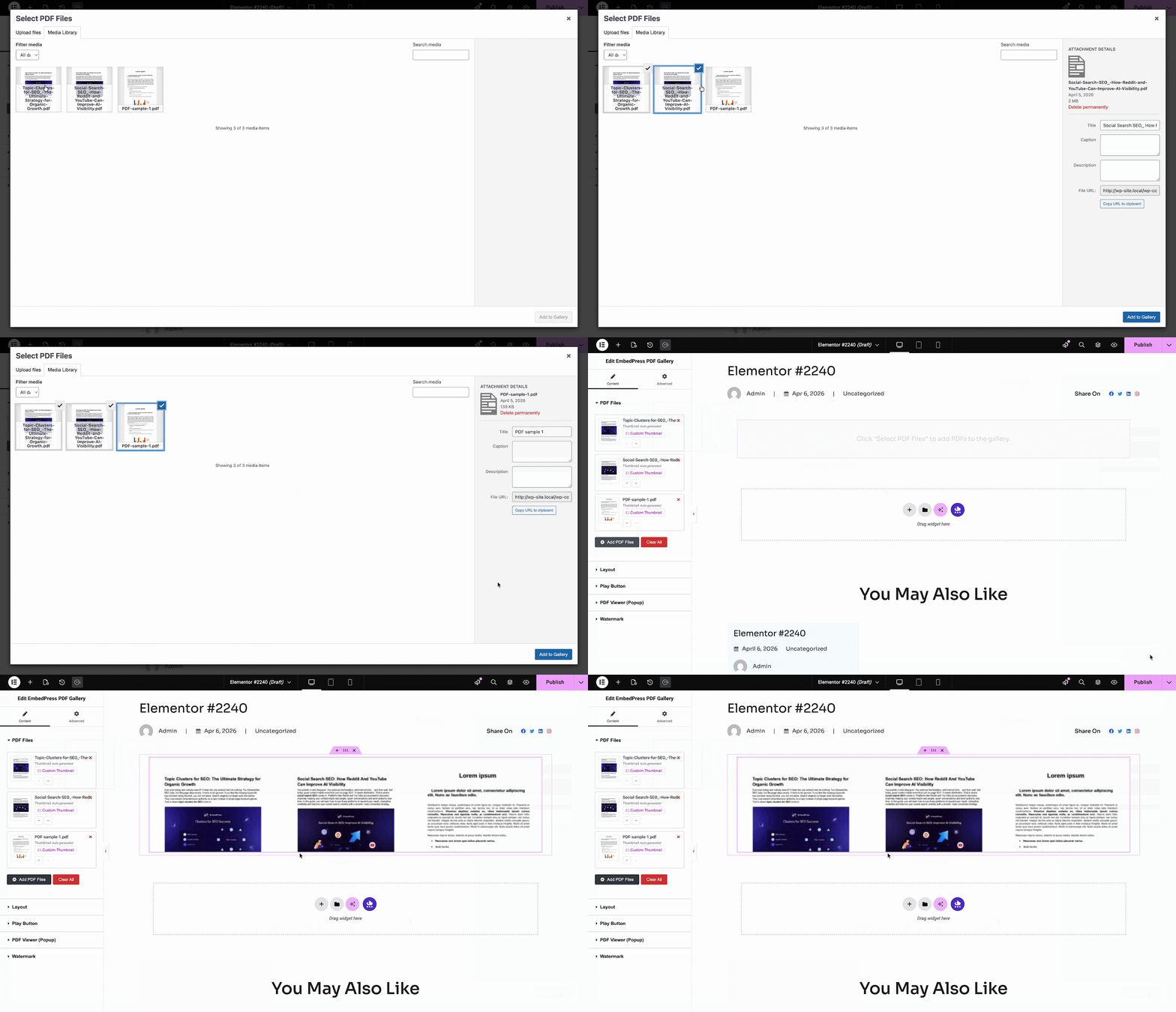
Step 3: Edit & Publish Your PDF Gallery
Now, it is time to customize the Elementor PDF gallery. You can do it from the side panel.
Select the layout you prefer (Grid, Masonry, Carousel, or BookShelf). After that, adjust the columns, gaps and aspect ratios.
For the BookShelf layout, you can select your preferred shelf design (Dark Wood, Light Wood, or Glass).
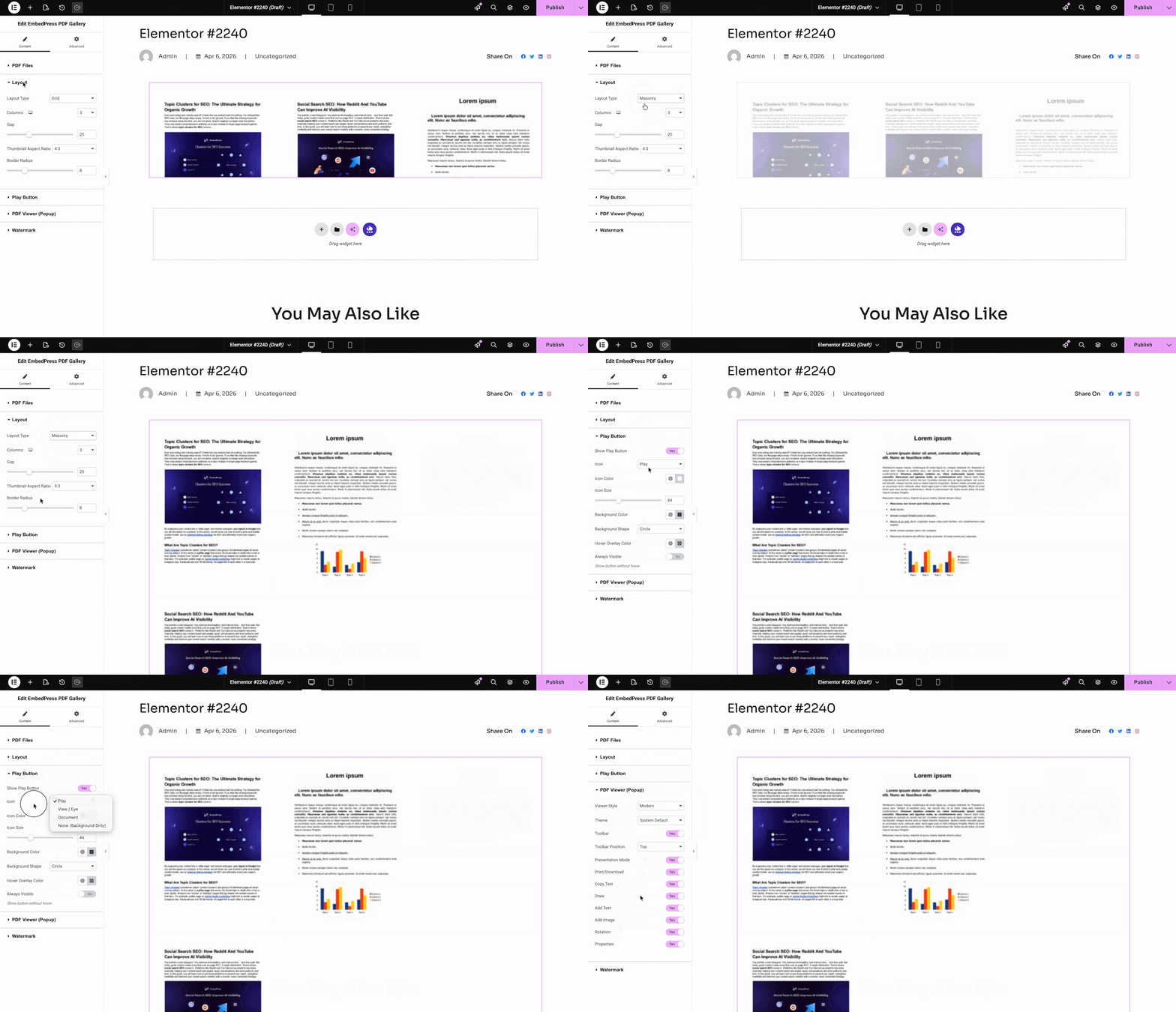
After you are done with the customizations, you can publish the gallery. Here is what it will look like to your visitors.
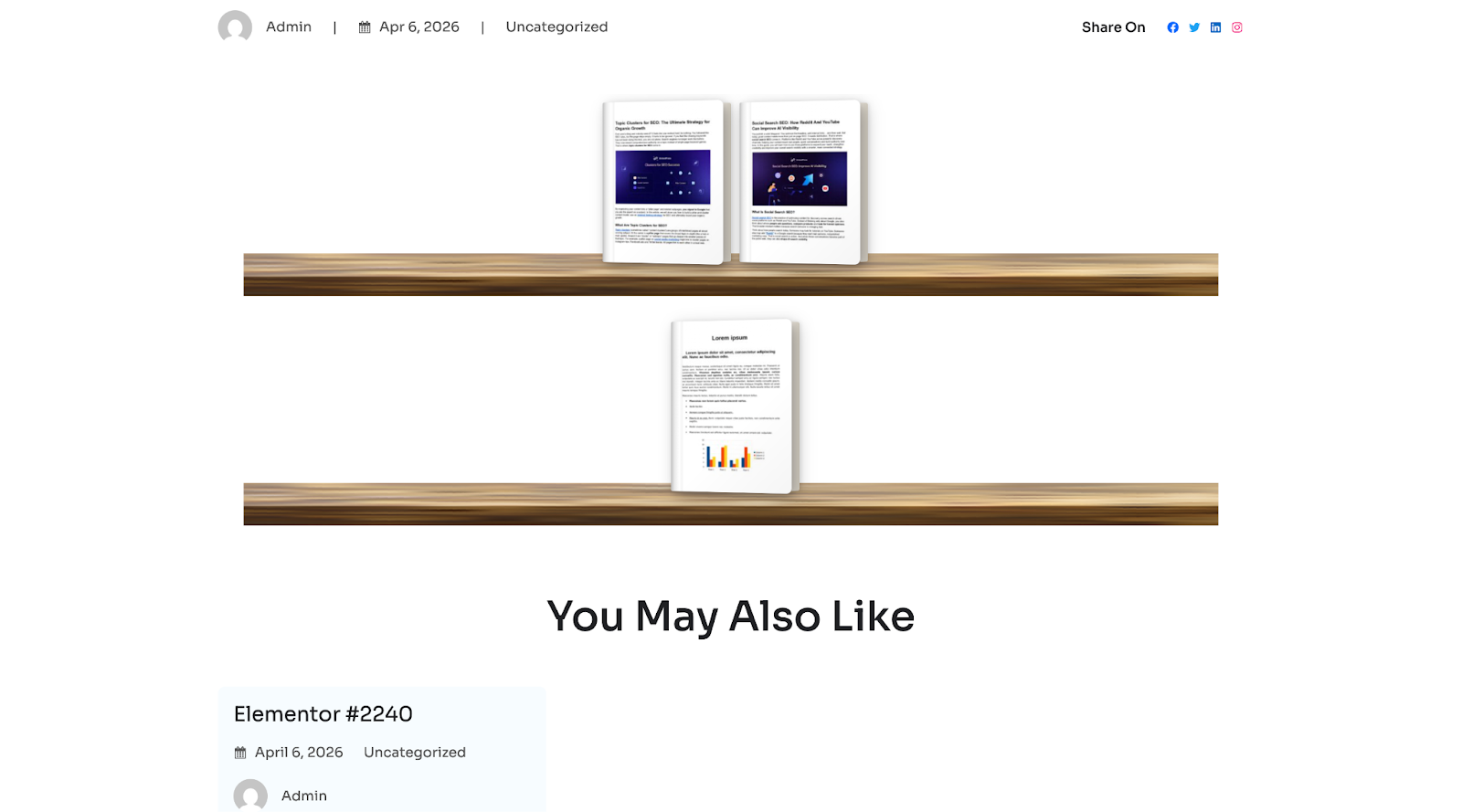
Loved the feature? If you want to add multiple PDF in an impressive gallery, you can start using EmbedPress. And if you need extra customization for an advanced experience, you can go for PRO starting only at $55/year.
Ready to Create a PDF Gallery in WordPress?
Displaying PDFs in a gallery format does not have to be complicated. With EmbedPress, you get a clean, responsive, and easy-to-manage gallery, set up in minutes.
Whether you are using Gutenberg or Elementor, EmbedPress PDF Gallery can help you showcase a stunning gallery in WordPress without any code. Give it a try and see how much better your documents can look on your site.
If you have found this blog helpful, you can share your opinion in our Facebook community. You can also subscribe to our blogs for valuable tutorials, guides, knowledge, tips and the latest WordPress updates.