Ever scroll down a website and spot a gorgeous row of Instagram photos seamlessly blending with the page? That is the magic of a horizontal Instagram feed on WordPress. It draws your eye, adds social proof and invites you to click through. But setting one up yourself? It might sound challenging if you are not a coder. Do not worry – by the time you finish this guide, you will have your Instagram photos proudly displayed in a sleek horizontal Instagram feed on WordPress sites, no coding needed. Let us begin.

💡 Horizontal Instagram Feed: The Know-How Before Showcasing on Your WordPress Site
A horizontal Instagram feed is a way of displaying Instagram posts on a website where the content scrolls left to right instead of top to bottom. Instead of the usual vertical grid you see on Instagram, posts are arranged in a single row or multiple rows that move horizontally, often using a slider or carousel layout.
Adding a horizontal Instagram feed on WordPress can instantly level up your website’s look and feel. Think of it as bringing the lively charm of Instagram right into your site’s design. Below are a few big reasons creators and businesses love using a horizontal Instagram feed.
Fits Perfectly in Website Sections
Horizontal Instagram feeds are wildly popular because they fit naturally in website footers or as eye-catching section dividers on pages. A single-row feed of recent posts looks clean and integrates perfectly with many WordPress layouts. It is an elegant way to fill wide page areas with fresh content.
Boosts Engagement & Visual Appeal
When visitors see a glimpse of your latest Instagram posts, it immediately makes your site more dynamic and interactive. It is like a live sneak-peek into your social world. This not only grabs attention but also encourages people to click and explore more of your content.
Shows Social Proof
Embedding your Instagram feed on your site signals that you are active and popular on social media. It activates social proof – visitors see real-time likes, comments and updates from your Instagram feed, which builds credibility.
Keeps Your Site Fresh Automatically
Because the feed updates whenever you post on Instagram, your website always has something new to show. No need to manually swap out images. By automatically pulling in your latest Instagram posts, you ensure the site always has new and engaging content for visitors to explore.
📋 Common Ways to Add a Horizontal Instagram Feed on WordPress
Thinking this might require complicated coding or multiple tools? Not at all. There are a few common approaches to showcase a horizontal Instagram feed on WordPress – ranging from theme widgets to specialized plugins. But not all methods are created equal.
Some themes allow basic Instagram widgets that place your feed in a footer or sidebar, often in a row format. Others might offer layout controls through shortcodes or native blocks. However, these solutions can be limited in design flexibility or require multiple tools to get everything just right.
✅ The Smartest No-Code Method: Use EmbedPress

If you want the smartest, simplest way to add a horizontal Instagram feed on WordPress, let me introduce you to EmbedPress. Unlike single-purpose Instagram plugins, EmbedPress is an all-in-one embedding solution – it lets you embed Instagram feeds and much more. Along with being an Instagram feed plugin, you can integrate content from over 250+ sources into WordPress just by pasting a URL.
Why do we call it the smartest and easiest? Because EmbedPress eliminates all the usual hassles. No messing with code snippets, no need to install multiple plugins for different media types. You get a straightforward workflow: paste your Instagram profile URL into an EmbedPress block and it magically displays your entire feed.
Plus, it comes with built-in customization options to make that feed horizontal (or any style you prefer) with just a couple of clicks. You can use EmbedPress with whatever editor you like – Gutenberg block editor, Elementor, the Classic editor or any other builder using the shortcodes.
📝 How to Display a Horizontal Instagram Feed on WordPress with EmbedPress (Step-by-Step)
We are going to walk through exactly how to use EmbedPress to embed Instagram feeds and make it horizontal. Follow along and you will see how quickly you can go from zero to a live with this Instagram feed plugin on your site.
Step 1: Install And Activate the EmbedPress Plugin
Install and activate the EmbedPress plugin on your WordPress site, if you have not already. Once done, it unlocks the ability to embed all kinds of media, including the target: Instagram feed.
Step 2: Connect Your Instagram Account to EmbedPress
Now, we need to connect it to your Instagram account so it can fetch your feed. In your WordPress dashboard, click on EmbedPress → Sources. Find the Instagram source in the list and click the Settings (gear icon) next to it.
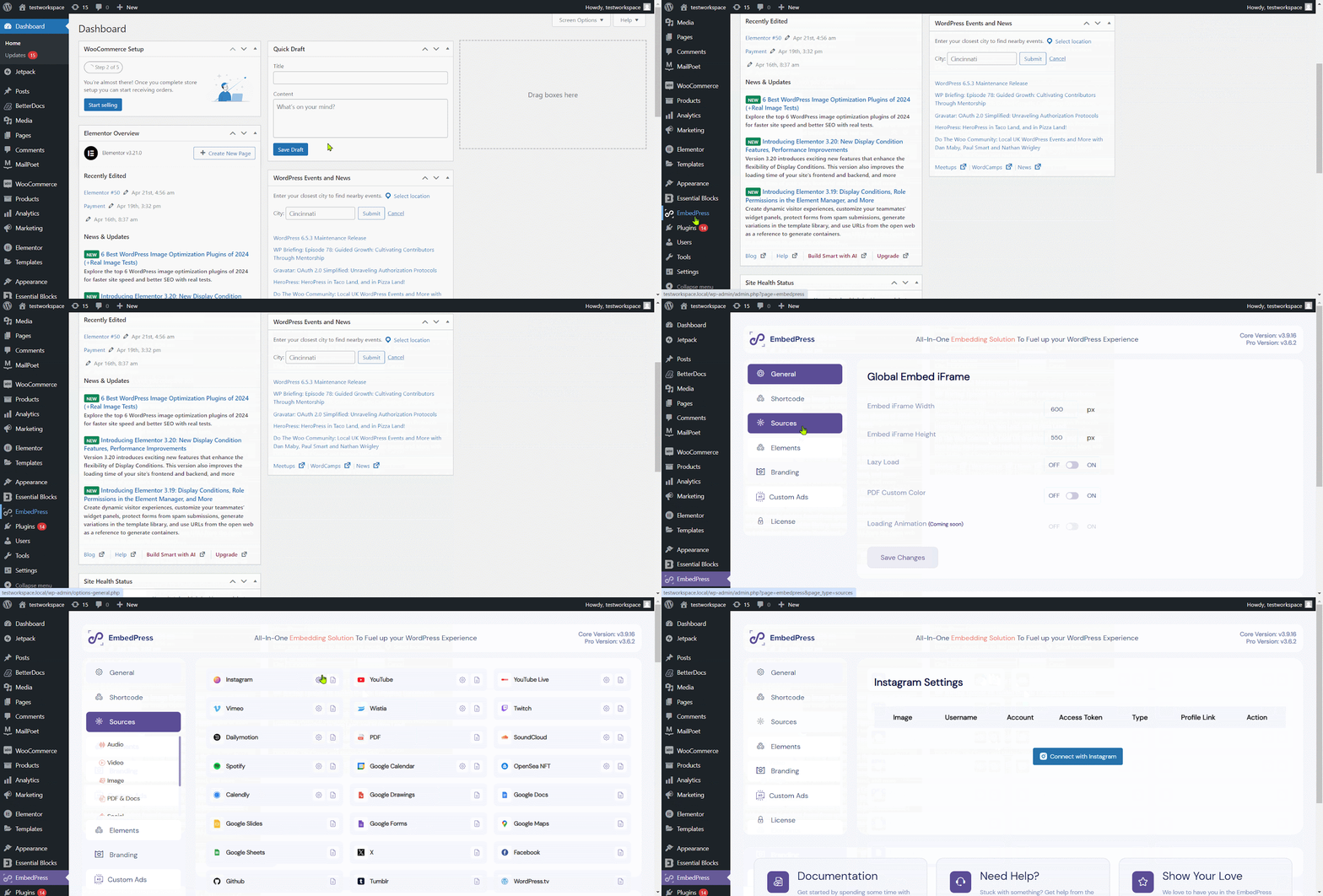
You will see an option to Connect Your Instagram. Click that, and choose the account type when prompted – either a Personal or a Business Instagram account, depending on which one you want to embed.
Next, you will be asked to provide an Access Token for your Instagram. This token is essentially a special key that lets the plugin read your feed. If you do not have an access token yet, follow this guide to learn how to generate an Instagram Access Token. Once you have obtained that token, paste it into the provided field and save your changes.
Your site is now linked to Instagram. EmbedPress supports both personal and business Instagram accounts. So, whichever one you connected, you are good to go.
Step 3: Embed the Instagram Feed in a Page or Post
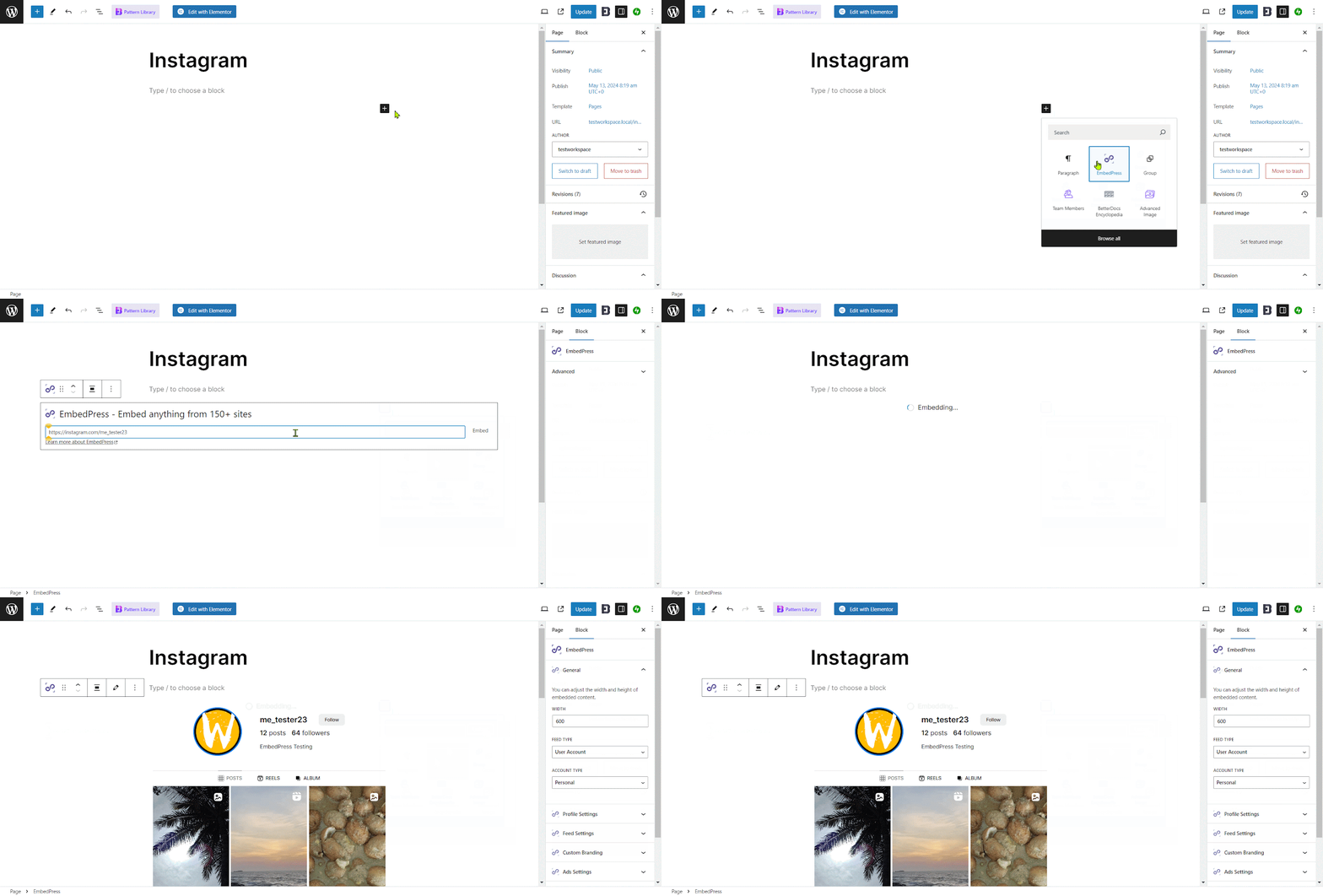
Open the WordPress page or post where you want to display your Instagram feed. In the editor (if it is a Gutenberg block editor by default), search for the EmbedPress block and add it.
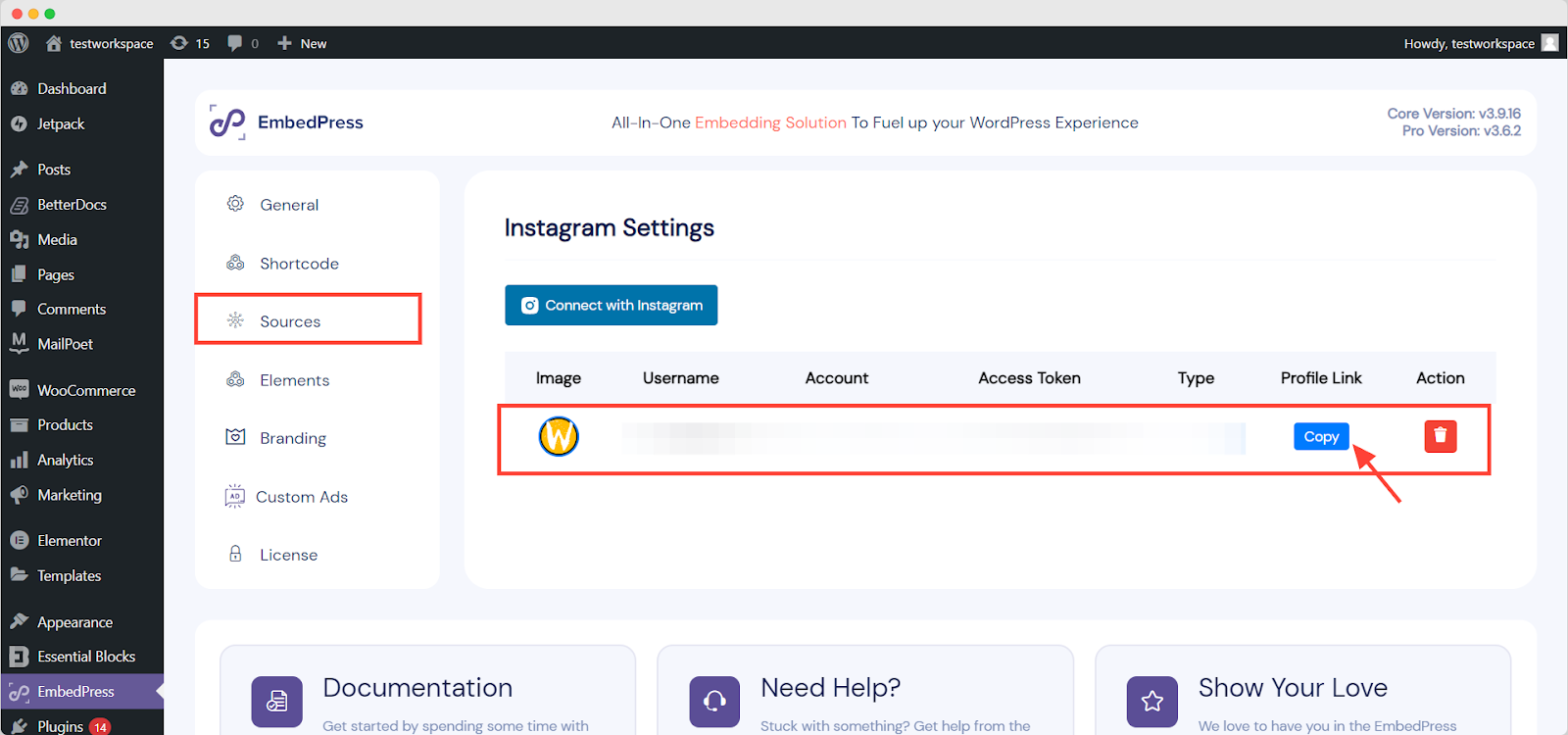
Now, go back to ‘EmbedPress → Sources → Instagram’ in your dashboard (the same place you entered the token). There, copy the Profile URL for your connected Instagram account. Return to the page editor and paste this URL into the EmbedPress block’s input field. Then, click the Embed button.
You should see your Instagram feed appear right inside the editor in seconds. It will pull in your most recent Instagram posts and display them. At this point, it might be showing in a default layout (likely a grid of thumbnails). But we are about to customize it into a horizontal layout next.
[💡 Note: If you are using a different editor, in the Classic Editor, you can paste the same URL into the content area and it will work similarly. In Elementor, there is an EmbedPress widget – drag it into your page and paste the URL in the widget’s settings. The feed will load there.]
Step 4: Customize the Feed Layout to Horizontal
EmbedPress provides a bunch of customization options in the block sidebar to control how your embedded Instagram feed looks – you can adjust dimensions, toggle elements on/off, and more. Let us make use of them to get our horizontal feed.
Find the Feed Layout or Display option. EmbedPress allows you to choose from different layout styles for the Instagram feed. To create a horizontal feed, select the Carousel layout. The moment you switch to Carousel, your feed preview should reformat into a row of images that you can scroll through sideways.
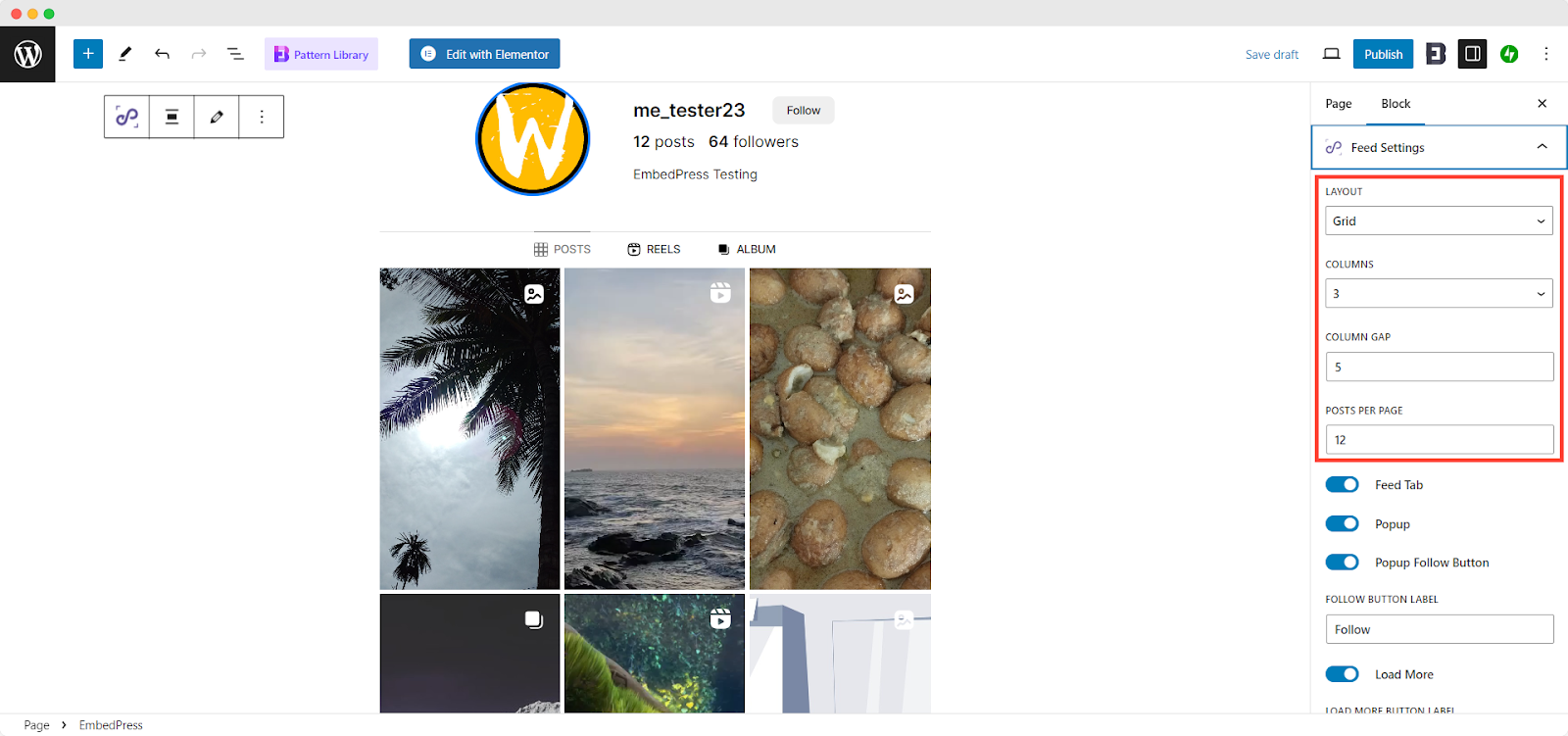
You might want to adjust how many posts are visible at once in the carousel. Depending on your page width and the look you’re going for, you could show, say, 4 or 6 images in a row by default.
Finally, alongside other adjustments, consider responsiveness. The good news is your horizontal feed will automatically be responsive – on mobile devices, it will likely turn into a swipeable carousel one or two images wide. As you make these adjustments, you will see the preview updating in real time.
Step 5: Publish And Display Your New Horizontal Feed
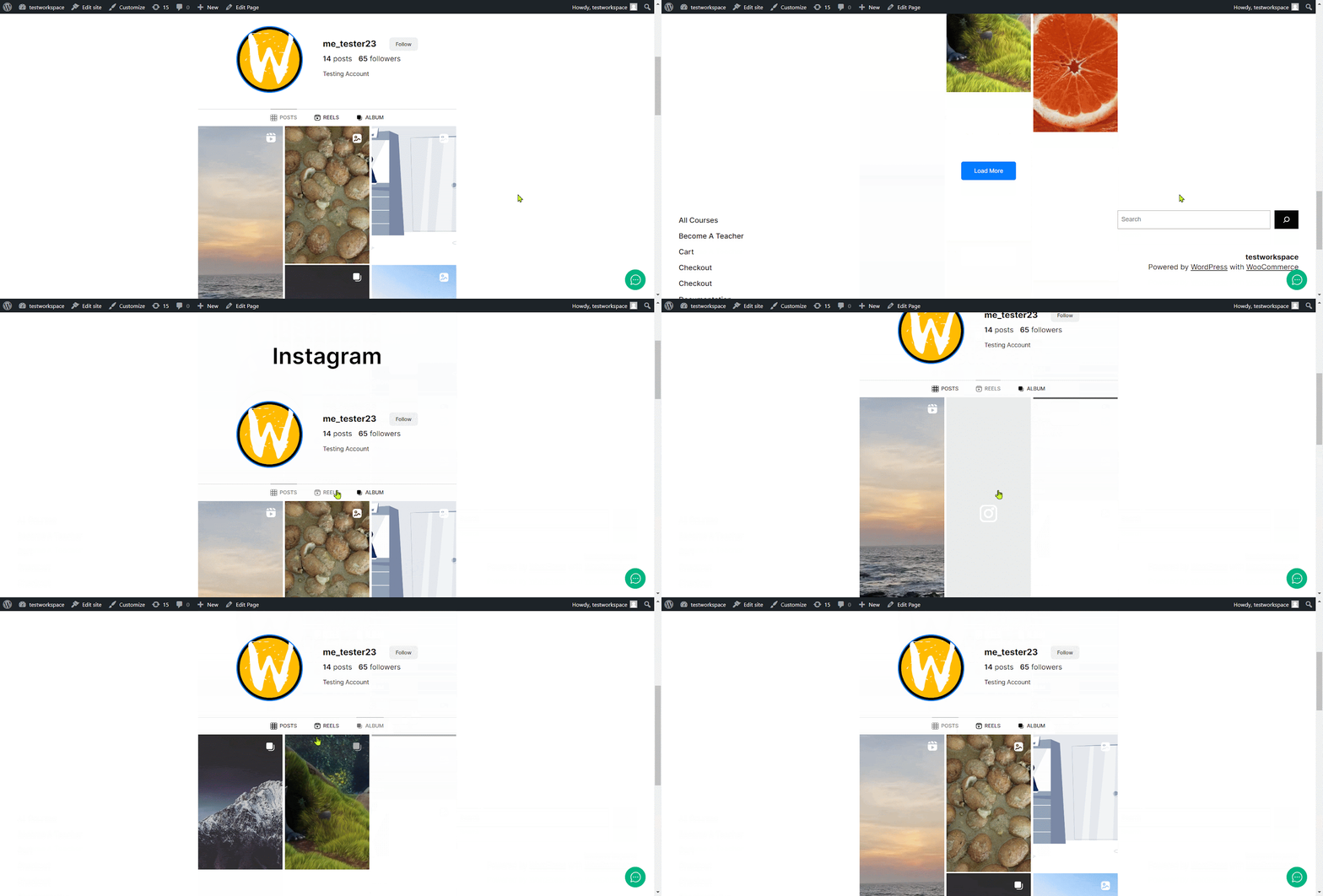
The last step is easy: save or publish the page. Once you do, visit your site’s front end to see your new WordPress Instagram feed in action. You should see your horizontal Instagram feed live and functional on the page.
🎉 Engage Your Audience with a Stunning Horizontal Instagram Feed
By now, you have seen that showcasing a horizontal Instagram feed on WordPress does not require hiring a developer or messing with complex code. With the right approach – and especially with a handy tool like EmbedPress, anyone can make a WordPress Instagram feed live in action.
Not only have you made your site more attractive with that horizontal Instagram feed on WordPress, but you have also implemented one of the most effective ways to increase engagement on your Instagram profile.
If you have found this blog helpful, share your opinion in the comment section and get connected to our Facebook community. You can also subscribe to our blogs for valuable tutorials, guides, knowledge, tips, and the latest WordPress updates.