Do you want to show your PowerPoint presentations straight on your WordPress website without sacrificing their visual appeal or interactivity? Embedding PowerPoint slides can be a powerful way to engage visitors and share information. However, doing it correctly is not always easy. Many users struggle to find the best approach, facing challenges such as format compatibility issues and awkward embeds that do not look good on mobile devices.
In this blog, we will show you how to embed PowerPoint presentations in WordPress in the most efficient ways possible without having to deal with complicated code. Plus, we will introduce a hassle-free plugin that can make the process even smoother. Start reading.
Major Hassles Users Face While Displaying PowerPoint Presentations in WordPress
If you have experience embedding Google sources and OneDrive sources, you may find that it can be challenging to display OneDrive content effectively. There are many reasons behind it. Not getting a scalable embedding option, not knowing the perfect plugin to help you with embedded and the list goes on.
After surveying common users, we have listed down the common challenges users often encounter while displaying PowerPoint presentations or any OneDrive Sources:
- Limited Support for PPT Files: WordPress does not natively support PowerPoint files, especially in the default Gutenberg editor. It becomes tricky to display presentations seamlessly.
- Broken Formatting: Uploading or converting slides often leads to distorted layouts, missing fonts, or animations that do not work. So, the end users see broken layout files that create no value for them.
- Responsiveness Issues: When you are previewing large files like PowerPoint presentations on a website, you have to keep in mind that not all your users are using a laptop to see it. Many methods do not render well on mobile devices, affecting user experience.
- Slow Loading Time: Large presentation files can impact page speed if not embedded properly, if you upload them directly to the website. That is why some users skip displaying the PowerPoint presentation and provide a preview link that will take them to the source.
- Complex Setup with Code: Embedding manually with code or iFrame often requires technical know-how, which is not ideal for beginners. So, if you are a non-coder and want to display PowerPoint presentations on a website, you either need to hire someone to customize them or keep them as they are by default, as OneDrive lets you do.
3 Easy Ways to Embed PowerPoint Presentations in WordPress
If you want an expert’s opinion, then the best way to showcase PowerPoint presentations is with an embedding plugin. Plugins like EmbedPress let you embed PowerPoint presentations in WordPress websites effortlessly. You can easily customize the embedded content appearance and make it mobile-responsive and interactive without depending on custom code.
Apart from this convenient method of embedding PowerPoint presentations, there are also a few other ways. We have described them below.
Method 1: Use EmbedPress Plugin to Embed PowerPoint in 1 Click
Let us go into more detail about why we believe that EmbedPress is the best choice for embedding PowerPoint presentations. You can also embed PowerPoint presentations with other document/PDF plugins, but you have to upload them first. This way, you can not make further changes; it becomes static.
EmbedPress keeps you hassle-free; you need to upload the presentation. All you have to do is collect the shareable link and paste it in EmbedPress. Your PowerPoint presentation will be embedded with one click. No dependencies with custom coding. You can customize the height and width, update the theme and so on. And you can do all these for free.
Also, not only PowerPoint presentations, but EmbedPress also lets you embed Google Slides, SlideShare, etc., in one click, without custom coding.
Method 2: Upload PowerPoint Presentation as PDF & Then Preview It
Way back then, it was not possible to showcase PDFs or any file type other than media on a website. Now, in the Default Gutenberg editor, you will get a File block. Using it, you can upload the PowerPoint presentation as a PDF and preview it with a file block. You can also use PDF or document plugins to showcase a presentation.
However, the drawback is that you are unable to make changes in real time; all of your used slide effects will be inactive and the slides will not show up interactively as you want. Also, in this way, you can embed only in Gutenberg or some selected page builders. So, going for this method is not recommended.
Method 3: Use Custom Embed Codes to Showcase PowerPoint Presentations
Yes, OneDrive provides embed codes for all its sources. Using that code, you can easily embed PowerPoint, Excel, etc. easily. But, if you are not familiar with coding, then it may seem difficult for you to modify them, make custom changes. You cannot update the iFrame or add extra customization instructions through code. Also, the Gutenberg editor has an HTML block, but not all page builders do. Because of this, this method is not scalable for everyone.
Step-by-Step Guide: How to Embed PowerPoint Presentations without Coding Using EmbedPress
After exploring all the methods, we can say that the best way to embed PowerPoint presentations is using EmbedPress. Here is the step-by-step guideline to embed PowerPoint presentations without coding.
Before getting into the tutorial, make sure you have installed and activated EmbedPress on your website.
Step 1: Collect PowerPoint Embedding Links
Before embedding, you need to collect a shareable URL. Log in to OneDrive and open the PowerPoint workbook you want to embed. Now, from the sheet page, click File → Share, then choose the ‘Embed this presentation’ option.
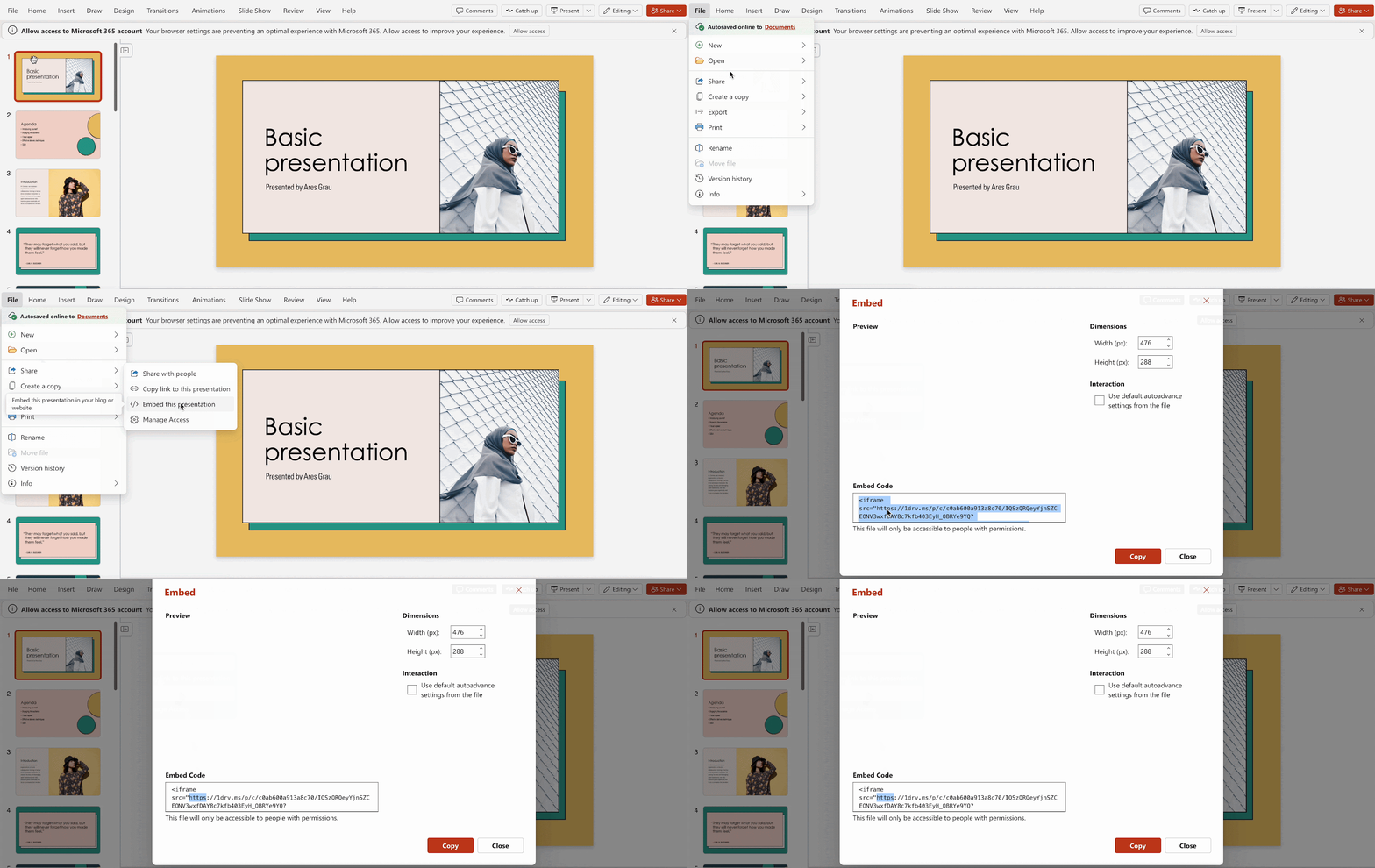
Select Generate to create the embed code. Expand the Interaction options if you want to control viewer permissions, like printing or navigation. Once done, copy the source URL from the generated embed HTML code from the preview box, as shown below.
Step 2: Embed PowerPoint Presentations from Gutenberg Editor
You are ready to add it to WordPress. Let us see how to embed PowerPoint presentations in the Gutenberg editor. Open the Gutenberg editor on the page or post where you want the PowerPoint. Click the “+” button, search for the EmbedPress block and insert it.
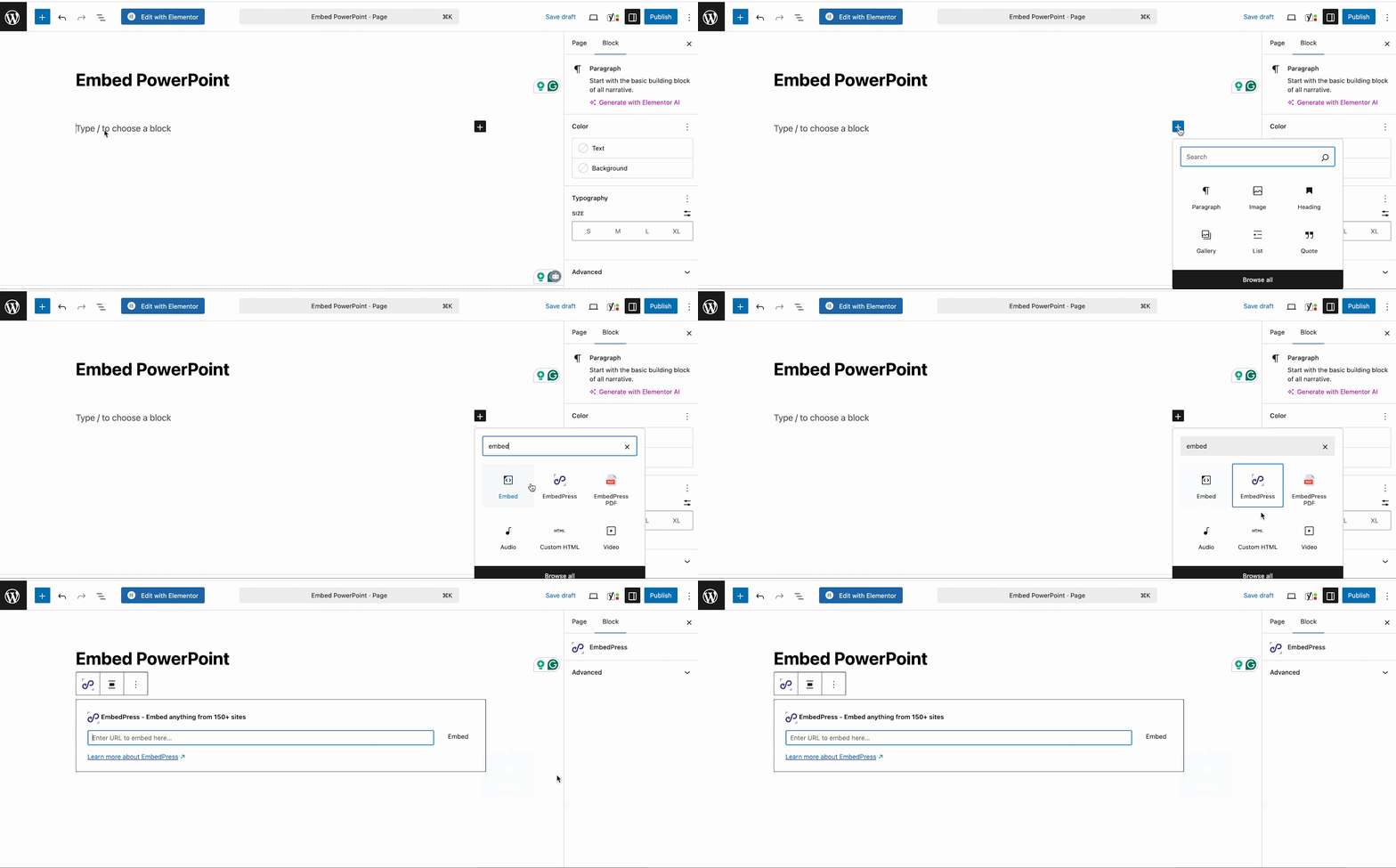
Paste the URL you copied from PowerPoint into the block’s input field. You can see the presentation is showing instantly on the Gutenberg Editor.
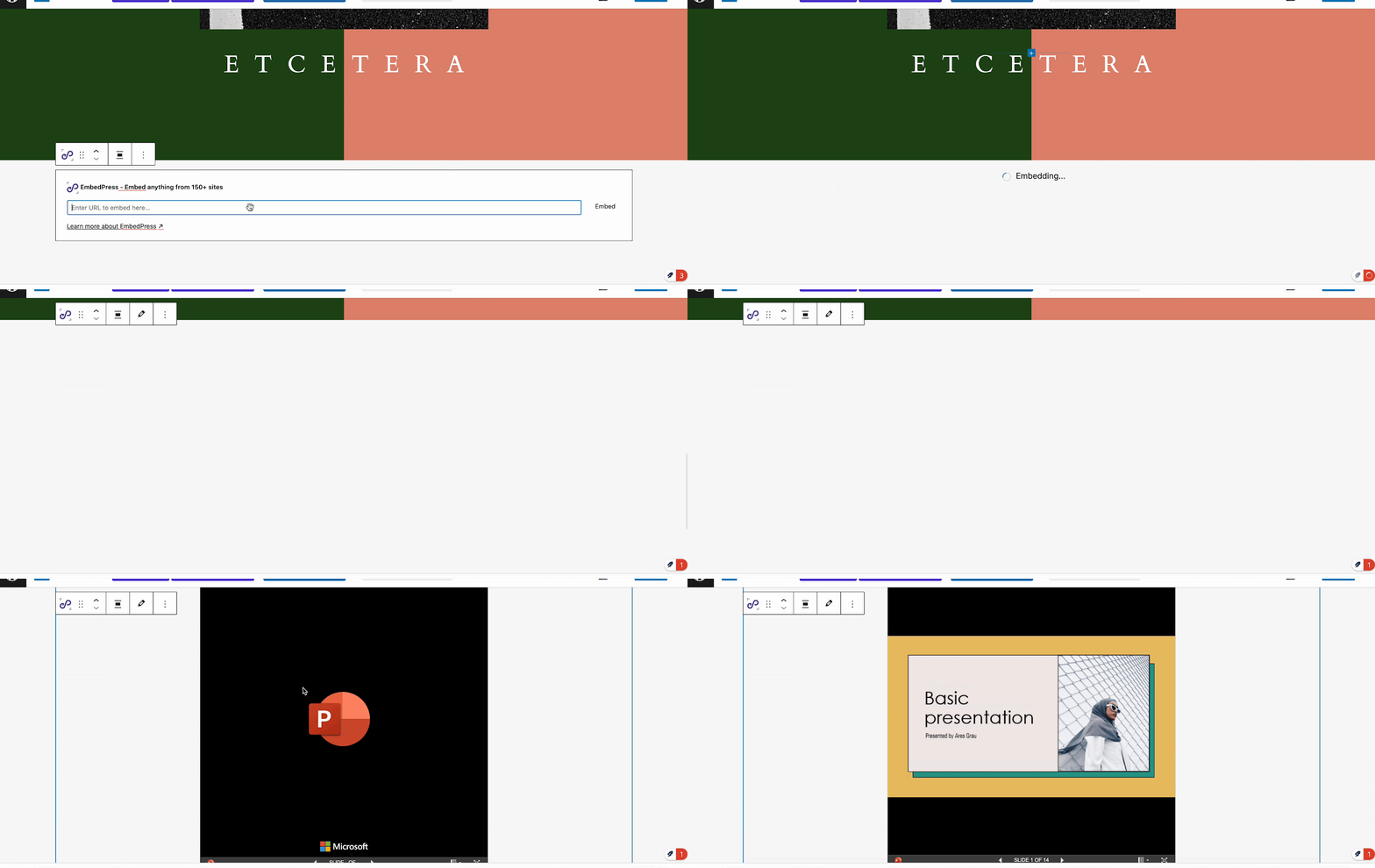
Step 3: Customize the Embedded Content Appearance
From the right-side editing panel, you can then use block settings to adjust dimensions. You can also explore advanced EmbedPress features, such as Content Protection and Social Share.
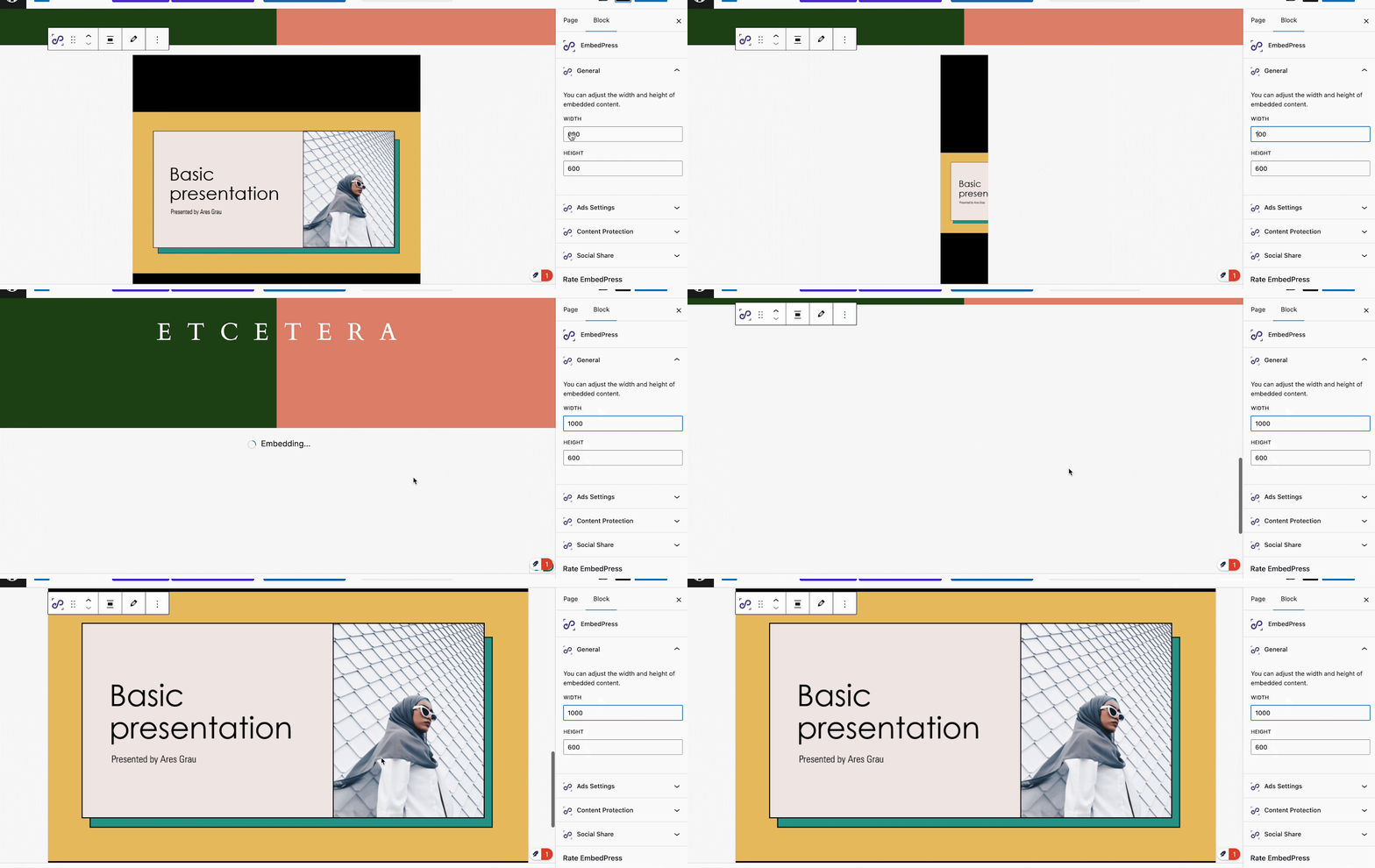
Publish It & Display Embedded Presentations with Your Visitors
After making all the changes, publish the page. In the frontend, you can see that the PowerPoint presentation is displaying beautifully. This is how you can embed presentations from OneDrive in WordPress without the embedding codes.

💡 Bonus: Use EmbedPress to Embed PowerPoint Presentations from Elementor and Other Page Builders
In a similar way, you can embed PowerPoint presentations from Elementor website builders as well. To do that, open the page in Elementor editor, search for EmbedPress widget and add it. Then paste that copied URL in the embed field. Your presentation will be embedded instantly. You can also customize the appearance and adjust it with your website theme.
![How to Embed PowerPoint Presentations in WordPress? [3 Easy Ways]](https://embedpress.com/wp-content/uploads/2025/12/image-5-1024x432.jpeg "How to Embed PowerPoint Presentations in WordPress? [3 Easy Ways] 8")
Are you using Divi or Beaver Builder to create a website? You can also embed PowerPoint presentations with EmbedPress. There is a stunning feature, Shortcode. From the EmbedPress dashboard, navigate to the Shortcode generator and paste the shareable link there. The shortcode for embedding will be generated instantly. You can now paste it into any page builder, and your presentation will preview without any issues.
This is how easily you can embed PowerPoint presentations in WordPress using EmbedPress. With one plugin, EmbedPress, you can preview any source content you want with a click. No coding needed.
If you get stuck in the middle, feel free to reach out to our prompt support team. Also, subscribe to us and keep getting insightful tips and tutorials.