Looking for a way to display Word Documents in WordPress without uploading the .docx file or messing up your formatting? You are not alone. Many WordPress users struggle to show Word documents on their sites seamlessly. The default approach – copying and pasting content or forcing visitors to download a file – can be clunky and time-consuming.

Well, the good news is, there is a much easier solution to embed and display Word Documents in WordPress websites directly, keeping all the formatting intact and giving readers an interactive experience. In this guide, we will explore exactly how to do that in a few simple steps.
Why Go Beyond Importing .Docx Files?
Before diving into the solution, let us address the core issue. Simply importing or copying content from a Word document into WordPress often does not work for most. Why? Because things can go wrong – terribly wrong.
When you add a Word document to WordPress by copy-pasting, the text may come over, but the formatting usually does not. Headers, fonts, spacing and especially images or tables can break or lose styling. You might spend hours fixing alignment and re-uploading images that got lost in transition. Not fun.
Also, uploading a .docx file directly to WordPress only offers your visitors a download link, not an on-page view of the document. This means readers have to leave your site just to read the content or download the file and open it on their device. It is an extra hurdle that many will not bother with.
Instead, embedding has now become a far more desirable solution. By choosing to embed Word Documents in WordPress instead of forcing downloads, you keep visitors on your page and let them read the document just like it is part of your blog post or webpage.
Another big reason to display Word Documents in WordPress via embedding is maintaining consistency and control. For example, if you update the original Word file, you want those changes reflected on your site automatically. If your document is stored on a cloud service like OneDrive, an embedded view will automatically show your latest updates.
Finally, WordPress by itself does not natively support embedding Word files in posts. There is no built-in Word document viewer in WordPress core that lets you display the content of a .docx on a page. This is why clever workarounds (or plugins) are needed.
You could try manual methods – for example, upload your doc to Google Drive or OneDrive, tweak the share settings, generate an embed code, then paste that iframe code into your page in HTML mode. It does work, but there are a lot of complex steps and not very user-friendly. Plus, managing embedded code can be error-prone (one wrong tag and it breaks!).
So, what is the simplest way? How can you show Word Documents in WordPress without the headaches of manual coding or losing your formatting? Let us introduce the hero of our story: EmbedPress.
EmbedPress – The Easiest Way to Display Word Documents in WordPress

A tool that turns embedding documents into a copy-paste job – that is exactly what the EmbedPress plugin does. It is a popular WordPress plugin that allows you to embed Word files in WordPress effortlessly – no special coding, no manual iframes – just pasting a link from OneDrive.
Why EmbedPress plugin? Because it eliminates the complexity. While traditional methods involve struggling with embedded code snippets or iFrame tags, EmbedPress offers a hassle-free solution.
But convenience is just one part of the story. EmbedPress comes with a bunch of must-have features that give you an improved embedding experience compared to manual methods. Here are some key benefits of using EmbedPress to embed Word Documents in WordPress:
Preserves Formatting & Accessibility
Your embedded document will look just like it does in Microsoft Word – complete with proper layout, fonts, images and even interactive features like hyperlinks. This makes your audience able to read the document on your site as if it were a part of the page.
No More Code or iFrames
You do not have to touch a single line of code. EmbedPress supports 250+ content types (including Word docs, PDFs, videos, maps and more) that you can embed instantly. For Word documents, it uses the official Microsoft Office web viewer under the hood. So, it is like having a dedicated Word document viewer that WordPress users could want.
Automatic Updates
If your Word document lives on OneDrive (or a similar cloud service), any changes you make to the file will automatically reflect on your website’s embedded view. This is a huge advantage over uploading a static file. You embed a OneDrive Word document in WordPress once, and never worry about it getting outdated.
Works with Any Editor
Whether you prefer the default Gutenberg block editor, the Classic Editor or a website builder like Elementor, EmbedPress has you covered. It provides a dedicated block and widget, making it easy to embed Word files in WordPress across different editors with equal ease.
Customization & Controls
Once the Word doc is embedded, you can customize how it appears. Adjust the width/height to fit your page design, or switch between responsive modes. EmbedPress also offers interactive controls like zoom and navigation by default and even advanced features like content protection. Plus, the plugin lets you enable things like social sharing buttons on the document, or even insert custom ads over the embeds. In short, it is more than just embedding – it is enhancing the way you display Word Documents in WordPress.
How to display Word Documents in WordPress Using EmbedPress (Step-by-Step)
We will now outline the steps below to embed a .docx in WordPress using EmbedPress. By the end, you will have your Word document live on your site, visible to visitors without them needing to download anything. Ready? Let us get started.
[Before you begin, make sure you have the EmbedPress plugin installed and activated on your WordPress site.]
Step 1: Prepare Your Word Document for Embedding
Before embedding, you need to set proper sharing and generate the embed code. Log in to OneDrive and open the Word document you want to embed. Now, from the document page, click File → Share, then choose the ‘Embed this document’ option.
Next, click the Generate button to create an embed code. OneDrive will show some options (for example, you can toggle whether people can print the document in the view).
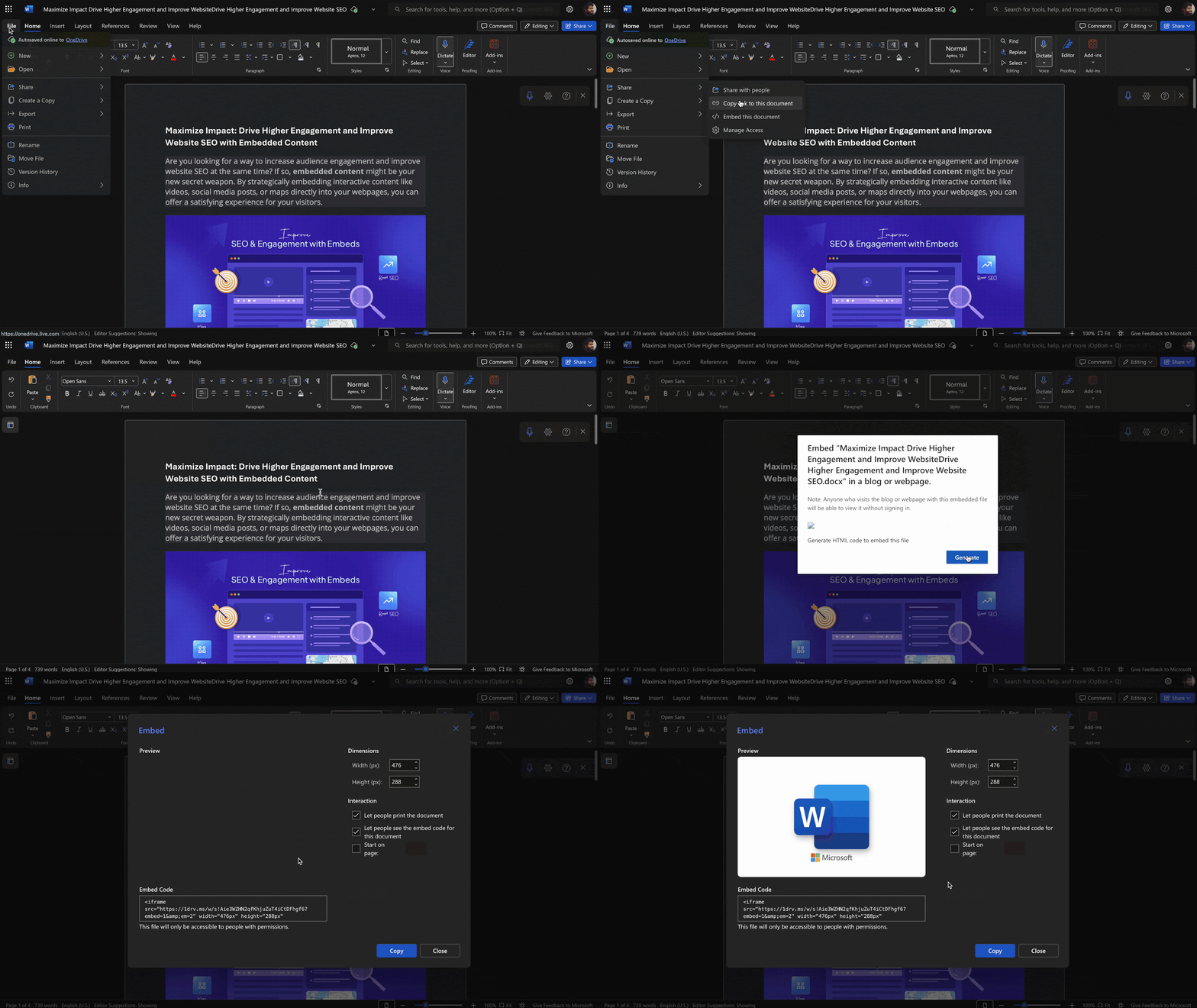
Finally, it will provide an embed code snippet. Copy the source URL from that snippet’s preview – it will look something like https://1drv.ms/w/some-long-id.
Step 2: Add the EmbedPress Block (or Widget)
Now, head over to your WordPress dashboard and create a new post or page (or edit an existing one where you want the document to appear). Click the “+” button, search for the EmbedPress block, and insert it.
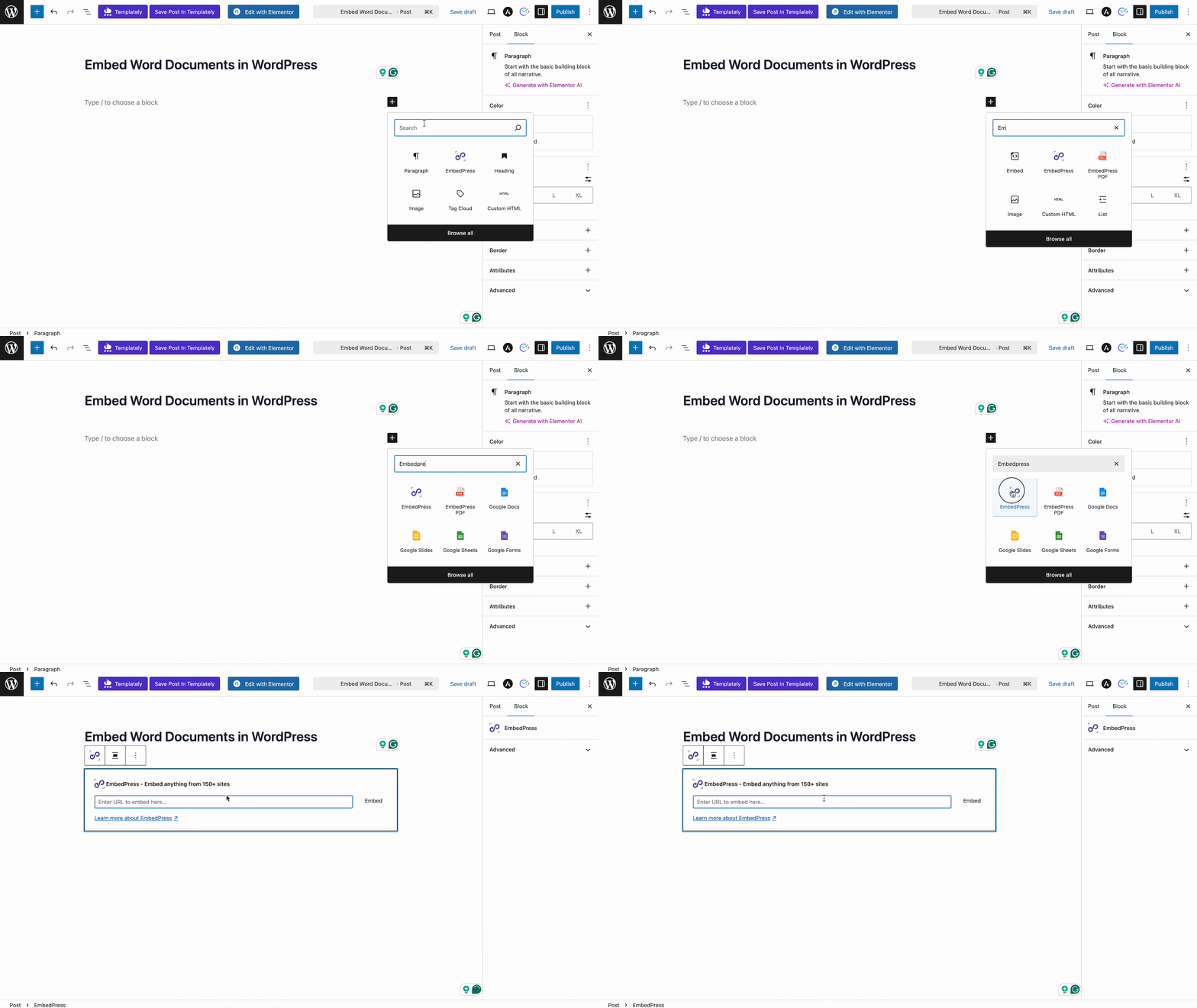
For Elementor, search for the EmbedPress widget in the Elementor panel and drag it into your page layout. The concept is the same across editors: you are providing the embed URL via EmbedPress’s interface.
Step 3: Paste the URL and Embed
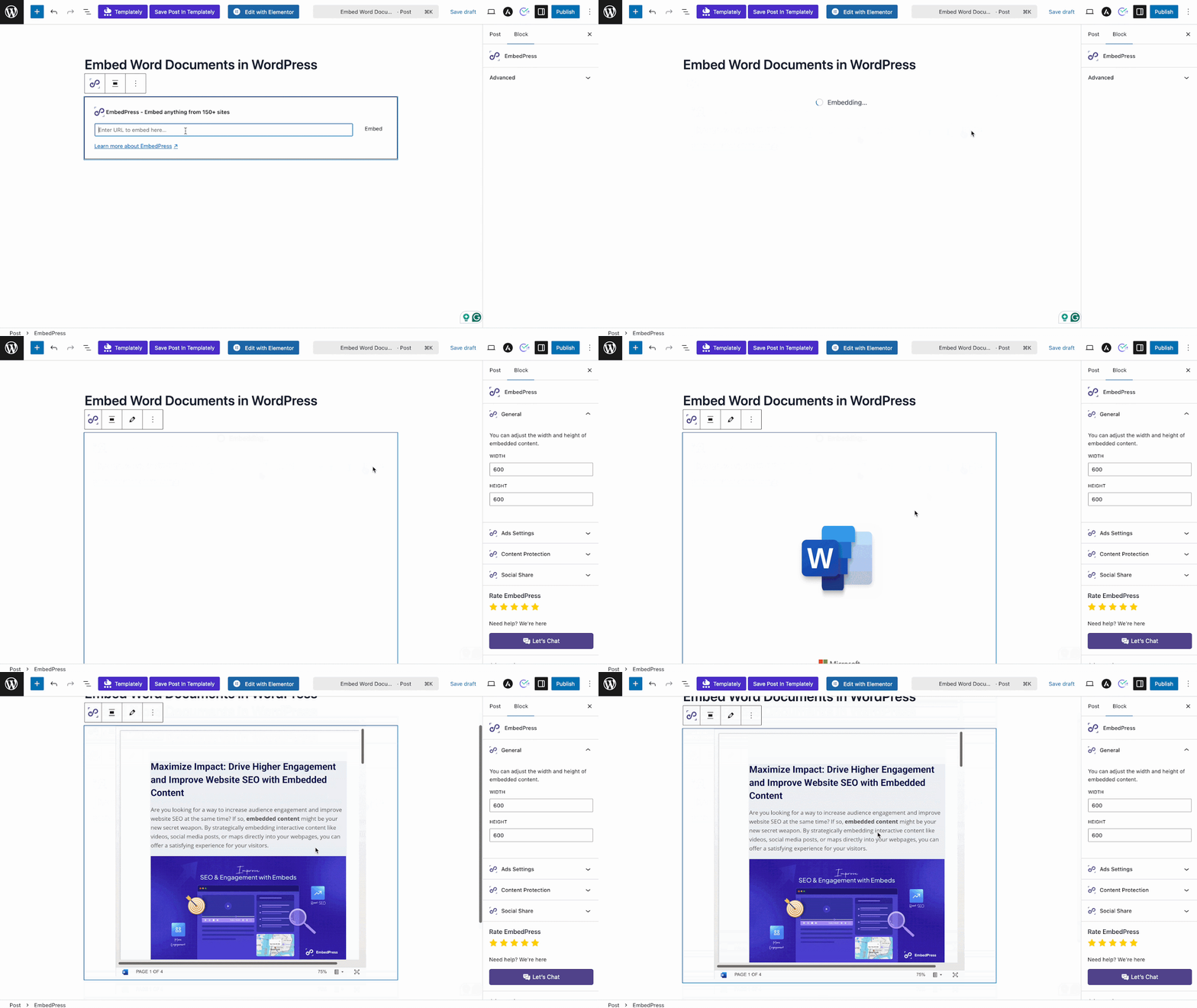
Next, paste your copied URL from Word’s generated HTML code or shareable URL into the block’s input field. Usually, as soon as you paste the link, EmbedPress will recognize it and fetch the content.
Step 4: Adjust Display Settings (Optional)
While the heavy lifting is done, you might want to tweak how the embedded document is displayed for optimal viewing. Click on the embedded document block to see the settings/options available. You can adjust the width and height to make it fit perfectly within your page layout.
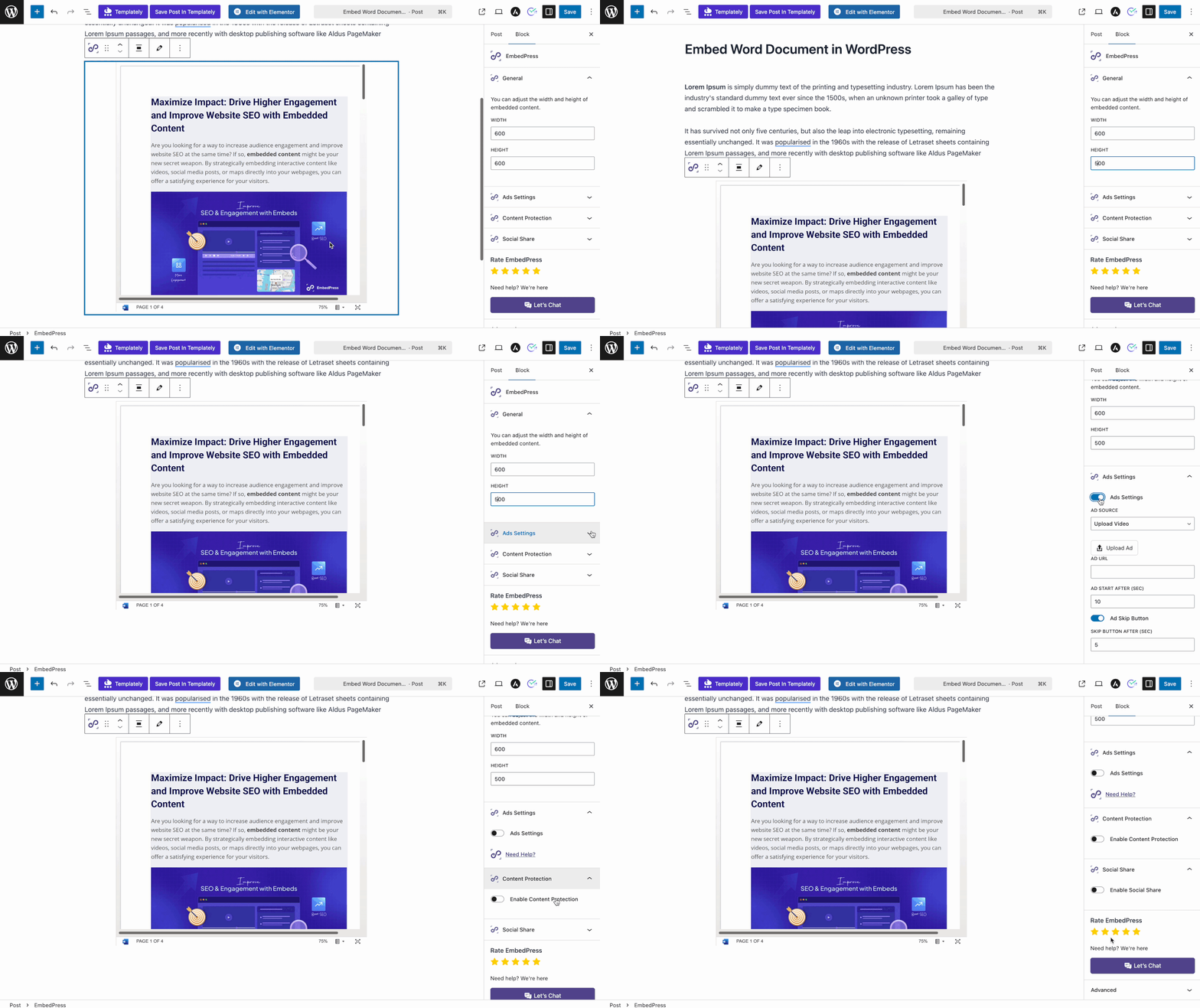
EmbedPress also offers some interactive controls you can toggle. For instance, you could use Content Protection features. You might even find options like Ads Settings (to show an ad overlay on your embedded content) or Social Share buttons that viewers can use to share the document. Customize these as you see fit. The goal is to ensure the embedded document looks and works the way you want before publishing.
Step 5: Publish And Enjoy
That is it! Save or publish your page/post. Now, anyone visiting your site will see the Word document displayed neatly within the content. They can read it on any device because the embed is fully responsive and mobile-friendly. The document can be navigated just like a PDF viewer or an online Word viewer – users can scroll through pages, and depending on settings, they might flip pages, zoom in/out, or download/print if you allowed those options.
You have successfully chosen to embed OneDrive Word document in WordPress (via EmbedPress) instead of uploading it as a dull file link. The result is a professional-looking embedded document that keeps readers engaged on your site.
If you want a more detailed guide with step-by-step instructions, you can check out this documentation. It has every process discussed, from accessing the OneDrive workspace to publishing on your WordPress website.
Who Can Benefit from Embedding Word Documents in WordPress?
Not sure if this is useful for your site? If you need to share documents with visitors without forcing downloads, this feature can be a perfect fit. Here are a few common use cases:
- Company policies & HR documents (leave policy, employee handbook, compliance rules)
- Product manuals & user guides (setup steps, troubleshooting docs, feature instructions)
- Reports, proposals & case studies (business reports, project proposals, client-ready docs)
- Educational content & study materials (lesson notes, assignments, worksheets, training resources)
Display Word Documents in WordPress & Enhance Site Experience
In this article, we showed you how to display Word Documents in WordPress without the need to import or manually copy over a .docx file. Instead of wrestling with formatting issues or forcing your users to download files, you now have a simple, elegant solution: embedding the document directly into your webpage with EmbedPress.
So go ahead – give it a try on your own site. Install the EmbedPress plugin, grab a Word file you would like to share and embed away. In just a few clicks, you will display Word Documents in WordPress exactly as you envisioned, no importing required.
If you have found this blog helpful, share your opinion in the comment section and get connected to our Facebook community. You can also subscribe to our blogs for valuable tutorials, guides, knowledge, tips and the latest WordPress updates.