If you are here, you are probably trying to embed Google Docs in WordPress (or a Sheet, Form or Calendar) and want it to look clean without breaking on any device.
Over 3 billion people use Google Workspace products every month, according to Google’s official statistics. Yet most WordPress users struggle to display their Google Docs, Sheets, Forms, and Calendars on their websites – often jumping between fragmented tutorials that only cover one product at a time.
This guide puts everything in one place. Whether you are embedding a Google Doc for company policies, displaying live pricing data from Google Sheets, collecting leads through Google Forms or showing your event calendar, you will find all the steps here – organized, practical and easy to follow.
According to W3Techs, WordPress powers 43.5% of all websites on the internet. When you bring WordPress together with Google’s collaboration tools, you get a powerful ecosystem for businesses, bloggers and organizations of all sizes.
Quick Summary (TL;DR)
Short on time? Here is what you need to know fast. If your main goal is to embed Google Docs in WordPress (and keep everything responsive), this expert guide helps you pick the right route instantly.
| If You Want To… | Use This | Best Method | Time Required |
| Share documents, guides, or policies | Google Docs | EmbedPress plugin | 2-3 minutes |
| Display live data, pricing tables, or dashboards | Google Sheets | EmbedPress plugin | 2-3 minutes |
| Collect user information, surveys, or registrations | Google Forms | Manual iframe or EmbedPress | 3-5 minutes |
| Show events, bookings, or availability | Google Calendar | EmbedPress plugin | 2-3 minutes |
Industry Expert Recommendation: WordPress developers (as sourced by WordPress Developer Resources) consistently recommend using dedicated embed plugins over manual iframe methods for better responsiveness, easier management, and consistent styling across devices.
- Best for Beginners: EmbedPress plugin – One-click embedding with no coding required
- Best for Developers: Manual iframe method – Full control over customization and styling
- Best for Businesses: EmbedPress Pro – Advanced features, including custom branding and analytics
Why Embed Google Products in WordPress?
Before diving into the steps, it helps to understand why embedding matters – so you choose the right Google product for the right job. And if your starting point is to embed Google Docs in WordPress, the same benefits apply across Sheets, Forms and Calendar too.
Real-Time Synchronization
When you embed Google products in WordPress, changes sync automatically. Update a price in Google Sheets, and your website reflects it instantly – no manual updates, no republishing required.
According to a McKinsey Global Institute report, employees spend 19% of their workweek searching for and gathering information. Embedding Google products eliminates duplicate data entry and keeps your website perpetually current.
Enhanced Collaboration
Your team can update spreadsheets, documents and calendars from anywhere using Google’s familiar interface. These changes appear on your WordPress site in real-time, enabling seamless collaboration without requiring WordPress admin access for every team member.
SEO and User Engagement Benefits
Interactive embedded content increases time-on-page – a factor that Search Engine Journal identifies as a positive user engagement signal. Visitors who interact with embedded forms, calendars or documents demonstrate higher engagement than those who simply read static content.
Cost Efficiency
Google Workspace products are free for basic use. Combined with free WordPress plugins like EmbedPress, you can add sophisticated functionality to your website without subscription costs or developer fees.
Comparison: Manual Embedding vs. Plugin Methods
Before embedding any Google product, you will need to choose your method. Here is how the options compare (table content kept exactly the same). If you plan to embed Google Docs in WordPress more than once, this comparison will save you time later.
| Feature | Manual (iFrame) | EmbedPress (Free) | EmbedPress (Pro) |
| Setup Time | 5-10 minutes | 2-3 minutes | 2-3 minutes |
| Technical Skill Required | Basic HTML knowledge | None | None |
| Responsive Design | Requires manual CSS | ✓ Automatic | ✓ Automatic |
| Gutenberg Block Support | ✗ Custom HTML only | ✓ Native block | ✓ Native block |
| Multiple Embeds Management | Tedious | ✓ Centralized | ✓ Centralized |
| Custom Styling Options | Full (with CSS) | Moderate | Extensive |
| Lazy Loading | ✗ Manual setup | ✓ Built-in | ✓ Built-in |
| Branding Customization | Limited | Limited | ✓ Full control |
| Price | Free | Free | From $69/year |
When to Use Manual Embedding:
- You need granular control over iframe attributes
- You are comfortable with HTML/CSS
- You are embedding on a single page only
When to Use EmbedPress:
- You want the fastest, easiest setup
- You are embedding multiple Google products
- You need responsive embeds without CSS knowledge
- You prefer managing embeds from one dashboard
How to Embed Google Docs in WordPress
Google Docs embedding is ideal for displaying company policies, user guides, documentation, terms of service or any document you want visitors to read directly on your site. If you want a clean and repeatable workflow, learning how to embed Google Docs in WordPress properly is the best starting point.
Method: Using EmbedPress (Recommended)
This is the smoothest option for most users because it avoids messy code and usually stays responsive by default. If your goal is to embed Google Docs in WordPress without touching HTML, this method is built for that.
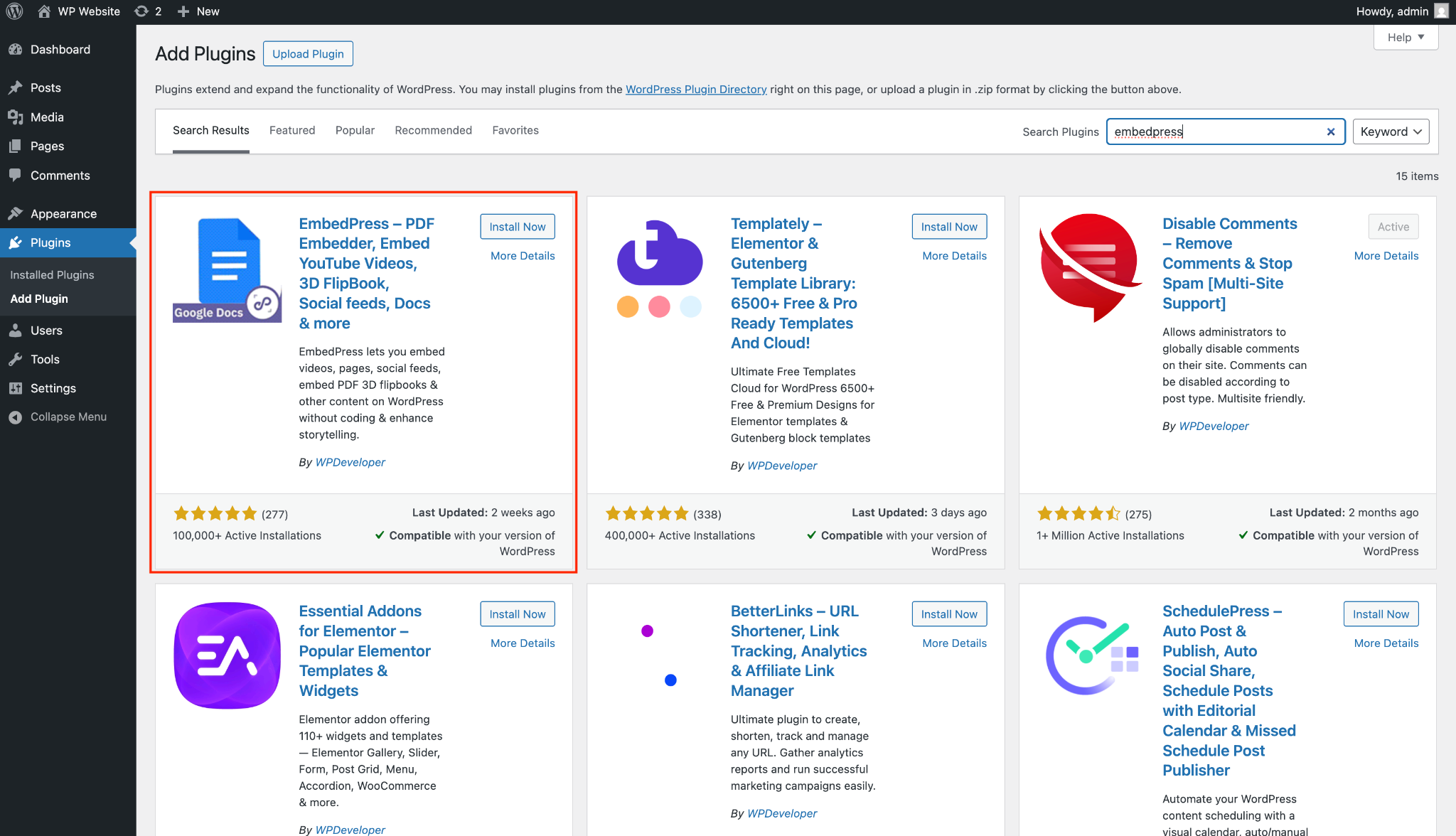
Step 1: Install and Activate EmbedPress
- In your WordPress dashboard, navigate to Plugins → Add New
- Search for “EmbedPress“
- Click Install Now, then Activate
Step 2: Prepare Your Google Doc
- Open your Google Doc
- Click File → Share → Publish to web
- In the pop-up, click Publish
- Copy the generated link (not the embed code – just the link)
[Important: Your document must be published to the web for embedding. Private documents will show an access error.]
Step 3: Embed in WordPress
- Edit the page or post where you want the document
- Add a new EmbedPress block (or paste the link directly in Gutenberg)
- Paste your Google Doc link
- The document appears instantly with responsive sizing
👉 Learn in detail: How to Embed Google Docs in WordPress
Best Use Cases for Google Docs Embedding:
| Use Case | Example | Benefit |
| Company Policies | Employee handbook, privacy policy | Always up-to-date, single source of truth |
| Documentation | Product manuals, how-to guides | Easy collaboration, version control |
| Terms of Service | Legal documents | Update once, reflect everywhere |
| Educational Content | Course materials, study guides | Students always see the latest version |
How to Embed Google Sheets in WordPress
Google Sheets embedding is perfect for displaying live data, pricing tables, comparison charts, schedules or any information that changes frequently. And once you know how to embed Google Docs in WordPress, the overall workflow here will feel very familiar.
Method: Using EmbedPress (Recommended)
Step 1: Prepare Your Google Sheet
- Open your Google Sheet
- Click File → Share → Publish to web
- Choose which sheet(s) to publish (entire document or specific tabs)
- Click Publish and copy the link
Step 2: Embed with EmbedPress
- Add an EmbedPress block to your page
- Paste the Google Sheets link
- Your spreadsheet appears with automatic formatting
👉 Learn in detail: How to Embed Google Sheets in WordPress
Best Use Cases for Google Sheets Embedding:
| Use Case | Example | Benefit |
| Pricing Tables | Product/service pricing | Update prices without editing WordPress |
| Live Dashboards | Sales metrics, KPIs | Real-time data visualization |
| Event Schedules | Conference agendas, class schedules | Collaborative updates from organizers |
| Comparison Charts | Feature comparisons, spec sheets | Easy to maintain and update |
| Public Data | Community resources, directories | Crowdsourced updates possible |
How to Embed Google Forms in WordPress
Google Forms is ideal for contact forms, surveys, event registrations, quizzes, order forms and any situation where you need to collect user input. If you already embed Google Docs in WordPress, Forms are a natural next step because they keep visitors on-page while collecting responses.
Method: Using EmbedPress (Recommended)
Step 1: Get Your Form Link
- Open your Google Form
- Click the Send button (top right)
- Click the link icon
- Check “Shorten URL” for cleaner links
- Copy the link
Step 2: Embed with EmbedPress
- Add an EmbedPress block
- Paste the Google Form link
- Adjust height to fit your form’s length
👉 Learn in detail: How to Embed Google Forms in WordPress
Best Use Cases for Google Forms Embedding:
| Use Case | Example | Benefit |
| Contact Forms | General inquiries | Free alternative to premium form plugins |
| Event Registration | Webinar signups, RSVPs | Automatic spreadsheet data collection |
| Surveys | Customer feedback, polls | Built-in response analysis |
| Quizzes | Knowledge tests, assessments | Auto-grading capabilities |
| Order Forms | Simple product orders | Google Sheets integration for tracking |
| Job Applications | Hiring processes | File upload support |
How to Embed Google Calendar in WordPress
Google Calendar embedding is perfect for displaying event schedules, booking availability, class timetables, appointment slots or any time-based information. And yes – the same “set it once and keep it updated” benefit you get when you embed Google Docs in WordPress applies here too.
Method: Using EmbedPress (Recommended)
Step 1: Make Your Calendar Public
- Open Google Calendar
- Click the three dots next to your calendar name
- Select Settings and sharing
- Under “Access permissions,” check Make available to public
- Choose visibility level (see all details or only free/busy)
Step 2: Get the Calendar Link
- In calendar settings, scroll to Integrate calendar
- Copy the Public URL to this calendar
Step 3: Embed with EmbedPress
- Add an EmbedPress block
- Paste the calendar URL
- The calendar displays with the default month view
👉 Learn in detail: How to Embed Google Calendar in WordPress
Best Use Cases for Google Calendar Embedding:
| Use Case | Example | Benefit |
| Event Schedules | Community events, classes | Public visibility, easy updates |
| Booking Availability | Consultant availability | Shows open slots automatically |
| Class Timetables | Fitness classes, courses | Recurring events support |
| Content Calendars | Editorial schedules | Team collaboration |
| Facility Booking | Room reservations | Multiple calendar overlay |
Advanced: Using EmbedPress for All Google Products
While manual embedding works, EmbedPress offers significant advantages for managing multiple Google embeds across your WordPress site. If you plan to embed Google Docs in WordPress plus Sheets, Forms and Calendar across different pages, this is where things get much easier to manage.

Why Choose EmbedPress?
According to WordPress.org plugin statistics, EmbedPress has over 100,000+ active installations with a 4.9+ star rating, making it one of the most trusted embedding solutions in the WordPress ecosystem.
Key Benefits:
- Unified Management – Handle all embeds from one interface
- Popular Editors & Builders Compatibility – Works with Gutenberg, Elementor and any editor with Shortcodes
- Automatic Responsiveness – No CSS required for mobile-friendly embeds
- Lazy Loading – Improves page speed by loading embeds on scroll
- 250+ Sources – Beyond Google: YouTube, Vimeo, Twitter and more
- Content Protection – Protects your embeds with a password
- Custom Branding & Controls – Utilize Custom branding and players
- Embedded Analytics – Tracks, measures and takes actions based on performance
EmbedPress Free vs. Pro Comparison:
| Feature | Free | Pro |
| Google Docs embedding | ✓ | ✓ |
| Google Sheets embedding | ✓ | ✓ |
| Google Forms embedding | ✓ | ✓ |
| Google Calendar embedding | ✓ | ✓ |
| Google Maps embedding | ✓ | ✓ |
| Custom Ads | ✗ | ✓ |
| Embedded Analytics | ✗ | ✓ |
| Custom branding | ✗ | ✓ |
| Content protection | ✗ | ✓ |
| Custom Player | ✗ | ✓ |
Verdict: The free version handles all Google embedding needs. Pro is worthwhile for agencies, membership sites, or those needing advanced features like content protection, analytics and controls.
Frequently Asked Questions About Embedding Google Sources in WordPress
Can I embed private Google Docs in WordPress?
No. Google requires documents to be published to the web for embedding. However, you can use “Anyone with the link” sharing for limited access – viewers would need the direct link.
Do embedded Google Sheets update automatically?
Yes. Changes made to the original Google Sheet appear on your WordPress site automatically. The sync happens when visitors load or refresh the page.
Is it better to use a plugin or manual embedding?
For most users, EmbedPress (free) is the better choice. It saves time, handles responsiveness automatically and provides consistent results. Manual embedding makes sense only if you need very specific customization.
Will embedding Google sources slow down my WordPress site?
Embeds do add page weight. Mitigate this by using EmbedPress lazy loading, limiting embeds per page and using a caching plugin.
Do I need a Google Workspace account to embed these products?
No. Personal Gmail accounts can create and publish Google Docs, Sheets, Forms and Calendars for embedding. Google Workspace adds collaboration features, but it is not required.
What’s the best plugin for embedding Google products in WordPress?
Industry experts and WordPress developers widely recommend EmbedPress for its ease of use, reliability and comprehensive Google product support. It maintains a 4.9+ star rating on WordPress.org with 100,000+ active installations.
Make Your 2026 Google Embedding Roadmap Ready
Embedding Google products in WordPress bridges two of the world’s most-used platforms. With over 3 billion Google Workspace users and WordPress powering 43% of websites, this integration serves countless businesses, educators and content creators daily. And once you learn how to embed Google Docs in WordPress, everything else – Sheets, Forms and Calendar – becomes easier to repeat.
Expert Picks by Goal:
| Your Goal | Best Choice | Why |
| Best Overall Method | EmbedPress (Free) | Handles all Google products, easy setup and responsive |
| Best for Beginners | EmbedPress + Google Forms | No coding, immediate results |
| Best for Live Data | EmbedPress + Google Sheets | Real-time sync, professional display |
| Best for Events | EmbedPress + Google Calendar | Automatic updates, multiple views |
| Best for Documentation | EmbedPress + Google Docs | Version control, easy collaboration |
Your Action Plan:
- Install EmbedPress and embed your first Google product
- View on mobile devices to confirm responsiveness
- Enable lazy loading if embedding multiple products
- Check page speed and adjust if needed
The combination of Google’s collaboration tools and WordPress’s flexibility creates a powerful, cost-effective web presence. Start with one embed, master the process and expand from there.